GitLab Integration
Learn how to integrate GitLab with Sprinto to automate access reviews, version control checks, and compliance evidence collection.
GitLab is a web-based DevOps platform that enables teams to manage source code, CI/CD pipelines, issue tracking, code reviews, and project management in a single application.
Integrating GitLab with Sprinto allows Sprinto to automatically retrieve and evaluate your repository configurations to validate change management and access controls. This helps ensure enforcement of security best practices such as:
Multi-factor authentication (MFA)
Peer reviews before merge
Branch protection rules
Access control reviews
Audit logging
If you are running an on-premise GitLab, refer to our detailed integration guide for self-hosted GitLab.
Note
Sprinto takes read-only access through this integration and does not read or store your source code. The permissions granted are used only to compute configuration states and map compliance checks.
Sprinto checks for GitLab
Below are the available Sprinto checks for GitLab:
Gitlab group level MFA should be enforced
Peer review should be enforced for code changes
Merging of code changes should require passing status-checks
Branch Protection rules should be enforced for admins
Code changes should be reviewed by peers before merging
Code repo should be classified
Critical system access should be removed for offboarded users
GitLab access should be removed for offboarded user
Supported Environments
GitLab Cloud (gitlab.com) – Fully supported
Self-hosted GitLab – Supported for Change Management only
Self-hosted GitLab is not supported for Vulnerability Scanning
How It Works
Once connected, Sprinto integrates with your GitLab account using OAuth and continuously syncs metadata required for compliance monitoring.
Group and Subgroup Coverage
Sprinto automatically discovers your GitLab group hierarchy, including nested subgroups at any depth.
Selecting a parent group automatically includes all subgroups.
Monitoring applies across all levels, including repositories, users, and permissions.
Newly created subgroups are detected automatically during subsequent syncs.
This ensures complete coverage without requiring manual configuration for each subgroup.
Monitoring and Checks
Sprinto enables multiple monitors across access control, change management, and vulnerabilities.
Access Control Monitoring
Ensures all GitLab users have MFA enabled.
Detects offboarded users who still retain access.
Identifies unknown or unclassified users for review.
Change Management Monitoring
Verifies merge request approvals are enforced.
Ensures CI/CD status checks are required before merging.
Monitors branch protection settings, including admin overrides.
Vulnerability Monitoring
Imports vulnerability data from CI/CD pipelines.
Tracks remediation timelines against defined SLAs.
Multi-Connection Support
Sprinto supports connecting multiple GitLab accounts or instances. If a group is already tracked in one integration, Sprinto prevents duplicate tracking to avoid conflicts.
Permissions and Data Access
Sprinto uses OAuth 2.0 to securely connect to GitLab.
Permissions Required
The following scopes are required:
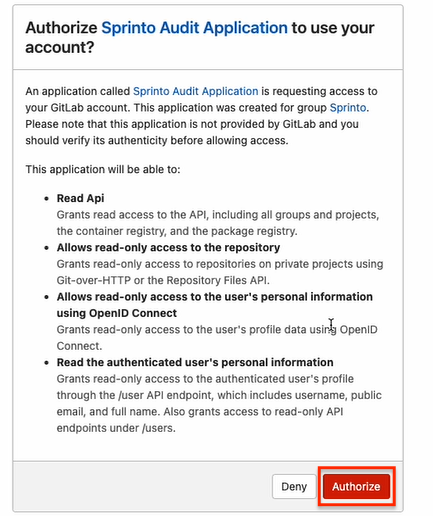
read_api– Access repository and configuration data.read_repository– Read repository metadata.read_user– Access user profile information.profile– Access user profile data through the /user API endpoint
Data Collected
Sprinto only collects metadata required for compliance:
Repository details (name, visibility, configuration).
Group and project configurations.
User roles and membership information.
Merge request metadata (excluding source code).
CI/CD configuration for vulnerability monitoring.
MFA status for users.
Sprinto does not access or store your source code.
All data is transmitted securely over HTTPS, and tokens are encrypted at rest.
Prerequisites
Before connecting GitLab to Sprinto, ensure:
You have Owner or Maintainer access in GitLab.
OAuth authorisation is permitted for your GitLab account.
For self-hosted GitLab:
The instance is accessible from Sprinto.
Required network configurations (firewalls, VPNs) allow API access.
Understand the permissions required for Gitlab here.
How to Integrate GitLab with Sprinto
Step 1: Connect GitLab in Sprinto
Log in to the Sprinto dashboard.
Navigate to Settings.
Open the Integrations section.
Search for GitLab in the All tab.
Click Connect next to GitLab.

On the integration drawer:
Review the supported controls and automated checks.
Review the permissions required and data used by Sprinto.
Click Next.

On the setup screen:
Confirm the connection type (OAuth).
Review the prerequisites.
Click Connect.
Important
Do not select the Are you using self-hosted GitLab Service? check box. For self-hosted gitlab integration, check here.

Step 2: Authorize Sprinto in GitLab
You will be redirected to GitLab.
Log in using:
Username and password, or
SSO options (Google, GitHub, Bitbucket, Salesforce, and so on)

Review the authorization screen for Sprinto Audit Application.
Click Authorize to grant access.

Once authorized, you will be redirected back to Sprinto, and the integration will be marked as Connected.
Post-Connection Configuration
After connecting GitLab, configure it within Sprinto to activate monitoring and compliance checks.
Initial Sync
Initial sync typically completes within 5–20 minutes.
Full compliance computation may take up to 24 hours depending on data size.
Change Management Configuration
Set GitLab as your Change Management source to track merge requests automatically.
Sprinto begins collecting evidence for code changes and approvals.
Access Control Setup
GitLab is added as a critical access system.
Sprinto tracks user access, MFA status, and offboarding compliance.
Sync Behaviour
Repository and user data sync periodically (typically every 12–24 hours).
Vulnerability data syncs every 6–12 hours.
Certain updates may reflect in near real-time depending on system events.
Vulnerability Scanning (Optional)
To enable vulnerability monitoring:
Add a scanning job (for example, SLScan) to your GitLab CI/CD pipeline.
Ensure reports are generated and stored as pipeline artifacts.
Sprinto automatically retrieves and maps vulnerabilities for compliance tracking.
Configure GitLab as a Change Management System
Navigate to Data Library > Change Management.
Click Add system under the Change Management Systems tab.
Click Add next to GitLab.
If integration was successful, GitLab will appear as Connected.
On the configuration page:
Review the groups selected for monitoring.
Click Add another group if needed.
Click Add as a change management system.
The groups selected in Change Management will begin to appear on the GitLab Integration sync.
Configure GitLab as a Critical Access System
To enable access reviews:
Navigate to Data Library > Access > Overview.
Click Add Critical System.
Select GitLab.
Click Add System.
After adding:
Select GitLab from the list of critical systems.
Under the Summary tab, click Configure for Access Validity.
Choose how access is managed:
All staff members are allowed access, or
Role-based access
Sync Timeline
After configuration:
Initial sync begins immediately.
Allow 15–20 minutes for the first data sync.
Full configuration computation may take up to 24 hours, depending on repository size and data volume.
Troubleshooting
Connection Issues
Re-authorise the integration if the OAuth token has expired.
Ensure the connected user still has required permissions.
Verify network connectivity for self-hosted GitLab instances.
Missing Repositories or Groups
Ensure the repositories are not archived or deleted.
Confirm the connected user has access to those repositories.
Verify the relevant groups were selected during setup.
MFA Enforcement Failures
Identify users without MFA in Sprinto.
Enable MFA for those users in GitLab.
Re-run the check to validate compliance.
Offboarded Users Still Have Access
Remove the user’s access from GitLab.
Wait for the next sync cycle.
The check will automatically pass once access is revoked.
Support
Please contact Sprinto Support If you have any queries related to the integration or need any assistance.
Last updated