> For the complete documentation index, see [llms.txt](https://docs.sprinto.com/llms.txt). Markdown versions of documentation pages are available by appending `.md` to page URLs; this page is available as [Markdown](https://docs.sprinto.com/integrations/overview/insightly-integration.md).

# Insightly Integration

Insightly is a cloud-based customer relationship management (CRM) software. Insightly offers a variety of features to help businesses manage their contacts, organizations, vendors, suppliers, and even projects.

### How does this integration help Sprinto <a href="#how-does-this-integration-help-sprinto" id="how-does-this-integration-help-sprinto"></a>

The integration primarily helps Sprinto retrieve the user account details like user name, email address, role, etc. It helps Sprinto to map and check if the user with access offboards the organization. The org role information also helps Sprinto ensure only the configured valid roles access the system.

#### Sprinto checks for Insightly <a href="#sprinto-checks-for-insightly" id="sprinto-checks-for-insightly"></a>

Following are the available Sprinto checks for Insightly integration:

<table><thead><tr><th width="566.05859375">Sprinto check</th><th>Reference procedure</th></tr></thead><tbody><tr><td><strong>User should be identified</strong></td><td><a href="/data-library/access/dashboard-actions/view-and-map-staff-access.md">How to fix</a></td></tr><tr><td><strong>Insightly access should be removed for offboarded user</strong></td><td><a href="/monitors/authentication-and-access-monitors/resolve-sprinto-check-for-removing-access-for-offboarded-users.md">How to fix</a></td></tr><tr><td><strong>Critical system access control should be configured</strong></td><td><a href="/data-library/access/dashboard-actions/view-and-map-staff-access.md">How to fix</a></td></tr><tr><td><strong>User access to Critical System should be valid</strong><br><br>Note: The user access to the critical system becomes valid if the respective Org role is added to the system.</td><td><a href="/data-library/access/dashboard-actions/view-and-map-staff-access.md">How to fix</a></td></tr></tbody></table>

### Before you begin

* Log in to Sprinto as administrator.
* Ensure you have “Admin” access on the Insightly account you want to integrate.
* Sprinto uses [Truto.one](https://truto.one/) as the integration partner to build this integration.

### Integrate Sprinto with Insightly <a href="#integrate-sprinto-with-insightly" id="integrate-sprinto-with-insightly"></a>

Follow the below steps to integrate Insightly on Sprinto:

1. Get the API key from the Insightly account.

* Log in to your [Insightly account](https://login.insightly.com/User/Login?ReturnUrl=%2F&_ga=2.45601892.135038803.1709054581-1777360213.1709054581) using your credentials or available Single Sign-On (SSO) options.
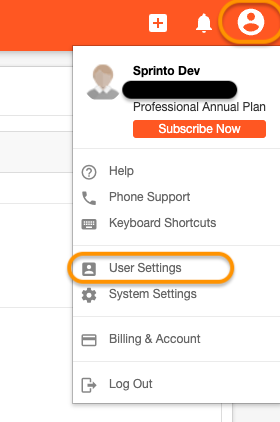
* Click on the user icon at the top right and select User Settings.

  <figure><img src="https://s3.amazonaws.com/cdn.freshdesk.com/data/helpdesk/attachments/production/72087182894/original/99nGZp7dtp2zaoPUNe6PwvExNpETb3_afA.png?1709055891" alt=""><figcaption></figcaption></figure>
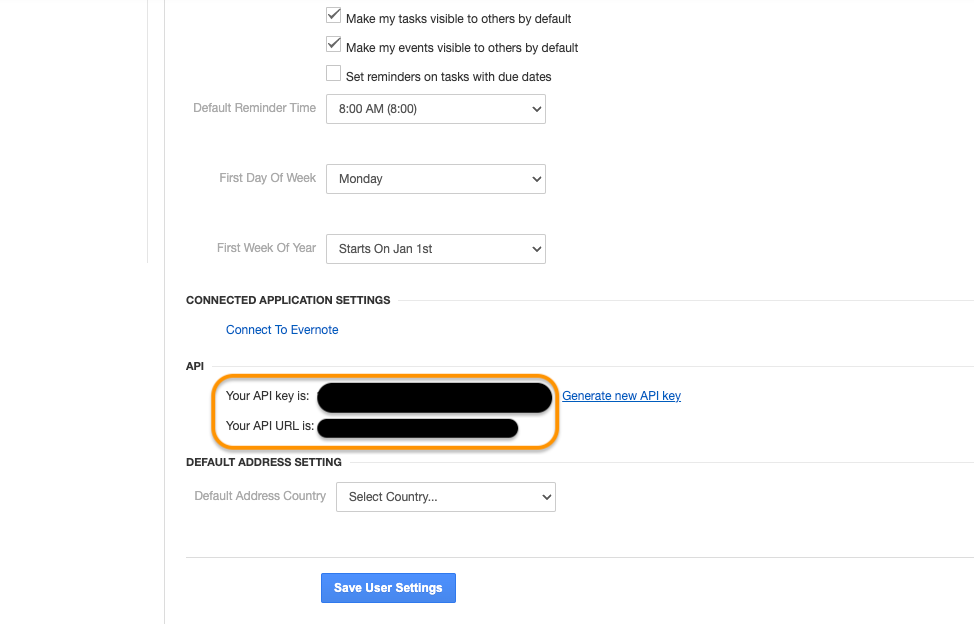
* Scroll down the user settings, copy the API key and API URL, and save it securely. We will need these details on Sprinto to build integration.&#x20;

  <figure><img src="https://s3.amazonaws.com/cdn.freshdesk.com/data/helpdesk/attachments/production/72087182901/original/KK1EtlzTCVILZnKf8n4zZ3MTbOX5T8Ey1Q.png?1709055892" alt="" width="563"><figcaption></figcaption></figure>

2. Integrate Insightly on Sprinto.<br>
   * Go to **Settings** > **Integrations** > **Available**, and click Connect next to Insightly.

<figure><img src="https://3220032727-files.gitbook.io/~/files/v0/b/gitbook-x-prod.appspot.com/o/spaces%2FEsyn5VMU6e0OyGjRtKgx%2Fuploads%2FToUjMedljjXiVeY3RCbC%2FScreenshot%202025-09-25%20at%2012.06.26.png?alt=media&amp;token=e74a3867-cac5-41c8-b8e5-e6d8a01d1789" alt="" width="563"><figcaption></figcaption></figure>

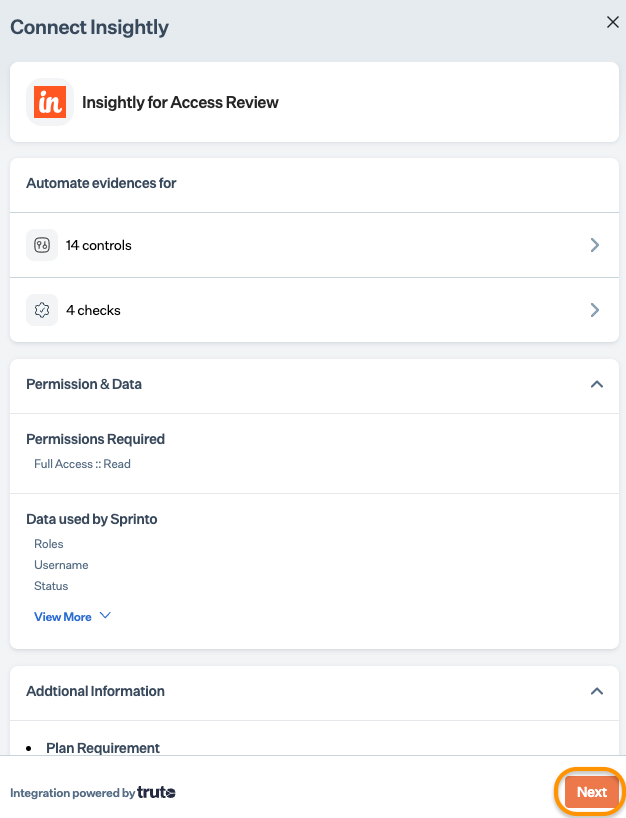
* Read the on-screen instructions, and click Next.

  <figure><img src="https://s3.amazonaws.com/cdn.freshdesk.com/data/helpdesk/attachments/production/72087182907/original/rQKsKeYuel9ipVXx2fv_AUs8OdkgDO9CRw.png?1709055892" alt="" width="375"><figcaption></figcaption></figure>
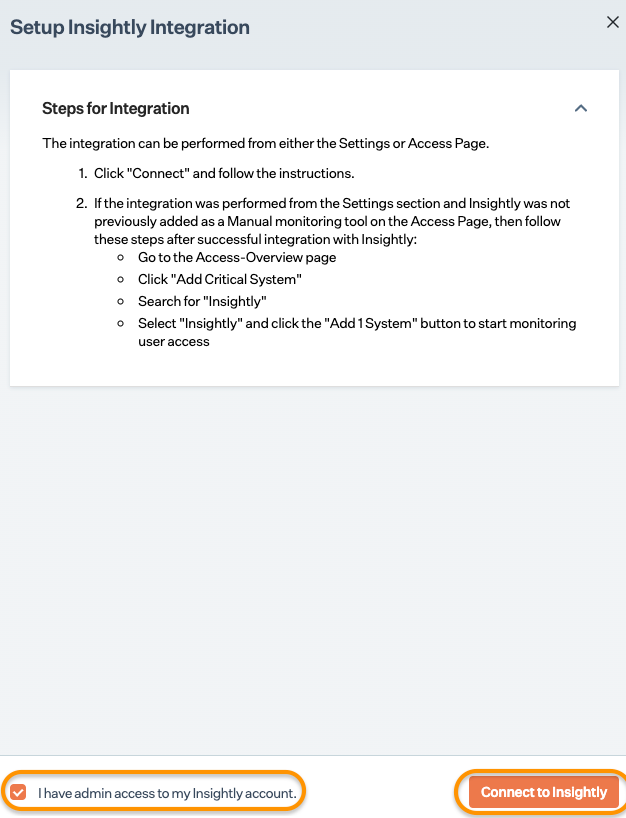
* On Integration page, select the acknowledgment checkbox and click Connect to Insightly.\
  Note: Ensure you have a pop-up window enabled on your browser.

  <figure><img src="https://s3.amazonaws.com/cdn.freshdesk.com/data/helpdesk/attachments/production/72087182902/original/8posdw-6Io9Nlq_O8m4ZtzQ5oA7ClGGYag.png?1709055892" alt="" width="375"><figcaption></figcaption></figure>
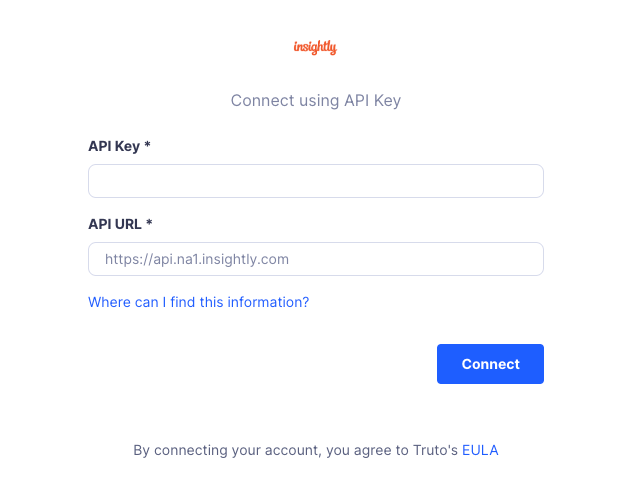
* On Authentication page, enter the **API key** and **API URL** details copied from Step 1, and click Connect.<br>

  <figure><img src="https://s3.amazonaws.com/cdn.freshdesk.com/data/helpdesk/attachments/production/72087183153/original/mT10ELD9FT-25HAjn7_AJcJ6F__ViT7VWA.png?1709055975" alt="" width="375"><figcaption></figcaption></figure>

2. Add Insightly as a critical system.
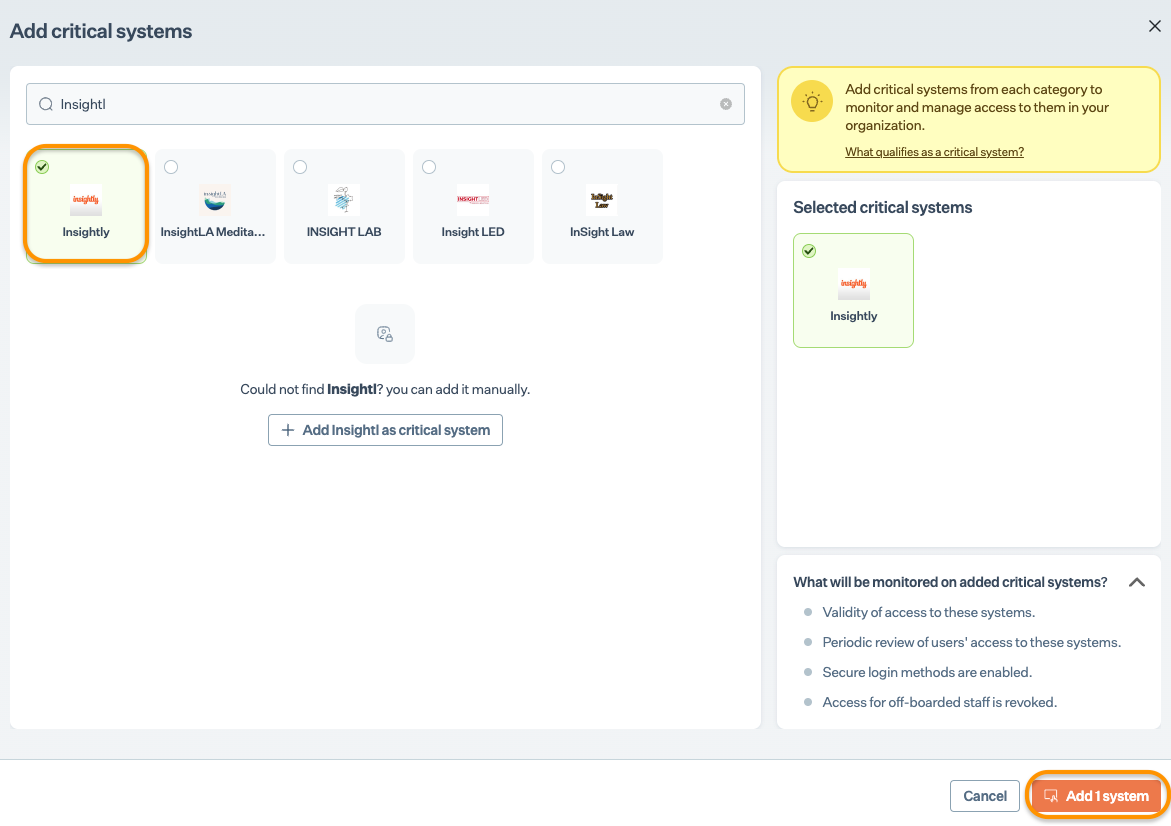
   * On **Sprinto** app, go to Data Library > Access > Critical systems, and click + Add Critical System.
   * On Add Critical System page, select Insightly and click Add System.<br>

     <figure><img src="https://s3.amazonaws.com/cdn.freshdesk.com/data/helpdesk/attachments/production/72087182909/original/Y0UEM_w4372q2KgEo-r5krQP-Eiir5-2uQ.png?1709055892" alt="" width="563"><figcaption></figcaption></figure>
3. Configure valid users for Insightly.
   * Go to Data Library > Access > Critical systems, and select Insightly.
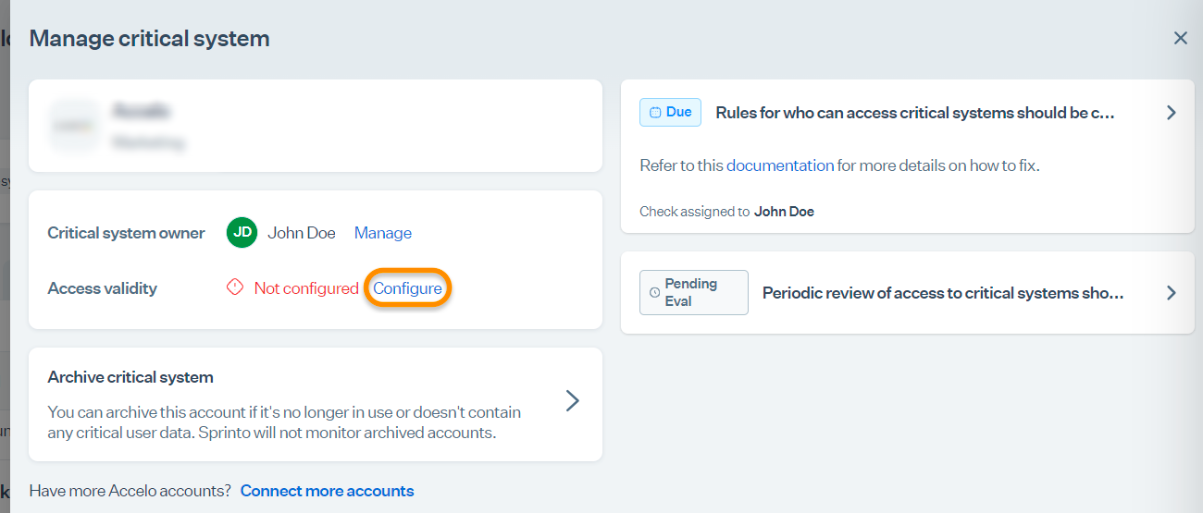
   * On the Summary page, click Configure Now next to the Insightly account.
   * On the Manage page, click Configure next to access validity.

     <figure><img src="https://s3.amazonaws.com/cdn.freshdesk.com/data/helpdesk/attachments/production/72087182908/original/EkN1Y4Xyqq8v3MtGZLwEO28UatZpJziIJg.png?1709055892" alt="" width="563"><figcaption></figcaption></figure>
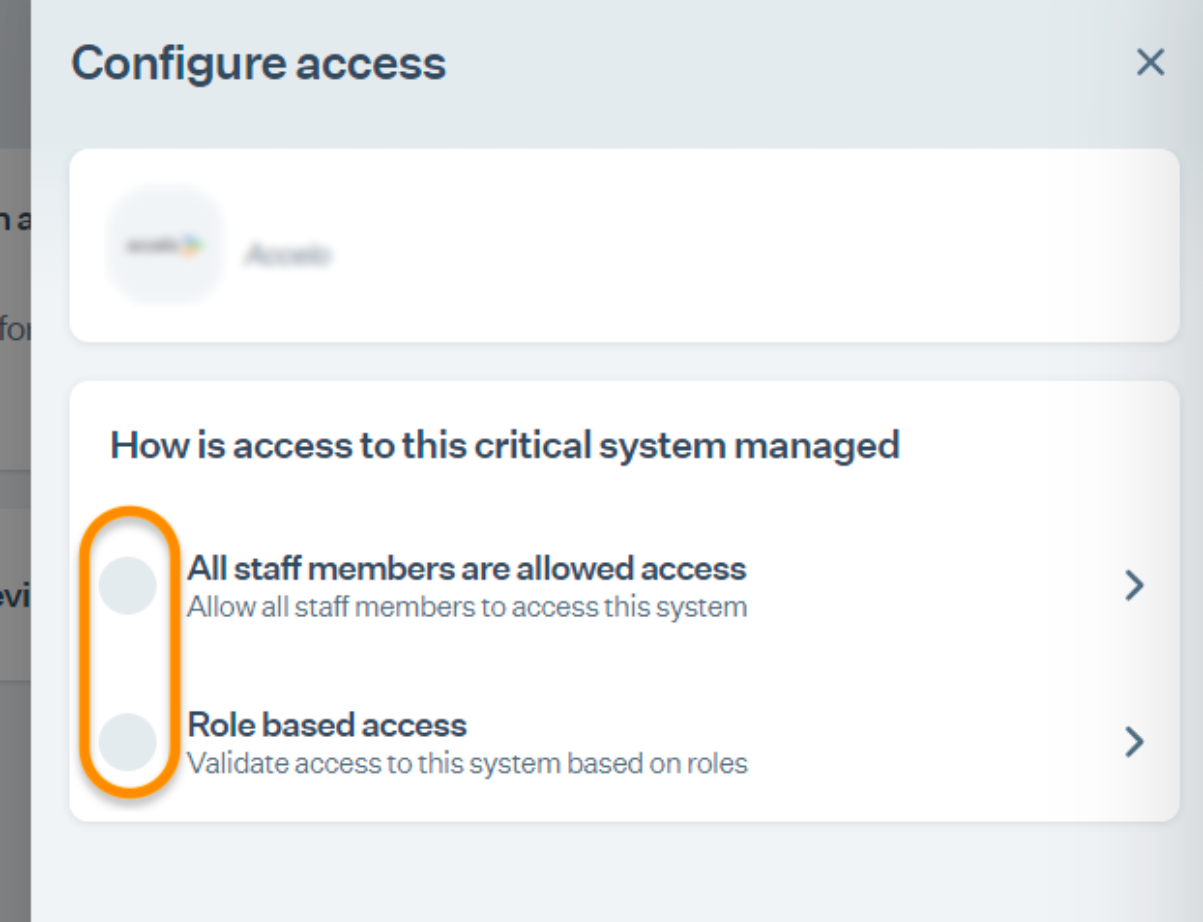
   * Choose one of the options to define valid users based on roles.

     <figure><img src="https://s3.amazonaws.com/cdn.freshdesk.com/data/helpdesk/attachments/production/72087182910/original/fXRpklrGkS8MFJrtP43jPn9zgHbL1NQkJg.png?1709055892" alt="" width="375"><figcaption></figcaption></figure>

### Final Step <a href="#final-step" id="final-step"></a>

After completing Step 4, allow 15 to 20 minutes for Sprinto to finish the data syncing process. Sprinto may take few hours to evaluate the synced data and activate relevant Sprinto checks. If needed, visit Data Library > Access > Critical System to check for pending tasks next to Insightly.

If you need any assistance with the integration, kindly get in touch with [Sprinto support](mailto:www.support@sprinto.com).


---

# Agent Instructions
This documentation is published with GitBook. GitBook is the documentation platform designed so that both humans and AI agents can read, navigate, and reason over technical content effectively. Learn more at gitbook.com.

## Querying This Documentation
If you need additional information that is not directly available in this page, you can query the documentation by asking a question.

Perform an HTTP GET request on the following URL with the `ask` and `goal` query parameters:

```
GET https://docs.sprinto.com/integrations/overview/insightly-integration.md?ask=<question>&goal=<user_goal>
```

`ask` is the immediate question: it should be specific, self-contained, and written in natural language.
`goal` is what the user is ultimately trying to achieve, the reason they need the answer. Sharing it helps GitBook give you a better, more relevant answer. A goal is most helpful when it describes the outcome the user wants rather than restating the question. For example, with `ask=how do I create an API token`, a goal like `automate deployments from our CI pipeline` lets GitBook tailor the answer to that use case.

The response will contain a direct answer to the question and relevant excerpts and sources from the documentation.

Use this mechanism when the answer is not explicitly present in the current page, you need clarification or additional context, or you want to retrieve related documentation sections.