> For the complete documentation index, see [llms.txt](https://docs.sprinto.com/llms.txt). Markdown versions of documentation pages are available by appending `.md` to page URLs; this page is available as [Markdown](https://docs.sprinto.com/integrations/overview/gusto-integration.md).
# Gusto Integration
Sprinto integrates with Gusto to ensure the user list is synced for managing the onboarding and offboarding status of users. This article provides a step-by-step guide to setting up the integration between Sprinto and Gusto.
#### **Prerequisites**
Before starting the integration, ensure the following:
* You have a Sprinto admin account with the necessary permissions.
* You are logged in to both Sprinto and Gusto.
* You have admin access to Gusto (check the top right of the Gusto screen to verify your role).
#### **Step-by-Step Integration**
1. **Log in to Sprinto:**
* Use your credentials to access the Sprinto dashboard.
2. **Navigate to Settings:**
* Click **Settings** located at the bottom left of the screen.
3. **Select Available Integrations:**
* In the sub-menu, click on **Available Integrations**.
4. **Search for Gusto:**
* Type **Gusto** in the search bar and click **Connect** next to the Gusto option.
5. **Check Admin Privileges:**
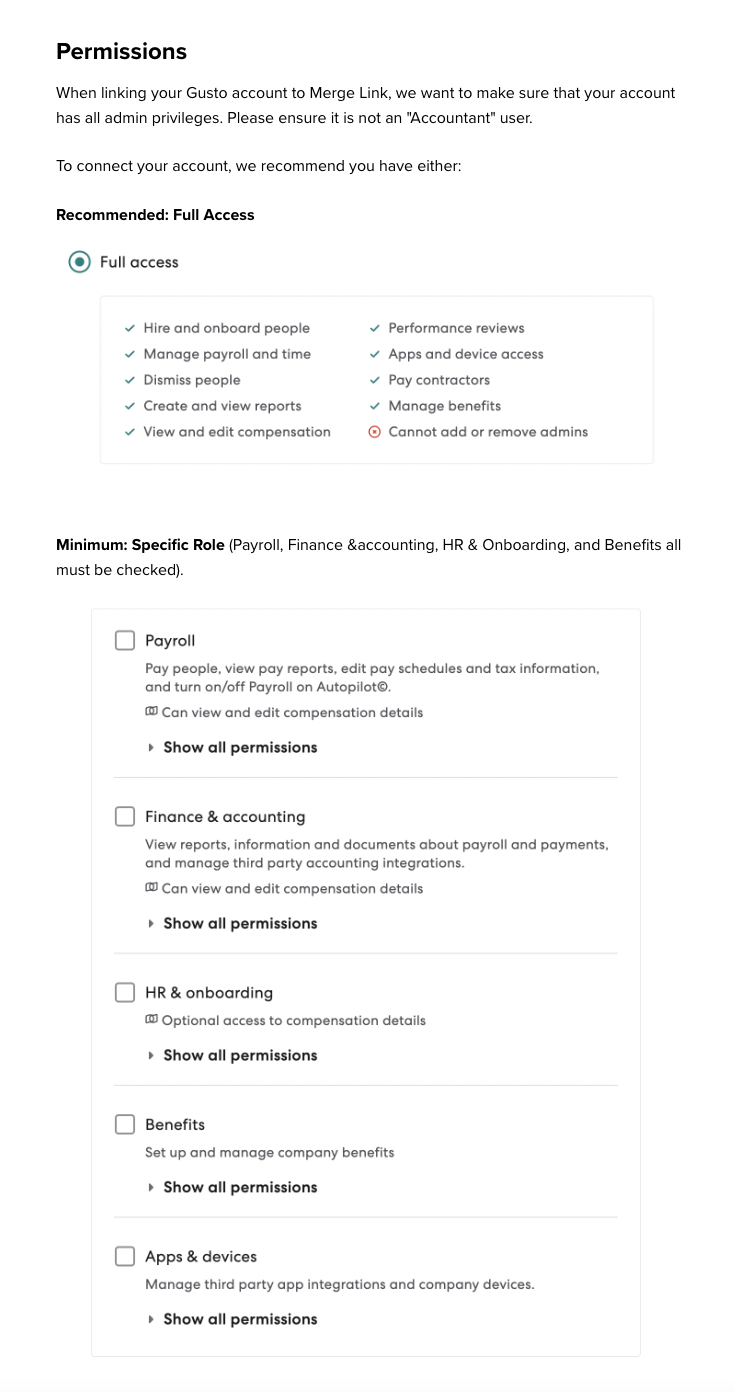
* You must have **Full Access** or all specific role privileges to link your account. If **Admin** is displayed below your name in Gusto, you can proceed.
6. **Enter Credentials:**
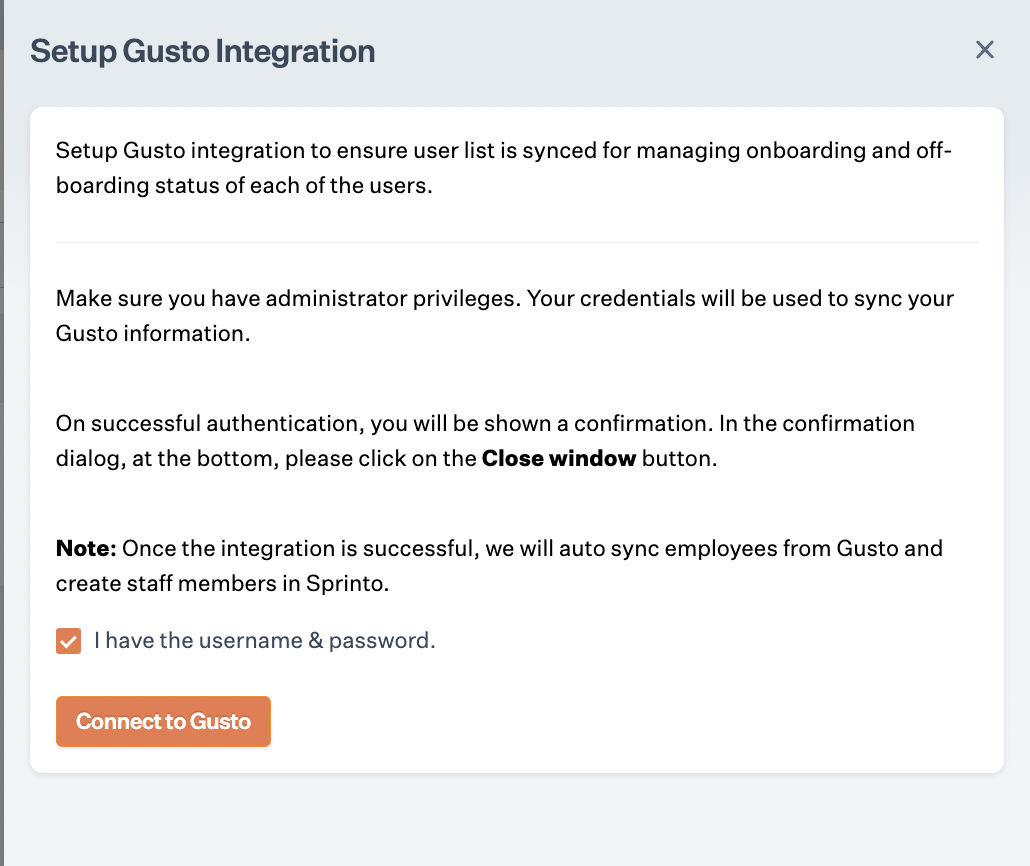
* A pop-up window will prompt you to enter your Gusto admin credentials.
* Check the box next to **I have the username and password** and click **Connect to Gusto**.
7. **Review Data Permissions:**
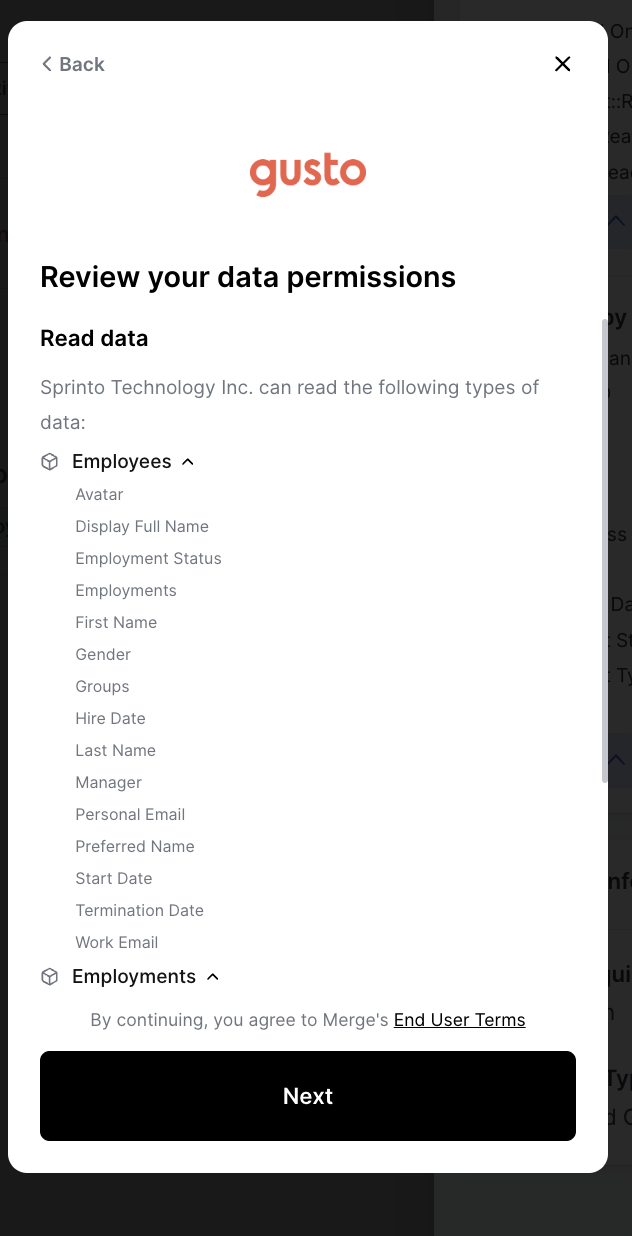
* Upon connecting, you will see a pop-up from Gusto asking you to review the data permissions Sprinto will access. Below is a summary of the permissions:
**Permissions Sprinto Will Use from Gusto**
* **Employees:**
* Avatar
* Display Full Name
* Employment Status
* Employments
* First Name
* Gender
* Groups
* Hire Date
* Last Name
* Manager
* Personal Email
* Preferred Name
* Start Date
* Termination Date
* Work Email
* **Employment Status:**
* Effective Date
* Employee
* Employment Type
* FLSA Status
* Job Title
* **Groups:**
* Is Commonly Used As Team
* Name
* Type
**Minimum Permissions Required in Gusto**
According to Merge, the following Gusto permissions are the minimum required for Sprinto to sync employee data fields equivalent to Deel:
* **HR & Onboarding**
* **Payroll**
* **Finance & Accounting**
* **Benefits**
* **Apps & Devices (enables API access)**
These permissions provide read-only access to employee profile and job metadata, including name, email, job title, manager, department, employment type, start date, and termination date.
8. **Complete the Integration:**
* Click **Next** to finalise the integration process. Sprinto will start syncing data within the next 24 hours.
#### **Troubleshooting**
If you encounter any issues during the integration process, reach out to Sprinto Support via the in-app chat or email us at .
---
# Agent Instructions
This documentation is published with GitBook. GitBook is the documentation platform designed so that both humans and AI agents can read, navigate, and reason over technical content effectively. Learn more at gitbook.com.
## Querying This Documentation
If you need additional information that is not directly available in this page, you can query the documentation by asking a question.
Perform an HTTP GET request on the following URL with the `ask` and `goal` query parameters:
```
GET https://docs.sprinto.com/integrations/overview/gusto-integration.md?ask=&goal=
```
`ask` is the immediate question: it should be specific, self-contained, and written in natural language.
`goal` is what the user is ultimately trying to achieve, the reason they need the answer. Sharing it helps GitBook give you a better, more relevant answer. A goal is most helpful when it describes the outcome the user wants rather than restating the question. For example, with `ask=how do I create an API token`, a goal like `automate deployments from our CI pipeline` lets GitBook tailor the answer to that use case.
The response will contain a direct answer to the question and relevant excerpts and sources from the documentation.
Use this mechanism when the answer is not explicitly present in the current page, you need clarification or additional context, or you want to retrieve related documentation sections.
 #### **Troubleshooting**
If you encounter any issues during the integration process, reach out to Sprinto Support via the in-app chat or email us at
#### **Troubleshooting**
If you encounter any issues during the integration process, reach out to Sprinto Support via the in-app chat or email us at