# Keap Integration

Keap is a cloud-based customer relationship management (CRM) software. Keap offers a variety of features to help businesses manage their contacts, organizations, vendors, suppliers, and even projects.

### How does this integration help Sprinto <a href="#how-does-this-integration-help-sprinto" id="how-does-this-integration-help-sprinto"></a>

The integration primarily helps Sprinto retrieve the user account details like user name, email address, role, etc. It helps Sprinto to map and check if the user with access offboards the organization. The org role information also helps Sprinto ensure only the configured valid roles access the system.

#### Sprinto checks for Keap <a href="#sprinto-checks-for-keap" id="sprinto-checks-for-keap"></a>

Following are the available Sprinto checks for Keap integration:

<table><thead><tr><th width="550.26171875">Sprinto check</th><th>Reference procedure</th></tr></thead><tbody><tr><td><strong>User should be identified</strong></td><td><a href="../../data-library/access/dashboard-actions/view-and-map-staff-access">How to fix</a></td></tr><tr><td><strong>Keap access should be removed for offboarded user</strong></td><td><a href="../../monitors/authentication-and-access-monitors/resolve-sprinto-check-for-removing-access-for-offboarded-users">How to fix</a></td></tr><tr><td><strong>Critical system access control should be configured</strong></td><td><a href="../../data-library/access/dashboard-actions/view-and-map-staff-access">How to fix</a></td></tr><tr><td><strong>User access to Critical System should be valid</strong><br>Note: The user access to the critical system becomes valid if the respective Org role is added to the system.</td><td><a href="../../data-library/access/dashboard-actions/view-and-map-staff-access">How to fix</a></td></tr></tbody></table>

Before you begin

* Log in to Sprinto as administrator.
* Ensure you have “Admin” access on the Keap account you want to integrate.
* Sprinto uses [Truto.one](https://truto.one/) as the integration partner to build this integration.

### Integrate Sprinto with Keap <a href="#integrate-sprinto-with-keap" id="integrate-sprinto-with-keap"></a>

Follow the below steps to integrate Keap on Sprinto:

1. Integrate Keap on Sprinto.
   * Go to **Settings** > **Integrations** > **Available**, and click Connect next to Keap.

<figure><img src="https://3220032727-files.gitbook.io/~/files/v0/b/gitbook-x-prod.appspot.com/o/spaces%2FEsyn5VMU6e0OyGjRtKgx%2Fuploads%2FyE3vWnhDbU35bq9PK3QX%2FScreenshot%202025-09-25%20at%2013.06.03.png?alt=media&#x26;token=891bb1e0-7972-4465-8118-b24e8f09dc81" alt="" width="563"><figcaption></figcaption></figure>

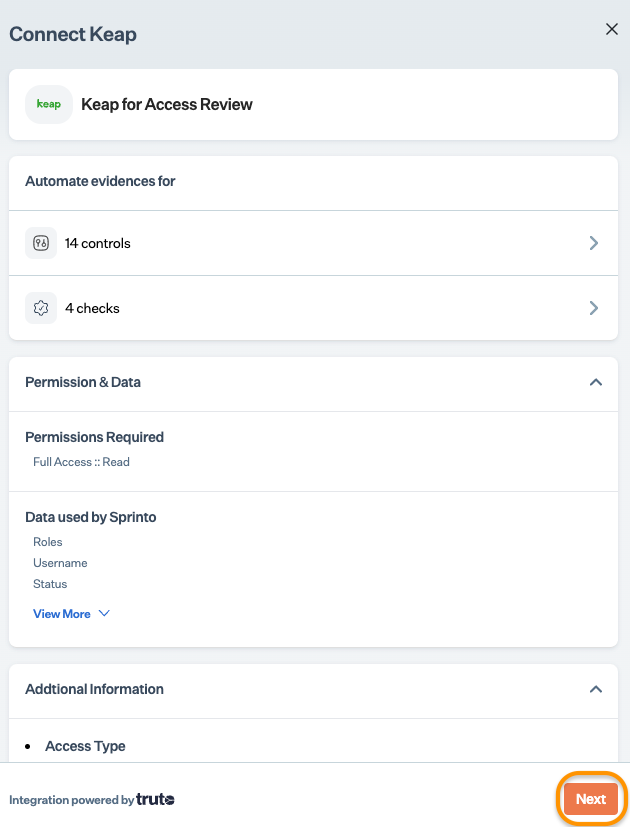
* Read the on-screen instructions, and click Next.<br>

  <figure><img src="https://s3.amazonaws.com/cdn.freshdesk.com/data/helpdesk/attachments/production/72087186404/original/aWKjTVUQBBhQSrBKZlw10Mcm6vzy00ASsA.png?1709056890" alt="" width="375"><figcaption></figcaption></figure>
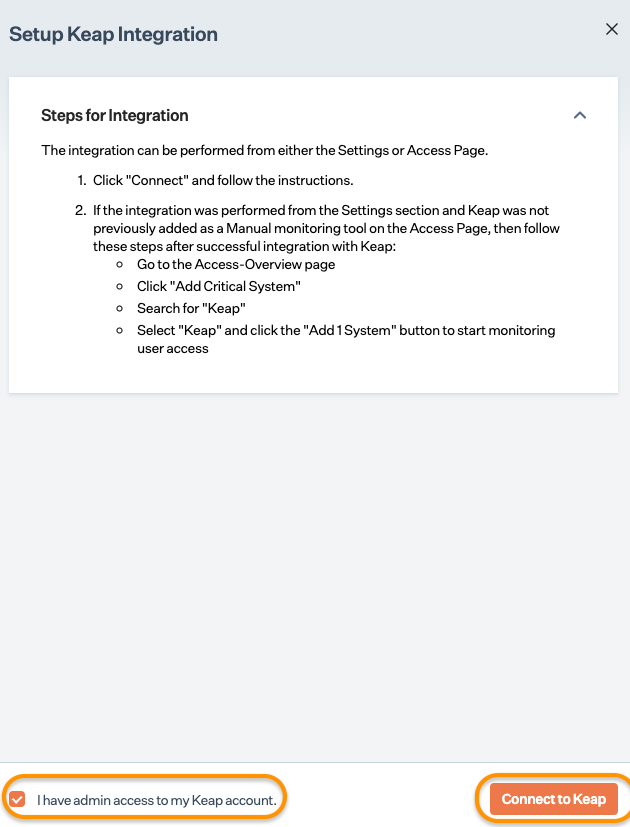
* On Integration page, select the acknowledgment checkbox and click Connect to Keap.\
  Note: Ensure you have a pop-up window enabled on your browser.

  <figure><img src="https://s3.amazonaws.com/cdn.freshdesk.com/data/helpdesk/attachments/production/72087186179/original/8dM7GjMkyIZ3DQ2jt7JG7UDMrHr0aKEFHQ.png?1709056824" alt="" width="375"><figcaption></figcaption></figure>
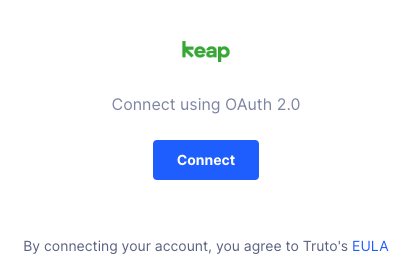
* On Authentication page, click Connect.<br>

  <figure><img src="https://s3.amazonaws.com/cdn.freshdesk.com/data/helpdesk/attachments/production/72087186428/original/lcyK-625FSlAE47F_NaufmNf0rzmi0MHYg.png?1709056898" alt=""><figcaption></figcaption></figure>
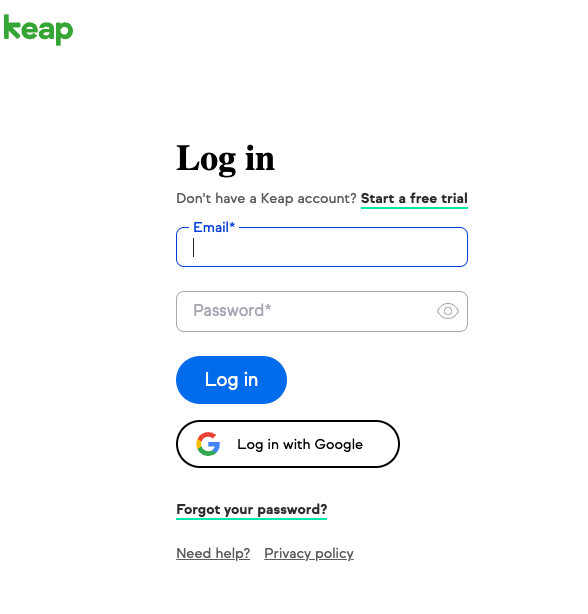
* Log in to your Keap account with your credentials or using the available Single Sign-On (SSO) options.<br>

  <figure><img src="https://s3.amazonaws.com/cdn.freshdesk.com/data/helpdesk/attachments/production/72087186172/original/PC2tmZMkqfzSXX_C7-6U3oTdIizj3uWQEw.png?1709056824" alt="" width="375"><figcaption></figcaption></figure>
* Follow the on-screen instructions to grant necessary permissions to Sprinto.

1. Add Keap as a critical system.
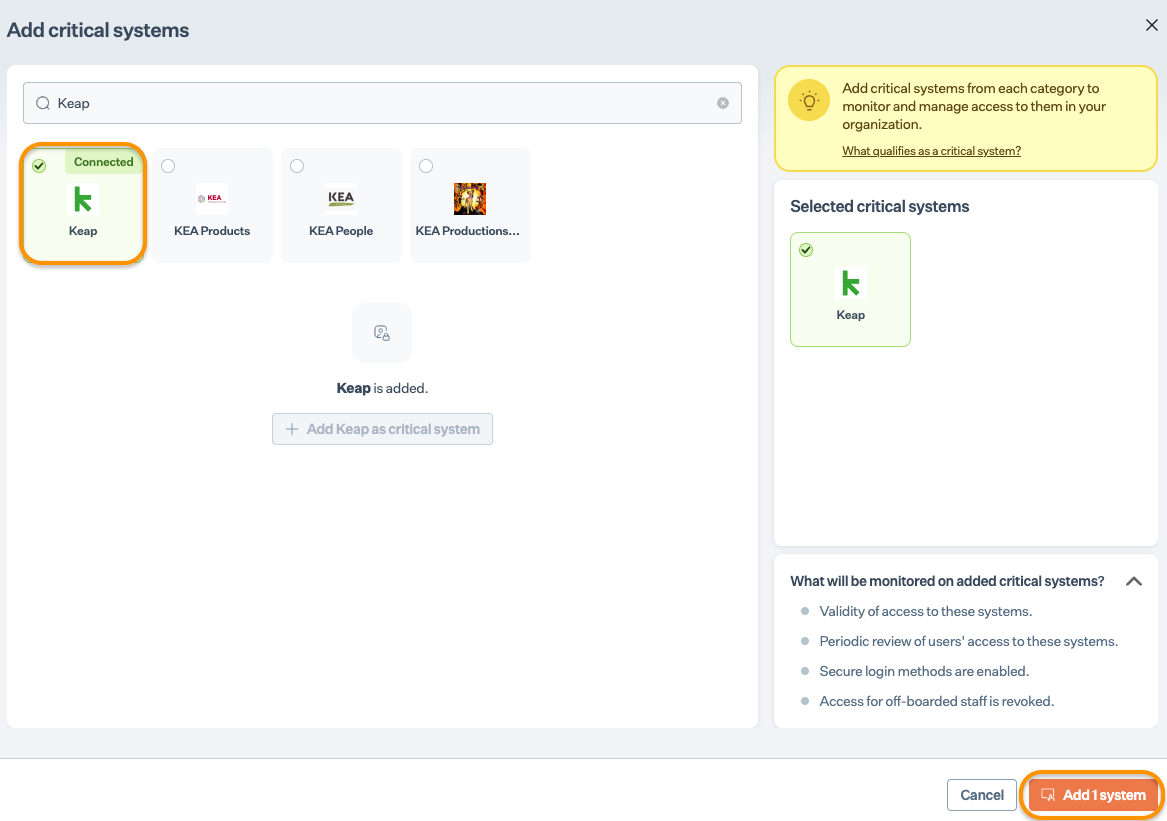
   * On **Sprinto** app, go to Data Library > Access > Critical systems, and click + Add Critical System.
   * On Add Critical System page, select Keap and click Add System.

     <figure><img src="https://s3.amazonaws.com/cdn.freshdesk.com/data/helpdesk/attachments/production/72087186180/original/BIundByN7V7XDC0DPlzpfe7AvrBId7TcuA.png?1709056824" alt="" width="563"><figcaption></figcaption></figure>
2. Configure valid users for Keap.
   * Go to Data Library > Access > Critical systems, and select Keap.
   * On the Summary page, click Configure Now next to the Keap account.
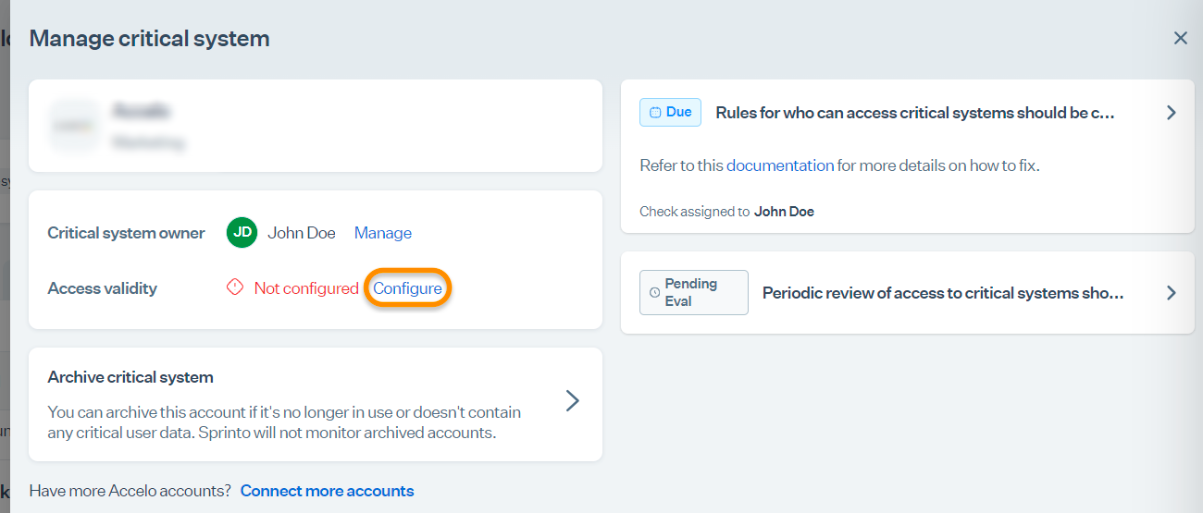
   * On the Manage page, click Configure next to access validity.

     <figure><img src="https://s3.amazonaws.com/cdn.freshdesk.com/data/helpdesk/attachments/production/72087186173/original/FspdWVFkQbJXbdgN-9Kn94qgYaregHYFjA.png?1709056824" alt="" width="563"><figcaption></figcaption></figure>
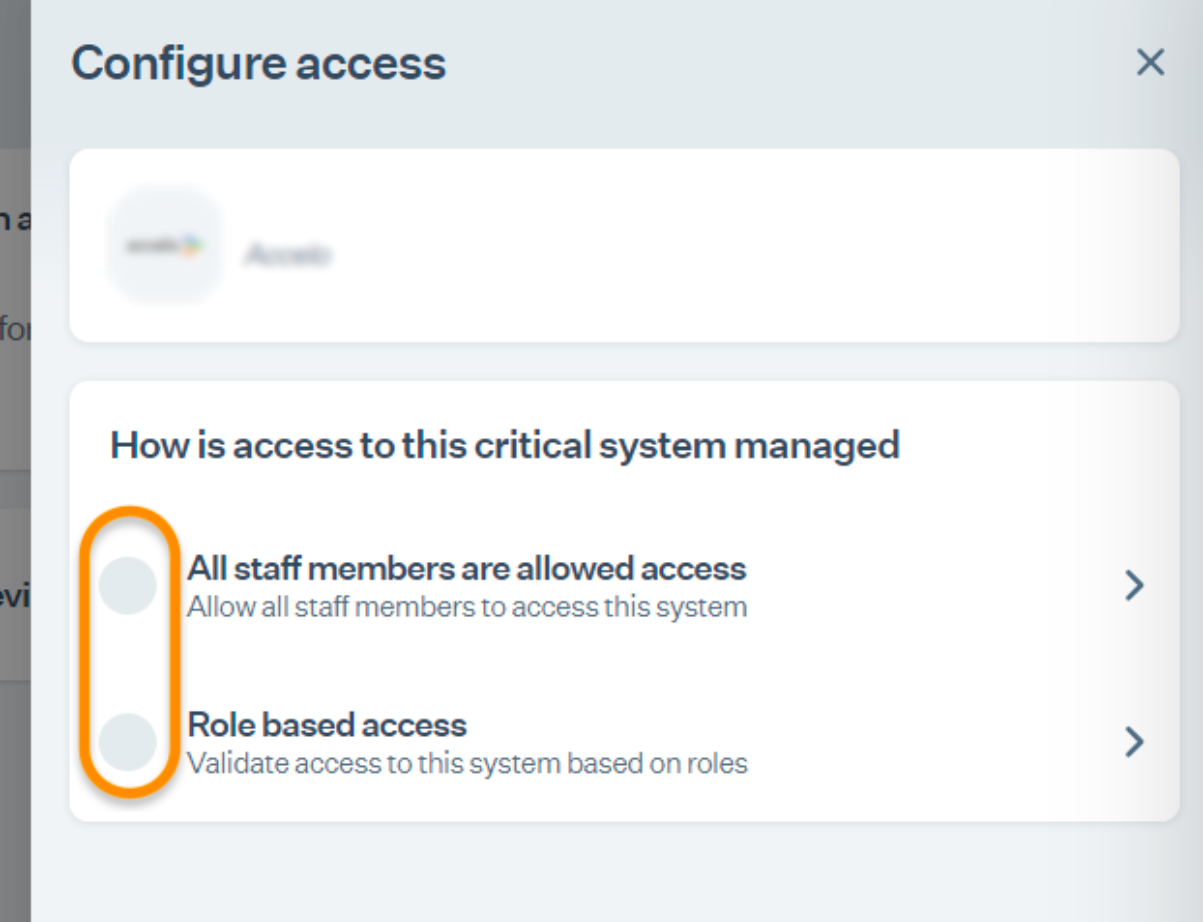
   * Choose one of the options to define valid users based on roles.

     <figure><img src="https://s3.amazonaws.com/cdn.freshdesk.com/data/helpdesk/attachments/production/72087186175/original/LcUxI4PseMFRgMqGeQAvn36ikHvmmEnRqg.png?1709056824" alt="" width="563"><figcaption></figcaption></figure>

### Final Step <a href="#final-step" id="final-step"></a>

After completing Step 4, allow 15 to 20 minutes for Sprinto to finish the data syncing process. Sprinto may take few hours to evaluate the synced data and activate relevant Sprinto checks. If needed, visit Data Library > Access > Critical System to check for pending tasks next to Keap.

If you need any assistance with the integration, kindly get in touch with [Sprinto support](mailto:www.support@sprinto.com).