> For the complete documentation index, see [llms.txt](https://docs.sprinto.com/llms.txt). Markdown versions of documentation pages are available by appending `.md` to page URLs; this page is available as [Markdown](https://docs.sprinto.com/integrations/overview/figma-integration.md).
# Figma Integration
Figma is a cloud-based design and prototyping tool that enables collaboration among teams working on user interface (UI) and user experience (UX) design projects. It allows designers to create, prototype, and iterate on digital designs in a real-time, collaborative environment.
### How does this integration help Sprinto
The integration primarily helps Sprinto retrieve the user account details like user name, email address, role, etc. It helps Sprinto to map and check if the user with access offboards the organization. The org role information also helps Sprinto ensure only the configured valid roles access the system.
#### Sprinto checks for Figma
Following are the available Sprinto checks for Figma integration:
| Sprinto check | Reference procedure |
| --------------------------------------------------- | ----------------------------------------------------------------------------------------------------------------------------------------------------------------------------------------------------------------------- |
| User should be identified | [How to fix](/data-library/access/dashboard-actions/view-and-map-staff-access.md) |
| Figma access should be removed for offboarded user | [How to fix](/monitors/authentication-and-access-monitors/resolve-sprinto-check-for-removing-access-for-offboarded-users.md) |
| Critical system access control should be configured | [How to fix](/data-library/access/dashboard-actions/view-and-map-staff-access.md) |
| User access to Critical System should be valid |
Note: The user access to the critical system becomes valid if the respective Org role is added to the system.
|
Before you begin
* Log in to Sprinto as administrator.
* Ensure you have “Admin” access on the Figma account you want to integrate.
* Sprinto uses [Truto.one](https://truto.one/) as the integration partner to build this integration.\*\*\*\*
### Integrate Sprinto with Figma
1. Get the API key and Tennant ID from Figma account.
* Log in to your[ Figma account](https://www.figma.com/login) using your credentials or available Single Sign-On (SSO) options.
* Copy the Figma account tenant ID from your browser’s address bar. \
For example, if your URL is , your tenant ID is 1136346136443435315.
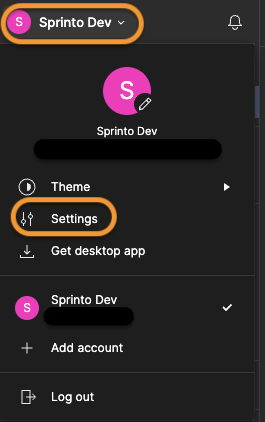
* Click on the profile icon at the top and select Settings.
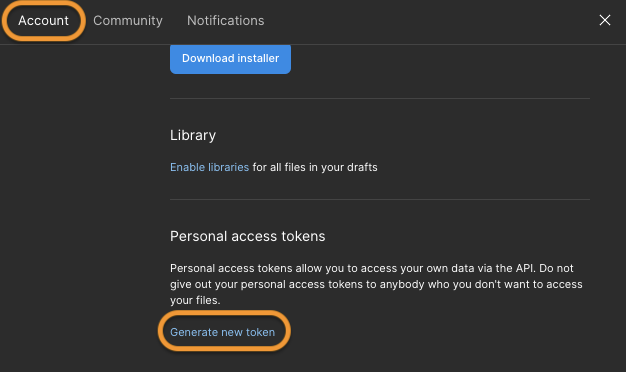
* On Accounts page, click Generate New Token under Personal Access Tokens.
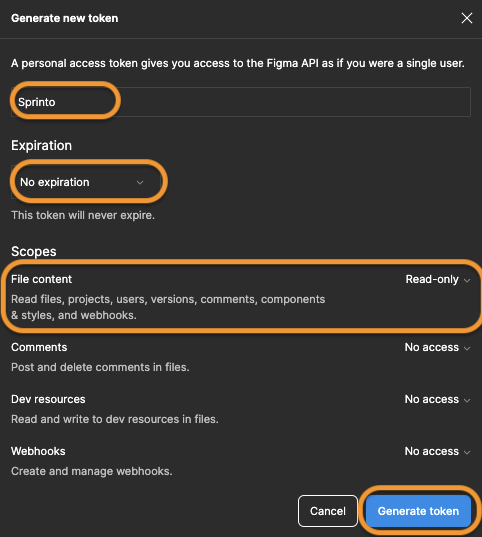
* Enter the following details, then click Generate token.
* Enter Sprinto as the token name
* Select No expiration under Expiration
* Ensure the Read-only access is selected for File content.
* Copy the generated API token and save it securely. We will need this key on Sprinto to build integration.
2. Integrate Figma on Sprinto.
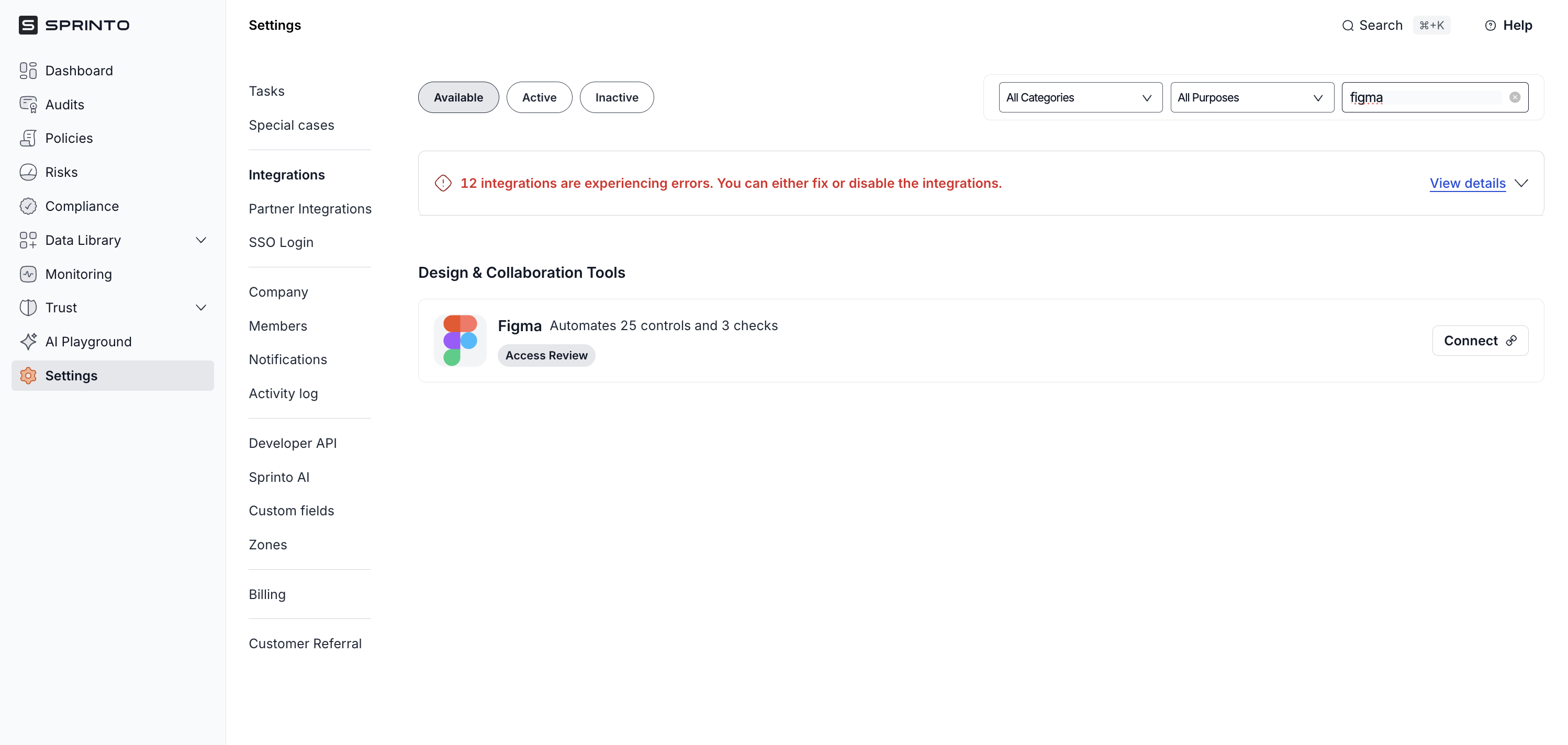
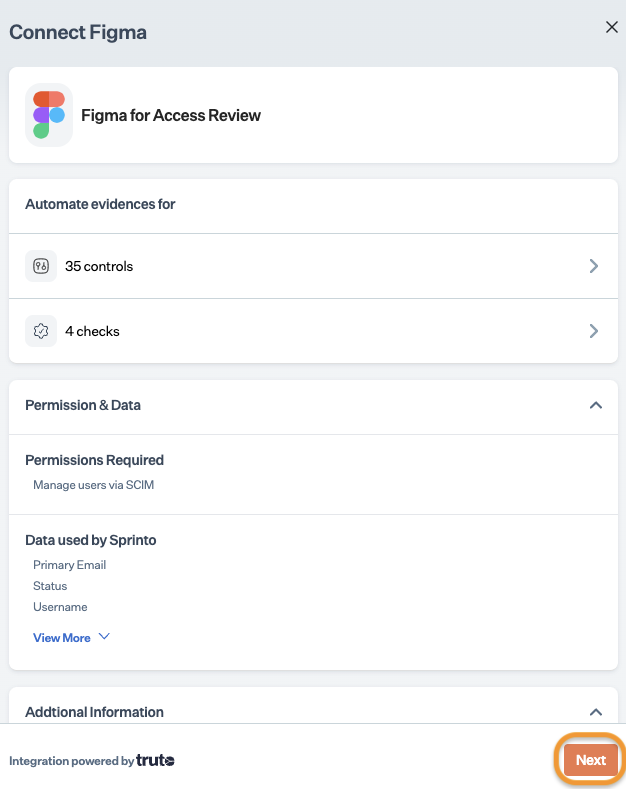
* Go to **Settings** > **Integrations** > **Available**, and click Connect next to Figma.
* Read the on-screen instructions, and click Next.
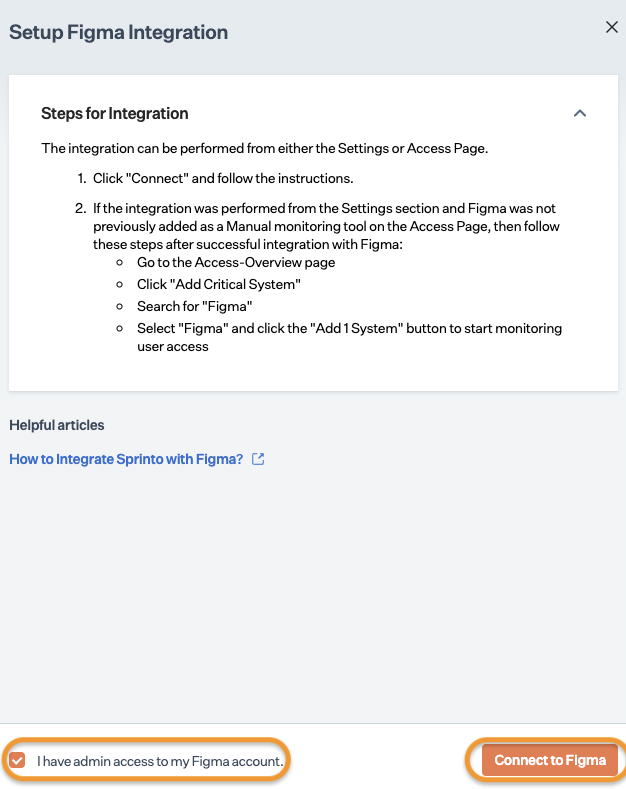
* On Integration page, select the acknowledgment checkbox and click Connect to Figma.\
Note: Ensure you have a pop-up window enabled on your browser.
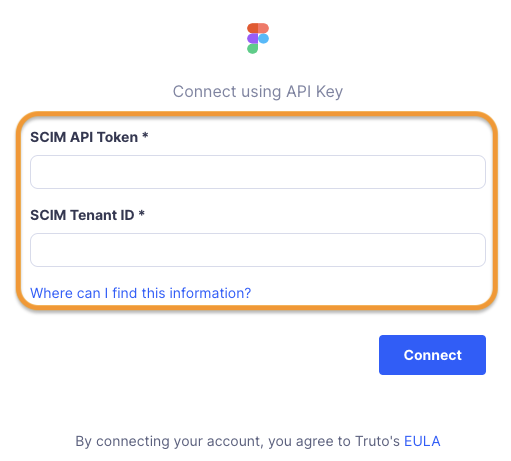
* On Authentication page, enter the SCIM API Token and SCIM Tennant ID from step 1, and click Connect.
1. Add Figma as a critical system.
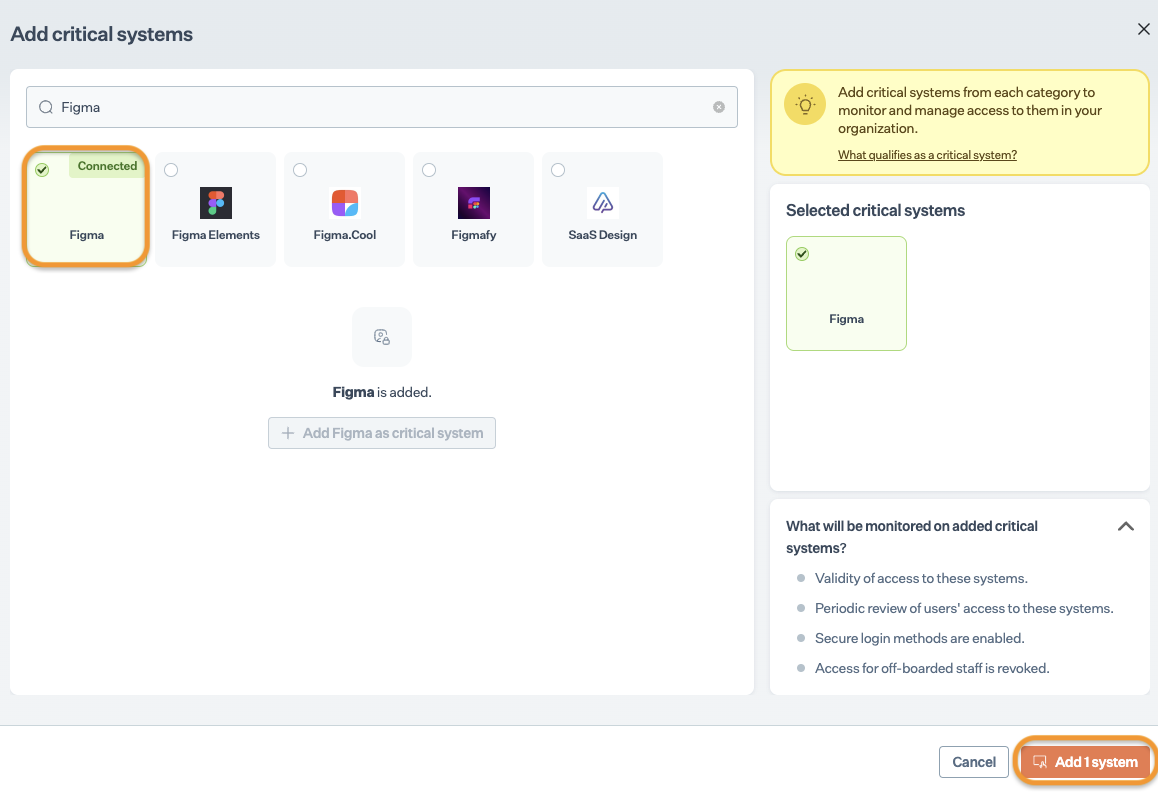
* On **Sprinto** app, go to **Data Library** > **Access** > **Critical systems**, and click + Add Critical System.
* On Add Critical System page, select Figma and click Add System.
2. Configure valid users for Figma.
* Go to Data Library > Access > Critical systems, and select Figma.
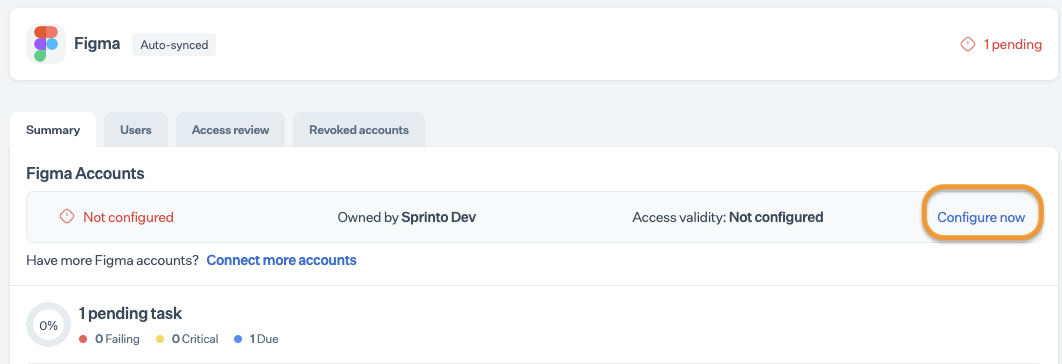
* On the Summary page, click Configure Now next to the Figma account.
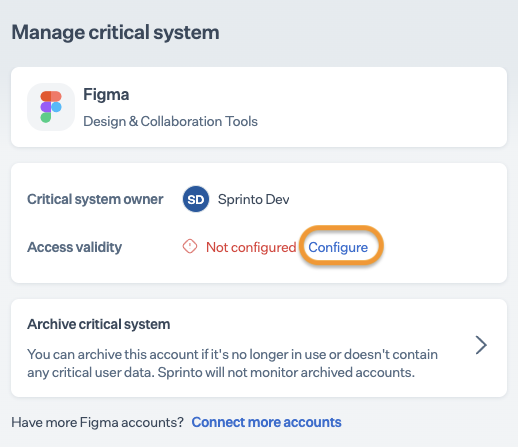
* On the Manage page, click Configure next to access validity.
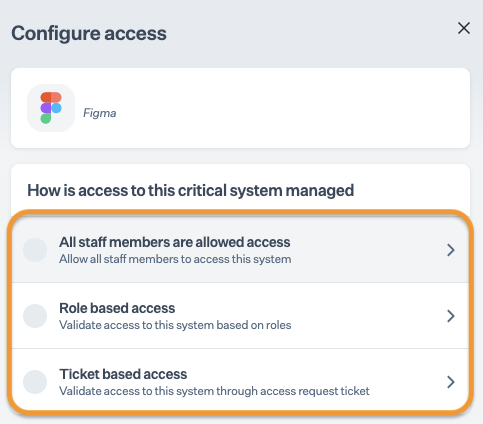
* Choose one of the options to define valid users based on roles.
### Final Step
After completing Step 4, allow 15 to 20 minutes for Sprinto to finish the data syncing process. Sprinto may take a few hours to evaluate the synced data and activate relevant Sprinto checks. If needed, go to Data Library > Access > Critical System to check for pending tasks next to Figma.
If you need any assistance with the integration, kindly get in touch with [Sprinto support](mailto:www.support@sprinto.com).
---
# Agent Instructions
This documentation is published with GitBook. GitBook is the documentation platform designed so that both humans and AI agents can read, navigate, and reason over technical content effectively. Learn more at gitbook.com.
## Querying This Documentation
If you need additional information that is not directly available in this page, you can query the documentation by asking a question.
Perform an HTTP GET request on the following URL with the `ask` and `goal` query parameters:
```
GET https://docs.sprinto.com/integrations/overview/figma-integration.md?ask=&goal=
```
`ask` is the immediate question: it should be specific, self-contained, and written in natural language.
`goal` is what the user is ultimately trying to achieve, the reason they need the answer. Sharing it helps GitBook give you a better, more relevant answer. A goal is most helpful when it describes the outcome the user wants rather than restating the question. For example, with `ask=how do I create an API token`, a goal like `automate deployments from our CI pipeline` lets GitBook tailor the answer to that use case.
The response will contain a direct answer to the question and relevant excerpts and sources from the documentation.
Use this mechanism when the answer is not explicitly present in the current page, you need clarification or additional context, or you want to retrieve related documentation sections.