# Approval Paths

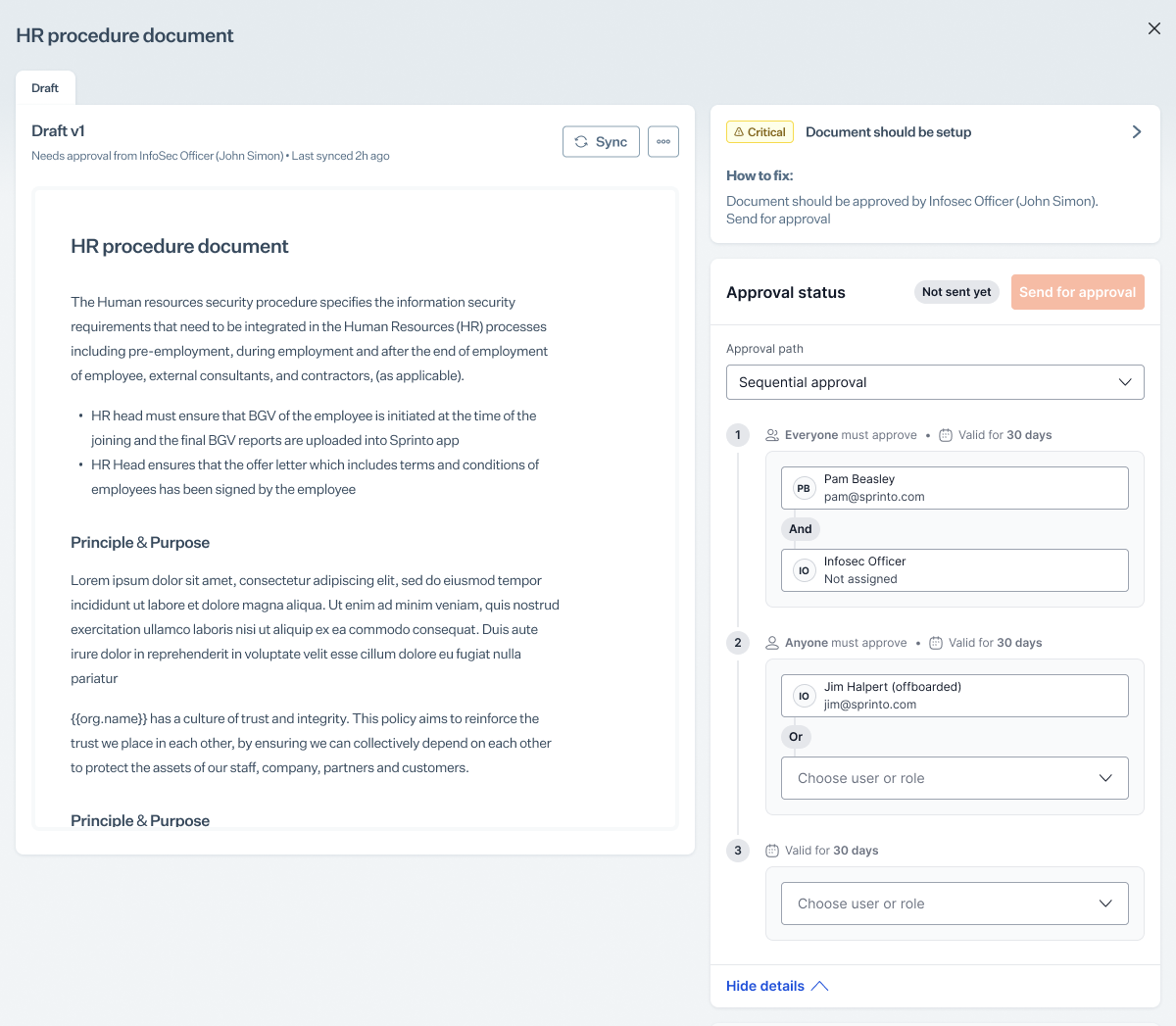
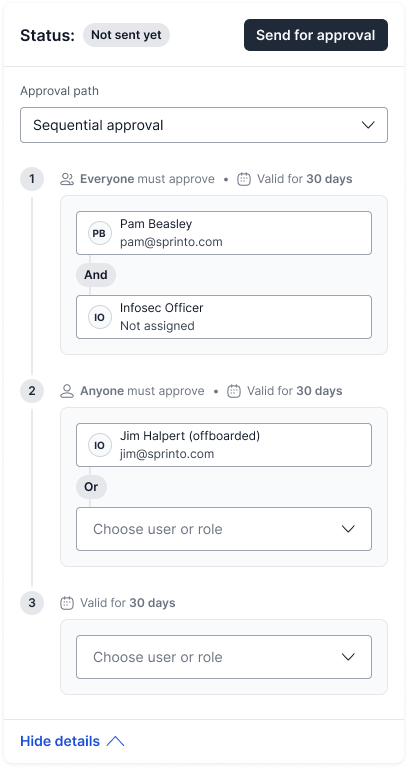
Approval Paths enable you to configure structured, multi-step approval workflows for policies in Sprinto. Each workflow consists of sequential steps, and each step may include one or more approvers. You can specify whether approval is required from all approvers in a step or from any one of them. You can also define due dates for each step.

Approval Paths help organisations standardise policy reviews, enforce accountability, and maintain audit-ready records of approval decisions.

{% hint style="info" %}

#### **Availability**

Approval Paths are available only on **Enterprise** plan. If you are on another plan, this feature will not be accessible.
{% endhint %}

***

### **Features and Use Cases**

#### **Key Features**

* **Multi-step workflows**: Configure one or more approval steps that run in sequence.
* **AND/OR logic**:
  * **Everyone must approve** (AND): All approvers must approve for the step to pass.
  * **Anyone may approve** (OR): The first approver to act determines the step outcome.
* **Automatic step progression**: When a step meets its approval requirement, the next step begins automatically.
* **Rejection flow**: If any step is rejected, the policy is marked as rejected and returned to the author.
* **Resubmission**: When a policy is resubmitted after changes, the workflow restarts from Step 1.
* **Task assignment**: Each active step creates tasks for its approvers.
* **Withdraw request**: Authors or administrators can withdraw an approval request while it is in progress.
* **Approver actions**: Approvers can approve, reject, and add comments to provide context.

#### **Use Cases**

<table><thead><tr><th width="190.109375">Use Case</th><th>Description</th></tr></thead><tbody><tr><td>Multi-stakeholder policy review</td><td>Policies require review and approval from several roles such as the Infosec Officer, CISO, and CEO.</td></tr><tr><td>Ordered approval cycles</td><td>A strict order of approval is required. For example: Infosec Officer → CISO → CEO.</td></tr><tr><td>Fast approvals through OR logic</td><td>A step can use OR logic so that any one approver may approve and move the process forward.</td></tr></tbody></table>

***

### **Procedure**

#### **Video Guide**

Here's a short video on how approval paths work for Risks.

{% embed url="<https://files.gitbook.com/v0/b/gitbook-x-prod.appspot.com/o/spaces%2FEsyn5VMU6e0OyGjRtKgx%2Fuploads%2F7RluCaFHAGRhxhhn9Uv4%2Frisk%20approval%20path.mp4?alt=media&token=137ff94d-450b-4563-add8-868b7672dca8>" %}

#### **1. Create an Approval Path**

**Step 1: Navigate to Approval Paths**

1. Sign in to the Sprinto dashboard.
2. Navigate to **Settings** and click **Approval Paths**.
3. Review the list of existing approval paths, including their status, entity type, and last edited information.

<figure><img src="/files/sWcMymP96lzHCId2KTv1" alt="" width="563"><figcaption></figcaption></figure>

**Step 2: Start creating an approval path**

1. Select **Add approval path**.
2. In the drawer, enter the approval path name.
3. Select **Policy** as the entity type (supported in Phase 1).
4. Enable or disable the approval path as required.

**Step 3: Configure Step 1**

1. Choose whether approval is required from **Everyone** or **Anyone**.
2. Add one or more approvers. Approvers may be users or roles.
3. Select an approval period. You may choose 2 days, 7 days, 15 days, or specify a custom value.

**Step 4: Add more steps (optional)**

1. Select **Add step**.
2. Configure the step in the same manner as Step 1.
3. Add approvers and specify the approval logic and due date.

**Step 5: Save the approval path**

1. Review the configuration.
2. Select **Add approval path**.\
   The approval path is now available for use and appears in the list of paths.

<figure><img src="/files/6JcXHAxQ0vJSzprtZhHV" alt="" width="368"><figcaption></figcaption></figure>

***

#### **2. Apply an Approval Path to a Policy**

**Step 1: Navigate to the Policies section**

1. Go to **Policies** from the navigation panel.
2. Select the policy you want to configure.

**Step 2: Open the draft version**

1. Select the **Draft** tab in the policy drawer.
2. Locate the **Status** section.
3. Expand **View details**.

<figure><img src="/files/PsOmWBLLdfn7YFSeWtJe" alt="" width="563"><figcaption></figcaption></figure>

**Step 3: Select an approval path**

1. In the **Approval Path** field, choose the path you want to apply.
2. Review the steps, approvers, and due dates that appear.
3. Continue to the approval process when ready.

***

#### **3. Send a Policy for Approval**

1. After selecting the approval path, select **Send for approval**.
2. The policy status changes to **Pending**.
3. Tasks are created for all approvers in the first step.
4. Approvers see **Approve** and **Reject** options for the policy.

<figure><img src="/files/i1UtPHaeKq098QaHGalT" alt=""><figcaption></figcaption></figure>

***

#### **4. Approver Actions**

**Approve**

1. Select **Approve**.
2. Add an optional approval comment.
3. If the step uses OR logic, the first approval completes the step.
4. If the step uses AND logic, all approvers must approve before the next step begins.

**Reject**

1. Select **Reject**.
2. Add a mandatory rejection comment.
3. The policy is marked as **Rejected**.
4. The author is notified to revise and resubmit.

<figure><img src="/files/gODVbGB387XzZDfgd7gF" alt=""><figcaption></figcaption></figure>

**Withdraw request**

Authors and administrators may withdraw an approval request if the workflow has not completed.

1. Select **Withdraw request**.
2. Confirm the withdrawal.
3. All pending approval tasks are cleared.
4. The policy returns to the draft state.

<figure><img src="/files/mL7n0EIwmayg40LWBVhg" alt=""><figcaption></figcaption></figure>

***

#### **5. Resubmission**

If a policy is rejected:

1. The author updates the policy content.
2. Select **Send for approval** again.
3. The approval path begins again from **Step 1**.

This ensures that all steps and reviewers reconfirm the updated version.

***

#### **6. Completion**

A policy is marked as **Approved** when all steps in the approval path are completed successfully. All approver tasks are closed automatically.

Below is a **concise Risks section** you can add to the article, aligned to the UI flow you shared and written in documentation format.

***

### Apply an Approval Path to a Risk

You can assign an Approval Path to a risk to ensure changes are reviewed and approved before they are finalised. Approval paths define the approvers, approval logic, and validity duration for each step.

#### Configure approval for a risk

1. Go to **Risks** from the left navigation.
2. Open the required **Risk register**.
3. Select the risk you want to configure.

<figure><img src="/files/R1vPrNAm6WLKxa0UMXqh" alt="" width="563"><figcaption></figcaption></figure>

4. In the risk drawer, select the **Approval** tab.
5. Under **Approval path**, choose the required approval path from the dropdown.
6. Review the configured steps and approvers.
7. Select **Send for approval**.

<figure><img src="/files/kkWJyiXGbBENNrQM6YBT" alt="" width="563"><figcaption></figcaption></figure>

The risk status changes to **Pending approval**, and approval tasks are assigned based on the configured steps.

***

#### What happens next

* Approvers receive a task to **Approve** or **Reject** the risk.
* If the approval path uses:
  * **Anyone must approve (OR logic)** — one approval completes the step.
  * **All must approve (AND logic)** — all assigned approvers must approve before moving to the next step.
* If rejected, the risk returns for updates and must be resubmitted.
* If all steps are approved, the risk is marked as **Approved**.

***

If you'd like, I can now align this section structurally with the Policies approval section so both follow identical subheadings and terminology.


---

# Agent Instructions: Querying This Documentation

If you need additional information that is not directly available in this page, you can query the documentation dynamically by asking a question.

Perform an HTTP GET request on the current page URL with the `ask` query parameter:

```
GET https://docs.sprinto.com/settings/approval-paths.md?ask=<question>
```

The question should be specific, self-contained, and written in natural language.
The response will contain a direct answer to the question and relevant excerpts and sources from the documentation.

Use this mechanism when the answer is not explicitly present in the current page, you need clarification or additional context, or you want to retrieve related documentation sections.