> For the complete documentation index, see [llms.txt](https://docs.sprinto.com/llms.txt). Markdown versions of documentation pages are available by appending `.md` to page URLs; this page is available as [Markdown](https://docs.sprinto.com/monitors/code-and-repository-monitors/how-to-resolve-sprinto-check-for-enabling-branch-protection-rules.md).
# How to resolve Sprinto check for enabling branch protection rules
Learn how to configure branch protection rules across GitHub, GitLab, Bitbucket, Azure DevOps, and AWS CodeCommit to resolve Sprinto repository protection checks.
### About
Sprinto check: Branch Protection rules should be enforced for admins
This Sprinto check activates upon integrating your code hosting service with Sprinto, triggering when no branch protection rules are configured on your integrated service provider account. Branch protection rules are essential security configurations designed to safeguard production code, ensuring that changes undergo thorough review before being pushed.
### Purpose
The purpose of this check is to guarantee the implementation of proper security configurations, such as code peer review and merge request approval, on repositories hosting production code. This method introduces an additional layer of security, preventing any sudden or malicious changes from being pushed to the code repository. Branch protection rules contribute to meeting the data compliance requirements associated with change management.
### How to resolve
To resolve this sprint check, you need to enable the branch protection rules on your code hosting service. Follow the below procedure for various code hosting services that you use.
#### 1. Github
Follow the below procedure to enable branch protection rules on Github:
Video Guide
Before you begin
* Ensure you are on the Team plan on GitHub.
* Ensure you have “Admin” privileges on your GitHub account to modify security configuration.
Procedure
1. Log in to[ Github](https://github.com/) with your credentials, and navigate to the main page of the repository.
2. Under the repository name, click on Settings.
3. On the sidebar under the Code and Automation section, click Branches.
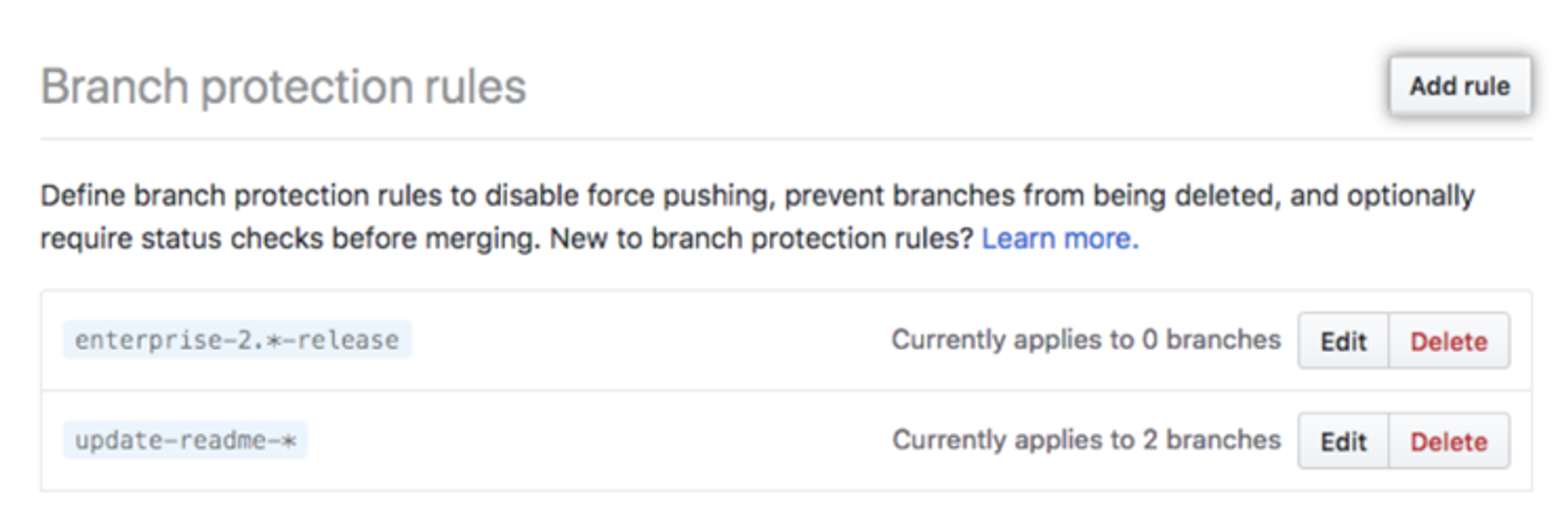
4. Click Add rule next to the Branch protection rules.
5. Under the Branch name pattern, type the branch name or pattern you want to protect.
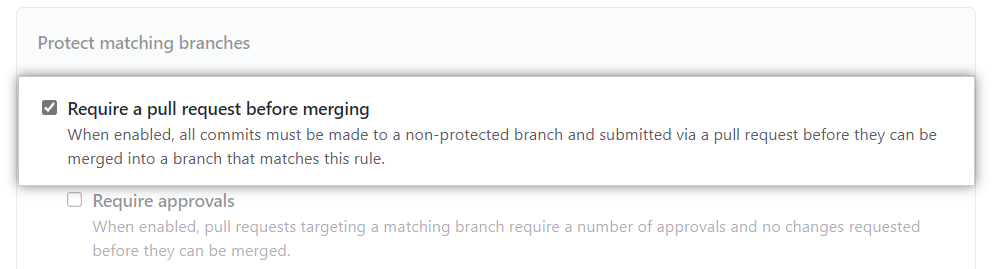
6. Enable required pull request approvals
* Select **Require a pull request before merging**.
* Select **Require approvals**.
* Set the required number of approvals to at least **1**.
{% hint style="info" %}
#### Note
Sprinto validates whether pull request approvals are enforced for protected branches. If **Require approvals** is disabled or the approval count is set to `0`, the Sprinto check may continue to fail even if other branch protection settings are enabled.
{% endhint %}
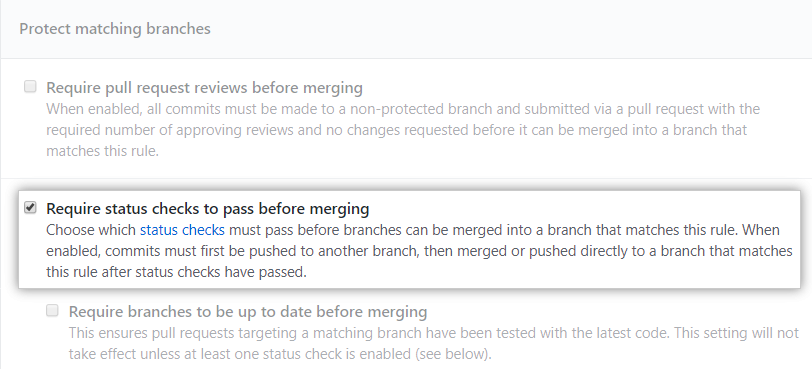
7. Select Require status checks to pass before merging.
{% hint style="info" %}
#### Note
In case you cannot enable the status check rule, you can request [Sprinto support](mailto:www.support@sprinto.com) to disable this check for you.
{% endhint %}
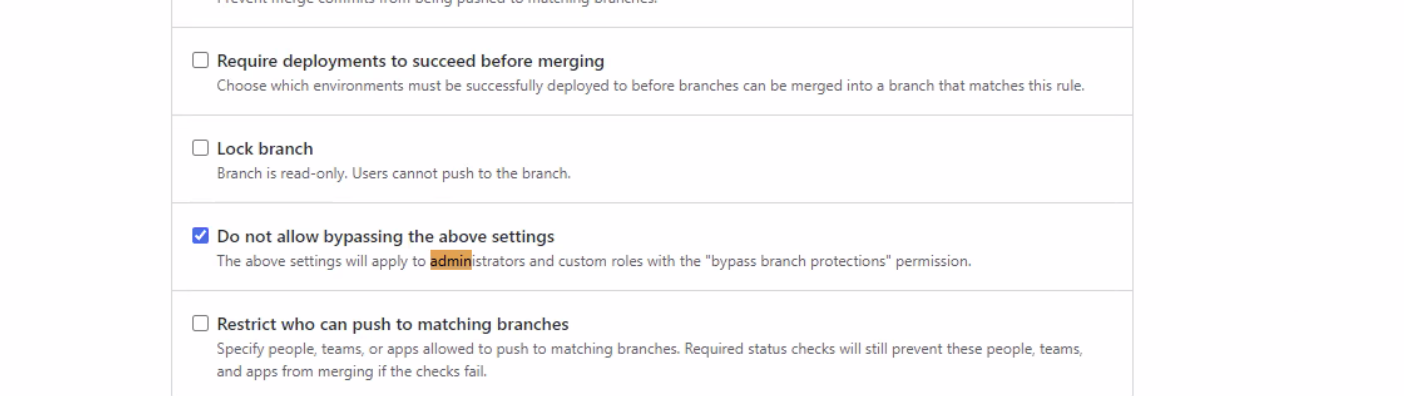
8. Select Do not allow bypassing the above settings to enforce these to administrators.
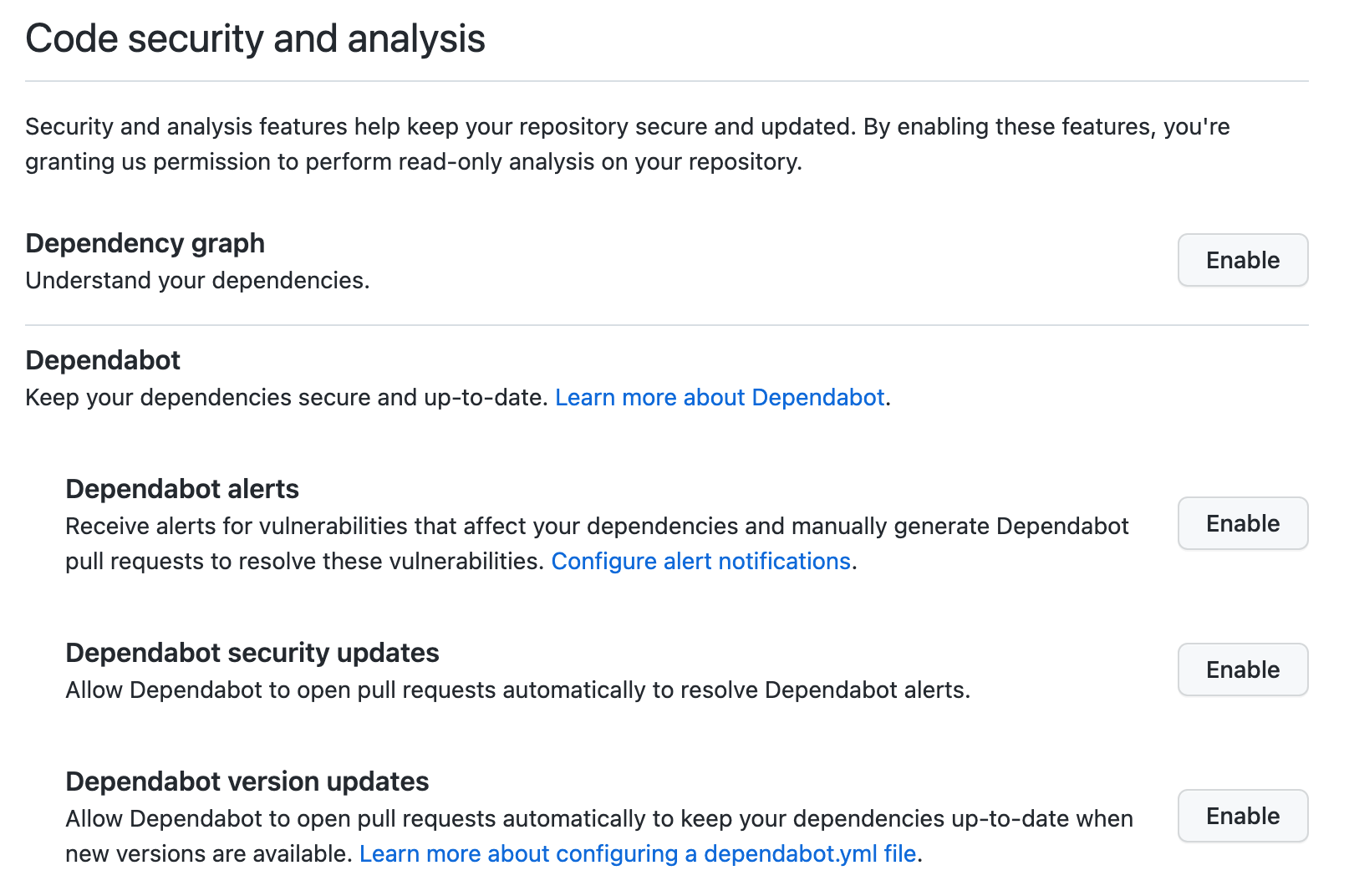
9. Ensure Dependabot, a free Dependency Vulnerability scanner, is enabled on all production repositories.
1. Go to the repository main page on your GitHub account.
2. Under your repository name, click Settings.
3. On the sidebar under the Security section, click Code Security and analysis.
4. On Code security and analysis page, click Enable next to Dependabot alerts.
#### 2. Gitlab
Follow the below procedure to enable branch protection rules on Gitlab:
Video Guide
Before you begin
* Ensure you are on the Gitlab premium plan.
* Ensure you have “Admin” privileges on the Gitlab account to modify security configuration.
Procedure
Note: Repeat the procedure below for each Gitlab project and group with code repositories with production-side code.
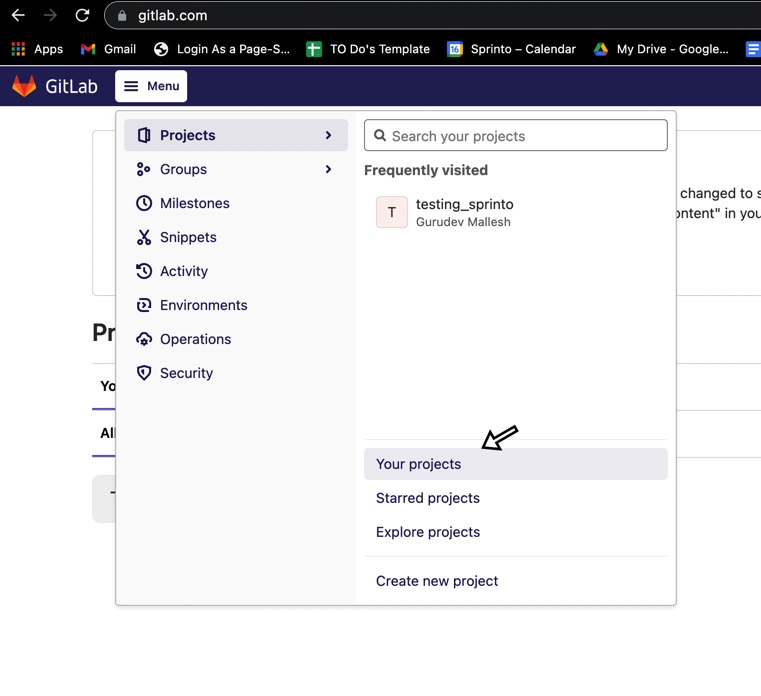
1. Go to Projects > Your Project.
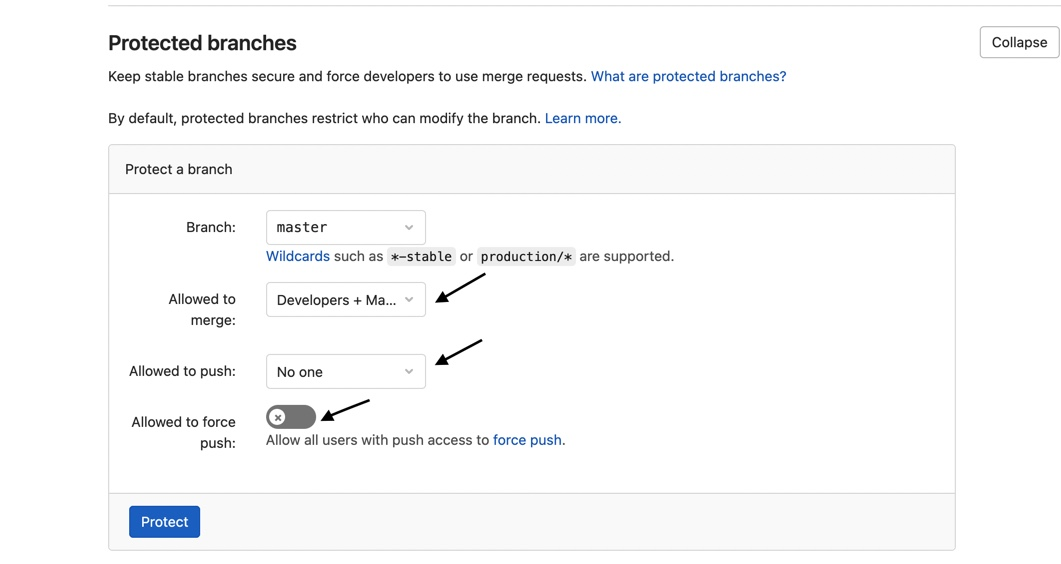
2. Go to Settings > Repositories > Protected branches:
1. Ensure the required checks are in place.
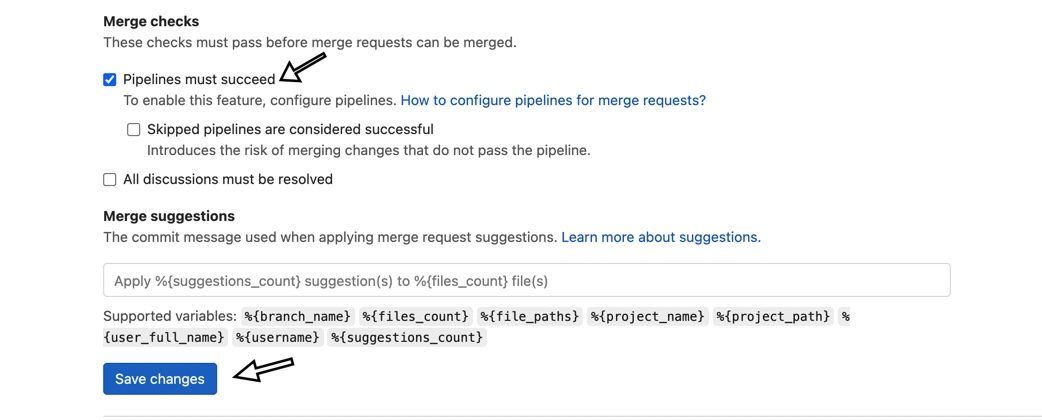
3. Go to Settings > General > Merge Request:
1. Ensure the required checks are in place.
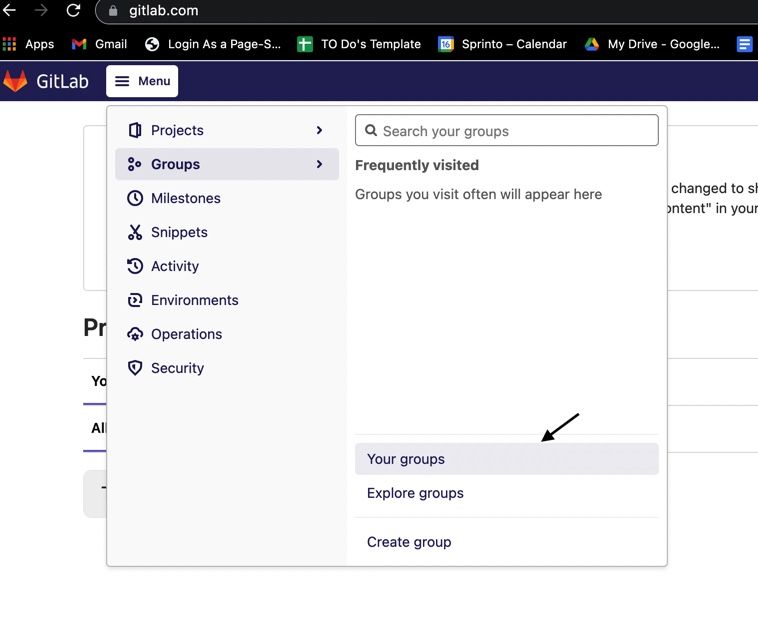
4. Now, from main menu, go to Groups > Your groups.
5. Select a project with production repositories, and :
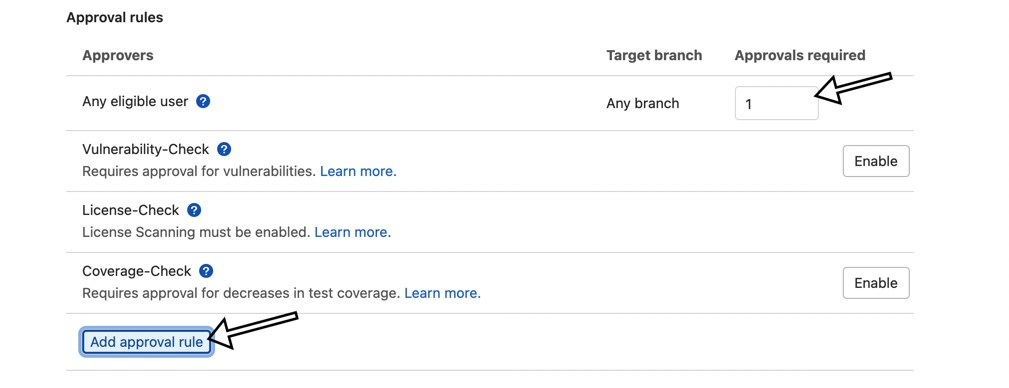
* Click on Settings > General > Merge Request Approvals.
* Set the number of approvals required to 1.
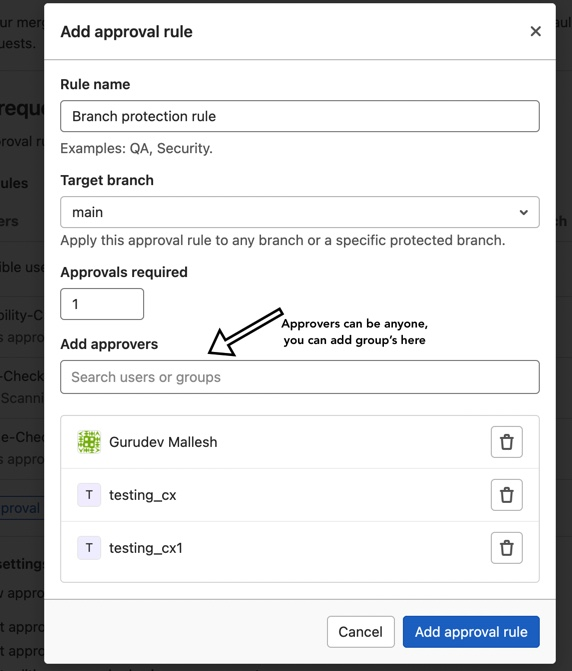
* Click on Add approval rule.
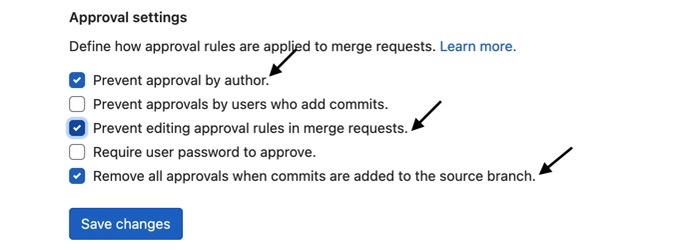
* Configure approval settings.
#### 3. Bitbucket
Follow the below procedure to enable branch protection rules on Bitbucket:
Before you begin
* Ensure you are on the Bitbucket premium plan.
* Ensure you have “Admin” access on the Bitbucket account to modify the security configuration.
Procedure
1. Log in to your[ Bitbucket](https://bitbucket.org/) account.
2. Click on Repositories under the main menu.
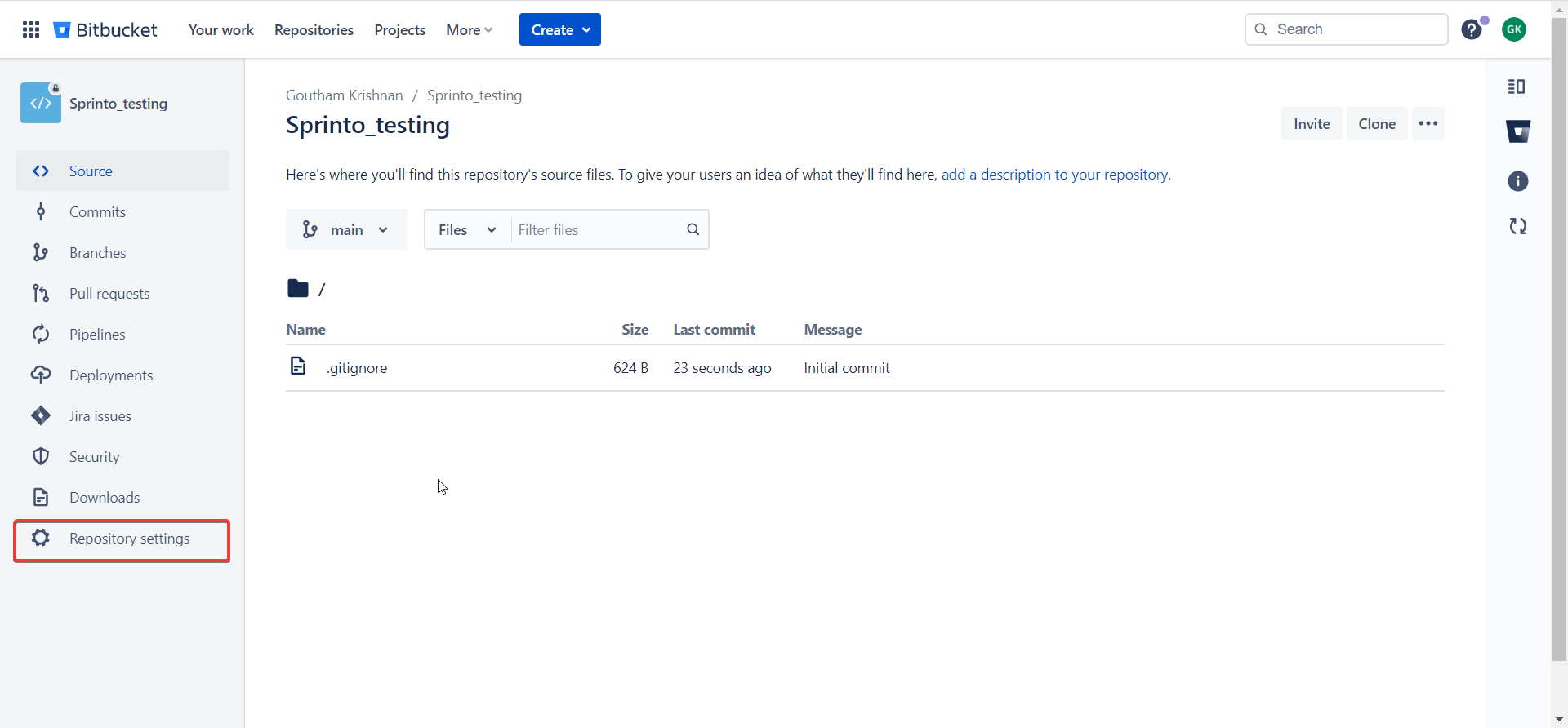
3. Click Repository settings.
4. On the sidebar, under the Workflow section, click Branch Restrictions.
5. Create or edit the restriction for each production branch.
1. Select the **Merge settings** tab.
2. Configure the following settings. Each monitor passes only when its listed settings are enabled:
* **Monitor 1: Peer review should be enforced for code changes**
* Set the minimum number of approvals to **1**.
* Select **Prevent a merge with unresolved merge checks**.
* **Monitor 2: Branch protection rules should be enforced for admins**
* Select **Only specific people or groups have write access**.
* Select **Prevent a merge with unresolved merge checks**.
* **Monitor 3: Merging of code changes should require passing status checks**
* Set the minimum number of successful builds to **1**.
* Select **Prevent a merge with unresolved merge checks**.
6. Click **Save**.
7. Ensure a Dependency Vulnerability scanner is enabled on all production repositories.\
Note: Bitbucket doesn't have a built-in free dependency scanner like Github. You can try[ SLscan](https://slscan.io/en/latest/) or[ Snyk](https://snyk.io/).
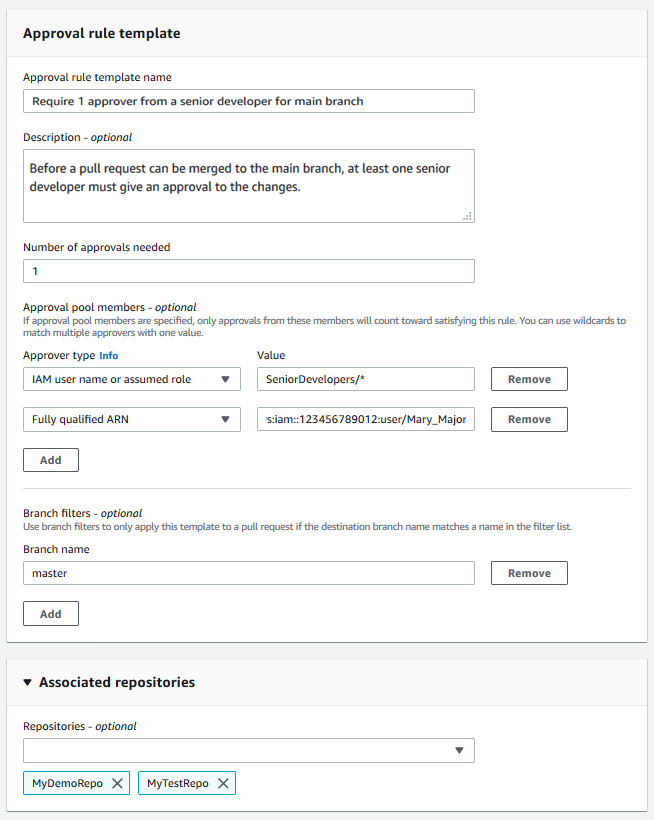
#### 4. AWS CodeCommit
Follow the below procedure for enabling branch protection rules on AWS CodeCommit:
Before you begin
* Approval rules for pull requests.
* Managed policies for approval rule templates.
Procedure
* Refer to AWS CodeCommit documentation for setting up approval rule templates. See [Permissions for actions on approval rule templates](https://docs.aws.amazon.com/codecommit/latest/userguide/auth-and-access-control-permissions-reference.html#aa-art) and [AWS-managed policies for CodeCommit](https://docs.aws.amazon.com/codecommit/latest/userguide/security-iam-awsmanpol.html).
* Ensure a Dependency Vulnerability scanner is enabled on all production repositories.\
\
Note: AWS CodeCommit doesn't have a built-in free dependency scanner like Github. You can try [SLscan](https://slscan.io/en/latest/) or [Snyk](https://snyk.io/).
#### 5. Azure DevOps
Follow the below procedure to enable branch policies on Azure DevOps:
Before you begin
* Ensure you have access to manage the branch policies on Azure DevOps.
* Ensure that the policies are enabled at the branch level.
Procedure
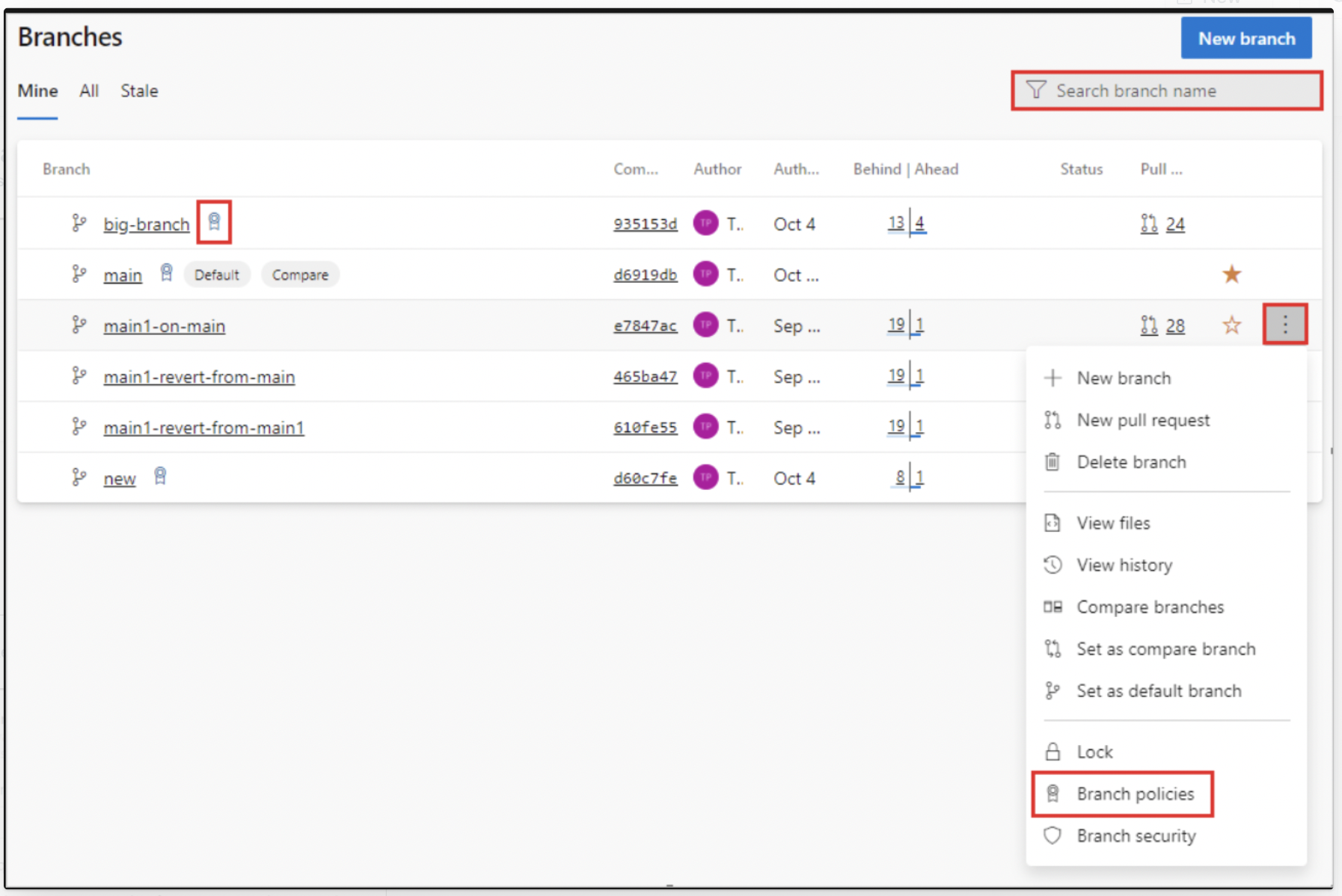
1. Select Repos > Branches in the Azure DevOps web portal to manage branch policies.
2. Search for the branch and choose Branch policies.
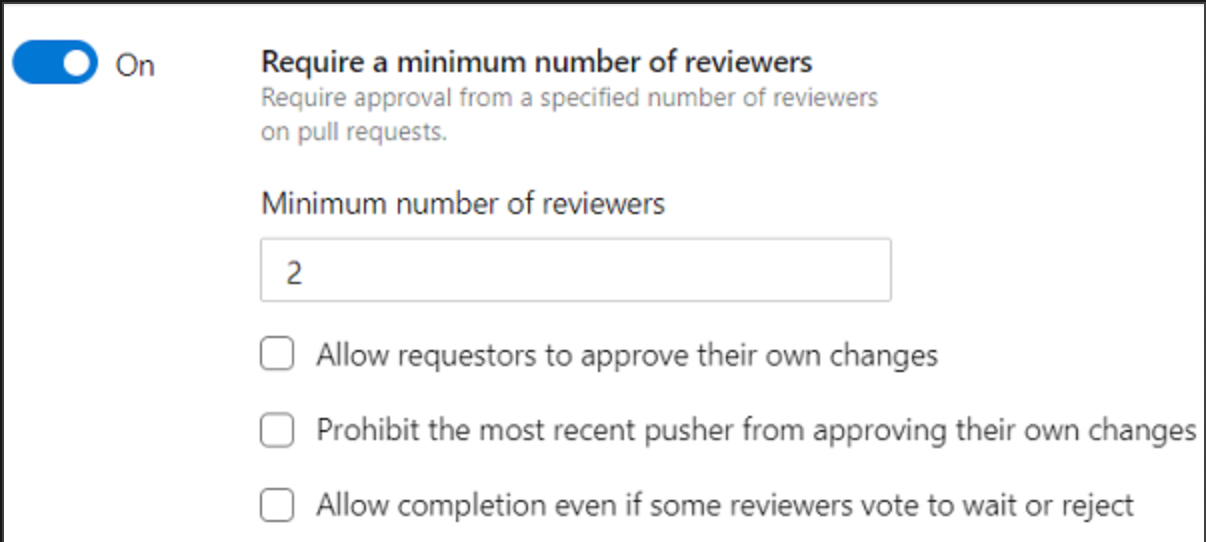
* Enable Require a minimum number of reviewers and set the required number (at least 1).
* Scroll to **Status Checks** → click **+ Add**.
* Complete the required fields (for example, *Status to check*) and click **Save**.
{% hint style="info" %}
Policies should be enabled at the branch level as they are not synced from Project level settings.
{% endhint %}
Applying these branch protection rules ensures a secure and compliant development practice across all production repositories tracked by Sprinto. Sprinto retrieves the changes and sets the Sprinto check for branch protection to “Passing.” If you need any assistance with the Sprinto check, please get in touch with [Sprinto Support](mailto:www.support@sprinto.com).
---
# Agent Instructions
This documentation is published with GitBook. GitBook is the documentation platform designed so that both humans and AI agents can read, navigate, and reason over technical content effectively. Learn more at gitbook.com.
## Querying This Documentation
If you need additional information that is not directly available in this page, you can query the documentation by asking a question.
Perform an HTTP GET request on the following URL with the `ask` and `goal` query parameters:
```
GET https://docs.sprinto.com/monitors/code-and-repository-monitors/how-to-resolve-sprinto-check-for-enabling-branch-protection-rules.md?ask=&goal=
```
`ask` is the immediate question: it should be specific, self-contained, and written in natural language.
`goal` is what the user is ultimately trying to achieve, the reason they need the answer. Sharing it helps GitBook give you a better, more relevant answer. A goal is most helpful when it describes the outcome the user wants rather than restating the question. For example, with `ask=how do I create an API token`, a goal like `automate deployments from our CI pipeline` lets GitBook tailor the answer to that use case.
The response will contain a direct answer to the question and relevant excerpts and sources from the documentation.
Use this mechanism when the answer is not explicitly present in the current page, you need clarification or additional context, or you want to retrieve related documentation sections.

.png?alt=media&token=cf6377a8-9d7d-4eac-a10f-369833ca9ed4)
.png?alt=media&token=7ca06a27-8d61-4773-887d-a85f8b05d47d)