> For the complete documentation index, see [llms.txt](https://docs.sprinto.com/llms.txt). Markdown versions of documentation pages are available by appending `.md` to page URLs; this page is available as [Markdown](https://docs.sprinto.com/integrations/overview/dayforce-hcm-integration-beta.md).
# Dayforce HCM Integration (Beta)
Ceridian Dayforce is a cloud-based Human Capital Management (HCM) platform used to streamline and manage HR and workforce operations.
### How this integration helps
The Dayforce integration allows Sprinto to retrieve essential staff details, including:
* Name
* Email address
* Job role
* Employment status
* Work assignment
* Reporting manager
* Hire/termination dates
Sprinto uses this data to generate an organisational chart, identify gaps, and trigger compliance checks whenever key information is missing or outdated.
### Sprinto checks for Ceridian Dayforce
When integrated with Dayforce, Sprinto runs the following checks:
| Sprinto check | Description | Reference procedure |
| ------------------------------------------ | ---------------------------------------------------------------------------------------------------------------------------- | ----------------------------------------------------------------------------------------------------- |
| Staff role should be assigned | All in-scope staff must have an assigned staff role. | [How to fix](/data-library/people/dashboard-actions/manage-staff-and-organisational-configuration.md) |
| Staff reporting manager should be assigned | All in-scope staff should have an assigned reporting manager. Senior leadership roles such as CEO, CTO, etc. are exceptions. | [How to fix](/data-library/people/dashboard-actions/manage-staff-and-organisational-configuration.md) |
| Staff joining date should be defined | A joining date must be set for all newly onboarded staff. | [How to fix](/data-library/people/dashboard-actions/manage-staff-and-organisational-configuration.md) |
### Before you begin
* Log in to Sprinto as an administrator.
* Ensure you have a paid Dayforce HCM account with API access.
* Ensure you have **Admin** access on the Dayforce account you want to integrate.
### Step 1: Configure the role and API access in Dayforce
1. Log in to your [Dayforce](https://int.dayforce.com/root/mydayforce/MyDayforce.aspx) HCM account.
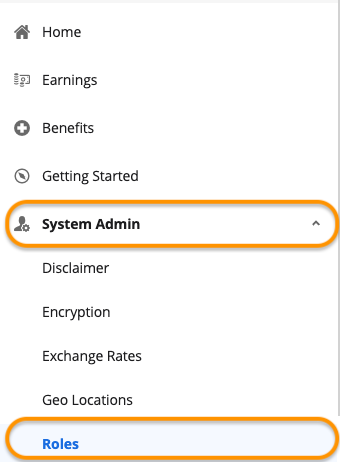
2. Go to **System Admin > Roles**.
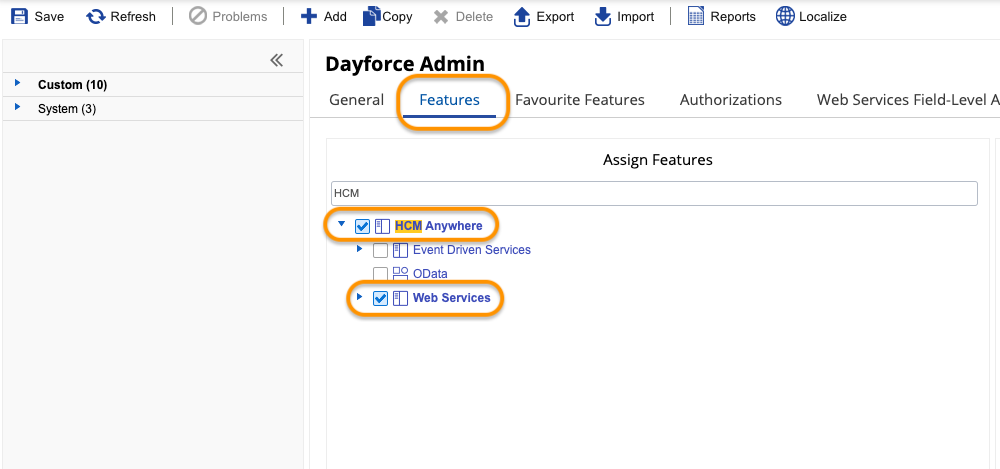
3. In the **Features** tab, enable:
* **HCM Anywhere**
* **Web Services**
4. Expand **Web Services** and ensure that you have selcted the **Read Data** check box.
5. Navigate to **Authorizations** and select these check boxes in the **Can Read** section:
* **Employee Key Information**
* **Employee Status Information**
* **Employee Work Assignment – Primary Records**
* **Employee Work Assignment – Secondary Records**
* **Employee Contact Information - Business**
{% hint style="info" %}
Follow this [guide](https://help.dayforce.com/r/documents/Dayforce-SOAP-Web-Services-Developer-Guide/Enable-the-Web-Services-Role-Feature) in case you have not enabled web services role feature.
{% endhint %}
6. Navigate to Web Services field-level access
7. Navigate to **RESTful Services** > **Human Resources** > **Employee**
8. Select the following fields for Sprinto to fetch the following data:
* For Effective End: Enable **EffectiveEnd**
* Unique Identifier for employees **-** Enable **XRefCode**
* For Name: Enable **FirstName,** **LastName** and **CommonName**
* For Manager information: Right-click **Employee managers** and **Select All**
* For Employment information: Enable **RESTful Services** > **Human Resources** > **EmployeeWorkAssignment** (and all child nodes)
* For Employment Status: Right-click **Employment Statuses** and **Select All**. Right-click **Employment Status Group** and **Select All**
* For Employee Date of Hire: Enable **EffectiveStart**, **StartDate,** **HireDate** and **OriginalHireDate**
* For Groups: Enable R**ESTful Services** > **Configuration** > **Location** (and all child nodes) and **RESTful Services** > **Human Resources** > **OrgUnitInfos**
* For Emails: Enable **Contacts and Addresses** (and all child nodes) under **RESTful Services** > **Human Resources**
{% hint style="info" %}
Payroll and other sensitive data scopes are not required. Sprinto does not fetch or store payroll-related information from Dayforce.
{% endhint %}
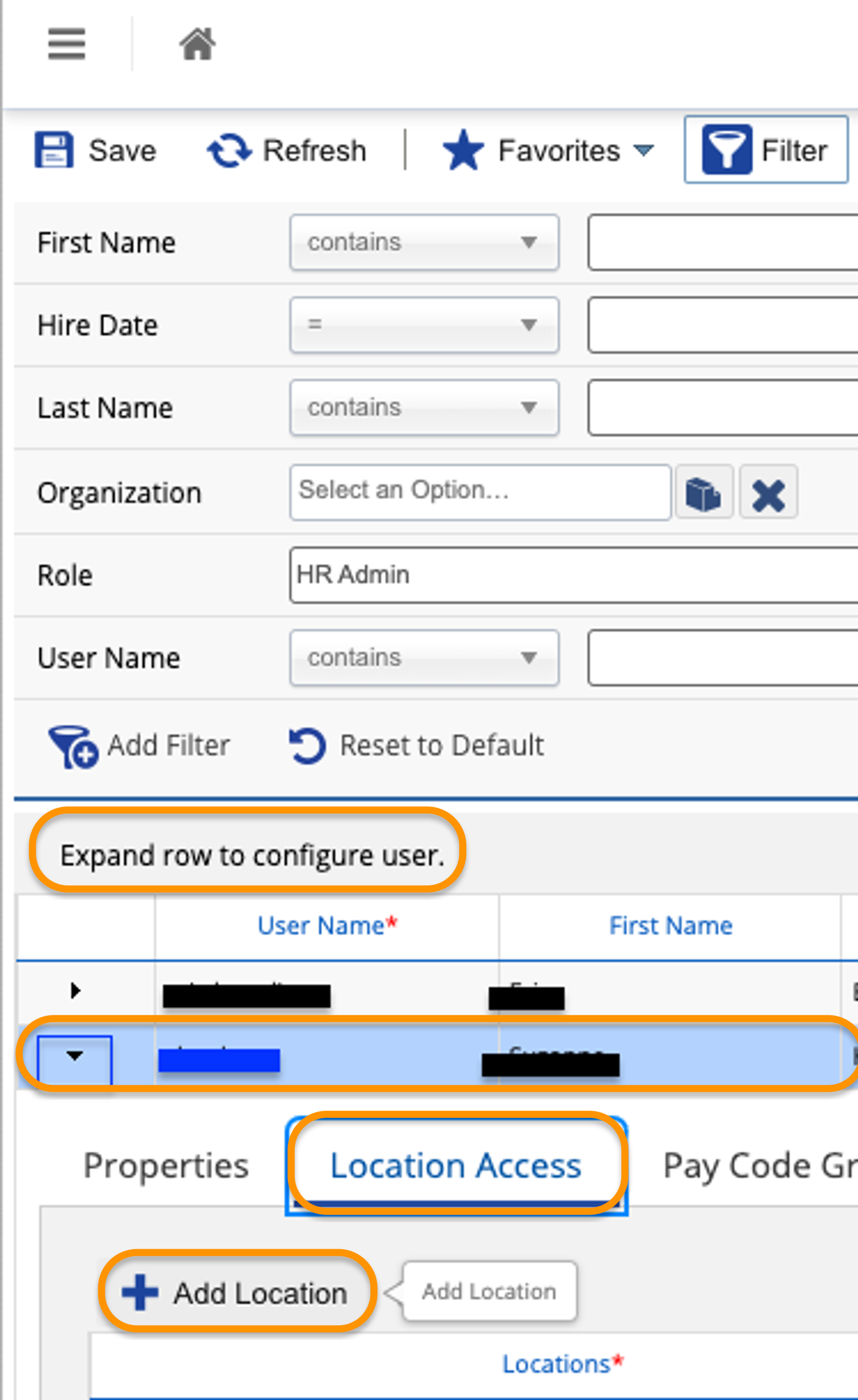
9. Go to **System Admin > User**. Ensure the authenticating user:
* Has the **Can See Self** option enabled.
* Expand the User by clicking on the small down arrow as shown in the blue box below. Click on **Location Access**, **+ Add Location**, and add the **Company Level Location**.
10. Keep the following details ready:
* Company ID
* Username
* Password
You’ll need these credentials when connecting Sprinto to Dayforce.
### Step 2: Integrate Ceridian Dayforce with Sprinto
1. In Sprinto, go to **Settings > Integrations > Available integrations**.
2. Select **Connect** next to **Dayforce**.
3. On the integration page, tick the acknowledgement checkbox and select **Connect to Dayforce**.
{% hint style="info" %}
Ensure pop-ups are enabled in your browser.
{% endhint %}
4. In the Dayforce pop-up window:
* Enter your **Company ID**, then select **Next**.
* Enter your **User ID and Password**, then select **Next**.
### Step 3: Configure Dayforce on Sprinto
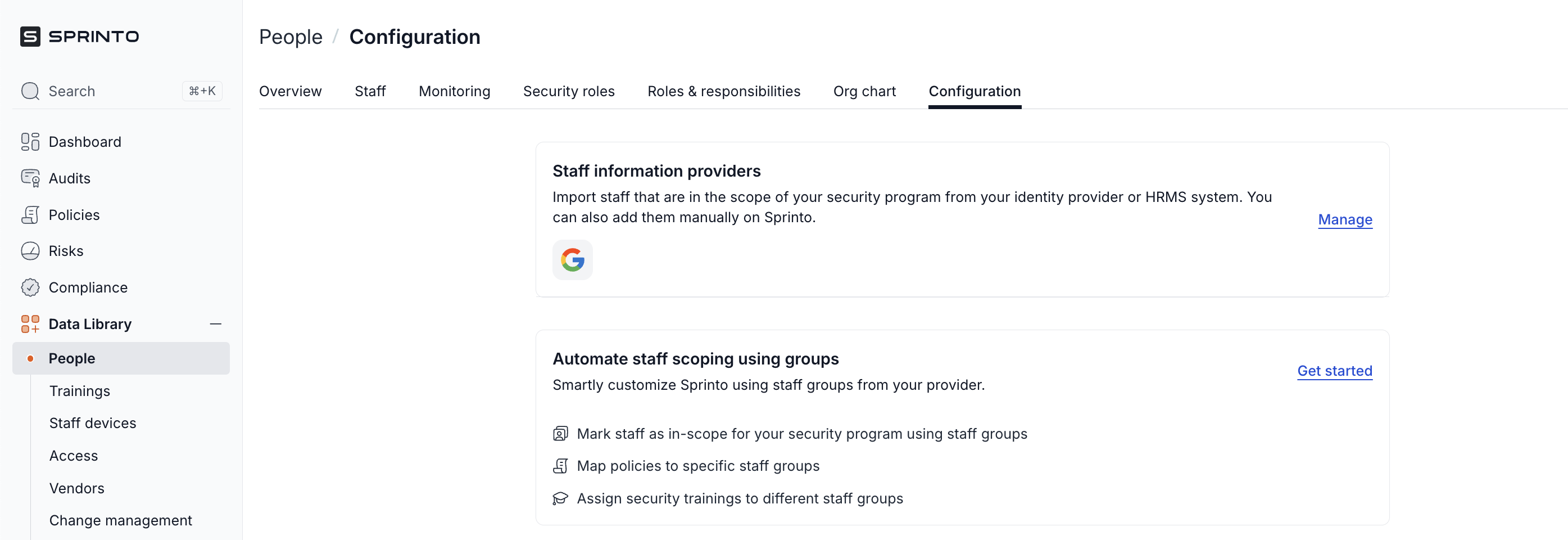
1. In Sprinto, go to **Data Library >** **People > Configuration** and select **Manage**.
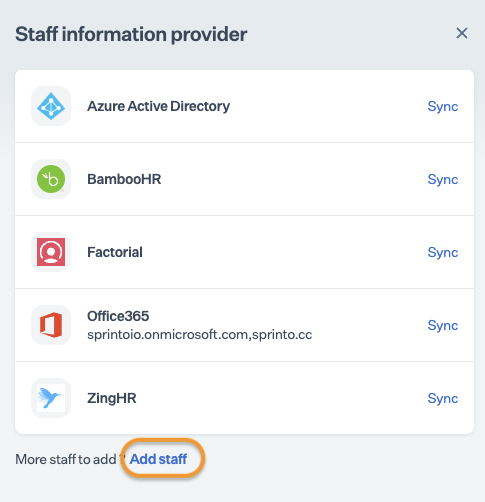
2. On the **Staff Information Provider** page, select **Add staff**.
3. On the **Add staff member** page, select **Add staff from HRMS** and then select the details button next to **Ceridian Dayforce**.
4. On the **Add Dayforce as a provider** page, select **Add Dayforce** .
You should now see **Connected** highlighted next to Dayforce. This confirms the integration is active.
### Final step
* After completing Step 2, allow 15–20 minutes for Sprinto to complete the initial data sync.
* Sprinto may take up to 24 hours to evaluate synced data and activate the relevant checks.
* To refresh data manually:
1. Go to **People > Configuration**.
2. Select **Manage**.
3. Select **Sync** next to **Dayforce**.
{% hint style="info" %}
Sprinto follows the *principle of least privilege*. Only staff details required for compliance are retrieved. Payroll or compensation data is not accessed or stored.
{% endhint %}
---
# Agent Instructions
This documentation is published with GitBook. GitBook is the documentation platform designed so that both humans and AI agents can read, navigate, and reason over technical content effectively. Learn more at gitbook.com.
## Querying This Documentation
If you need additional information that is not directly available in this page, you can query the documentation by asking a question.
Perform an HTTP GET request on the following URL with the `ask` and `goal` query parameters:
```
GET https://docs.sprinto.com/integrations/overview/dayforce-hcm-integration-beta.md?ask=&goal=
```
`ask` is the immediate question: it should be specific, self-contained, and written in natural language.
`goal` is what the user is ultimately trying to achieve, the reason they need the answer. Sharing it helps GitBook give you a better, more relevant answer. A goal is most helpful when it describes the outcome the user wants rather than restating the question. For example, with `ask=how do I create an API token`, a goal like `automate deployments from our CI pipeline` lets GitBook tailor the answer to that use case.
The response will contain a direct answer to the question and relevant excerpts and sources from the documentation.
Use this mechanism when the answer is not explicitly present in the current page, you need clarification or additional context, or you want to retrieve related documentation sections.
.png?alt=media&token=6a0cf9e9-2078-487a-afd3-5674b3f2538d)
.png?alt=media&token=6365710a-d03a-403f-8eeb-9c14494e6be7)
.png?alt=media&token=28a555fc-0e8e-453e-a098-d36eebcb0034)