> For the complete documentation index, see [llms.txt](https://docs.sprinto.com/llms.txt). Markdown versions of documentation pages are available by appending `.md` to page URLs; this page is available as [Markdown](https://docs.sprinto.com/integrations/overview/copper-integration.md).
# Copper Integration
The following article describes how to integrate Sprinto with Copper. Copper is a marketing automation tool.
**Note**: We use [Truto.one](https://truto.one/) as our integration partner to integrate and fetch required user details from the Copper account.
### How this integration helps
* Integration helps to fetch the users list from the Copper account.
* If a staff member who has Copper account access offboards the organization, Sprinto activates a check against the staff member to revoke Copper access.
### Prerequisites for Integration
* Logged in on Sprinto as administrator.
* Ensure you have “Admin” access on the Copper account you want to integrate.
### How to integrate Sprinto with Copper
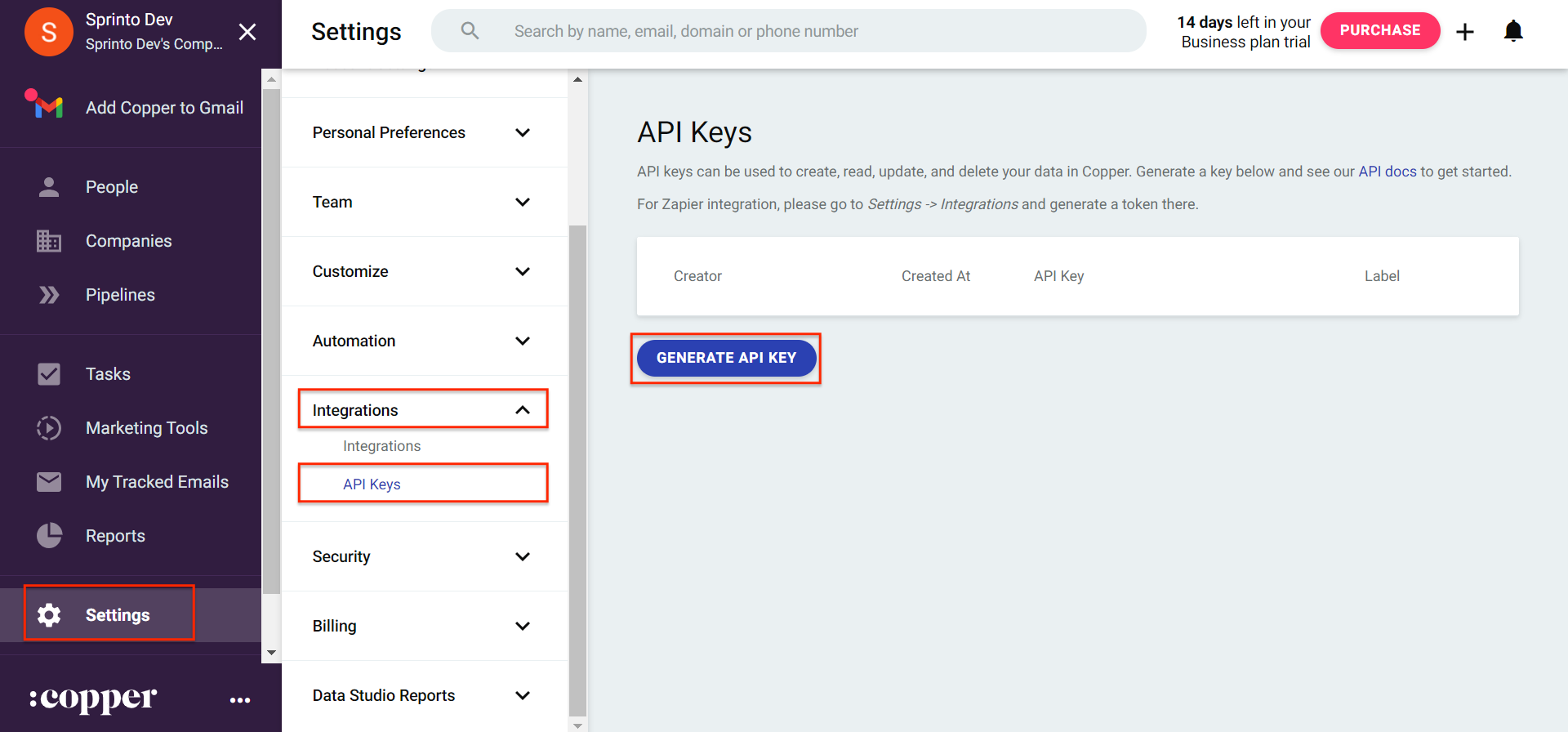
1. Do the following procedure to get the API Key from Copper:
1. Go to [Copper login portal](https://app.copper.com/users/sign_in?utm_medium=organic\&utm_source=google&_hjSessionUser_1366854=eyJpZCI6ImIxZmMyOWExLWIyOTItNTg1Mi05ODUzLTYxMjQ1ZGI0NDFiYyIsImNyZWF0ZWQiOjE2OTAzMDUzNDU5NTAsImV4aXN0aW5nIjpmYWxzZX0=&_ga=GA1.2.1217340560.1690305346&_ga_52E9PE7VBJ=GS1.2.1690305346.1.0.1690305346.60.0.0\&utm_last_page=https://php.copper.com/\&visitor_token=) and log in using your credentials or Single Sign-On (SSO) option.
2. Go to **Settings** > **Integrations** > **API keys** and click **Generate API keys**.
3. Copy the generated API key securely. You’ll need this API key on the Sprinto platform to build integration.
2. On Sprinto app, go to **Settings** > **Available integrations** and click on **Connect next to Copper**.
3. From **Integration** page, select the acknowledgment checkbox and click on **Connect to Copper**.
**Note**: This completes connecting the Copper account on Sprinto. Follow steps 4 onwards to complete the integration.
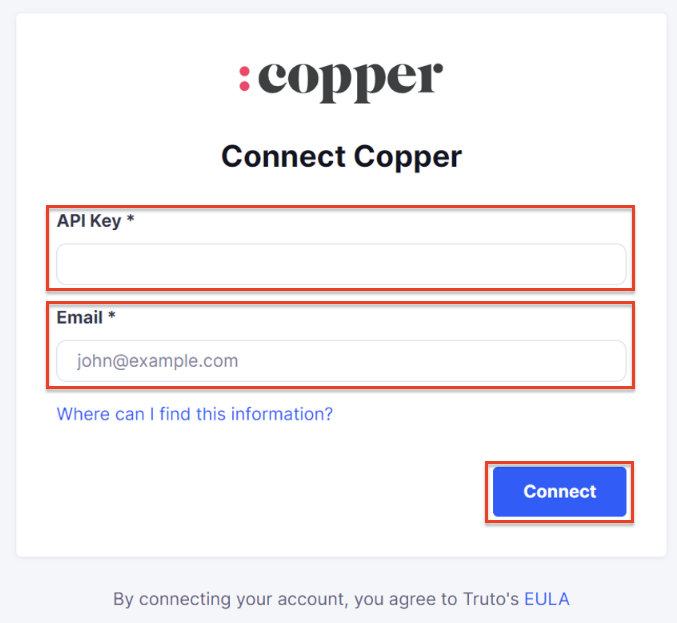
4. On **Copper integration** page, enter the API key, Email address in the respective field and click on Connect.
5. On **Access** page, select Copper and click on **Add system**.
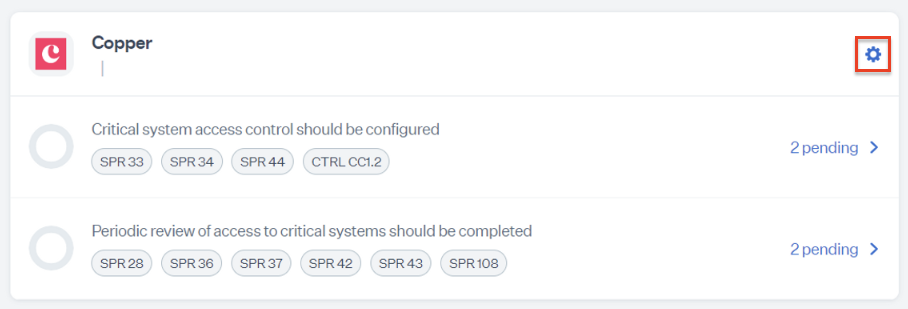
6. Click on settings icon next to Copper.
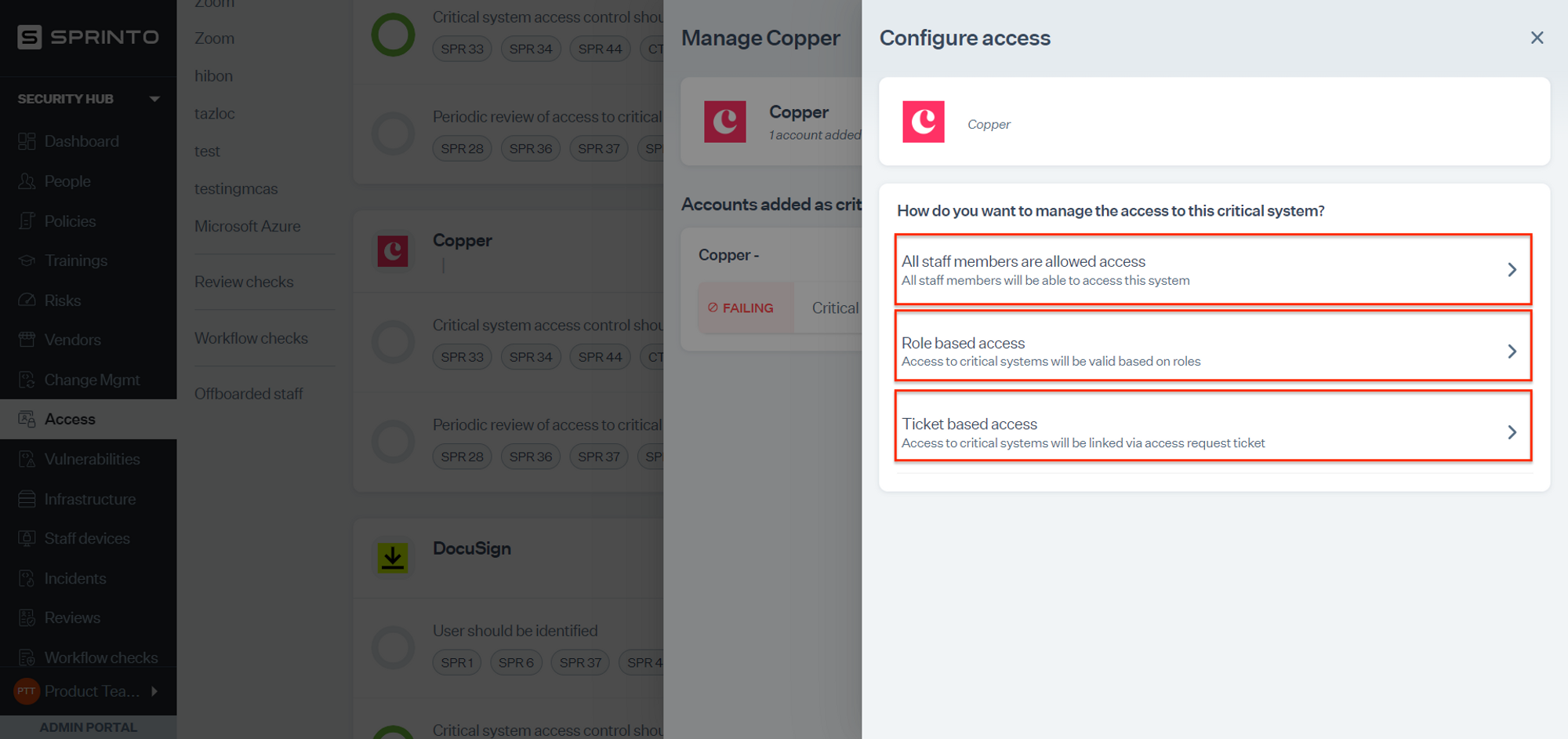
7. On **Manage Copper** page, click on **Configure access**.
8. Select one of the following user access types:
**Note**: Sprinto activates a check against any staff member with invalid access based on access type selected.
* **All staff members are allowed access**: Selecting this option defines all staff members’ valid access to the critical system.
* **Role-based access**: Select this option and define the org roles that are valid to access the critical system.
* **Ticket-based access**: Select this option and define the valid access for users with access tickets.
### Final Step
This completes the integration procedure. To check for pending tasks or failing checks, go to **Data Library** > **Access** and review the Copper critical system card.
---
# Agent Instructions
This documentation is published with GitBook. GitBook is the documentation platform designed so that both humans and AI agents can read, navigate, and reason over technical content effectively. Learn more at gitbook.com.
## Querying This Documentation
If you need additional information that is not directly available in this page, you can query the documentation by asking a question.
Perform an HTTP GET request on the following URL with the `ask` and `goal` query parameters:
```
GET https://docs.sprinto.com/integrations/overview/copper-integration.md?ask=&goal=
```
`ask` is the immediate question: it should be specific, self-contained, and written in natural language.
`goal` is what the user is ultimately trying to achieve, the reason they need the answer. Sharing it helps GitBook give you a better, more relevant answer. A goal is most helpful when it describes the outcome the user wants rather than restating the question. For example, with `ask=how do I create an API token`, a goal like `automate deployments from our CI pipeline` lets GitBook tailor the answer to that use case.
The response will contain a direct answer to the question and relevant excerpts and sources from the documentation.
Use this mechanism when the answer is not explicitly present in the current page, you need clarification or additional context, or you want to retrieve related documentation sections.