> For the complete documentation index, see [llms.txt](https://docs.sprinto.com/llms.txt). Markdown versions of documentation pages are available by appending `.md` to page URLs; this page is available as [Markdown](https://docs.sprinto.com/integrations/overview/google-docs-integration.md).
# Google Docs Integration
Connect Google Docs with Sprinto to automatically sync policy documents and manage compliance documentation directly from your Google Workspace.
The Google Docs integration allows you to connect your Google Workspace account with Sprinto to streamline documentation management for audits and compliance.
Once connected, Sprinto can:
* Sync selected Google Docs as policy or evidence documents.
* Automatically reflect document updates in Sprinto.
* Reduce manual uploads and version control overhead.
* Maintain a centralised documentation repository aligned with your compliance framework.
This integration is designed for organisations using Google Workspace to manage policies, SOPs, and compliance artefacts.
***
### Available Automation Capabilities
After integration, Sprinto can:
* Sync selected Google Docs into the Policies section.
* Maintain document linkage to the source file.
* Automatically update evidence when the source document is modified.
* Track document availability for audit readiness.
***
### Before You Begin
Ensure the following prerequisites are met:
* You are logged in to the **Sprinto Admin Portal**.
* You have **Administrator access** to your Google Workspace account.
* You have permission to authorise third-party applications in Google Workspace.
* The documents you plan to sync are stored in Google Drive.
{% hint style="info" %}
#### Note
The Google account used for integration must have access to all documents you intend to sync.
{% endhint %}
***
### How It Works
Sprinto uses secure OAuth authentication to connect to your Google Workspace account.
After authentication:
1. You grant Sprinto permission to access selected Google Docs.
2. Sprinto stores document metadata and maintains a live link to the source file.
3. When the document is updated in Google Drive, Sprinto reflects the updated version automatically.
Sprinto does not modify the original Google Doc. It only reads and syncs document data for compliance purposes.
***
### Set Up Google Docs Integration
#### Step 1: Navigate to Google Docs Integration
1. Log in to Sprinto.
2. Go to **Settings**.
3. Select **Integrations**.
4. Under the **All** tab, search for **Google Docs**.
5. Click **Connect**.
***
#### Step 2: Review Permissions
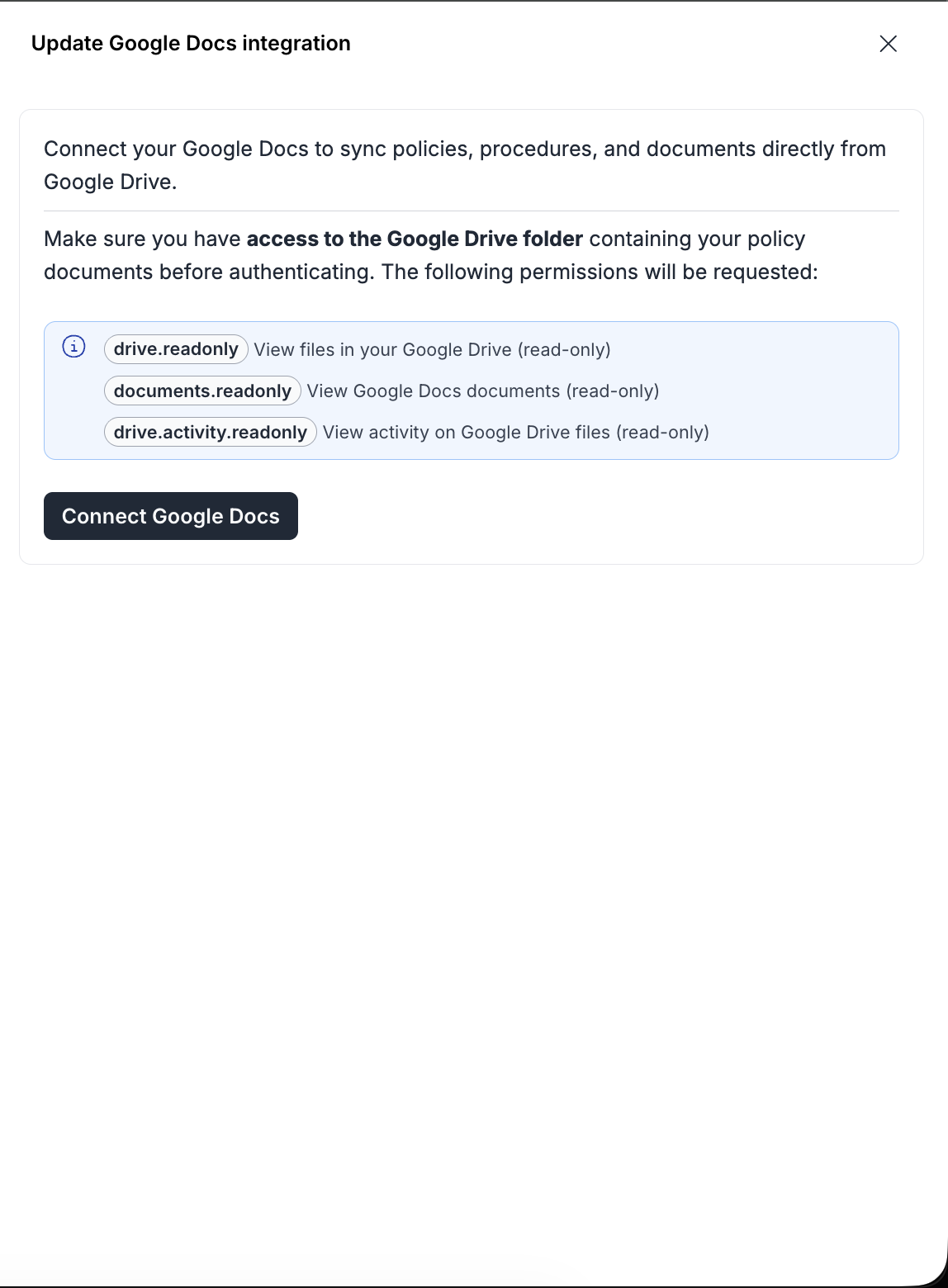
A drawer will open showing:
* Automation capabilities
* Permissions required
* Data accessed by Sprinto
Review the details and click **Next**.
***
#### Step 3: Authenticate with Google
1. Click **Connect Google Docs**.
2. Sign in to your Google Workspace account.
3. Review the permissions requested.
4. Click **Continue** to grant access.
After successful authentication, you will be redirected back to Sprinto.
***
### Post-Connection Flow
After successful authentication, you will be redirected back to Sprinto. Once the integration status shows as **Connected**, complete the configuration to enable document sync.
#### Step 1: Configure Document Sync
1. In **Settings → Integrations → Google Docs**, click **Set up**.
2. In the configuration drawer, enter the name of the **Google Drive folder** that contains your policy documents.
Ensure the folder:
* Exists in Google Drive.
* Is accessible to the connected Google Workspace account.
* Is named exactly as specified (folder names are case-sensitive).
Sprinto validates the folder name when you save the configuration.
***
#### Step 2: Create Required Sub-Folders
Within the selected Google Drive folder, create the following sub-folders:
* **Policy** – For policy documents
* **Procedure** – For procedural documents
* **Other docs** – For additional compliance documentation
Only documents placed within these sub-folders will be available for sync.
***
#### Step 3: Save Configuration
1. After verifying the folder name and sub-folder structure, click **Save Configuration**.
2. Sprinto will validate the folder and enable document synchronisation.
If the folder cannot be validated, confirm:
* The folder exists.
* The authenticated account has access to it.
* The folder name is entered correctly.
***
#### How Sync Works After Configuration
Once configured:
* Sprinto reads documents from the specified folder and its required sub-folders.
* Selected Google Docs can be synced into the **Policies** section.
* Sprinto maintains a live link to the source document.
* When a document is updated in Google Drive, the updated version is automatically reflected in Sprinto.
Sprinto does **not** modify, edit, or delete the original Google Docs. It only reads document data and metadata for compliance purposes.
***
### Required Permissions
Sprinto requires:
* Read access to selected Google Docs.
* Access to document metadata.
* Access to Google Drive file listings (limited to authorised scope).
Sprinto does not request write, edit, or delete permissions for your documents.
***
### Troubleshooting
#### Integration fails during authentication
* Ensure you are using a Google Workspace account (not a personal Gmail account, if restricted by your organisation).
* Confirm third-party app access is not blocked by your admin.
* Clear browser cache and retry authentication.
#### Documents do not appear for selection
* Ensure the authenticated user has access to the document.
* Verify the document is stored in Google Drive.
* Refresh the integration and retry.
#### Document updates are not reflecting
* Confirm the document is still accessible to the connected account.
* Disconnect and reconnect the integration if required.
---
# Agent Instructions
This documentation is published with GitBook. GitBook is the documentation platform designed so that both humans and AI agents can read, navigate, and reason over technical content effectively. Learn more at gitbook.com.
## Querying This Documentation
If you need additional information that is not directly available in this page, you can query the documentation by asking a question.
Perform an HTTP GET request on the following URL with the `ask` and `goal` query parameters:
```
GET https://docs.sprinto.com/integrations/overview/google-docs-integration.md?ask=&goal=
```
`ask` is the immediate question: it should be specific, self-contained, and written in natural language.
`goal` is what the user is ultimately trying to achieve, the reason they need the answer. Sharing it helps GitBook give you a better, more relevant answer. A goal is most helpful when it describes the outcome the user wants rather than restating the question. For example, with `ask=how do I create an API token`, a goal like `automate deployments from our CI pipeline` lets GitBook tailor the answer to that use case.
The response will contain a direct answer to the question and relevant excerpts and sources from the documentation.
Use this mechanism when the answer is not explicitly present in the current page, you need clarification or additional context, or you want to retrieve related documentation sections.
.png?alt=media&token=53408b9a-a502-41ca-8257-a9f336e4f24b)
.png?alt=media&token=73da4180-82ba-49ca-bfe6-441607c0a395)
.png?alt=media&token=80629b67-cf2f-44c7-9f89-d1dbdd8d3e51)
.png?alt=media&token=7493e34e-8c94-4839-b529-8cb6820af706)