> For the complete documentation index, see [llms.txt](https://docs.sprinto.com/llms.txt). Markdown versions of documentation pages are available by appending `.md` to page URLs; this page is available as [Markdown](https://docs.sprinto.com/integrations/overview/azure-integration.md).
# Azure Integration
Connect Microsoft Azure to Sprinto to automate cloud security monitoring and continuously sync subscription data for compliance reporting.
The Microsoft Azure integration allows Sprinto to read resources and monitor security configurations across your Azure subscription. Once connected, Sprinto continuously evaluates your Azure environment against applicable compliance requirements and surfaces findings on the platform.
Sprinto requires read-level access to your Azure subscription in order to:
* Monitor cloud resources and configurations
* Evaluate security posture
* Map evidence to relevant controls
* Track compliance status in real time
You can integrate Azure using either:
1. **Azure Subscription**
2. **Azure Management Group**
***
### Available integration methods
When you click **Connect** next to Azure under **Cloud Providers** and select your connection type, you can choose one of the following:
* **Use Azure PowerShell (Recommended)**
* **Create application manually**
Both methods create a dedicated Azure app (`sprinto-auditor-app`) with the required read permissions.
***
### Prerequisites
Before setting up the Azure Management Group integration, ensure the following:
* You are logged in to the **Sprinto Admin portal**.
* You have one of the following roles in your Azure account:
* **Owner**
* **User Access Administrator**
* **Global Administrator**
* You are logged in to Azure using an **internal account** (email ending with `.onmicrosoft.com`).
***
### Required configuration
#### Authentication method
* **Service Principal with Client Credentials (OAuth 2.0)**
***
#### Required credentials
You will need:
* **Application (Client) ID**
* **Directory (Tenant) ID**
* **Client Secret**
* **Subscription ID** (Applicable only for Azure Subscription)
* **Cloud type** (Commercial, Government, China)
***
#### Microsoft Graph permissions
Grant the following **Application permissions**:
* `User.Read.All`
* `AuditLog.Read.All` *(optional)*
***
#### Azure RBAC permissions
Assign **Reader role** (or equivalent custom role) at the **Management Group level** with access to:
* Subscriptions
* Role assignments and definitions
* Compute, Network, Storage, SQL, Key Vault, and AKS resources
***
## Type 1 - Azure Subscription
Connect your Azure Subscription to Sprinto to enable read-only monitoring of cloud resources, user access, and security configurations for continuous compliance tracking.
### Method 1: Integrate using Azure PowerShell (Recommended)
This method automatically creates the required Azure application and assigns the necessary permissions.
#### Step 1: Start the integration in Sprinto
1. Log in to the Sprinto dashboard.
2. Navigate to **Settings** → **Integrations**.
3. In the All tab, search for Microsoft Azure.
4. Under **Cloud Providers**, click **Connect** next to **Microsoft Azure**.
5. In the drawer that opens up, select Azure Subscription.
6. In the pop-up that opens, click **Continue**.
7. Review the permissions required and click **Next**.
8. Select **Use Azure PowerShell**.
9. Enter your **Azure Subscription Name**.\
(You can find it in Azure under **Account → Subscriptions**.)
10. Click **Continue**.
***
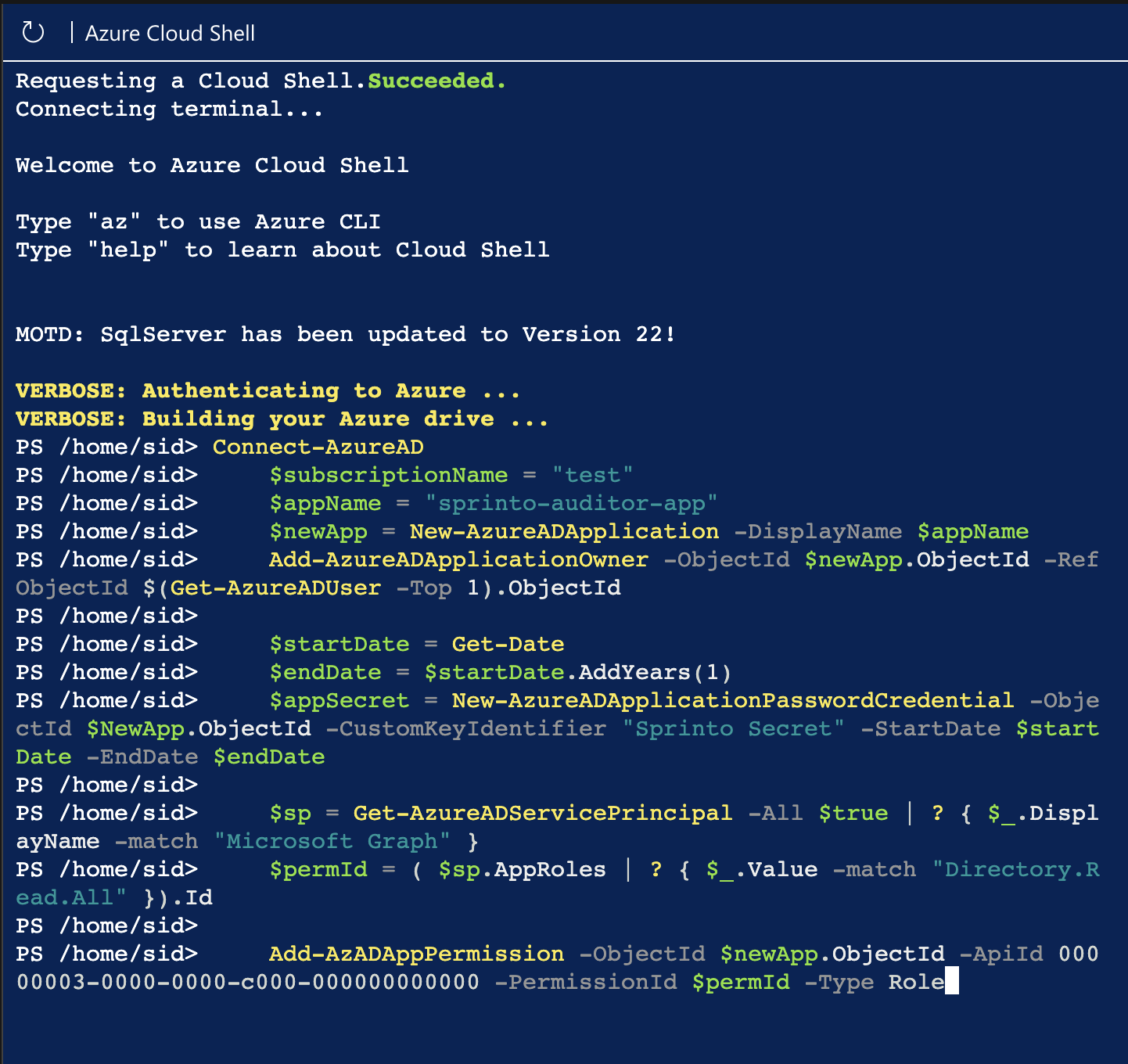
#### Step 2: Run the PowerShell script
1. Under **Step A**, click **Copy PowerShell Code**.
2. Open **Azure Cloud Shell** or your local Azure PowerShell terminal.
3. Paste and execute the copied script.
This script:
* Creates an application named `sprinto-auditor-app`
* Assigns the required Microsoft Graph permissions
* Configures the appropriate role access
***
#### Step 3: Grant admin consent
1. In Azure, go to **App Registrations**.
2. Search for and select **sprinto-auditor-app**.
3. Navigate to **API Permissions**.
4. Click **Grant admin consent for Default Directory**.
Admin consent is required for Sprinto to read directory data.
***
#### Step 4: Add Role Assignment in Azure Console
1. Go to Subscription in the Azure console.
2. Click on **Access control (IAM)**.
3. Click **Add role assignment**.
4. Select Reader Role and click **Next**.
5. Click on **Select members**.
6. Search for `sprinto-auditor-app` and select it.
7. Click **Review + Assign**.
8. Refresh the role assignment list to see the assignment for `sprinto-auditor-app` .
***
#### Step 5: Generate and copy JSON output
1. In Sprinto, move to **Step C**.
2. Copy the provided PowerShell code.
3. Run it in PowerShell to generate a JSON output.
4. Copy the JSON result.
5. Paste the JSON into the **Step 2** box in Sprinto.
6. Click **Connect**.
The Azure integration will now be configured.
***
### Method 2: Integrate Azure manually
Use this method if you prefer to configure Azure access manually.
#### Step 1: Create a new App Registration
1. Log in to the Azure Portal.
2. Go to **App registrations**.
3. Click **New registration**.
4. Enter the name: `sprinto-auditor-app`.
5. Leave **Supported account types** as default.
6. Click **Register**.
Save the following values:
* **Application (Client) ID**
* **Directory (Tenant) ID**
You will need these in Sprinto.
***
#### Step 2: Create a Client Secret
1. Open the newly created app.
2. Go to **Certificates & secrets**.
3. Click **New client secret**.
4. Enter a description (for example: Sprinto Secret).
5. Set expiry to **24 months**.
6. Click **Add**.
7. Copy and securely save the **Secret Value**.
{% hint style="info" %}
#### Note
It is recommended by Sprinto to set the expiry to 24 months. This is to avoid updating your client secret often.
{% endhint %}
***
#### Step 3: Configure API permissions
1. Go to **API permissions**.
2. Click **Add a permission**.
3. Select **Microsoft Graph**.
4. Choose **Application permissions**.
5. Under the Directory section, select:
* `Directory.Read.All`
6. Click **Add permissions**.
7. Click **Grant admin consent for Default Directory**.
***
#### Step 4: Assign Reader role to the app
1. Navigate to **Subscriptions**.
2. Select your subscription.
3. Click **Access Control (IAM)**.
4. Click **Add role assignment**.
5. Select **Reader** role.
6. Click **Next**.
7. Click **Select members**.
8. Search for `sprinto-auditor-app`.
5. Click **Select**.
6. Click **Review + assign**.
***
#### Step 5: Complete setup in Sprinto
1. Return to Sprinto.
2. Click **Connect** next to Azure.
3. Select **Create application manually**.
4. Click **Continue**.
5. Enter the following details:
* **Tenant ID**
* **Application ID**
* **Application Client Secret**
* **Subscription ID**
6. Click **Connect**.
7. Check the confirmation box:\
*I have registered a new app and gave appropriate permissions.*
8. Click **Connect with Azure**.
***
## Type 2 - Azure Management Group
Connect your Azure Management Group to Sprinto to monitor resources across multiple subscriptions with read-only access and enable centralised compliance tracking.
### Method 1: Integrate using Azure PowerShell (Recommended)
This method automatically creates the required Azure application and assigns permissions.
#### Start the integration in Sprinto
1. Log in to the Sprinto dashboard.
2. Navigate to **Settings → Integrations**.
3. Under the **All** tab, search for **Microsoft Azure**.
4. Click **Connect**.
5. Select **Azure Management Group**.
6. In the pop-up that opens, click **Continue**.
7. Review the permissions required and click **Next**.
8. Select the **Use Azure PowerShell** check box.
9. Click **Continue**.
***
### Step 1: Create application, grant permissions, and assign role
#### 1. Enable elevated access for Azure resources
Azure requires elevated access to assign roles at the Root Management Group level.
1. Go to **Microsoft Entra ID → Properties**.
2. Scroll to **Access management for Azure resources**.
3. Set it to **Yes**.
4. Click **Save**.
5. Sign out and sign back in for the change to take effect.
***
#### 2. Create service principal in Azure PowerShell
1. Copy the provided PowerShell script from the Sprinto dashboard.
2. Run it in **Azure Cloud Shell** or a local PowerShell terminal.
3. This creates an application named `sprinto-auditor-app`, generates a client secret, and assigns the **Directory.Read.All** application permission.
4. Keep the PowerShell session active for subsequent steps.
***
#### 3. Grant admin consent for API permissions
1. Go to **App registrations** in Azure.
2. Search for `sprinto-auditor-app`.
3. Open the application and navigate to **API permissions**.
4. Click **Grant admin consent for Default Directory**.
This allows Sprinto to read directory data required for user and access visibility.
***
#### 4. Assign Reader role at Management Group scope
1. Run the provided PowerShell command to assign the **Reader** role to `sprinto-auditor-app`.
2. Ensure the role is assigned at the **Root Management Group scope**.
This grants read access to all subscriptions within the management group hierarchy.
***
#### 5. Get application credentials
1. Run the provided PowerShell command to generate the application credentials JSON.
2. Copy the JSON output.
***
#### 6. Disable elevated access for Azure resources
1. Go back to **Microsoft Entra ID → Properties**.
2. Set **Access management for Azure resources** to **No**.
3. Click **Save**.
Disabling elevated access does not affect the role assignment already granted to `sprinto-auditor-app`.
***
### Step 2: Provide application credentials
1. Paste the copied **application credentials JSON** into the credentials field in Sprinto.
2. Click **Continue** to complete the connection.
***
### Method 2: Integrate Azure manually
Use this method if you prefer to configure Azure access manually.
### Step 1: Create application, grant permissions, and assign role
#### 1. Enable elevated access for Azure resources
Azure requires elevated access to assign roles at the Root Management Group level.
1. Select the **Setup manually** check box.
2. Click **Continue**.
3. Go to **Microsoft Entra ID → Properties**.
4. Scroll to **Access management for Azure resources**.
5. Set it to **Yes**.
6. Click **Save**.
7. Sign out and sign back in for the change to take effect.
***
#### 2. Register an application in Azure AD
1. Go to **Azure Portal → App registrations**.
2. Click **New registration**.
3. Enter `sprinto-auditor-app` as the application name.
4. Click **Register**.
5. From the application overview page, copy the:
* **Application (client) ID**
* **Directory (tenant) ID**
***
#### 3. Create a client secret
1. In the application, go to **Certificates & secrets**.
2. Click **Add a certificate or secret**.
3. Select **New client secret**.
4. Add a description and set an expiry (recommended: 12 months).
5. Click **Add**.
6. Copy the **Value** immediately (it will not be shown again).
***
#### 4. Grant Directory.Read.All API permission
1. Go to **API permissions** in the left navigation.
2. Click **Add a permission** → **Microsoft Graph** → **Application permissions**.
3. Search for `Directory.Read.All`, select it, and click **Add permissions**.
4. Click **Grant admin consent for Default Directory**.
***
#### 5. Assign Reader role at Management Group scope
1. Go to **Azure Portal → Management Groups**.
2. Select your **Root Management Group (Tenant Root Group)**.
3. Click **Access control (IAM)**.
4. Click **Add** → **Add role assignment**.
5. Select the **Reader** role and click **Next**.
6. Click **Select members**, search for `sprinto-auditor-app`, and select it.
7. Click **Review + Assign**.
This grants read access to all subscriptions within the management group hierarchy.
***
#### 6. Disable elevated access for Azure resources
1. Go back to **Microsoft Entra ID → Properties**.
2. Set **Access management for Azure resources** to **No**.
3. Click **Save**.
Disabling elevated access does not affect the role assignment already granted.
***
### Step 2: Provide application credentials
1. Enter the following details in Sprinto:
* **Tenant ID**
* **Application ID**
* **Application Client Secret**
2. Click **Continue** to complete the connection.
***
## Troubleshooting
#### 1. Admin consent button is disabled
Ensure you are logged in as an Azure Global Administrator or Application Administrator.
#### 2. Permission errors during sync
Confirm that:
* `Directory.Read.All` is granted
* Admin consent has been approved
* Reader role is assigned at the subscription level
#### 3. JSON validation fails (PowerShell method)
Re-run the Step C script and ensure:
* The correct subscription is selected
* The full JSON output is copied without modification
#### 4. Sync not reflecting data
Wait up to 24 hours for the first sync cycle. If issues persist, contact Sprinto Support.
***
Once the above steps are completed the integration will be up and running and in the next 24 hours Sprinto will be able to sync data and start reporting the same on the platform, please feel free to reach out to Sprinto Support at in case you face any challenges.
---
# Agent Instructions
This documentation is published with GitBook. GitBook is the documentation platform designed so that both humans and AI agents can read, navigate, and reason over technical content effectively. Learn more at gitbook.com.
## Querying This Documentation
If you need additional information that is not directly available in this page, you can query the documentation dynamically by asking a question.
Perform an HTTP GET request on the current page URL with the `ask` query parameter, and the optional `goal` query parameter:
```
GET https://docs.sprinto.com/integrations/overview/azure-integration.md?ask=&goal=
```
`ask` is the immediate question: it should be specific, self-contained, and written in natural language.
`goal` is optional and describes the broader end goal you are ultimately trying to accomplish on behalf of the user. GitBook uses it to tailor the answer towards what is most useful for that goal.
The response will contain a direct answer to the question and relevant excerpts and sources from the documentation.
Use this mechanism when the answer is not explicitly present in the current page, you need clarification or additional context, or you want to retrieve related documentation sections.