> For the complete documentation index, see [llms.txt](https://docs.sprinto.com/llms.txt). Markdown versions of documentation pages are available by appending `.md` to page URLs; this page is available as [Markdown](https://docs.sprinto.com/integrations/overview/sap-successfactors-integration.md).
# SAP SuccessFactors Integration
SAP SuccessFactors is a cloud-based human resource management system (HRMS). It offers a suite of integrated HR modules designed to streamline various HR processes, including talent management, recruiting, onboarding, performance management, learning and development, compensation management, and workforce analytics.
### How does this integration help Sprinto
The integration primarily helps Sprinto retrieve staff-related information such as name, email address, job roles, onboarding dates, reporting managers, etc. These details are crucial for managing compliance needs related to people management. Sprinto initiates relevant checks if any information needs to be updated to ensure compliance framework requirements are met.
#### Sprinto checks for SAP SuccessFactors
Following are the available Sprinto checks for SAP SuccessFactors integration:
### Before you begin
* Log in to Sprinto’s admin portal.
* Sprinto uses[ Merge](https://www.merge.dev/) as an integration partner to build this integration.
* Ensure you have “Admin” access on the SAP SuccessFactors account you are integrating on Sprinto.
### Integrate Sprinto with SAP SuccessFactors
Follow the below steps to integrate SAP SuccessFactors on Sprinto:
1. Get the API Server URL, Username, and Company ID from your SAP SuccessFactors account.
* Log in to[ SAP SuccessFactors](https://www.personio.com/login/) using your credentials.
* Copy the account's subdomain from the browser's address bar. For example, if your browser has the URL "**,**" your API Server URL would be "api.example.successfactors.com."
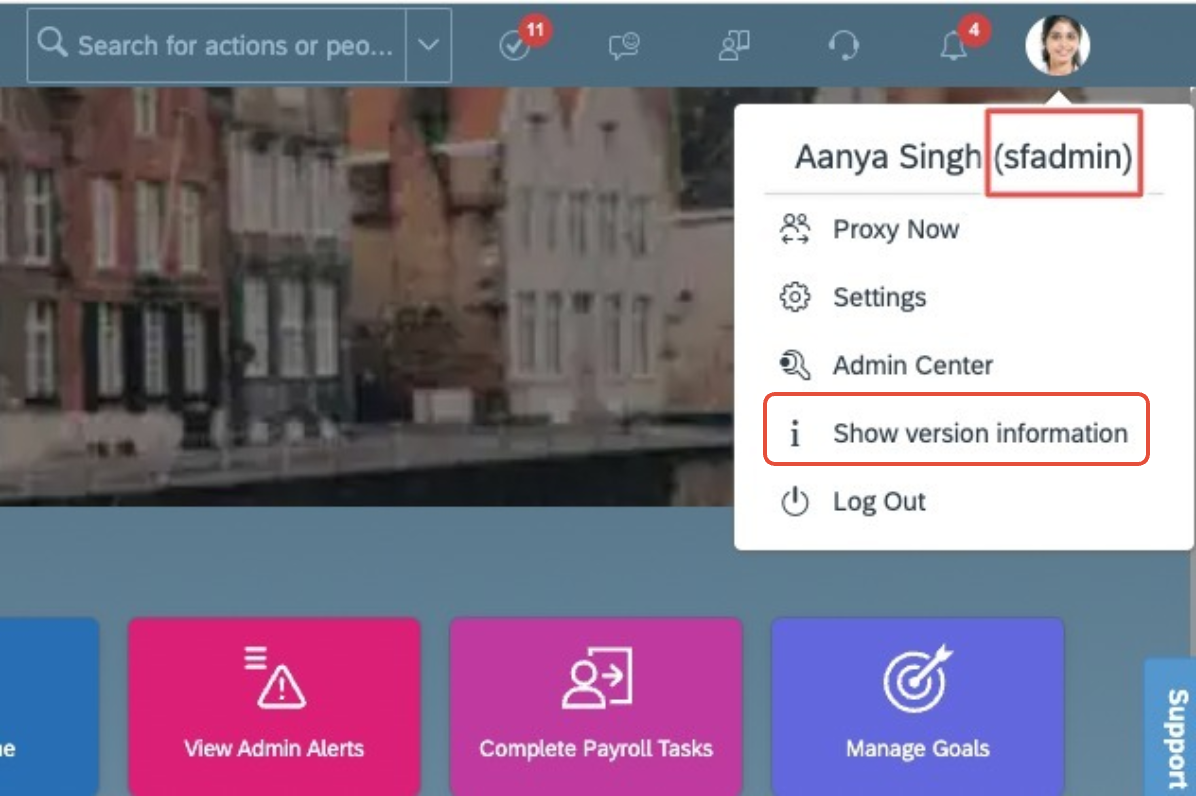
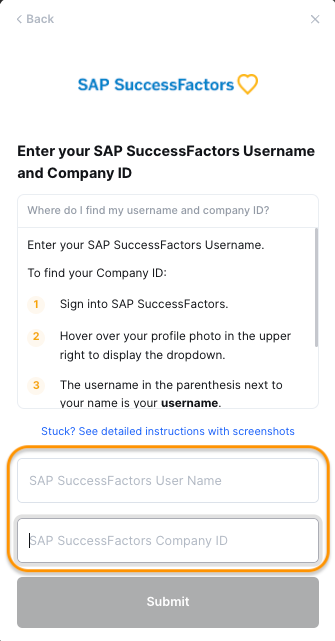
* Hover the pointer over your profile icon at the top-right corner. The username will be highlighted in parentheses next to your name. Copy and save the username.
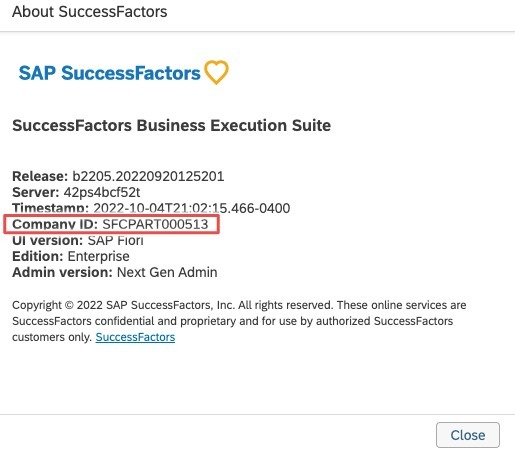
* Click Show Version Information.
* Copy the Company ID, and save it securely.
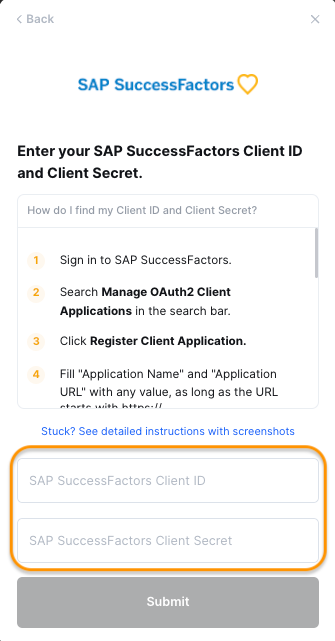
2. Get the Client ID and Secret from your SAP SuccessFactors account.
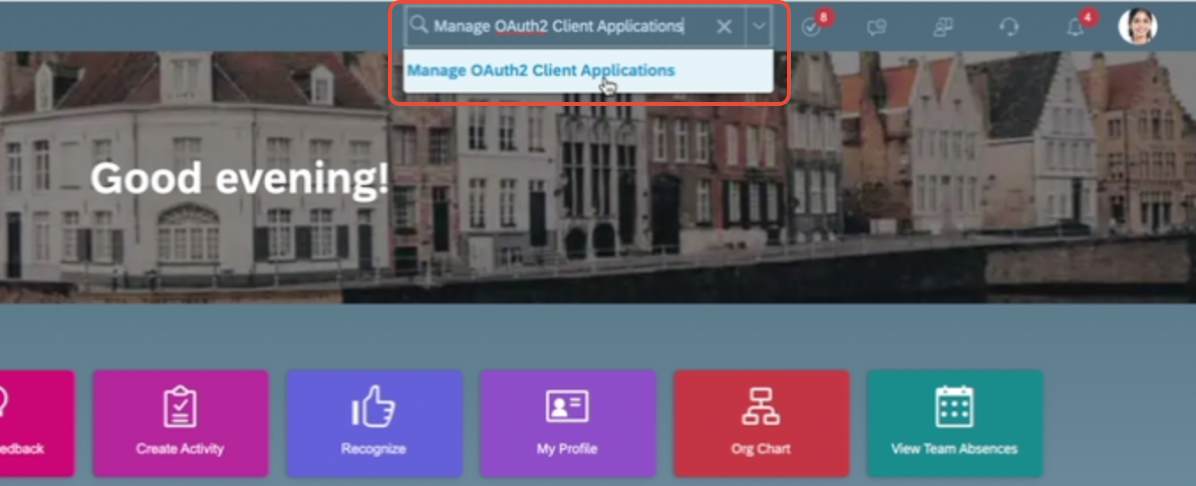
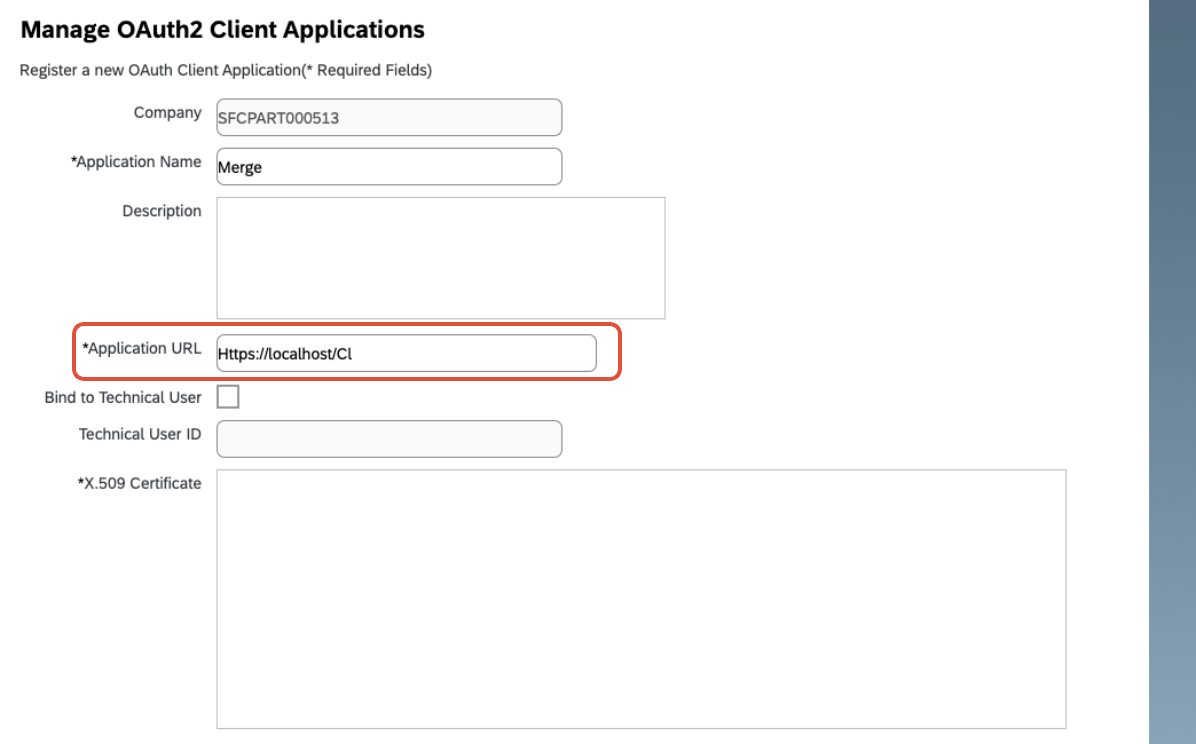
* Open the Manage OAuth2 Client Applications using the search bar.
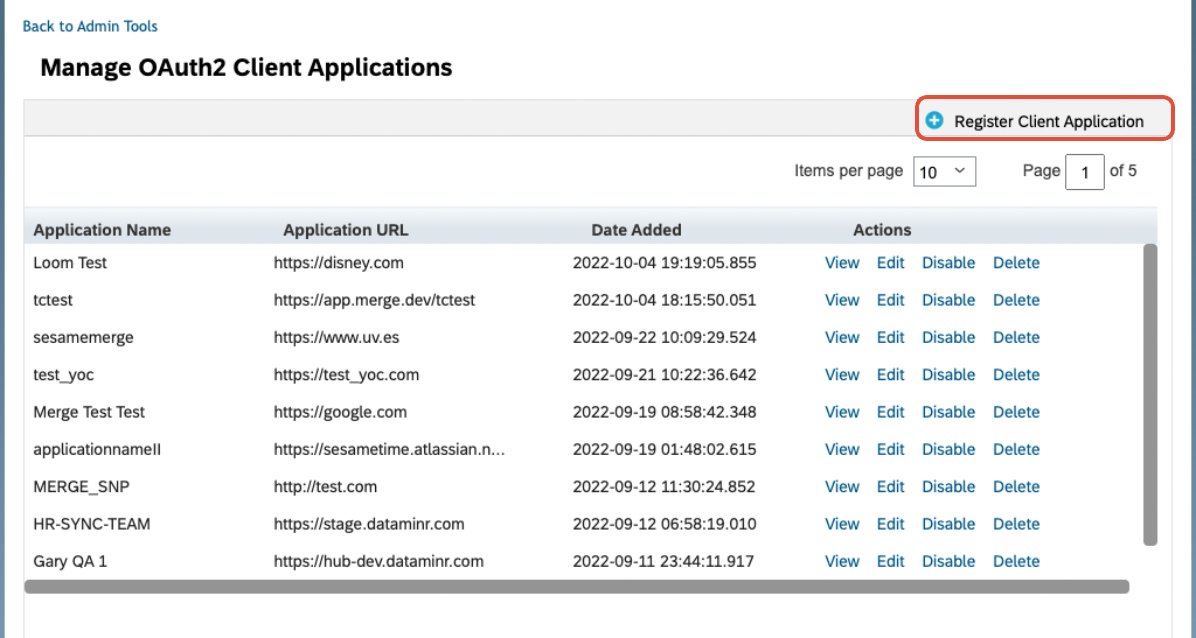
* Click Register Client Application.
* Enter an Application Name and URL. Ensure the URL starts with “
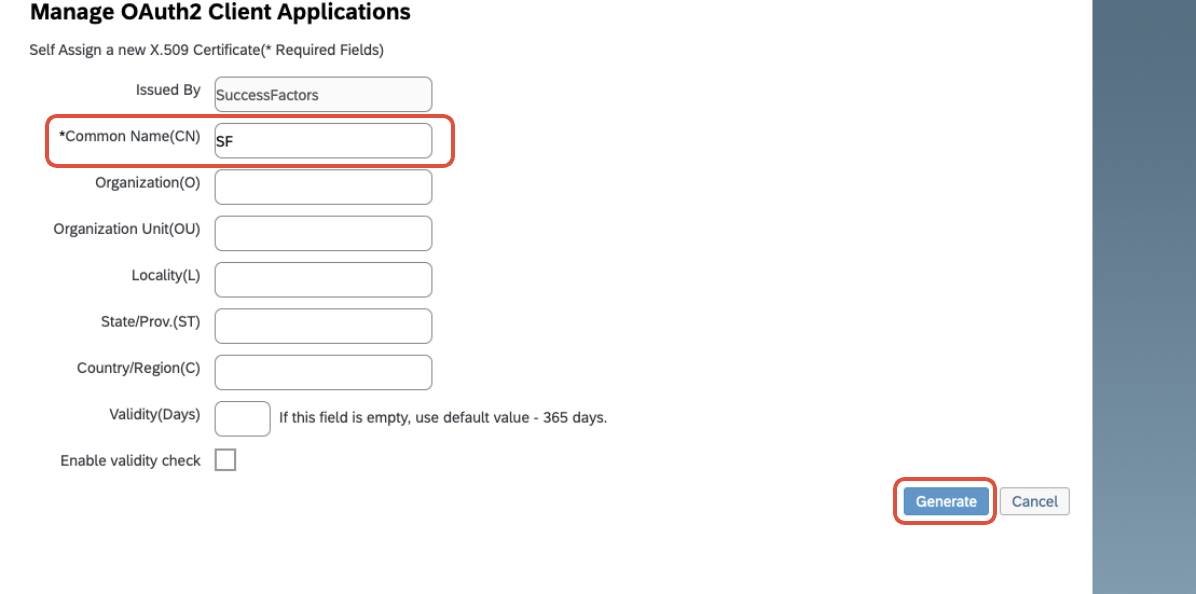
* Click Generate X.509 Certificate.
* Enter a Common name, and click Generate.
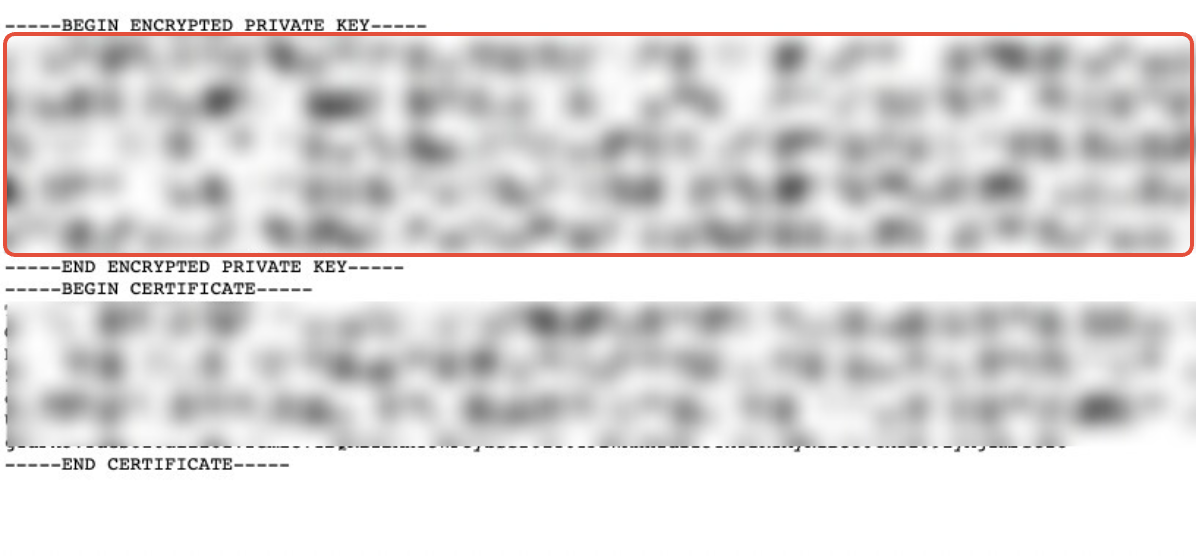
* Click Download to start downloading. File name Certificate.pem gets downloaded.
* Open the downloaded file in a text editor. Copy and save your application's Client Secret between the headings "--BEGIN ENCRYPTED PRIVATE KEY-----" and "--END ENCRYPTED PRIVATE KEY-----."
* Click Register. The generate button gets replace. You can see the application listed.
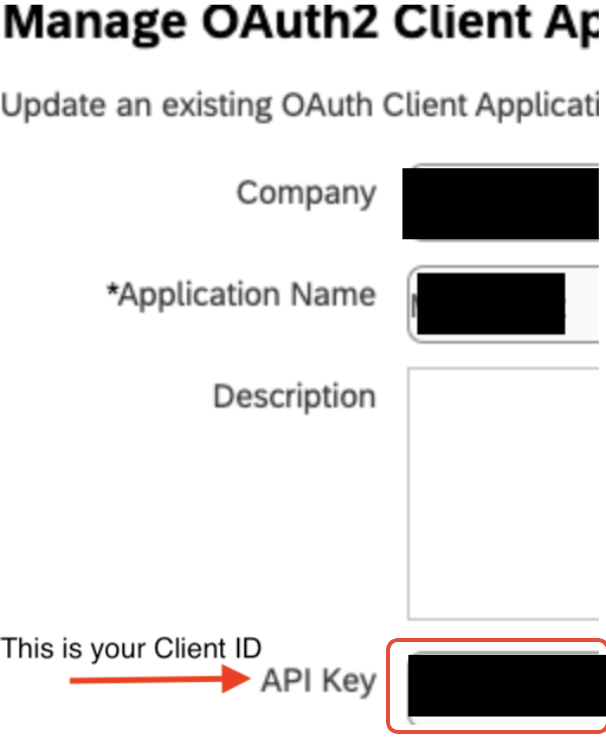
* Click Edit next to your created application.
* Copy your application's API Key and save it securely. This is your Client ID.
3. Integrate SAP SuccessFactors on Sprinto.
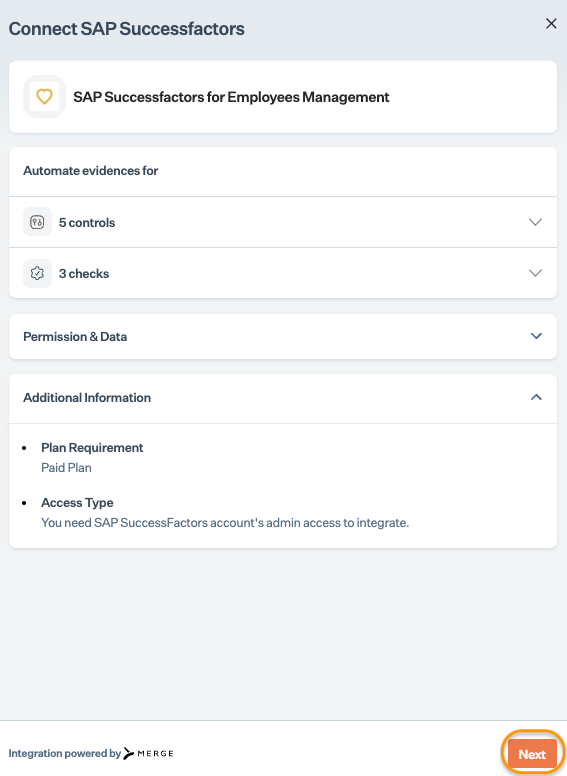
* Go to Settings > Integrations > Available, and click Connect next to SAP SuccessFactors.
* Read the on-screen instructions, and click Next.
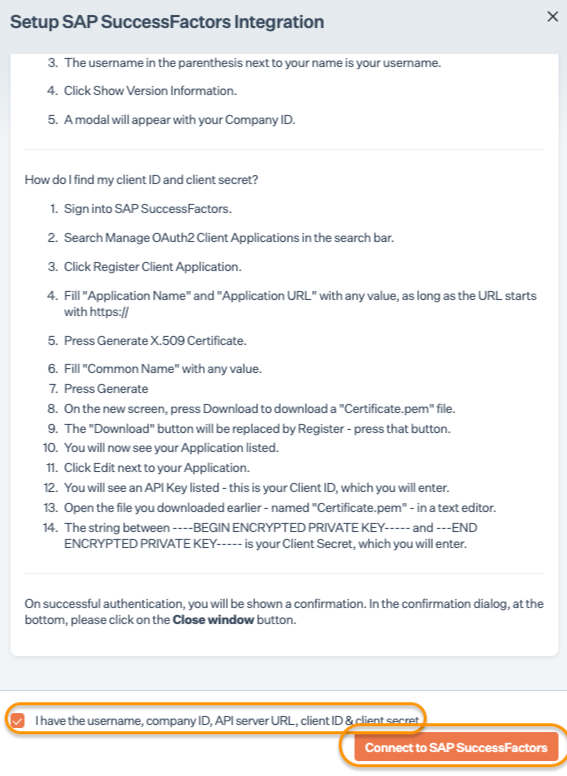
* Select the acknowledgment checkbox, and click Connect to SAP SuccessFactors.\
Note: Ensure you have pop-up window settings enabled on your browser.
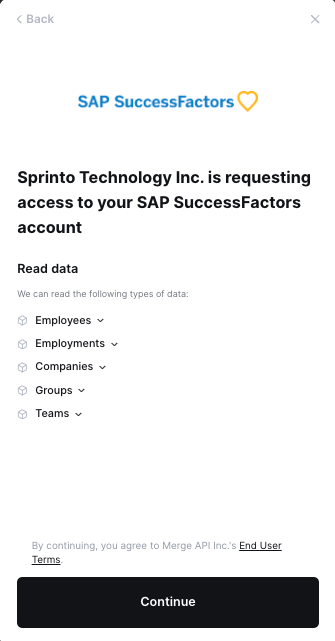
* Click Continue to proceed with integration.
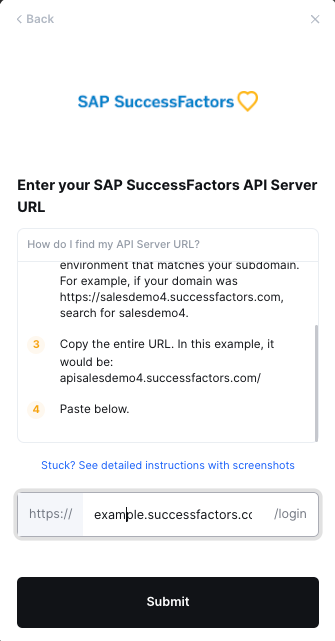
* Enter the API URL copied from Step 1, and click Submit.
* Enter the Username and Company ID copied from Step 1, and click Submit.
* Now, enter the Client ID and Secret copied from Step 2, and click Submit.
4. Add SAP SuccessFactors as a staff information provider.
* On the Sprinto app, go to Data Library > People > Configuration, and click Manage next to Staff information providers.
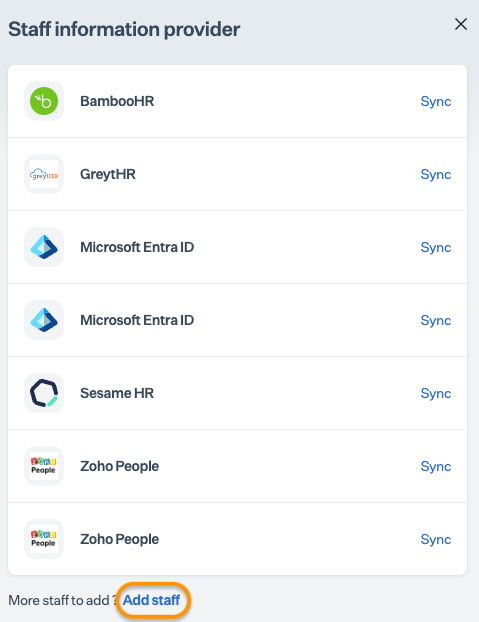
* Click Add Staff from the Staff information provider page.
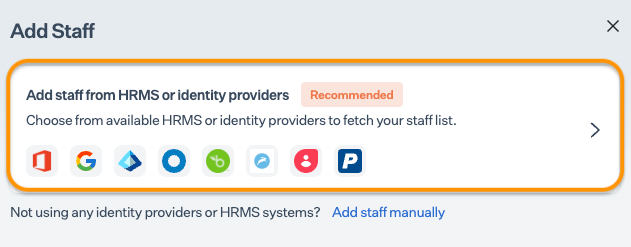
* Click on the details button to add SAP SuccessFactors as the information source.
* Select SAP SuccessFactors from the Add Staff as a Provider page.
* Click + Add SAP SuccessFactors.
### Final step
Your SAP SuccessFactors account is integrated and added as a staff information provider. Sprinto will take some time to retrieve and map your staff details on Sprinto. If any required staff detail is missing, Sprnito activates a check against the respective staff member, helping you manage staff details and meet people management compliance requirements.
If necessary, you can click Sync next to SAP SuccessFactors from the Staff Information Provider page to refresh the staff details.
Contact [Sprinto support](mailto:www.support@sprinto.com) if you have any queries regarding the integration or need any assistance.
---
# Agent Instructions
This documentation is published with GitBook. GitBook is the documentation platform designed so that both humans and AI agents can read, navigate, and reason over technical content effectively. Learn more at gitbook.com.
## Querying This Documentation
If you need additional information that is not directly available in this page, you can query the documentation by asking a question.
Perform an HTTP GET request on the following URL with the `ask` and `goal` query parameters:
```
GET https://docs.sprinto.com/integrations/overview/sap-successfactors-integration.md?ask=&goal=
```
`ask` is the immediate question: it should be specific, self-contained, and written in natural language.
`goal` is what the user is ultimately trying to achieve, the reason they need the answer. Sharing it helps GitBook give you a better, more relevant answer. A goal is most helpful when it describes the outcome the user wants rather than restating the question. For example, with `ask=how do I create an API token`, a goal like `automate deployments from our CI pipeline` lets GitBook tailor the answer to that use case.
The response will contain a direct answer to the question and relevant excerpts and sources from the documentation.
Use this mechanism when the answer is not explicitly present in the current page, you need clarification or additional context, or you want to retrieve related documentation sections.