# Charlie Integration

The following guide will help you to integrate Charlie with Sprinto.

Charlie HRMS is a human resource management system designed to streamline business HR processes. It offers employee onboarding, performance management, payroll processing, and time tracking.&#x20;

#### How it helps in People management: <a href="#how-it-helps-in-people-management" id="how-it-helps-in-people-management"></a>

The HRMS services integrations with Sprinto allow Sprinto to retrieve staff details like user name, email address, job role, reporting manager, and joining date. Organizations need to maintain the critical information database for staff members to maintain security compliance postures, and Sprinto helps to do that with this integration.

#### Sprinto checks for Charlie: <a href="#sprinto-checks-for-charlie" id="sprinto-checks-for-charlie"></a>

Below are the available Sprinto checks for Charlie:

<table><thead><tr><th width="186.0078125">Sprinto check</th><th>Required action</th></tr></thead><tbody><tr><td>Staff role should be assigned</td><td>A defined job role is not assigned.<br><br>To update staff details, navigate to Data Library > Staff > In scope staff, then select the staff member you wish to update details.</td></tr><tr><td>Reporting manager should be assigned</td><td>The reporting manager is not assigned.<br><br>To update staff details, navigate to Data Library > Staff > In scope staff, then select the staff member you wish to update details. </td></tr><tr><td>Date of joining for new staff should be provided</td><td>The staff’s organization joining date is missing.<br><br>To update staff details, navigate to Data Library > Staff > In scope staff, then select the staff member you wish to update details.</td></tr></tbody></table>

### Before you begin <a href="#before-you-begin" id="before-you-begin"></a>

* Log in to the Sprinto admin portal using your credentials.
* You need to have administrator privileges on the Charlie account you are integrating.
* Ensure you have a paid account on Charlie to build integration with Sprinto.

### Procedure <a href="#procedure" id="procedure"></a>

Note: Sprinto utilizes[ Merge’s](https://www.merge.dev/) API to streamline the data inflow.

1. Get the API key from your Charlie account.
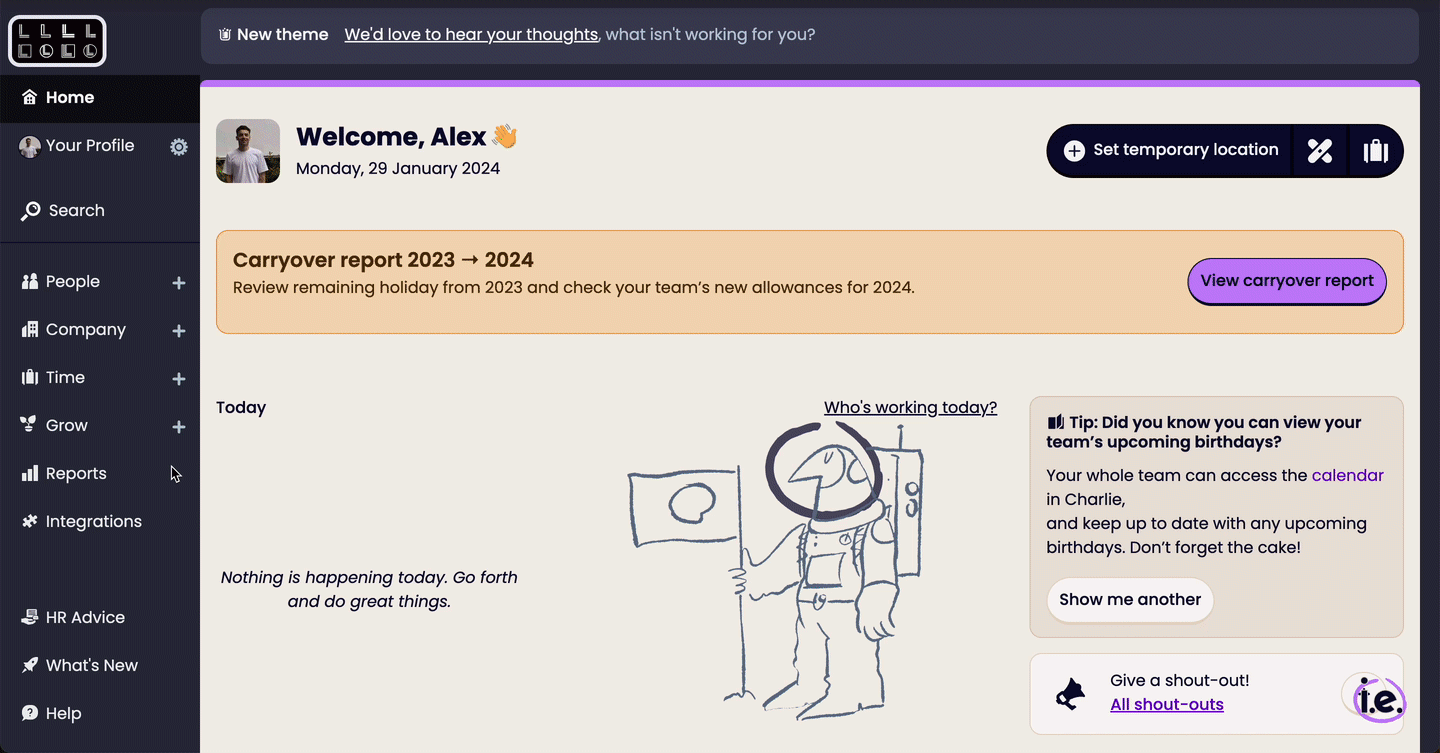
   1. Log in to the [Charlie account](https://www.charliehr.com/login) using your credentials.

      <figure><img src="https://s3.amazonaws.com/cdn.freshdesk.com/data/helpdesk/attachments/production/72116388334/original/ktUEVat8f8-G-HyR1XDEQt1JXkOAeq7Kbw.png?1727086863" alt="" width="563"><figcaption></figcaption></figure>
   2. Click Integrations from the left side navigation.&#x20;
   3. Select the API Keys tab.&#x20;
   4. Select the checkbox next to Yes am ready to save my keys, and click Generate the Keys.
   5. Copy and save the generated Client ID and Secret before closing it. We will need these details on Sprinto.
2. Integrate Charlie with Sprinto.
   1. From the Sprinto admin portal, navigate to Settings > Integrations, and select the Available tab.
   2. Click Connect next to Charlie.

      <figure><img src="https://3220032727-files.gitbook.io/~/files/v0/b/gitbook-x-prod.appspot.com/o/spaces%2FEsyn5VMU6e0OyGjRtKgx%2Fuploads%2FJSPfm8xbgGUMkTuiePev%2FScreenshot%202025-09-25%20at%2016.52.52.png?alt=media&#x26;token=175fa31f-b2f7-4163-9b92-9b6e5df131fd" alt="" width="563"><figcaption></figcaption></figure>
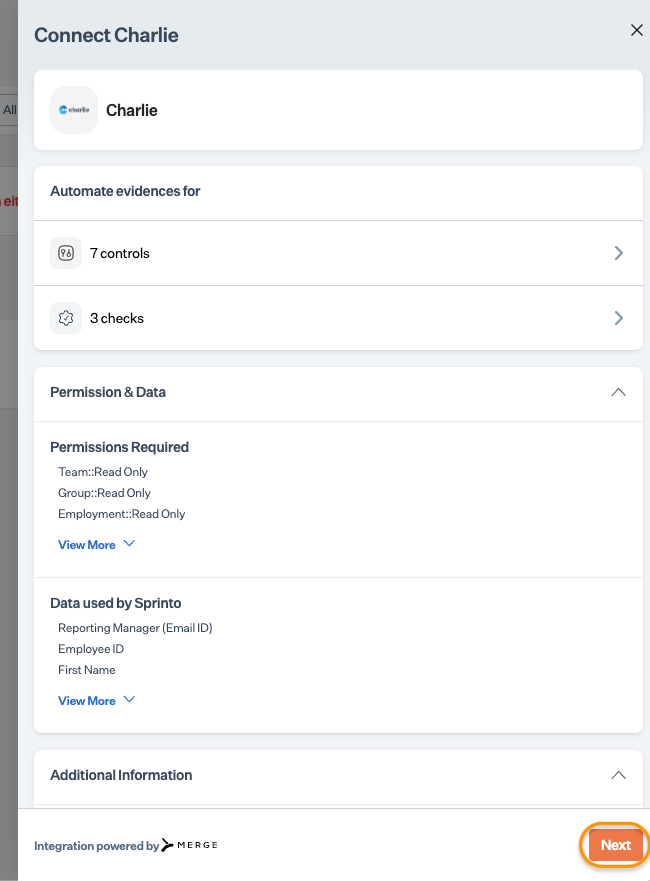
   3. Read the on-screen instructions, and click Next.<br>

      <figure><img src="https://s3.amazonaws.com/cdn.freshdesk.com/data/helpdesk/attachments/production/72116388328/original/m_TA98q3kHt02wljBvZdBJx0ci8qSirSFA.png?1727086863" alt="" width="375"><figcaption></figcaption></figure>
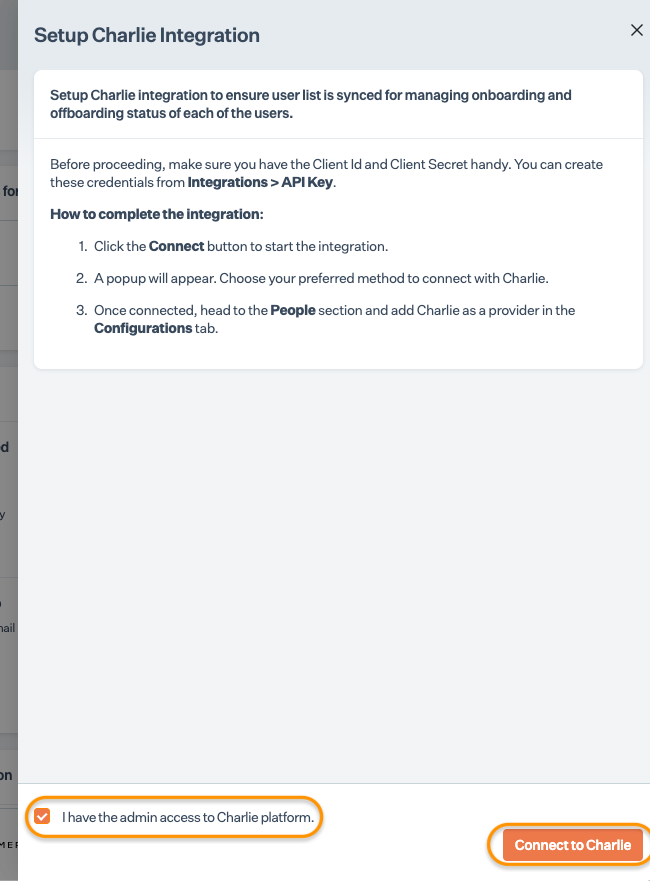
   4. Select the acknowledgment checkbox, and click Connect to Charlie. \
      Note: Ensure the pop-up window is enabled on your browser.

      <figure><img src="https://s3.amazonaws.com/cdn.freshdesk.com/data/helpdesk/attachments/production/72116388330/original/mwzXLj4WO364pMwdjSMoqERDcIubZLklBA.png?1727086863" alt="" width="375"><figcaption></figcaption></figure>
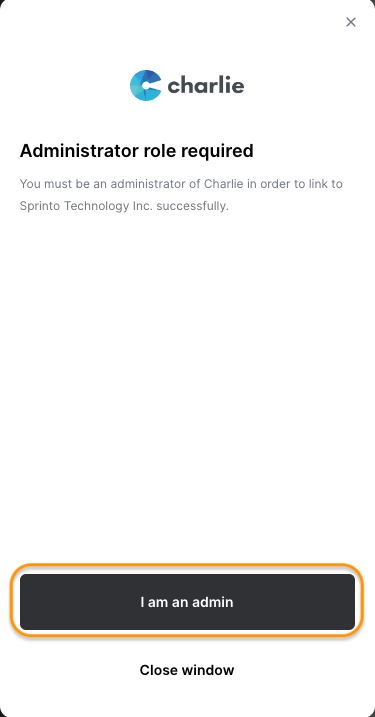
   5. Click I am an admin.<br>

      <figure><img src="https://s3.amazonaws.com/cdn.freshdesk.com/data/helpdesk/attachments/production/72116388321/original/FNfYrATGim2XFgQra-5gGgprTzMk2grN-w.png?1727086860" alt="" width="375"><figcaption></figcaption></figure>
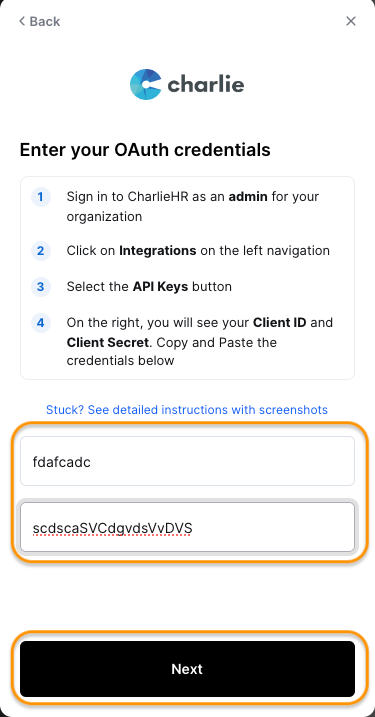
   6. Click Next.
   7. Enter the Client ID and Secret in the respective fields from the Step 1, and click Next.<br>

      <figure><img src="https://s3.amazonaws.com/cdn.freshdesk.com/data/helpdesk/attachments/production/72116388325/original/QMfLkBBqIO9iIi5RH5hLYeGZGx3DZPJSrA.png?1727086863" alt="" width="375"><figcaption></figcaption></figure>
3. Add Charlie as a people source.
   1. From the Sprinto admin portal, navigate to Data Library > People, then click the Configuration tab.
   2. Click Manage next to Staff Information Providers.
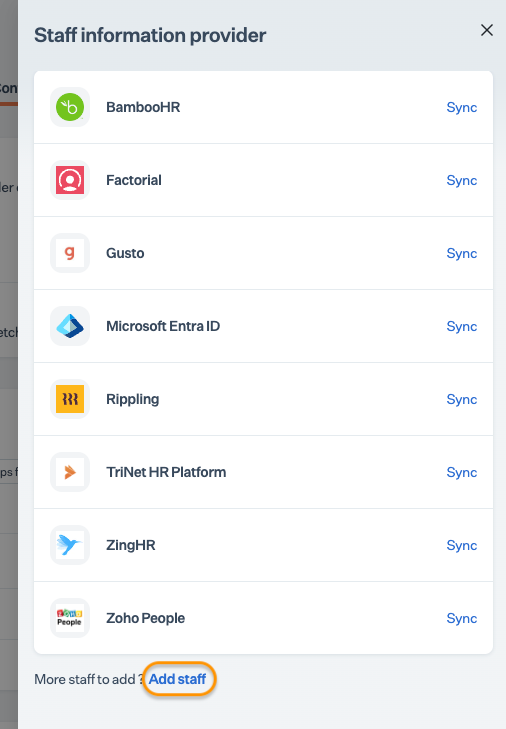
   3. Click Add Staff.<br>

      <figure><img src="https://s3.amazonaws.com/cdn.freshdesk.com/data/helpdesk/attachments/production/72116388326/original/veBzCQvbbqWmnllJNeSHl4pJuAjZQG0ZNA.png?1727086863" alt="" width="375"><figcaption></figcaption></figure>
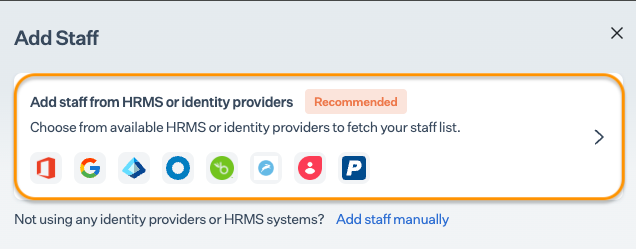
   4. Click Add staff from HRMS or identity providers.

      <figure><img src="https://s3.amazonaws.com/cdn.freshdesk.com/data/helpdesk/attachments/production/72116388327/original/5E2npPX8WZnOF2XhPyWiyiwV8y-a0K86LQ.png?1727086863" alt=""><figcaption></figcaption></figure>
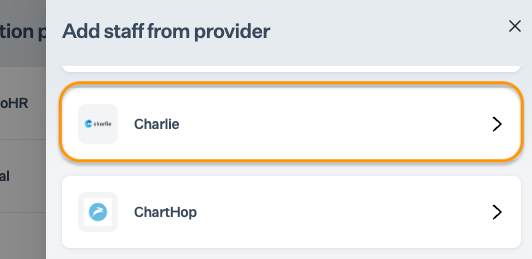
   5. Select Charlie from the list of providers. \
      Note: “Connected” is highlighted for the integrated services.

      <figure><img src="https://s3.amazonaws.com/cdn.freshdesk.com/data/helpdesk/attachments/production/72116388322/original/3LMJWT287FakfeewuaBBiQ7UbrebbRtjGA.png?1727086861" alt=""><figcaption></figcaption></figure>
   6. Click Add Charlie.

### Support <a href="#support" id="support"></a>

Get in touch with our support team if you have queries related to HRMS integration or need any assistance.