All in-scope staff members should have an assigned reporting manager.
Note: Top management roles like CEO, CTO, etc. are exceptions.
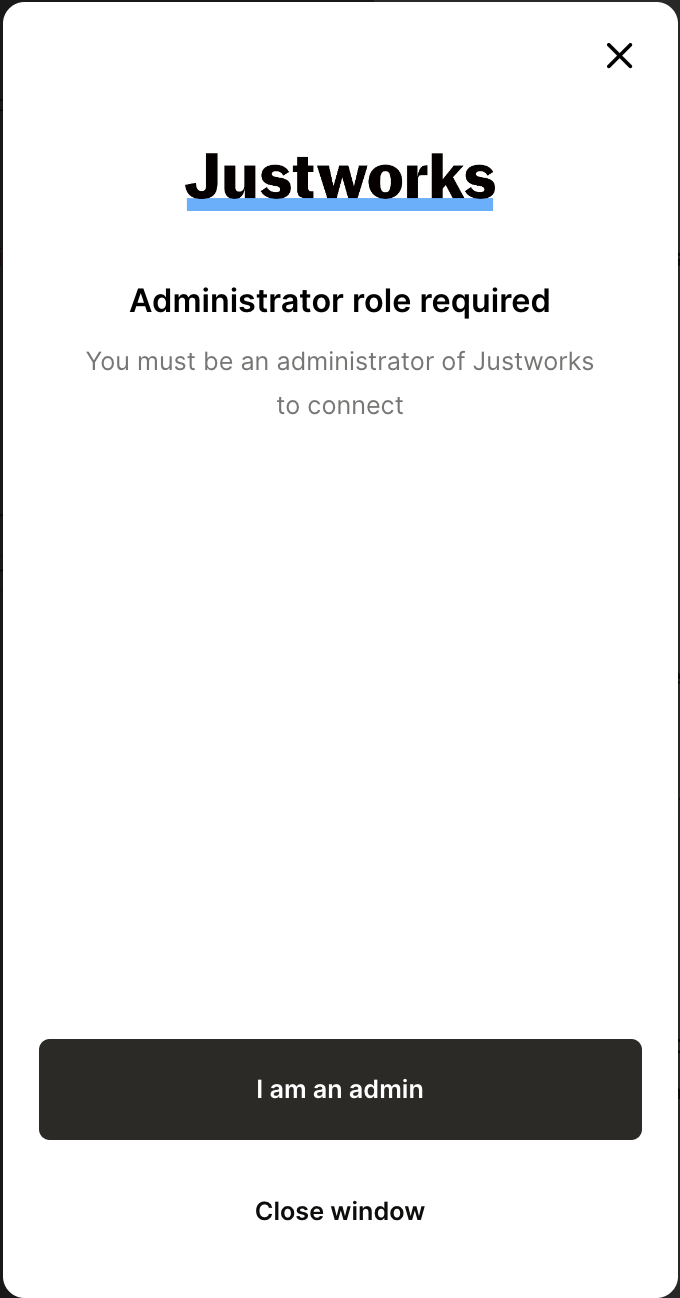
| | | Staff role should be assigned | Define the joining date for all newly onboarded staff members. | [How to fix](/data-library/people/dashboard-actions/manage-staff-and-organisational-configuration.md) | ### Before you begin * Log in to Sprinto as an administrator. * You must have a paid account on Justworks to integrate it on Sprinto. * Make sure you have “Admin” access for the Justworks account. * We use a third-party service provider ([Merge](https://www.merge.dev/)) to enable this integration. ### Integrate Sprinto with Justworks 1. Creating a service account on Justworks.
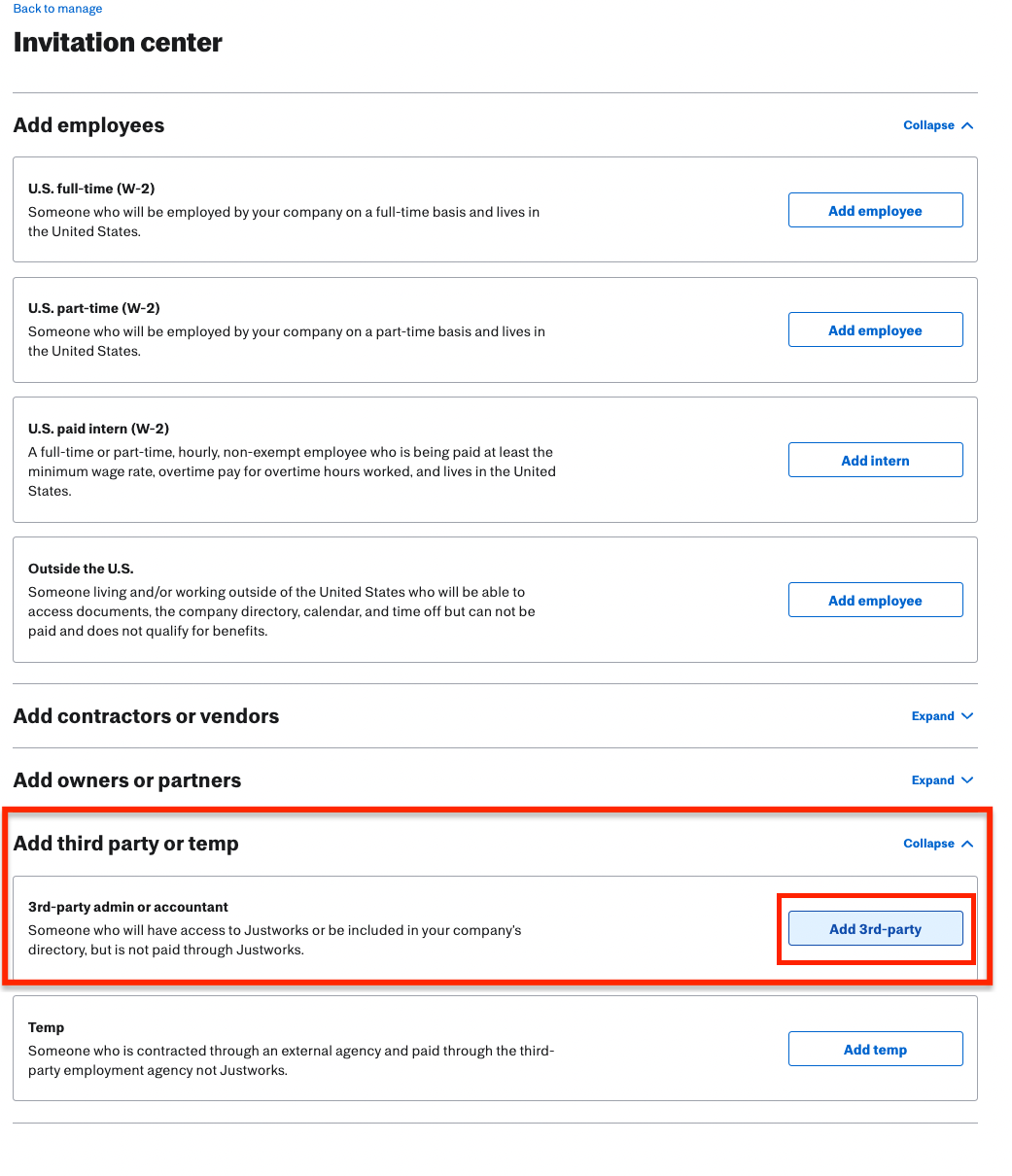
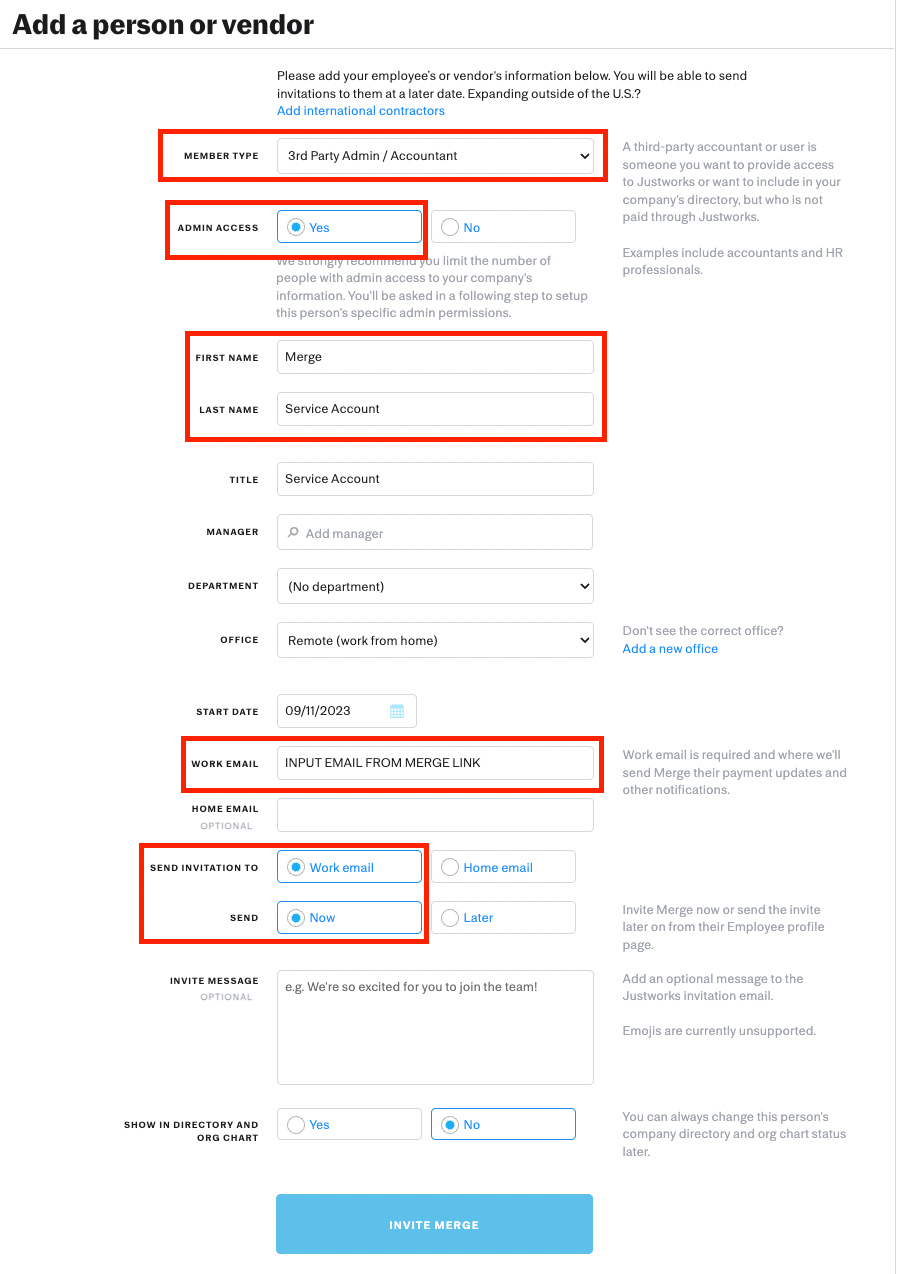
| Employee detail | Value |
|---|---|
| Member Type | 3rd Party Admin / Accountant |
| Admin Access | Yes |
| First Name | Sprinto Technology Inc |
| Last Name | Service Account |
| Title | Service Account |
| Manager | Not required |
| Department | Not required |
| Office | Remote |
| Work Email | Enter the email address you have copied from Step 1. |
| Send Invitation to | Work email |
| Send | Now |
 * Review the entered details, then click Invite Merge.
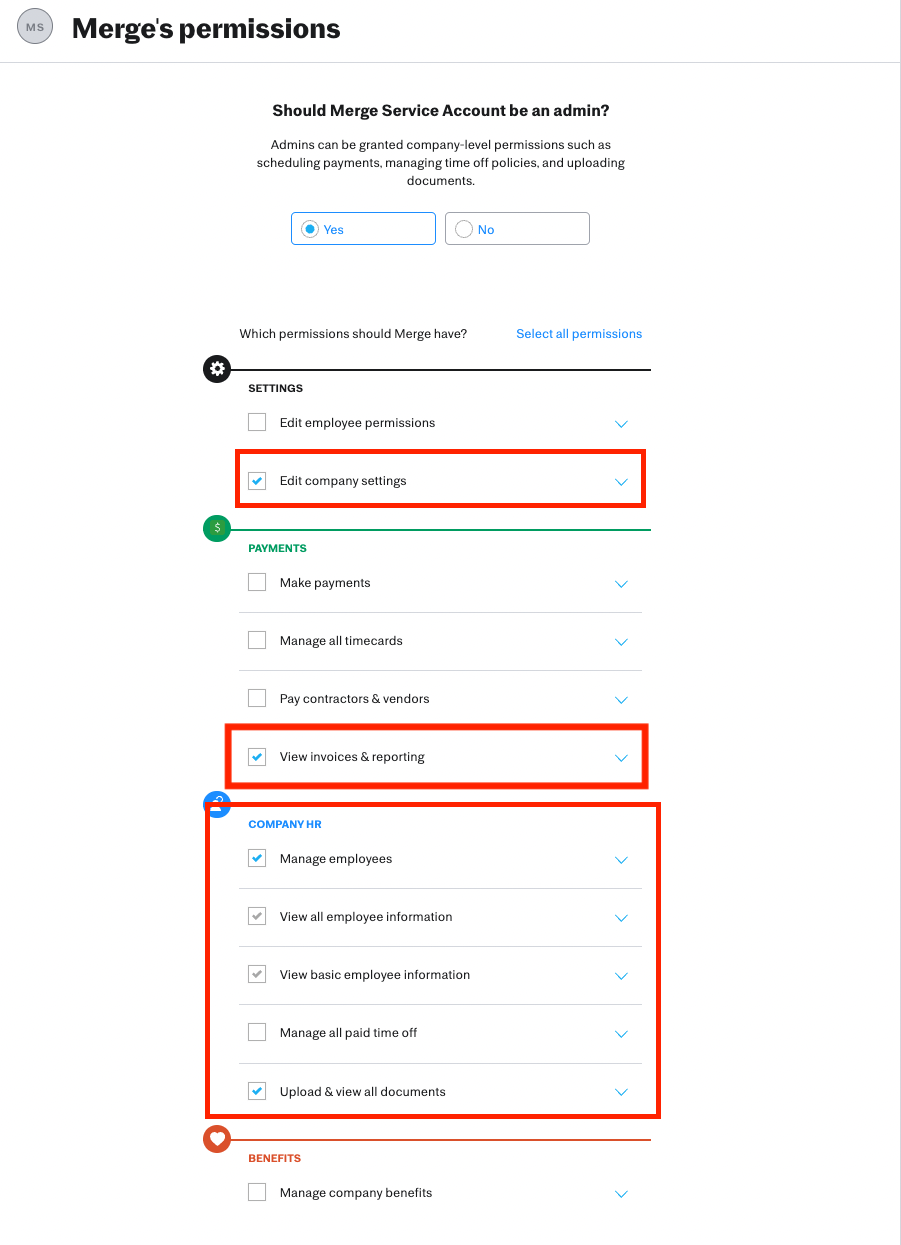
* Add the required permissions to the created employee. Sprinto requires all of the below permissions for the integration’s operation.\
Note: Kindly provide all the mentioned permissions. If you miss adding any of the below permissions, integration may not work as intended.
* Review the entered details, then click Invite Merge.
* Add the required permissions to the created employee. Sprinto requires all of the below permissions for the integration’s operation.\
Note: Kindly provide all the mentioned permissions. If you miss adding any of the below permissions, integration may not work as intended.| Permission type | Value | Description |
|---|---|---|
| Admin | Yes | To fetch the required information from Justworks to your Sprinto account. |
| Edit company settings | Selected | This is required for our integration to view Company Information, Office Information + Location, and Department Information. Although Merge will only be viewing this information, Justworks requires EDIT Access to view this information, but Merge will not actually be editing any settings. |
| Manage Employees | Selected | This permission is required to view Employee Information and access the Employee Census and Work History reports. |
| View all employee information | Selected | This permission is required to view Employee Information and access the Employee Census Report and the Work History Report. |
| View basic employee information | Selected | This permission is required to view Employee Information and access the Employee Census Report and the Work History Report. |
| Upload and view all documents | Selected | This permission is required to access the Employee Census Report and Work History Report. |
| View Invoices and Reporting | Selected | This permission is required to access the Employee Census Report and Work History Report. |
 2. Integrate to Justworks on Sprinto.
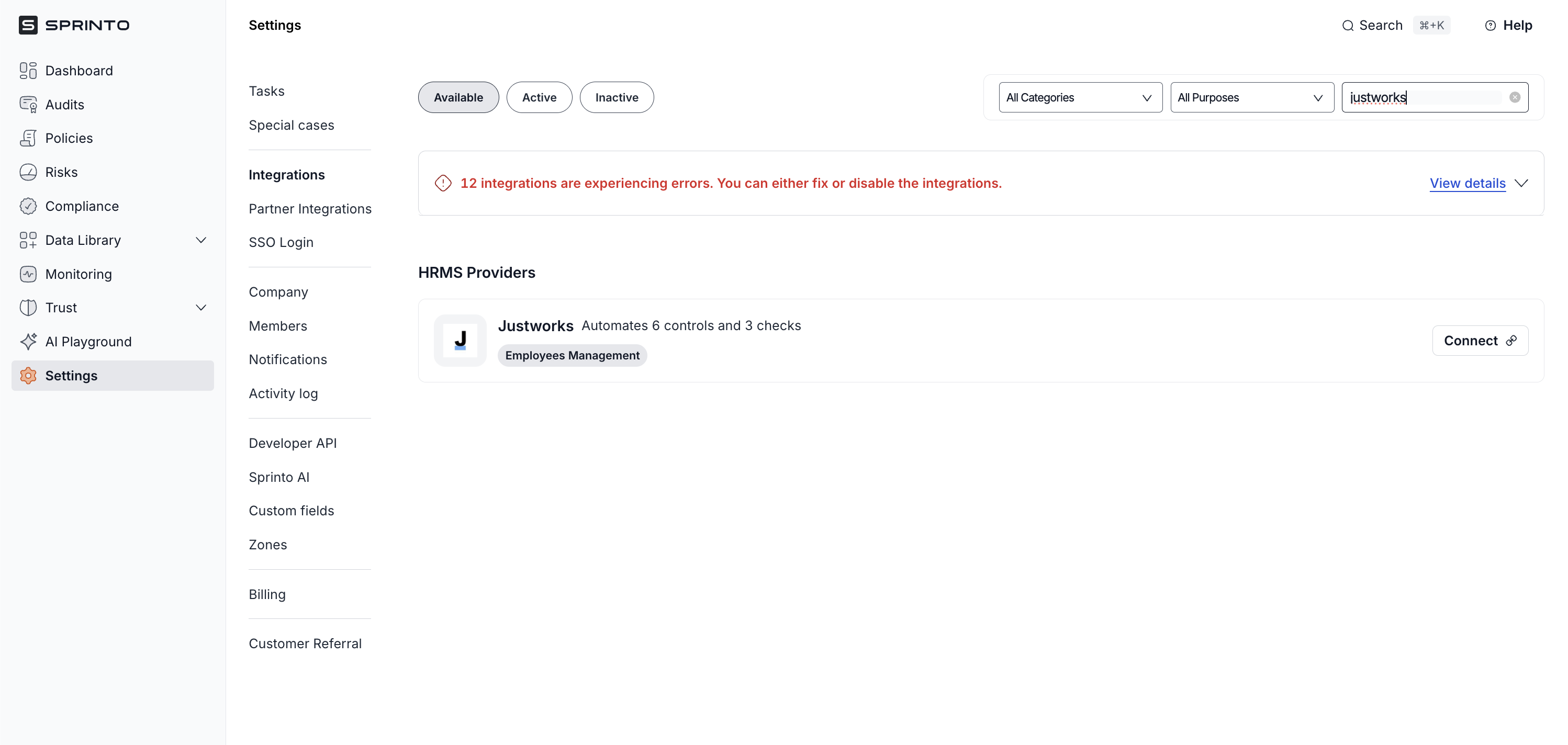
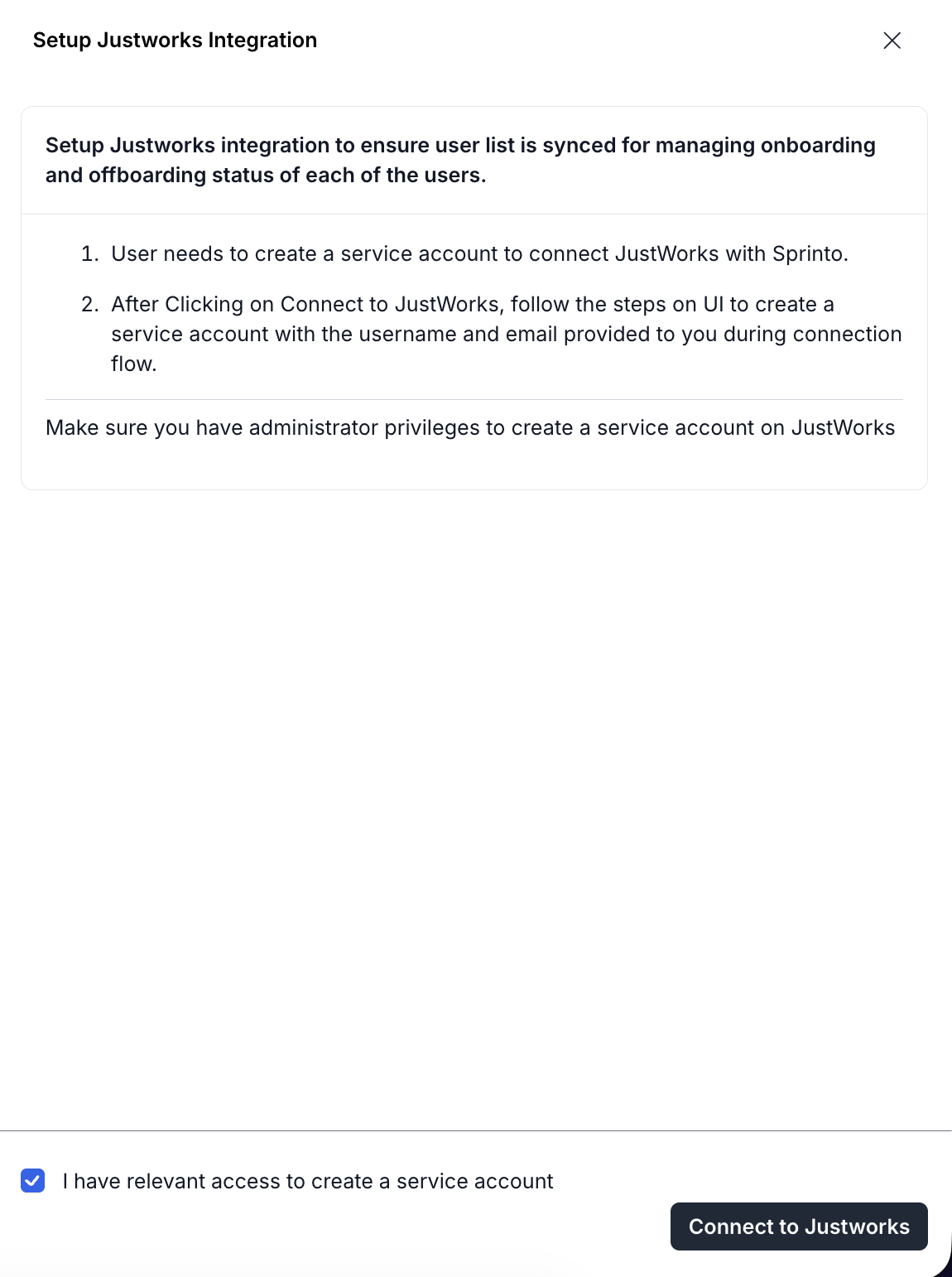
* Go to **Settings** > **Integrations** > **Available** tab, then click Connect next to Justworks.
2. Integrate to Justworks on Sprinto.
* Go to **Settings** > **Integrations** > **Available** tab, then click Connect next to Justworks.