> For the complete documentation index, see [llms.txt](https://docs.sprinto.com/llms.txt). Markdown versions of documentation pages are available by appending `.md` to page URLs; this page is available as [Markdown](https://docs.sprinto.com/integrations/overview/freshservice-integration-ticketing-and-incident-management.md).
# Freshservice Integration (Ticketing and Incident Management)
Integrate Freshservice with Sprinto to automatically sync tickets and incidents as evidence for change management and incident-related compliance controls.
Sprinto integrates with Freshservice to automate evidence collection for **Ticketing** and **Incident Management** workflows. Once connected, Sprinto continuously syncs tickets and incidents from Freshservice to help demonstrate that operational and change management processes are followed as required by compliance frameworks.
This integration is commonly used to validate:
* Incident tracking and resolution
* Change management approvals
* Timely closure of tickets
* Ownership and accountability for incidents
***
### How it works
After you connect Freshservice to Sprinto, Sprinto establishes a read-only connection using a Freshservice API key. Sprinto then periodically syncs ticket and incident data from your Freshservice account and maps it to relevant controls and checks.
Sprinto does not modify any data in Freshservice. All access is read-only.
***
### Prerequisites
Before you begin, ensure that:
* You have **administrator access** to your Freshservice account.
* You know your **Freshservice subdomain** (for example, `acme.freshservice.com`).
* You can generate and access a **Freshservice API key**.
***
### Set up the Freshservice integration
#### Start the integration from Sprinto
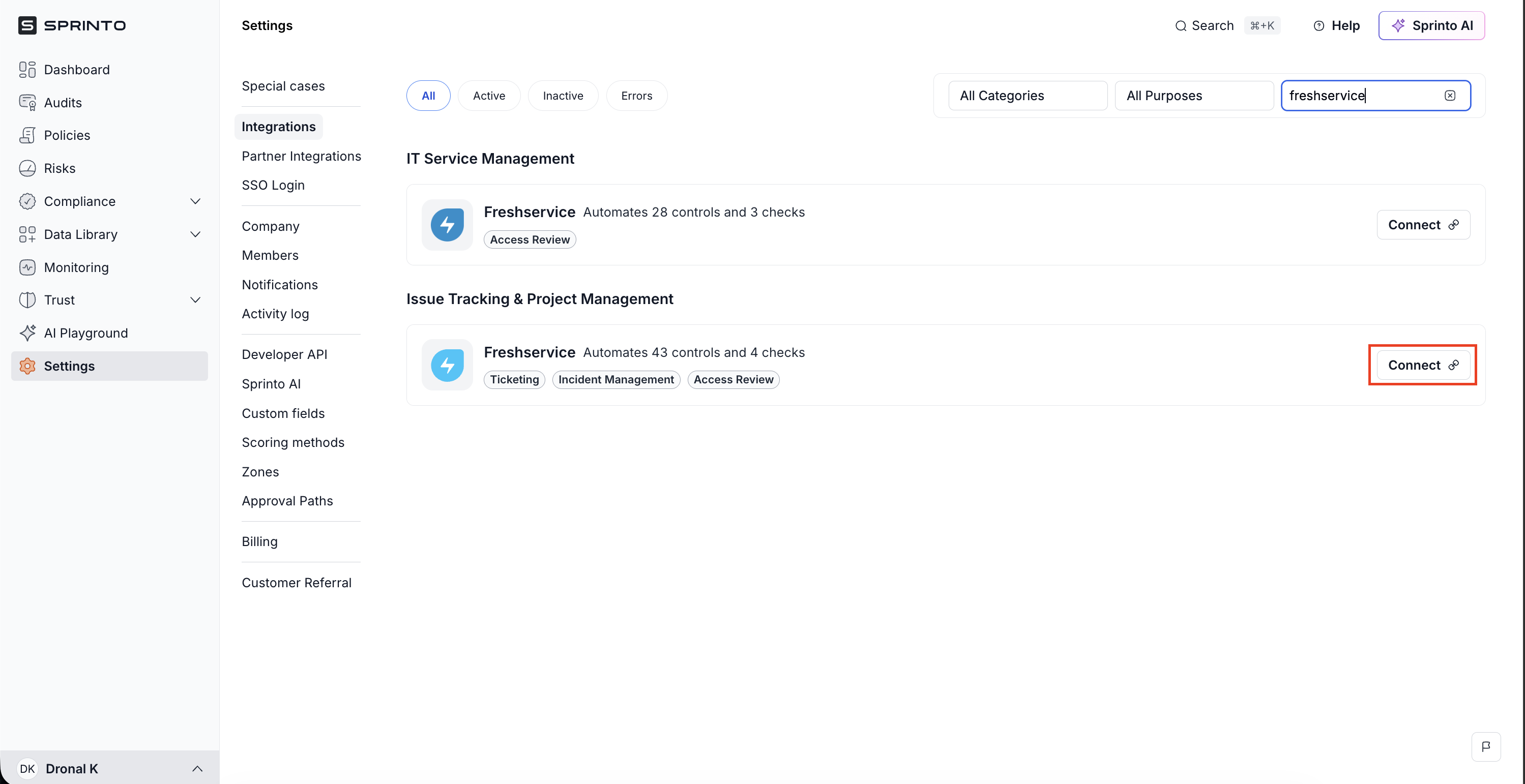
1. Log in to the Sprinto dashboard.
2. Go to **Settings** → **Integrations**.
3. In the **All** tab, search for **Freshservice**.
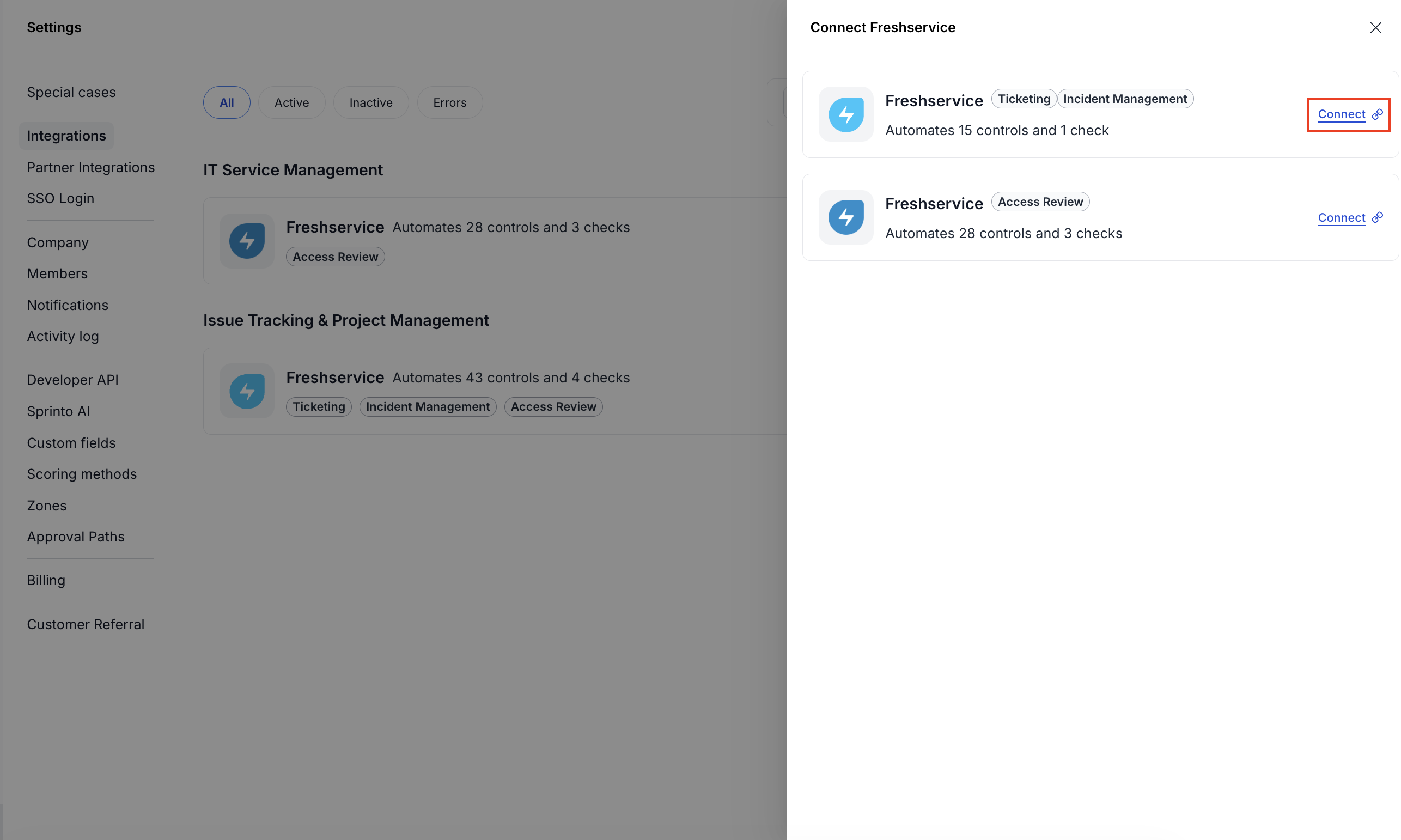
4. Select the Freshservice integration that includes the **Ticketing** and **Incident Management** tags.
5. Click **Connect**.
6. In the drawer that opens up, click **Connect** next to Freshservice integration which includes the **Ticketing** and **Incident Management** tags.
***
#### Review integration details
A side drawer opens with details about the Freshservice integration, including:
* The number of controls and checks automated
* Required permissions
* Data that Sprinto reads from Freshservice
Review the information and click **Next**.
***
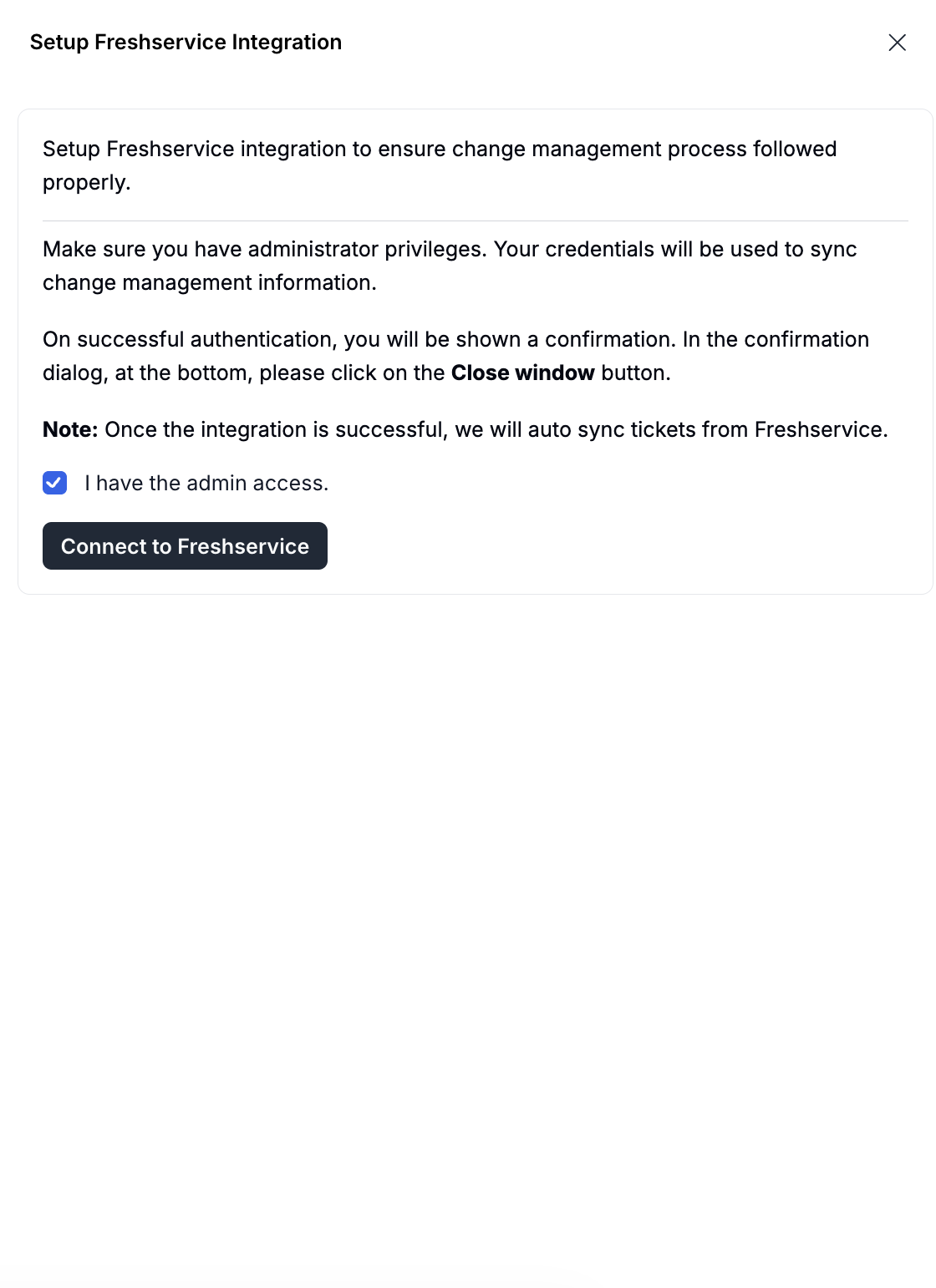
#### Confirm administrator access
In the setup drawer:
1. Review the integration description.
2. Select the checkbox confirming that you have **administrator access** to Freshservice.
3. Click **Connect to Freshservice**.
***
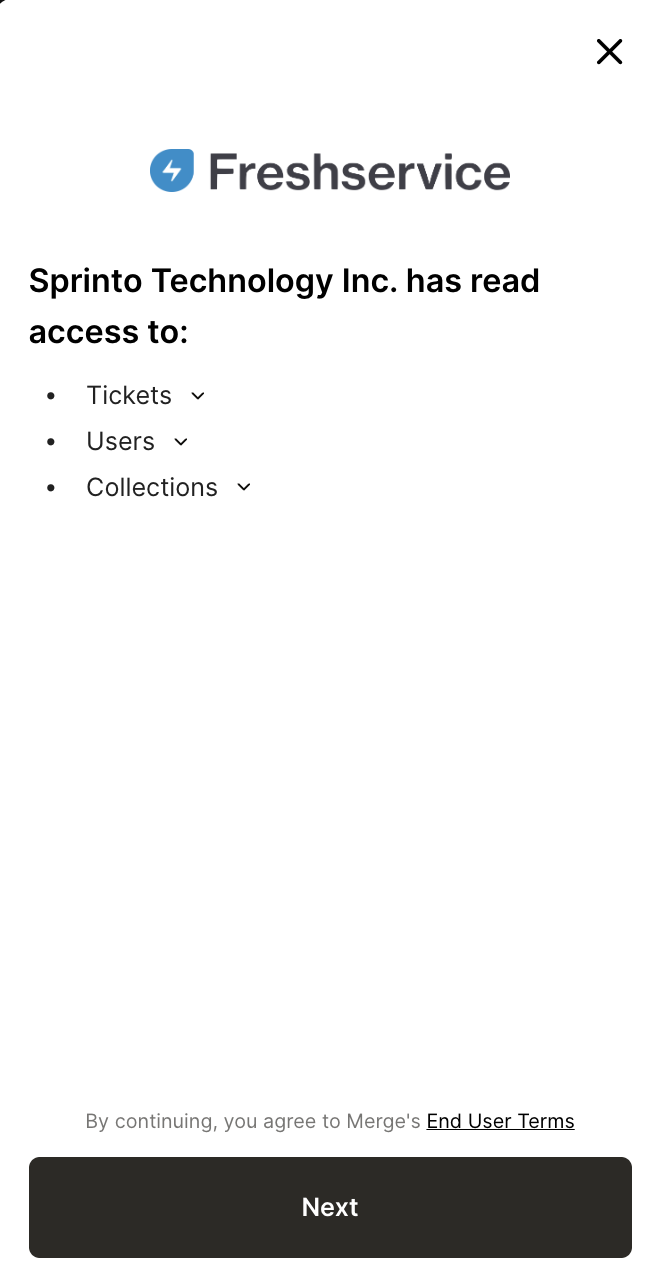
#### Authorise access in Freshservice
A Freshservice authorisation window opens showing the data Sprinto will have read access to, including:
* Tickets and incidents
* Status, priority, and timestamps
* Assignees and users
* Ticket metadata such as type, tags, and URLs
Review the permissions and click **Next** to continue.
***
#### Enter your Freshservice subdomain
When prompted:
1. Enter your Freshservice subdomain.\
For example, if your Freshservice URL is `https://acme.freshservice.com`, enter `acme`.
2. Click **Next**.
***
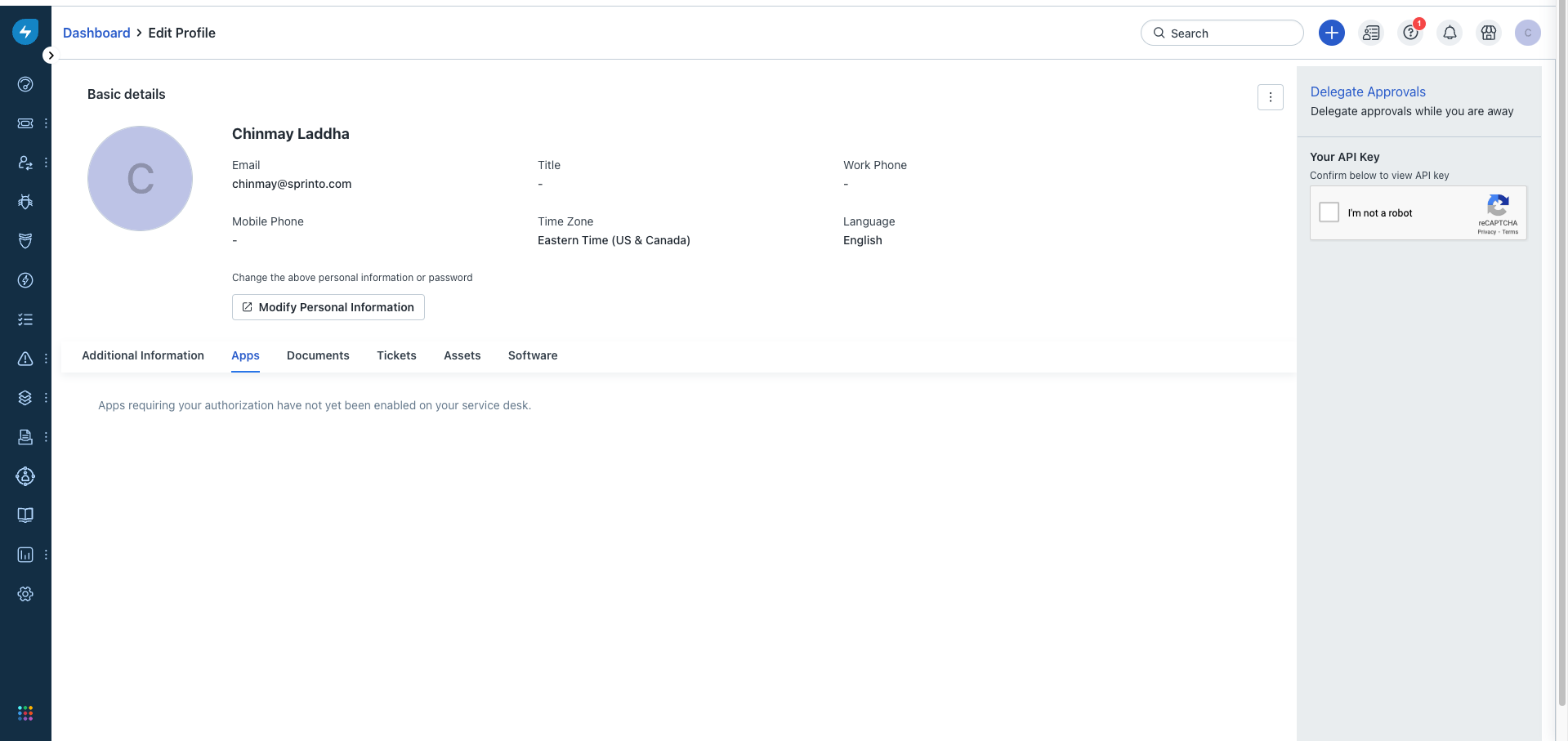
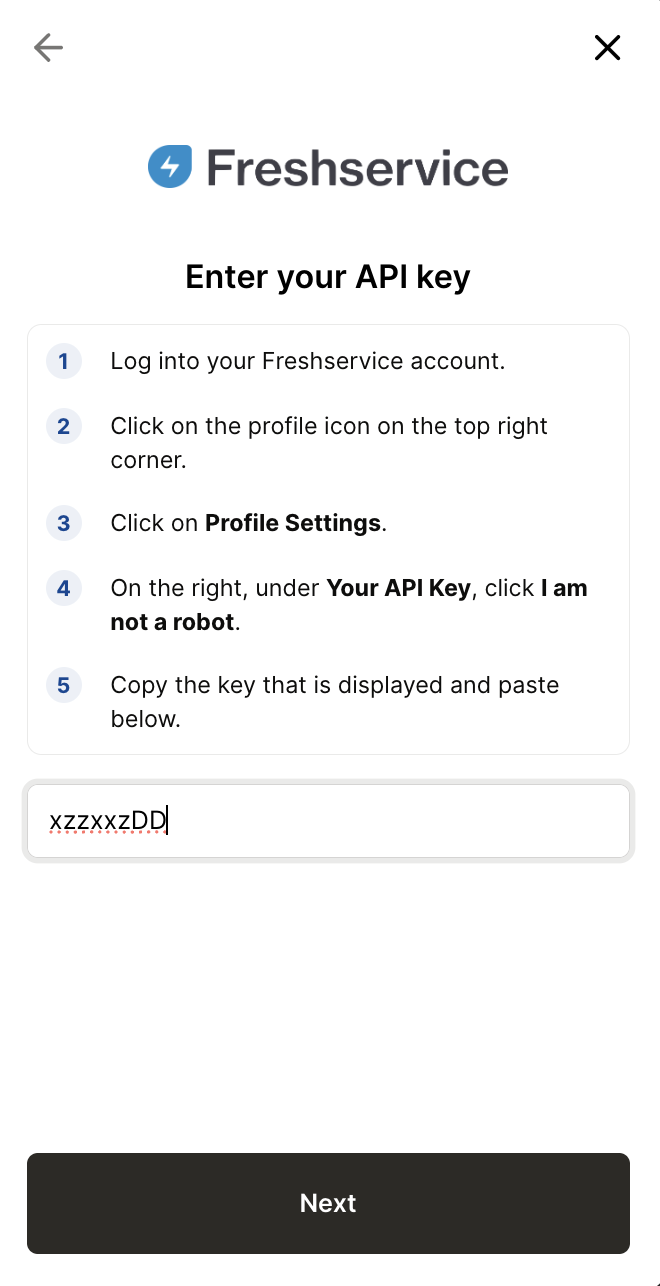
#### Enter your Freshservice API key
To complete the connection:
1. Log in to your Freshservice account.
2. Click your **profile icon** in the top-right corner.
3. Go to **Profile settings**.
4. Under **Your API key**, complete the verification and copy the key.
5. Paste the API key into the Sprinto authorisation screen.
6. Click **Next**.
Sprinto validates the credentials and begins setting up the connection.
***
#### Complete setup
Once authentication is successful:
* Sprinto displays a confirmation message.
* The integration status changes to **Connected**.
* Sprinto starts automatically syncing tickets and incidents from Freshservice.
No additional configuration is required.
***
### Permissions required
Sprinto requires the following permission in Freshservice:
* **Full Access: Read**
This ensures Sprinto can read tickets, incidents, users, and related metadata without modifying any data.
***
### Data used by Sprinto
Sprinto reads the following data from Freshservice:
* Ticket and incident ID
* Name and description
* Status and priority
* Assignee
* Due date
* Ticket type and tags
* Project and collection details
* Created and updated timestamps
* Ticket URL
* User details associated with tickets
***
### Key notes
* Sprinto uses **read-only access** and does not make changes in Freshservice.
* Ticket and incident data is synced automatically after the integration is complete.
* Ensure the API key remains active to avoid sync interruptions.
***
### Troubleshooting
If tickets are not syncing:
* Verify that the API key is valid and has not been regenerated or revoked.
* Confirm that the correct Freshservice subdomain was entered.
* Ensure the connecting user still has administrator privileges.
***
### Next steps
After completing the integration:
* Review mapped controls in Sprinto to confirm evidence is being collected correctly.
* Monitor sync status from the Integrations page.
* Use Freshservice tickets and incidents as automated evidence during audits.
***
### Final Step
After completing Step 4, allow 15 to 20 minutes for Sprinto to finish the data syncing process. Sprinto may take a few hours to evaluate the synced data and activate relevant Sprinto checks. If needed, go to Data Library > Access > Critical System to check for pending tasks next to Tableau.
If you need any assistance with the integration, kindly get in touch with [Sprinto support](mailto:www.support@sprinto.com).
---
# Agent Instructions
This documentation is published with GitBook. GitBook is the documentation platform designed so that both humans and AI agents can read, navigate, and reason over technical content effectively. Learn more at gitbook.com.
## Querying This Documentation
If you need additional information that is not directly available in this page, you can query the documentation by asking a question.
Perform an HTTP GET request on the following URL with the `ask` and `goal` query parameters:
```
GET https://docs.sprinto.com/integrations/overview/freshservice-integration-ticketing-and-incident-management.md?ask=&goal=
```
`ask` is the immediate question: it should be specific, self-contained, and written in natural language.
`goal` is what the user is ultimately trying to achieve, the reason they need the answer. Sharing it helps GitBook give you a better, more relevant answer. A goal is most helpful when it describes the outcome the user wants rather than restating the question. For example, with `ask=how do I create an API token`, a goal like `automate deployments from our CI pipeline` lets GitBook tailor the answer to that use case.
The response will contain a direct answer to the question and relevant excerpts and sources from the documentation.
Use this mechanism when the answer is not explicitly present in the current page, you need clarification or additional context, or you want to retrieve related documentation sections.