Scoring Methods
Define reusable scoring logic to evaluate controls consistently across Sprinto.
Scoring methods define how controls are evaluated in Sprinto. They act as reusable scoring frameworks that specify which fields contribute to a score and how the final score is calculated.
Scoring methods are created centrally and reused across multiple controls, ensuring consistent evaluation during control testing. While scores may be recorded per control or per zone, the scoring logic itself remains standardised.
At present, scoring methods apply only to Controls. Support for additional entities such as audits, risks, and vendors will be added in future releases.
Features
Centralised scoring setup
Create and manage scoring logic from Settings → Scoring methods.
Reusable scoring schemes
Apply the same scoring method across multiple controls.
Flexible field selection
Use existing custom fields or create new ones while building a scoring method.
Mandatory output field
Each scoring method requires one numerical output field that represents the final score.
Field reordering
Reorder selected fields using drag-and-drop to control scoring structure.
Safe edits
Updating a scoring method does not remove previously recorded scores.
Disable without data loss
Disabling a scoring method prevents further scoring but retains historical data.
Zone-agnostic logic
Scoring logic remains consistent across zones, while scores are recorded per zone.
Supported field types
When creating or selecting fields for a scoring method, Sprinto supports the following field types.
Text (up to 255 characters)
Short qualitative inputs or notes.
Text area (up to 1,000 characters)
Longer descriptions or observations.
Date (DD-MM-YYYY)
Date-based context for scoring.
Single-select
Select one value; can be mapped to numeric values.
Multi-select
Select multiple values; typically used as context.
Single user (Staff or Roles)
Assign a single responsible person or role.
Multiple users (Staff or Roles)
Associate multiple stakeholders.
Number
Direct numerical input.
Percentage
Percentage-based scoring input.
Formula
Derived score calculated from other fields.
Output field requirements
Each scoring method must have exactly one output field
The output field must be numerical
Supported output field types:
Number
Percentage
Single-select (with numeric values)
Formula
The output field represents the final score used during control testing
Prerequisites
Before creating a scoring method, ensure that:
You have GRC Admin permissions
Your plan supports scoring methods
The Controls module is enabled
You have permission to create or manage custom fields (if required)
Procedure
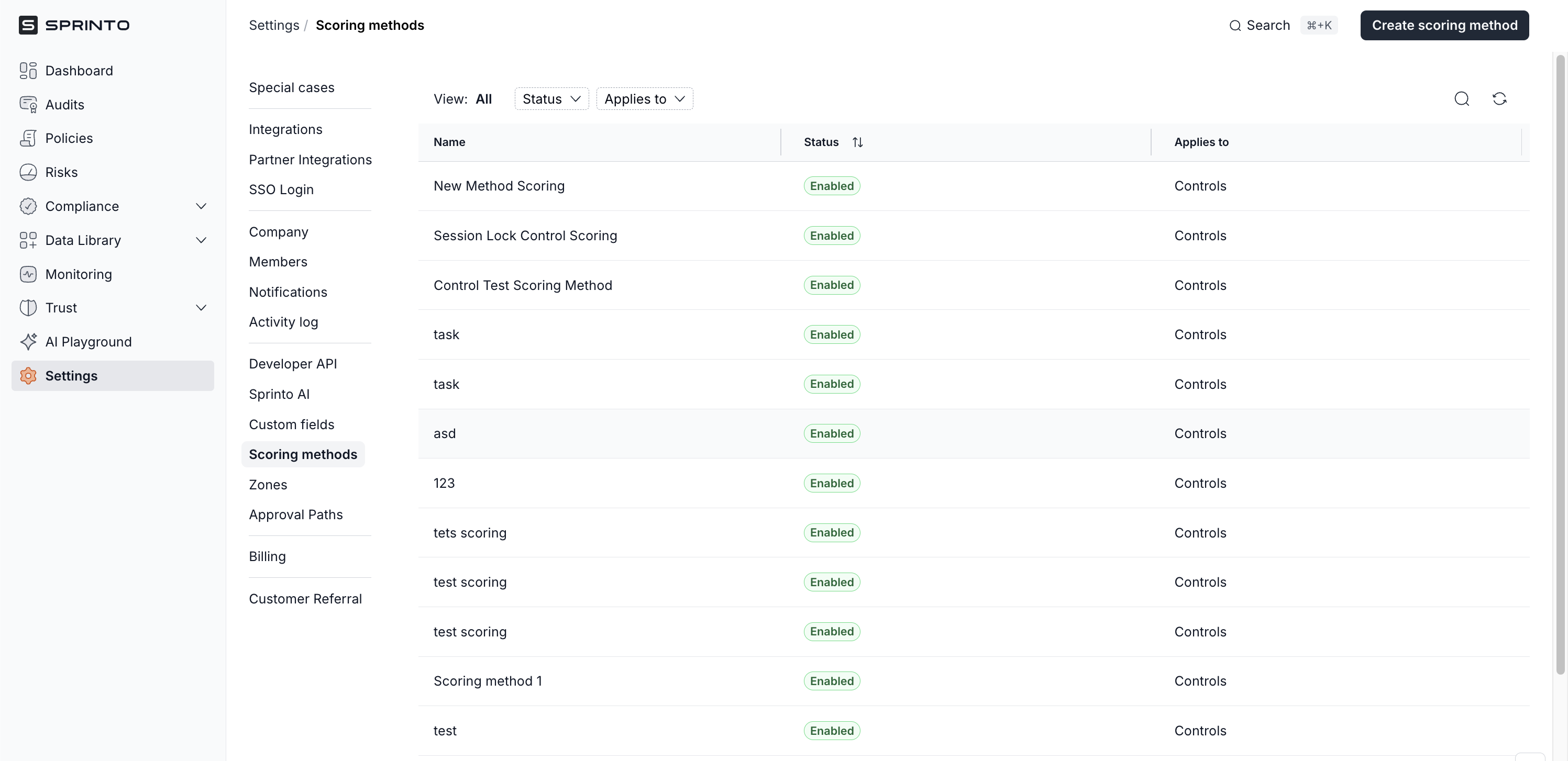
Step 1: Access Scoring methods
Log in to the Sprinto dashboard.
Go to Settings → Scoring methods.

This page lists all existing scoring methods along with their status and the entity they apply to.
Step 2: Create and configure a scoring method
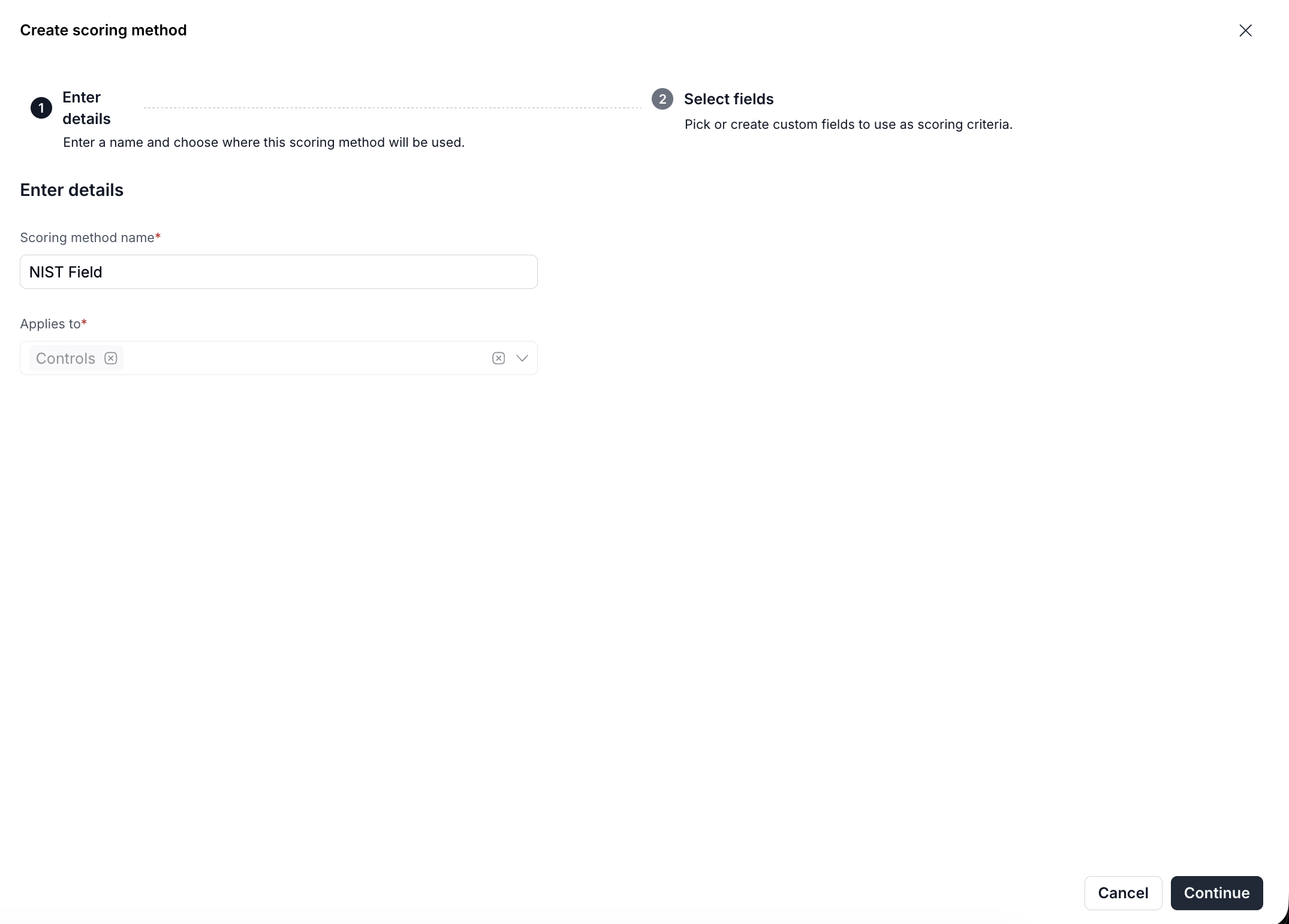
Click Create scoring method.
In the Enter details step:
Enter a Scoring method name.
Review the Applies to field, which is currently locked to Controls.
Click Continue to move to field selection.

Step 3: Select, manage, and create scoring fields
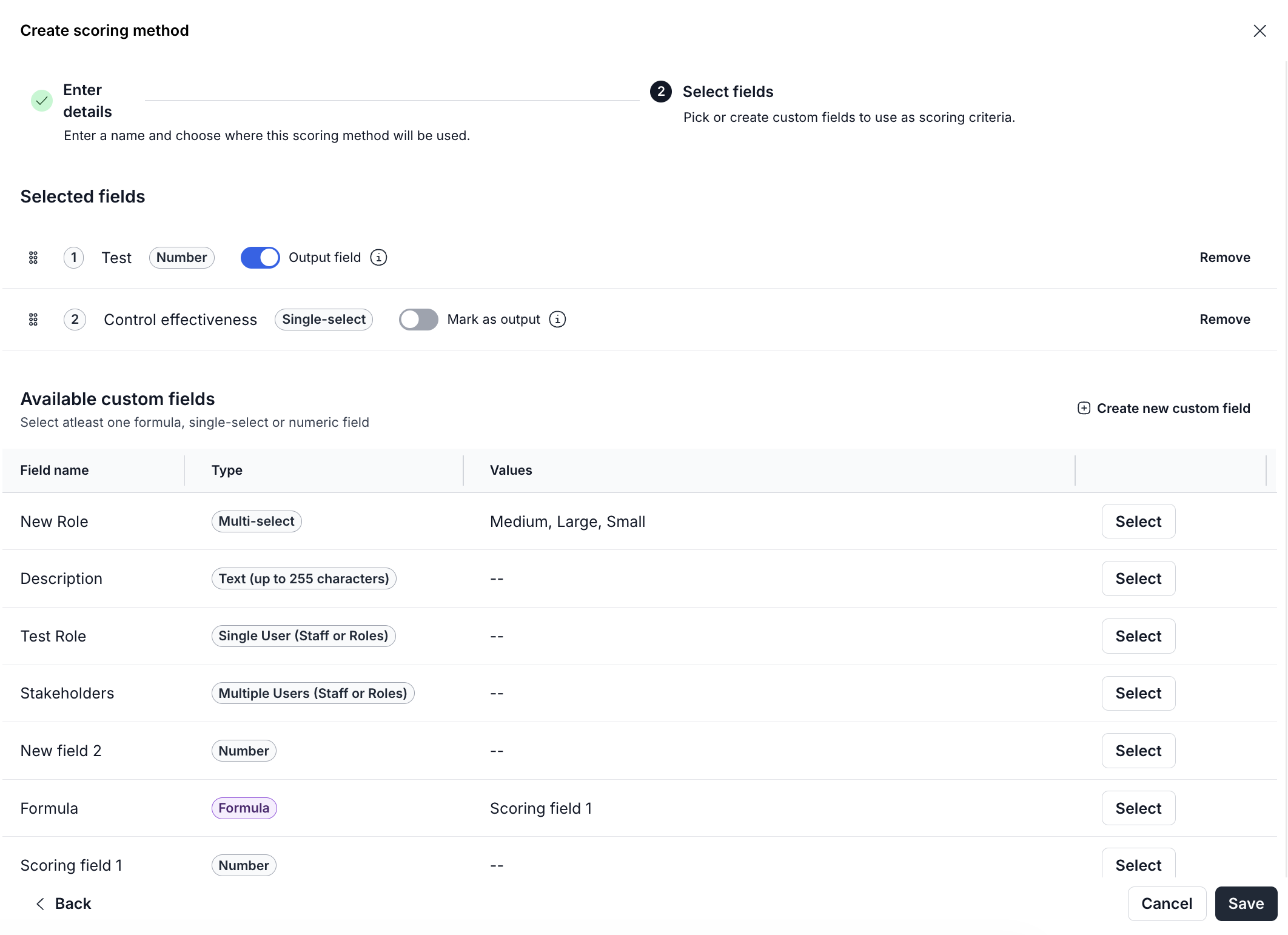
In the Select fields step, define the fields used for scoring.
Select existing custom fields
Review the list under Available custom fields.
Click Select next to the fields you want to include.
Selected fields appear in the Selected fields section.
You can select multiple fields.

Set the output field
Enable the Output field toggle for numerical fields.
The output field represents the final calculated score and is mandatory.
Reorder fields
Use the drag handle (grid icon) next to a field to reorder it.
Field order controls how scoring criteria are displayed.
Remove selected fields
Click Remove next to a field to exclude it from the scoring method.
Create a new custom field (optional)
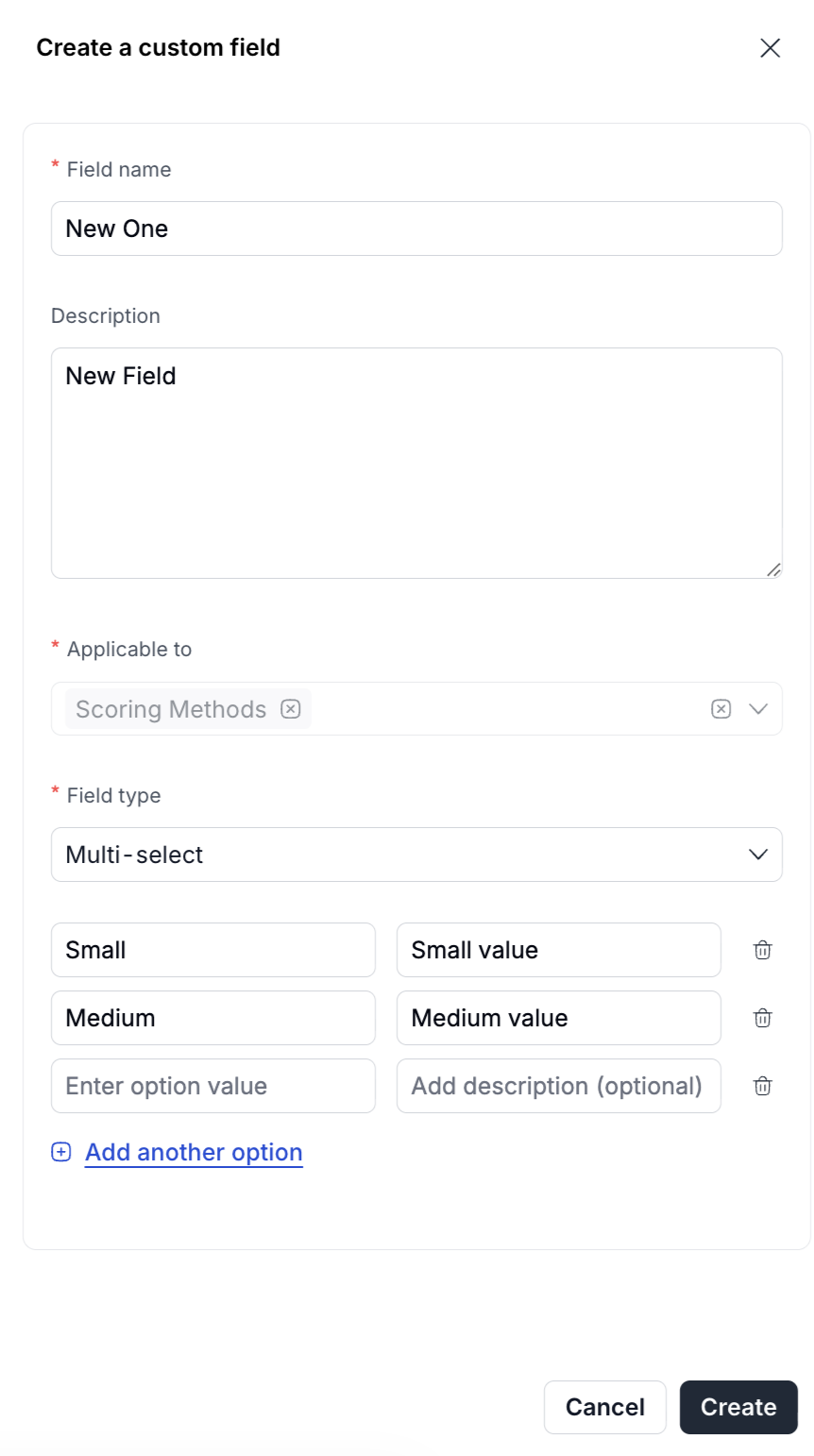
Click Create new custom field.
In the drawer:
Enter a Field name and optional description.
Review the Applicable to field (locked to Scoring methods).
Select a Field type.
Add field values if required (for example, for single-select or multi-select fields).
Click Create.

The new field is added to the list of available fields and can be selected immediately.
Next steps
After creating a scoring method, you can:
Apply it while setting up control testing to evaluate controls using a consistent scoring framework.
Reuse the same scoring method across multiple controls and zones without redefining scoring logic.
Review, edit, or disable scoring methods later without affecting previously recorded scores.
This helps ensure control evaluations remain standardised as your internal testing and audit readiness processes scale.
Last updated