> For the complete documentation index, see [llms.txt](https://docs.sprinto.com/llms.txt). Markdown versions of documentation pages are available by appending `.md` to page URLs; this page is available as [Markdown](https://docs.sprinto.com/integrations/overview/namely-integration.md).
# Namely Integration
Integrate your Namely HR platform with Sprinto to automatically sync employee data, streamline onboarding checks, and maintain compliance visibility.
The Namely integration allows Sprinto to automatically import employee data such as names, email addresses, departments, and employment status. This ensures that your compliance scope within Sprinto stays accurate and updated in real time.
***
### How it Works
Sprinto connects to your Namely instance using **Merge**, a unified HRIS connector. The connection requires your **Namely subdomain** and a **personal access token (API key)**. Once connected, Sprinto periodically syncs employee data to maintain compliance visibility and automation accuracy.
***
### Dashboard Actions
#### 1. Obtain Your Namely Credentials
Before connecting Namely to Sprinto, gather the following details from your Namely account:
* **Subdomain**
* **Personal Access Token (API key)**
***
#### **Creating an API Service User**
Before configuring a Namely Connector, Namely recommends creating an **API Service User**. The permissions associated with *that* user will determine the permissions of the **Personal Access Token** required for integration.
The API Service User must be an **Administrator** in Namely.
***
**Step 1: Identify Your Namely Subdomain**
1. Log in to your company’s Namely portal.
2. In your browser address bar, locate your subdomain, it appears before `namely.com`.
* For example, if your sign-in URL is `https://acme.namely.com`, your subdomain is `acme`.
3. Enter this subdomain in the linking flow when prompted during setup.
***
**Step 2: Generate a Personal Access Token (API Key)**
1. Ensure you have **Administrator** access in Namely.
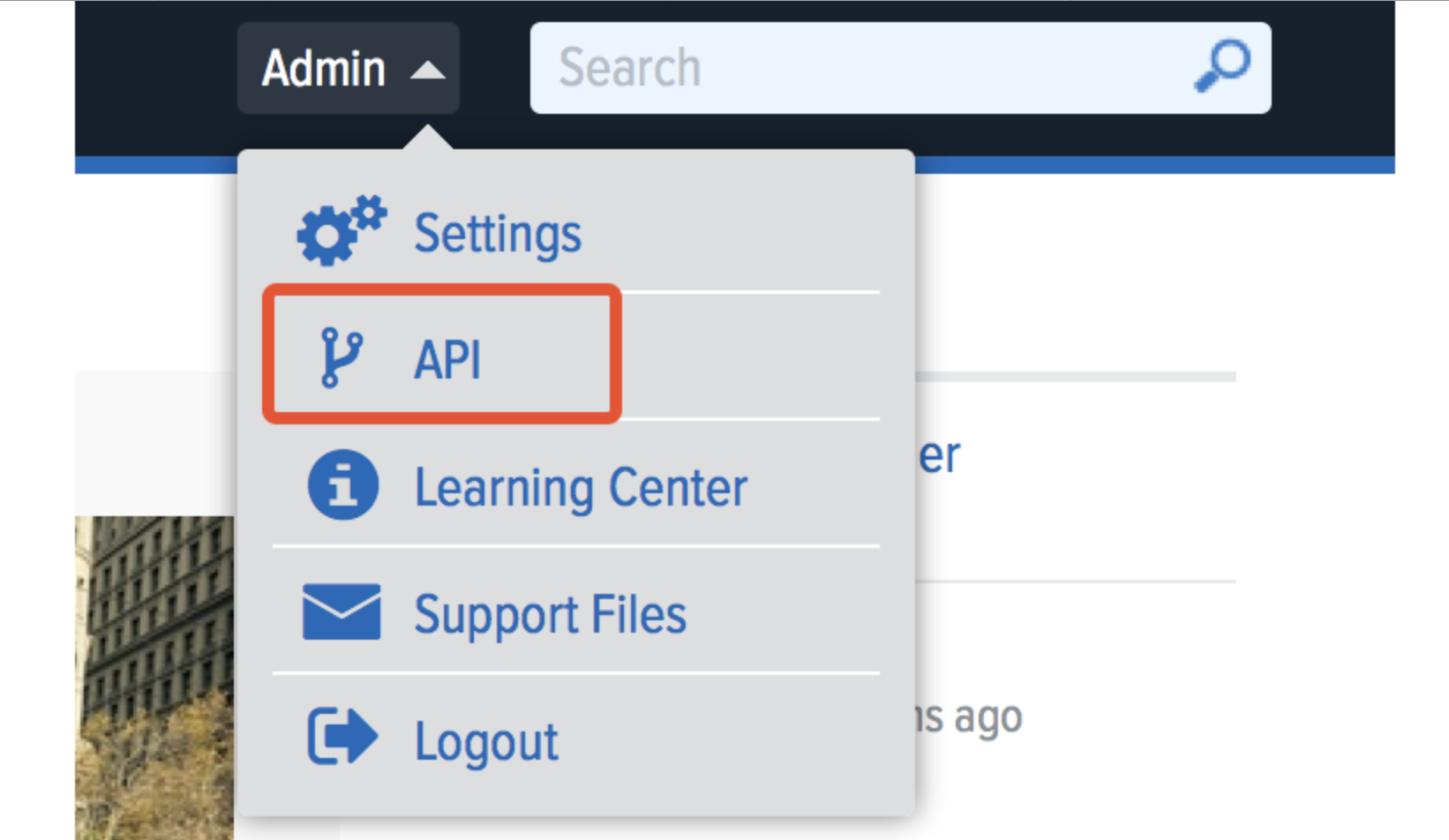
2. From the **Admin** dropdown, select **API**.
3. On the API page, click the **Personal Access Tokens** tab (located beside *OAuth Applications*).
4. Select **Create Token**.
5. Assign a name (for example, *Sprinto Integration*) and click **Submit**.
3. Copy the **personal access token** and store it securely — it will only be displayed once.
4. You’ll use this token to authorise the integration in Sprinto.
***
#### 2. Connect Namely in Sprinto
1. **Log in** to your Sprinto account using your credentials.
2. From the left navigation panel, go to **Settings** (located at the bottom).
3. Click **Available Integrations** under the Settings menu.
4. In the search bar, type **Namely**, then click **Connect** next to the Namely option.
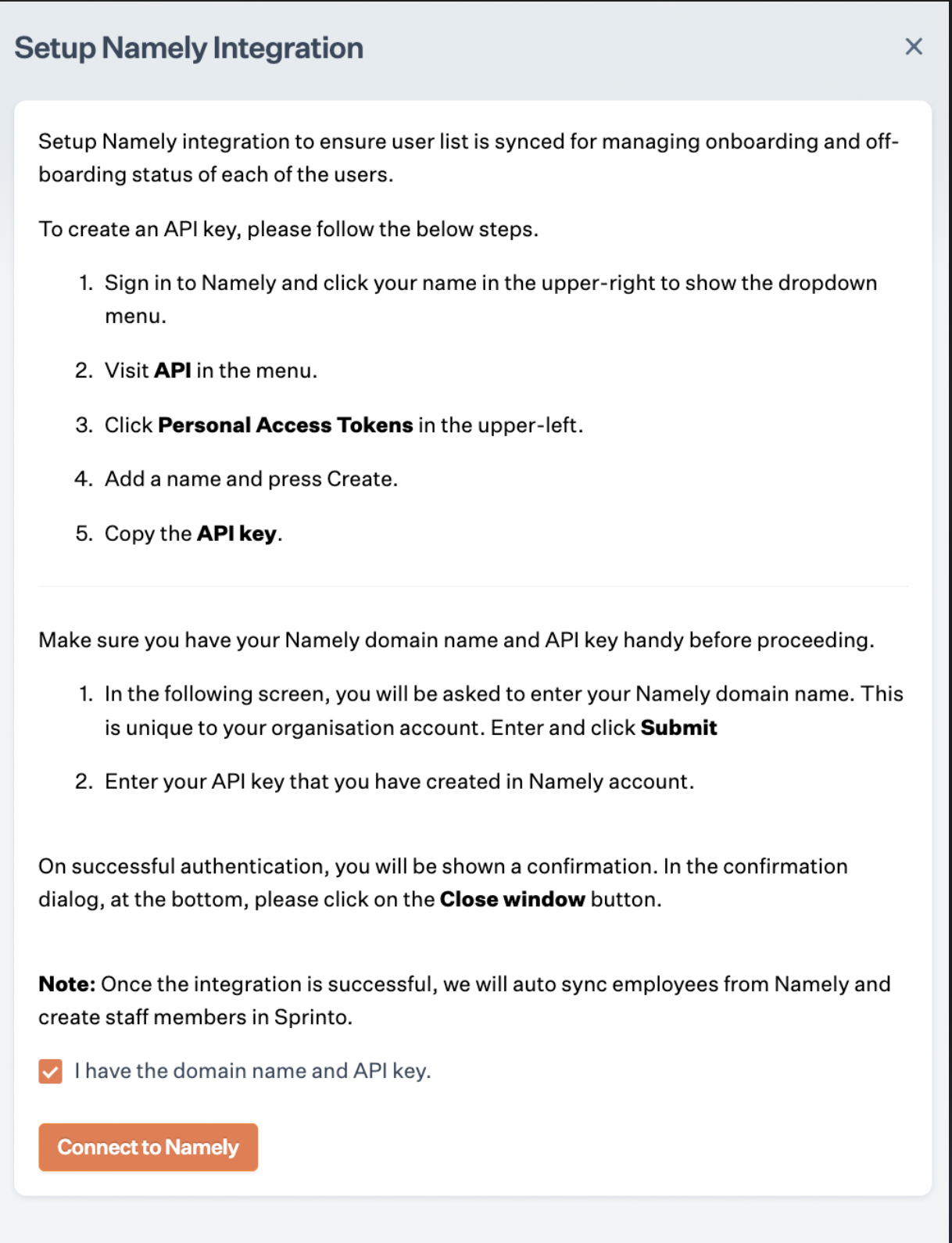
5. Select the checkbox **I have a domain and API key**, then click **Connect to Namely**.
6. In the pop-up window, enter your **Namely subdomain**, then click **Submit**.
7. On the next screen, you’ll be prompted to enter your **Namely API key**. To generate it:
* Sign in to your Namely account.
* Click your profile name in the upper-right corner to open the dropdown menu.
* Select **API** from the list.
* Click **Personal Access Tokens** in the upper-left.
* Enter a name for your token and click **Create**.
* Copy the generated token and paste it into the **API Key** field in Sprinto.
8. Click **Submit** to complete the setup.
Once connected, Sprinto will automatically begin syncing employee data from Namely within 24 hours.
If you need assistance during setup, contact **Sprinto Support** through the in-app chat or email ****.
***
### What’s New
* Added detailed instructions for identifying your **Namely subdomain** and **creating a personal access token** directly from Namely’s Admin console.
* Clarified connection flow sequence (Namely setup before Sprinto configuration).
***
### FAQs
**1. Who can set up the Namely integration?**\
Only a Namely Administrator can create and manage personal access tokens required for integration.
**2. How often does Sprinto sync data from Namely?**\
Sprinto automatically refreshes employee data at regular intervals to ensure compliance accuracy.
**3. What happens if my Namely API token expires or is revoked?**\
If revoked, the integration will stop syncing. Generate a new token and reconnect to restore functionality.
**4. Can imported employee data be edited in Sprinto?**\
No. Employee data imported via HRMS integrations like Namely is read-only and can only be managed from your HR platform.
---
# Agent Instructions
This documentation is published with GitBook. GitBook is the documentation platform designed so that both humans and AI agents can read, navigate, and reason over technical content effectively. Learn more at gitbook.com.
## Querying This Documentation
If you need additional information that is not directly available in this page, you can query the documentation by asking a question.
Perform an HTTP GET request on the following URL with the `ask` and `goal` query parameters:
```
GET https://docs.sprinto.com/integrations/overview/namely-integration.md?ask=&goal=
```
`ask` is the immediate question: it should be specific, self-contained, and written in natural language.
`goal` is what the user is ultimately trying to achieve, the reason they need the answer. Sharing it helps GitBook give you a better, more relevant answer. A goal is most helpful when it describes the outcome the user wants rather than restating the question. For example, with `ask=how do I create an API token`, a goal like `automate deployments from our CI pipeline` lets GitBook tailor the answer to that use case.
The response will contain a direct answer to the question and relevant excerpts and sources from the documentation.
Use this mechanism when the answer is not explicitly present in the current page, you need clarification or additional context, or you want to retrieve related documentation sections.