# Wingman Integration

Wingman is an AI-powered sales assistance software popular among small businesses and freelancers.

**Note**: We use [Truto.one](https://truto.one/) as our integration partner to integrate and fetch required user details from the Wingman account.

### How does this integration help <a href="#how-does-this-integration-help" id="how-does-this-integration-help"></a>

* Integration helps to fetch users list from the Wingman account.
* If a staff member with Wingman account access is offboarded, Sprinto activates a check against that staff member to revoke the access.

### Sprinto checks for Wingman <a href="#sprinto-checks-for-wingman" id="sprinto-checks-for-wingman"></a>

Below is the list of Sprinto checks available for Wingman:

<table><thead><tr><th width="477.65625">Sprinto check</th><th>Reference procedure</th></tr></thead><tbody><tr><td>User should be identified</td><td><a href="../../data-library/access/dashboard-actions/view-and-map-staff-access">How to fix</a> </td></tr><tr><td>Wingman access should be removed for offboarded user</td><td><a href="../../settings/steps-to-enable-status-checks-under-azure-devops">How to fix</a></td></tr><tr><td>Critical system access control should be configured</td><td><a href="../../data-library/access/dashboard-actions/view-and-map-staff-access">How to fix</a> </td></tr><tr><td><p>User access to Critical System should be valid</p><p>Note: The user access to the critical system becomes valid if the respective Org role is added to the system.</p></td><td><a href="../../data-library/access/dashboard-actions/view-and-map-staff-access">How to fix</a> </td></tr></tbody></table>

### Prerequisites for Integration <a href="#prerequisites-for-integration" id="prerequisites-for-integration"></a>

* Log in to Sprinto as administrator.
* Ensure you have “Admin” access on the Wingman account you want to integrate.

### How to integrate Sprinto with Wingman <a href="#how-to-integrate-sprinto-with-wingman" id="how-to-integrate-sprinto-with-wingman"></a>

<pre><code><strong>Note: Ensure that you have a paid Wingman account before proceeding further with the intergration procedure. 
</strong></code></pre>

1. **Getting API key from Wingman account**.
   1. Log in to your [Wingman account](https://copilot.clari.com/login).
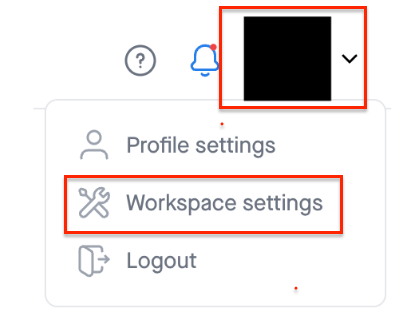
   2. Click on the profile icon and select workspace settings.<br>

      <figure><img src="https://s3.amazonaws.com/cdn.freshdesk.com/data/helpdesk/attachments/production/72073788120/original/GVBvG4O59Hc_-oeLgaz7LzDNtKttxxHQuA.png?1700735185" alt=""><figcaption></figcaption></figure>
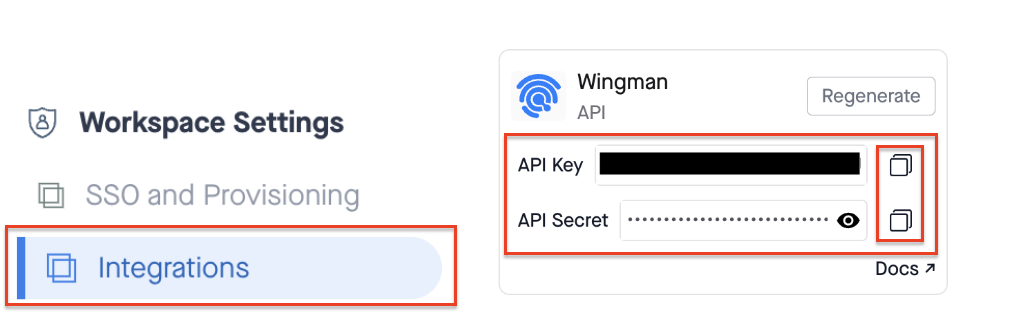
   3. Select Integrations, copy the API key and API Secret, and save it securely. You will need these on Sprinto app for building integration.

      <figure><img src="https://s3.amazonaws.com/cdn.freshdesk.com/data/helpdesk/attachments/production/72073788089/original/4mmnarJky2IQJ7c4ov0yxOV8rmp0wXLKQg.png?1700735173" alt="" width="563"><figcaption></figcaption></figure>
2. **Integrating Wingman on Sprinto.**
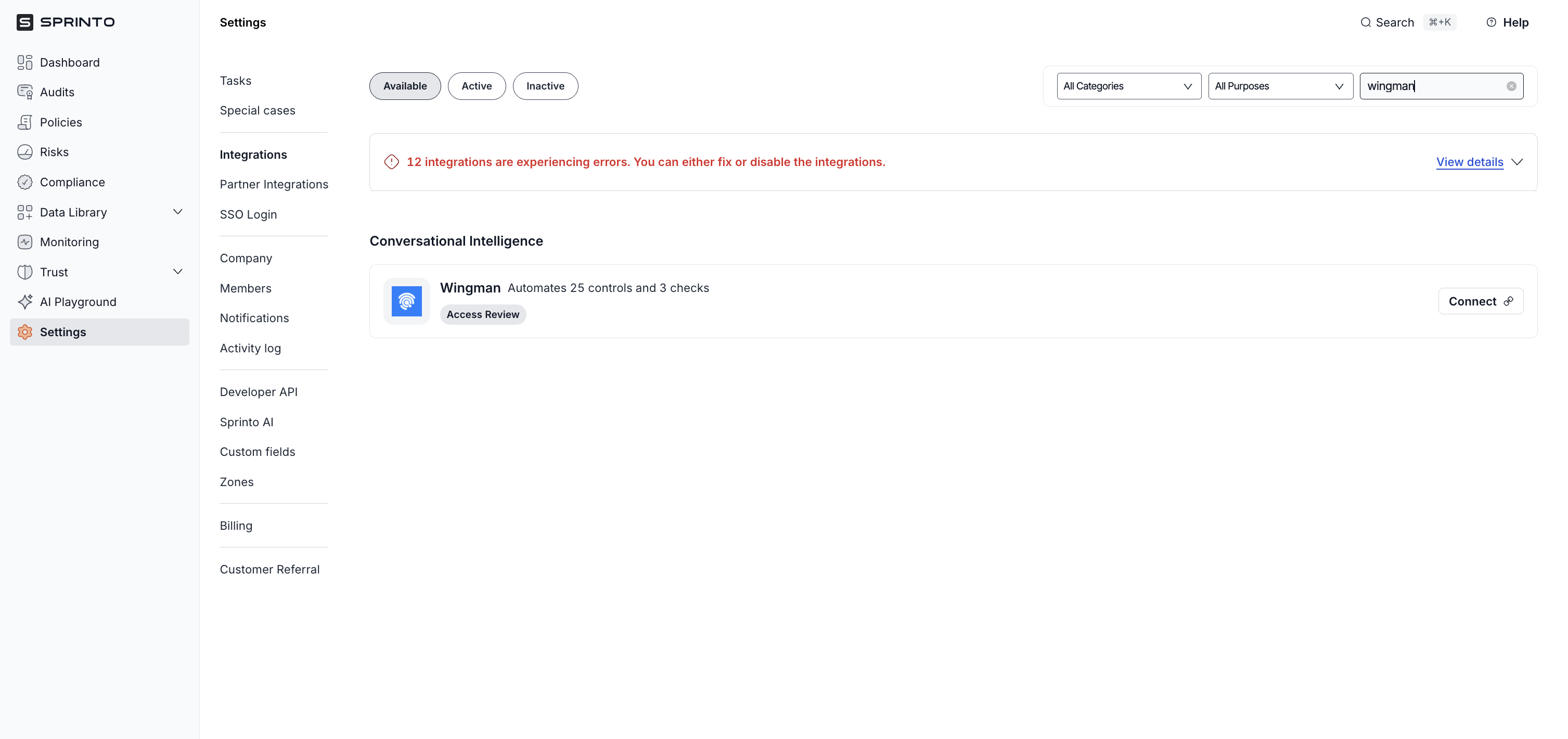
   1. On Sprinto app, go to Settings > Integrations > Available, and click Connect next to Wingman.

      <figure><img src="https://3220032727-files.gitbook.io/~/files/v0/b/gitbook-x-prod.appspot.com/o/spaces%2FEsyn5VMU6e0OyGjRtKgx%2Fuploads%2FnyP01YBr0cqo1bYbIkEM%2FScreenshot%202025-09-25%20at%2015.44.14.png?alt=media&#x26;token=9ea4c6b3-d09d-46f5-96c6-0cb6b3175f8b" alt="" width="563"><figcaption></figcaption></figure>
   2. On Integration page, select the acknowledgment checkbox and click Connect to Wingman.\
      **Note**: Ensure that the pop-up window is enabled on the web browser you are using.
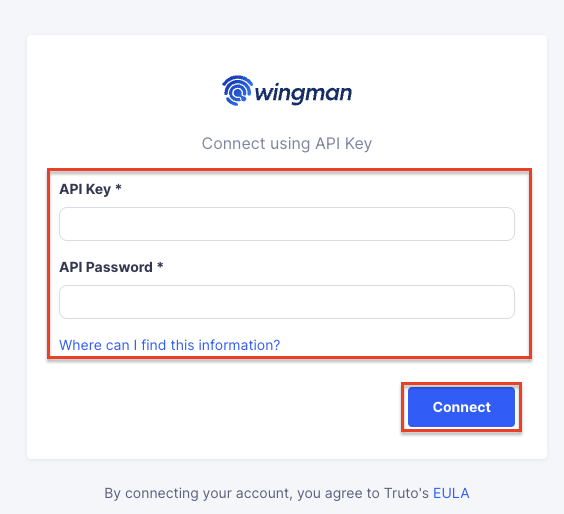
   3. Enter the API Key and API Password (Secret) you have copied earlier in the respective fields, then click Connect.\
      **Note**: This completes integrating Sprinto with your Wingman account. You can proceed with account configuration.

      <figure><img src="https://s3.amazonaws.com/cdn.freshdesk.com/data/helpdesk/attachments/production/72073788403/original/NlyMXgtZC8-_xA0g7KUdn_coQmFrjof0dw.png?1700735388" alt="" width="375"><figcaption></figcaption></figure>
3. **Configure Wingman as a critical system.**
   1. Go to **Data Library > Access** and click **Add Critical System.**
   2. On **Add Critical Systems** page, select Wingman and click **Add System.**
   3. Configure and define valid access for Wingman. Refer to [define critical system user access](https://sprinto.freshdesk.com/support/solutions/articles/72000606015-how-to-define-critical-system-user-access-mcas-on-sprinto-) to learn more.

### Final step <a href="#final-step" id="final-step"></a>

This completes the Wingman integration. To check if there are any tasks left or if any checks failed, go to **Data Library** > **Access** and look for Wingman critical system card.