> For the complete documentation index, see [llms.txt](https://docs.sprinto.com/llms.txt). Markdown versions of documentation pages are available by appending `.md` to page URLs; this page is available as [Markdown](https://docs.sprinto.com/monitors/cloud-and-infrastructure-monitoring/aws/how-to-resolve-sprinto-check-for-monitoring-aws-elasticsearch-cluster-health.md).
# How to resolve Sprinto check for monitoring AWS Elasticsearch cluster health
Sprinto raises this check when your **Amazon OpenSearch (formerly Elasticsearch)** domain does not have CloudWatch alarms configured to monitor its health and node performance.
AWS has updated OpenSearch monitoring, the old **Elasticsearch** namespace may no longer appear in CloudWatch.
\
The correct method now is to access Cluster Health metrics directly through the **OpenSearch domain → Cluster health** dashboard, and then create alarms from CloudWatch.
***
## Check 1 - Cluster Health Alarm
Sprinto Check: AWS Elasticsearch cluster health should be monitored
### Step 1 - Navigate to Amazon OpenSearch Service
1. Log in to the AWS Management Console.
2. Search for **Amazon OpenSearch Service** and open it.
3. Select the domain you want to monitor.
***
### Step 2 - Go to the Cluster Health Tab
1. In the domain navigation, open **Cluster health**.
2. Review the health charts including:
* Cluster status
* Cluster writes blocked
* Master connection status
* Free storage space
* Snapshot failures
* Total nodes
***
### Step 3 - Open the Metric in CloudWatch
1. In the **Cluster status** tile, click **View in metrics**.
2. This opens CloudWatch with the correct metric pre-selected.
Use the metric:\
**Metric name:** `ClusterStatus.red`\
**Statistic:** Maximum\
**Threshold:** Greater than 0
***
### Step 4 - Create the Alarm
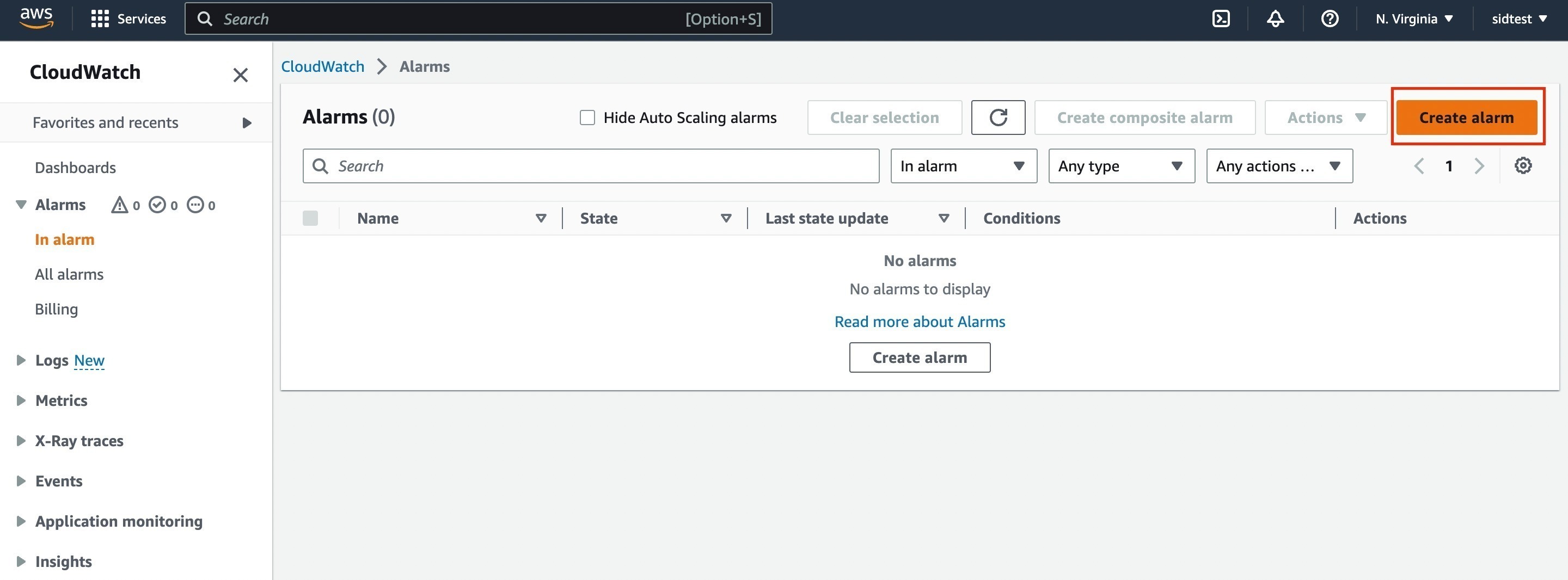
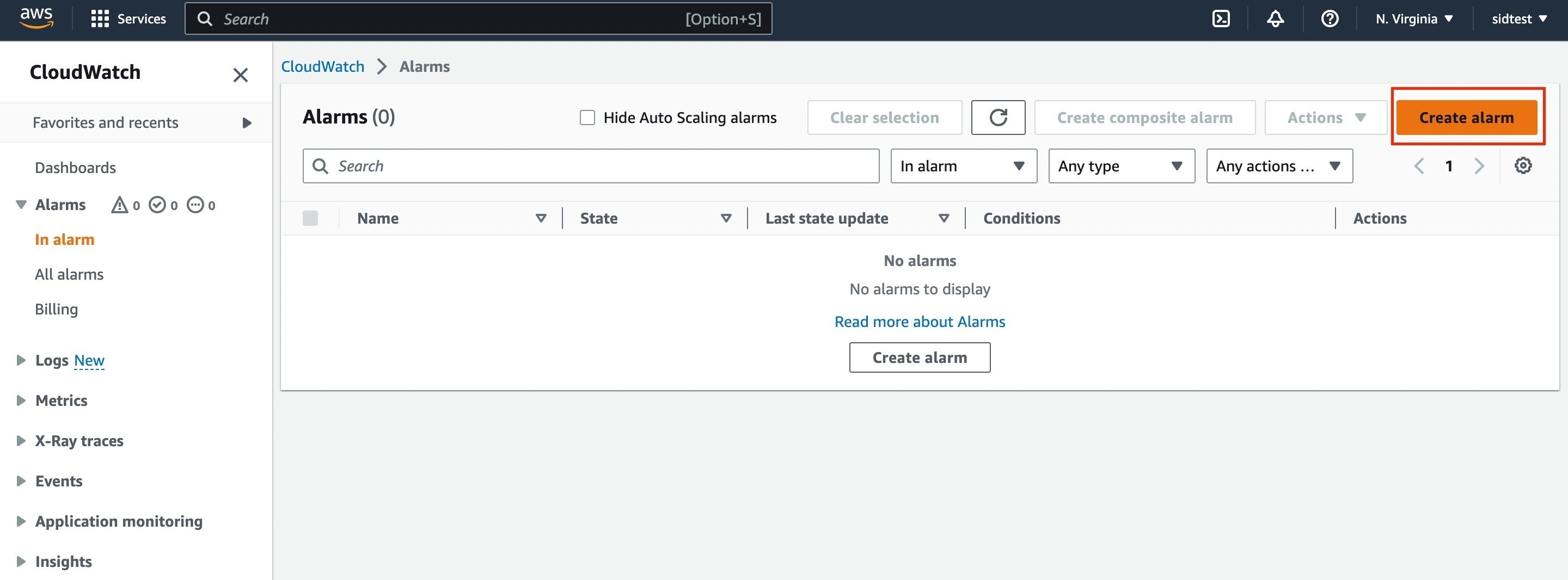
1. In CloudWatch, click **Create Alarm**.
2. Configure the alarm using:
* **Statistic:** Maximum
* **Period:** 5 minutes
* **Threshold:** Greater than 0
3. Add notifications (SNS topic, email, etc.).
4. Save by clicking **Create alarm**.
***
## Check 2 - Cluster CPU Utilization Alarm
Sprinto Check: AWS Elasticsearch cluster CPU utilization should be monitored
### Step 1 - Navigate to CloudWatch Metrics
1. In the AWS Console, search for **CloudWatch**.
2. Go to **Metrics** → **Browse**.
3. Choose the namespace associated with your domain’s metrics:
* **ES** (for older Elasticsearch domains), or
* **OpenSearch** (for newer domains)
If **ES** does not appear in your region, select **OpenSearch Service** or access metrics through the domain metrics link.
***
### Step 2 - Select the CPU Metric
OpenSearch CPU is monitored at the instance level. Choose:
**Metric:** `CPUUtilization`\
**Statistic:** Average\
**Period:** 5 minutes\
**Threshold:** Choose a value appropriate to your workload (e.g., > 80%)
***
### Step 3 - Create the CPU Alarm
1. Click **Create alarm**.
2. Select the CPU metric.
3. Configure the threshold and evaluation period.
4. Select or create an SNS notification channel.
5. Click **Create alarm**.
***
## Step 3 - Verify Both Alarms in Sprinto
Once both alarms are created:
1. Go to **Sprinto → Monitors**.
2. Look for:
* **AWS OpenSearch Cluster Health**
* **AWS OpenSearch CPU Utilization**
3. Sprinto will mark the checks as **Passing** after the next **monitor re-evaluation cycle**.
4. You can force a refresh by using **Re-eval** in Sprinto.
{% hint style="info" %}
**Notes**
* AWS now routes all metrics for OpenSearch/Elasticsearch domains through the **OpenSearch Service** console.
* The CloudWatch namespace may show as **ES**, **OpenSearch**, or only appear via the “View in metrics” button.
* **ClusterStatus.red** is the correct metric for health monitoring.
* Both health and CPU alarms must be configured for the check to pass.
{% endhint %}
If you need any assistance with the Sprinto check, please contact [Sprinto support](mailto:www.support@sprinto.com). We're here to help!
---
# Agent Instructions
This documentation is published with GitBook. GitBook is the documentation platform designed so that both humans and AI agents can read, navigate, and reason over technical content effectively. Learn more at gitbook.com.
## Querying This Documentation
If you need additional information that is not directly available in this page, you can query the documentation dynamically by asking a question.
Perform an HTTP GET request on the current page URL with the `ask` query parameter, and the optional `goal` query parameter:
```
GET https://docs.sprinto.com/monitors/cloud-and-infrastructure-monitoring/aws/how-to-resolve-sprinto-check-for-monitoring-aws-elasticsearch-cluster-health.md?ask=&goal=
```
`ask` is the immediate question: it should be specific, self-contained, and written in natural language.
`goal` is optional and describes the broader end goal you are ultimately trying to accomplish on behalf of the user. GitBook uses it to tailor the answer towards what is most useful for that goal.
The response will contain a direct answer to the question and relevant excerpts and sources from the documentation.
Use this mechanism when the answer is not explicitly present in the current page, you need clarification or additional context, or you want to retrieve related documentation sections.