> For the complete documentation index, see [llms.txt](https://docs.sprinto.com/llms.txt). Markdown versions of documentation pages are available by appending `.md` to page URLs; this page is available as [Markdown](https://docs.sprinto.com/monitors/cloud-and-infrastructure-monitoring/aws/how-to-resolve-sprinto-check-for-monitoring-aws-rds-freespace.md).
# How to resolve Sprinto check for monitoring AWS RDS freespace
### About
Sprinto Check: AWS RDS database freespace should be monitored
Upon integrating your AWS account with Sprinto, the platform fetches the list of services from your AWS account. If you are using AWS RDS and have not set up a monitoring alert for the metric FreeStorageSpace, Sprinto activates the mentioned check for all RDS instances under your account.
**Note:** At this time, our platform **does not support** [**AWS CloudWatch Composite Alarms**](https://docs.aws.amazon.com/AmazonCloudWatch/latest/monitoring/AlarmThatCombinesAlarms.html) or [**Math-Based Alarms**](https://docs.aws.amazon.com/AmazonCloudWatch/latest/monitoring/using-metric-math.html).
\
This means you cannot create alarms that:\
Combine multiple alarms using logical conditions (e.g., `ALARM1 AND ALARM2`)\
Use metric math expressions (e.g., calculating averages or deltas across metrics)
### Purpose
Monitoring free storage space in your AWS RDS database instances, specifically the FreeStorageSpace metric, is vital to prevent potential issues related to storage capacity. Sprinto sends notifications if the free space falls below the defined threshold, enabling proactive actions to manage storage resources efficiently.
### How to Resolve
To address this check, follow the steps below to create an AWS CloudWatch alert for monitoring AWS RDS database free space.
#### Video Guide
#### Before you Begin
* Ensure you have "Admin" access to the AWS account to create alerts.
* Log in to Sprinto as an administrator.
#### Create Monitoring Alert
1. Log in to your[ AWS console](https://aws.amazon.com/console/) using your credentials.
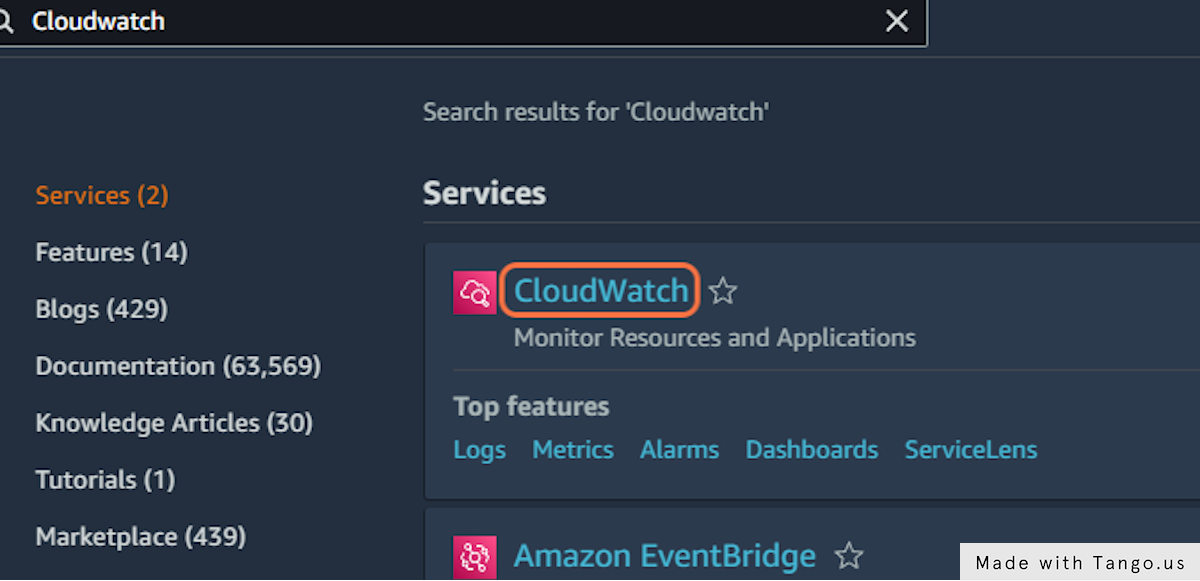
2. Navigate to the CloudWatch web service.
3. Go to Alarms > In alarm, and click Create alarm.
4. Click Select metric.
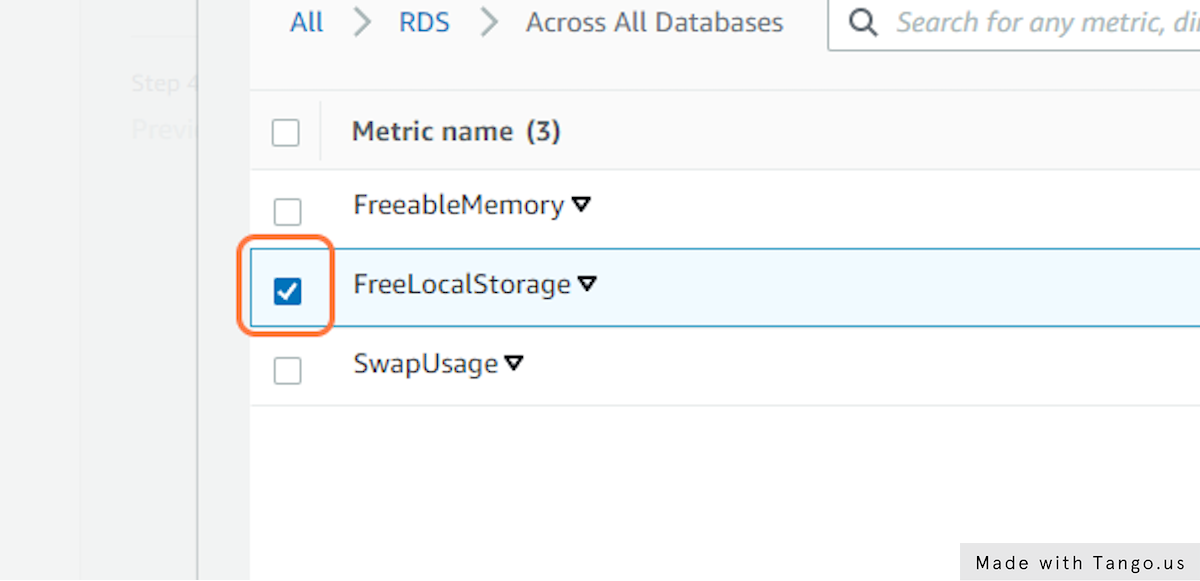
5. On the Select metric page, choose the AWS/RDS namespace and select the metric FreeStorageSpace.
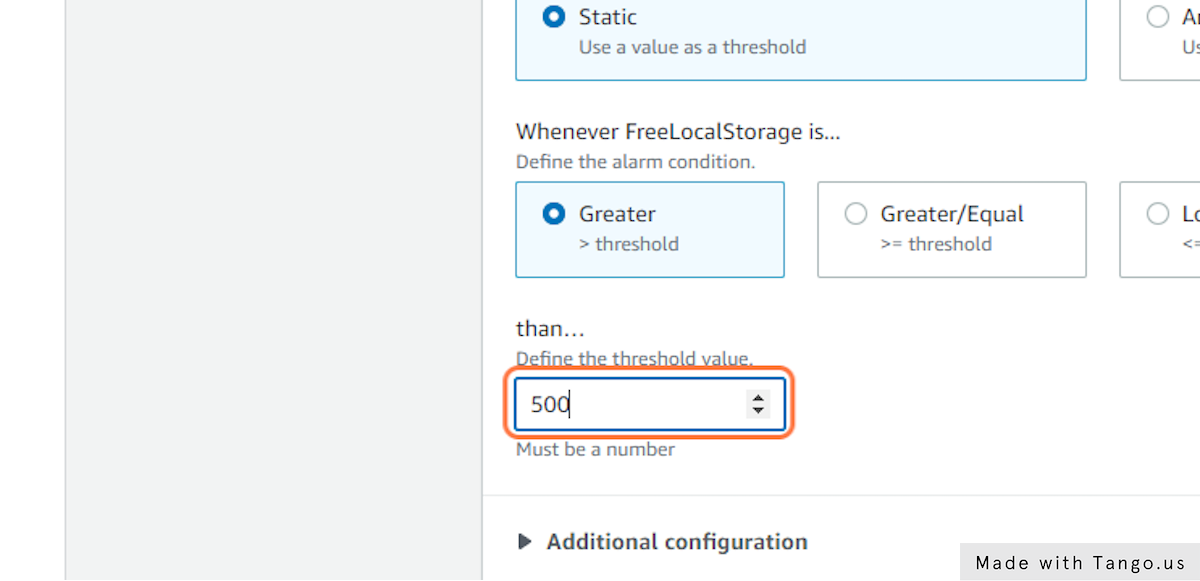
6. Specify the metric and conditions to define the alert trigger point, then click Next.
7. On the configure action page:
* Create new topic: Enter the topic name and email addresses for alert notifications.
* Add notification: Select the created SNS topic and click Add notification.
8. Enter a name and description for the created alert, then click Next.
9. Preview your created alarm and edit any parameters if required, then click Create alarm.
Once the monitoring alert is set up on CloudWatch for AWS RDS database Free Storage Space, Sprinto fetches the changes, and the Sprinto check status is marked as "Passing."
If you need assistance with the Sprinto check, please get in touch with [Sprinto support](mailto:www.support@sprinto.com). We're here to help!
---
# Agent Instructions
This documentation is published with GitBook. GitBook is the documentation platform designed so that both humans and AI agents can read, navigate, and reason over technical content effectively. Learn more at gitbook.com.
## Querying This Documentation
If you need additional information that is not directly available in this page, you can query the documentation dynamically by asking a question.
Perform an HTTP GET request on the current page URL with the `ask` query parameter, and the optional `goal` query parameter:
```
GET https://docs.sprinto.com/monitors/cloud-and-infrastructure-monitoring/aws/how-to-resolve-sprinto-check-for-monitoring-aws-rds-freespace.md?ask=&goal=
```
`ask` is the immediate question: it should be specific, self-contained, and written in natural language.
`goal` is optional and describes the broader end goal you are ultimately trying to accomplish on behalf of the user. GitBook uses it to tailor the answer towards what is most useful for that goal.
The response will contain a direct answer to the question and relevant excerpts and sources from the documentation.
Use this mechanism when the answer is not explicitly present in the current page, you need clarification or additional context, or you want to retrieve related documentation sections.