> For the complete documentation index, see [llms.txt](https://docs.sprinto.com/llms.txt). Markdown versions of documentation pages are available by appending `.md` to page URLs; this page is available as [Markdown](https://docs.sprinto.com/monitors/cloud-and-infrastructure-monitoring/aws/how-to-resolve-sprinto-check-for-aws-efs-storage-backup-enabling.md).
# How to resolve Sprinto check for AWS EFS storage backup enabling
### About
Sprinto check: AWS EFS storage backup should be enabled
Sprinto introduces a dedicated check to ensure Amazon Elastic File System (EFS) backups are properly configured in your AWS environment. Activating EFS file system backups is essential for data protection, disaster recovery, and maintaining the resilience of your cloud storage infrastructure.
### Purpose
Enabling backups for AWS EFS file systems is a critical step in safeguarding valuable data. Backups provide a safety net against data loss caused by accidental deletion, corruption, or system failures, allowing for reliable point-in-time recovery options.
### How to Enable AWS EFS File System Backups
Follow the steps below to configure and enable backups for your AWS EFS file systems:
#### Before You Begin
* Ensure you have the necessary permissions to configure EFS file system backups in your AWS account.
* Identify the EFS file systems that you want to enable backup.
* Log in to the AWS Management Console with administrative credentials.
#### Enable AWS EFS File System Backups
1. Navigate to the[ AWS Management Console](https://aws.amazon.com/console/).
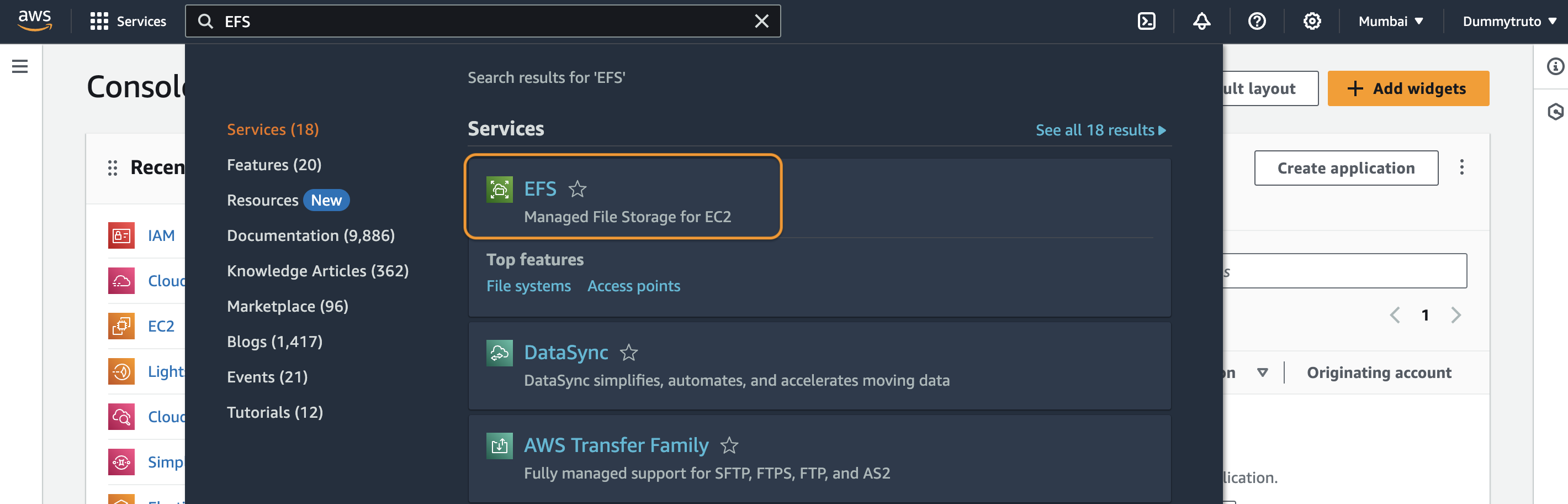
2. Go to the Amazon EFS dashboard.
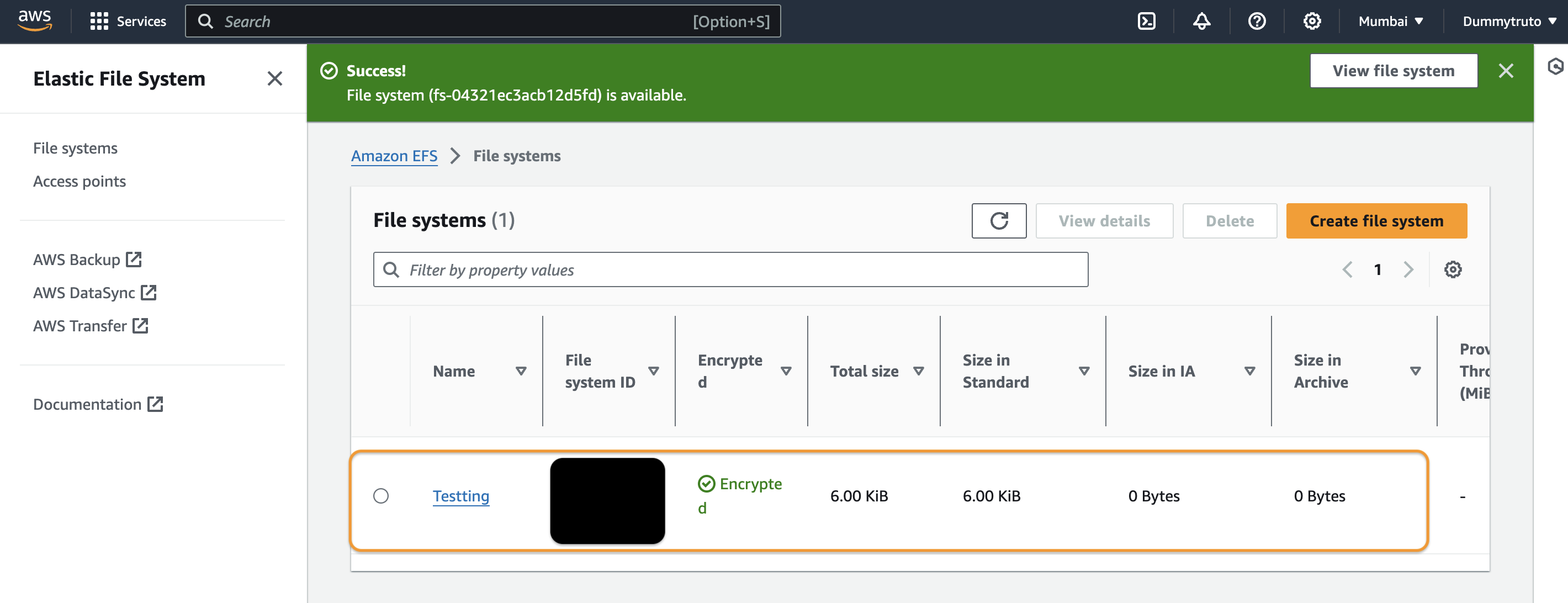
3. Select the EFS file system you wish to enable backup.
4. In the file system details page, click Edit.
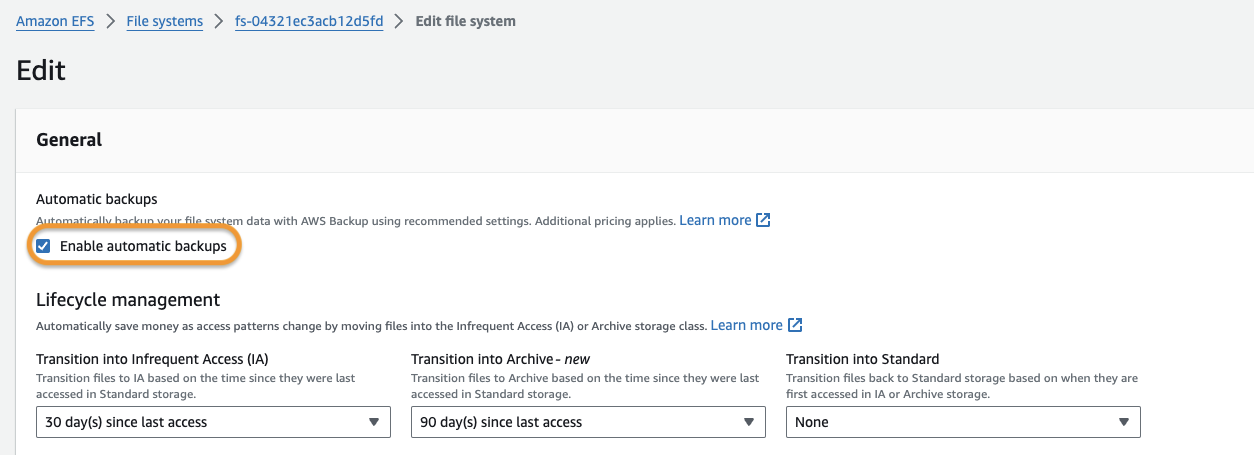
5. Select the checkbox next to Enable automatic backups, under general settings.
6. Click **Save** Changes.
#### Final Step
the Once the automatic backup is enabled on all the EFS file systems added to your Sprinto account, the Sprinto check status related to EFS backup enabled gets set to “Passing.”
If you need any assistance with Sprinto check, kindly get in touch with [Sprinto support](https://www.notion.so/How-to-integrate-Sprinto-with-ActiveCampaign-5f8638abcd6c45948b8b34351c4e85d1?pvs=21).
---
# Agent Instructions
This documentation is published with GitBook. GitBook is the documentation platform designed so that both humans and AI agents can read, navigate, and reason over technical content effectively. Learn more at gitbook.com.
## Querying This Documentation
If you need additional information that is not directly available in this page, you can query the documentation dynamically by asking a question.
Perform an HTTP GET request on the current page URL with the `ask` query parameter, and the optional `goal` query parameter:
```
GET https://docs.sprinto.com/monitors/cloud-and-infrastructure-monitoring/aws/how-to-resolve-sprinto-check-for-aws-efs-storage-backup-enabling.md?ask=&goal=
```
`ask` is the immediate question: it should be specific, self-contained, and written in natural language.
`goal` is optional and describes the broader end goal you are ultimately trying to accomplish on behalf of the user. GitBook uses it to tailor the answer towards what is most useful for that goal.
The response will contain a direct answer to the question and relevant excerpts and sources from the documentation.
Use this mechanism when the answer is not explicitly present in the current page, you need clarification or additional context, or you want to retrieve related documentation sections.