> For the complete documentation index, see [llms.txt](https://docs.sprinto.com/llms.txt). Markdown versions of documentation pages are available by appending `.md` to page URLs; this page is available as [Markdown](https://docs.sprinto.com/monitors/cloud-and-infrastructure-monitoring/aws/enabling-rds-backup.md).
# Enabling RDS Backup
#### **How to backup and restore Amazon RDS SQL Server**Here are ways to perform a backup and restore:
Follow these steps to create a **snapshot** **via the AWS Management console:**
**Backup**
1. Go to the [Amazon RDS](https://eu-west-1.console.aws.amazon.com/rds/home) page
2. On the left pane click “Snapshots”
3. Click on the “Take snapshot” button
4. Choose “DBInstance” and specify the snapshot’s name
5. Click on the “Take snapshot” button
**Restore**
1. Go to the [Amazon RDS](https://eu-west-1.console.aws.amazon.com/rds/home) page
2. On the left pane click “Snapshots”
3. Select a snapshot you want to restore
4. Click on the “Action” > “Restore snapshot”
5. Fill in the information to create a new RDS\
*If it is required to restore an existing RDS SQL Server instance then first remove it.*
6. Click on the “Restore Snapshot”
### Follow these steps to create a **snapshot** **via Native backup to S3 on the AWS console:**
For the RDS SQL Server instance, it can be performed as a native backup by saving it to S3. The RDS engine does not support the BACKUP DATABASE construct and by executing it, an error message appears. Use the following stored procedure **\[msdb]. \[Dbo]. \[Rds\_backup\_database]** to perform a native backup.
**Backup**
Before the creation of a backup, allow the RDS server to keep backups on S3. This can be set by the following steps:
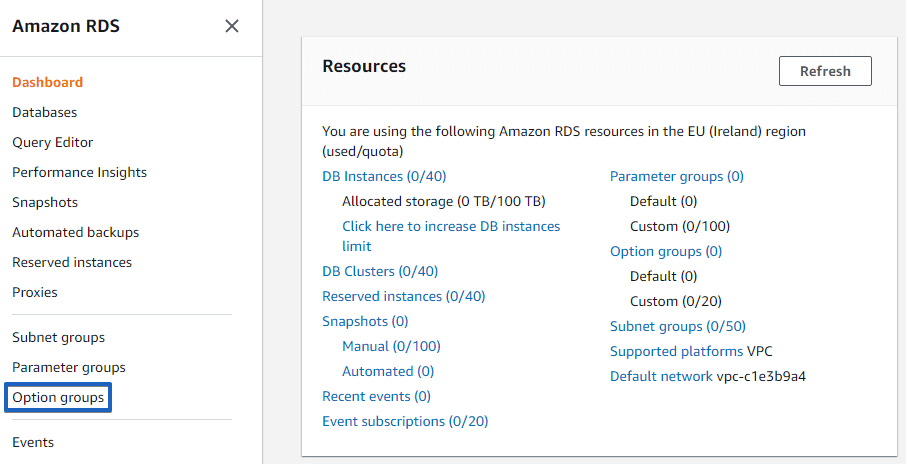
1. Open [AWS RDS Console](https://eu-west-1.console.aws.amazon.com/rds/home) and go to the Option Groups section
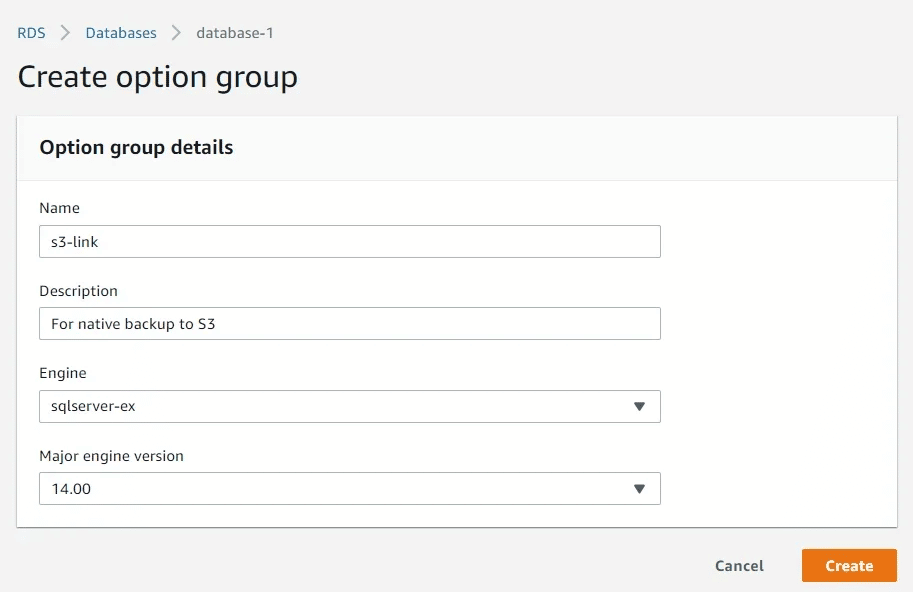
2. Create “Option group”
3. Specify the appropriate “Engine Version” and “Engine”
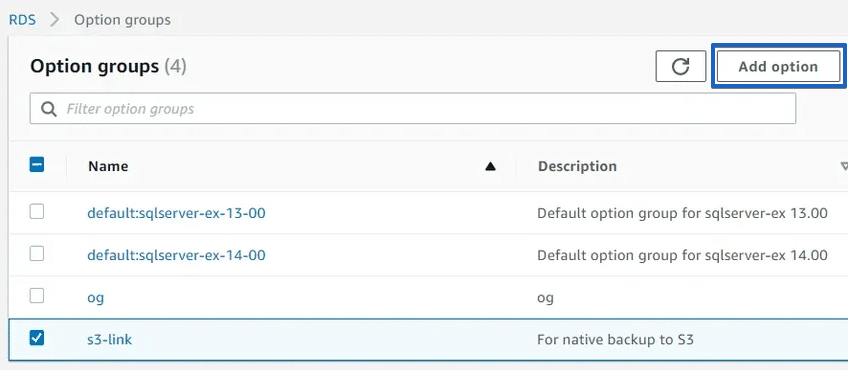
4. Add the option to that group
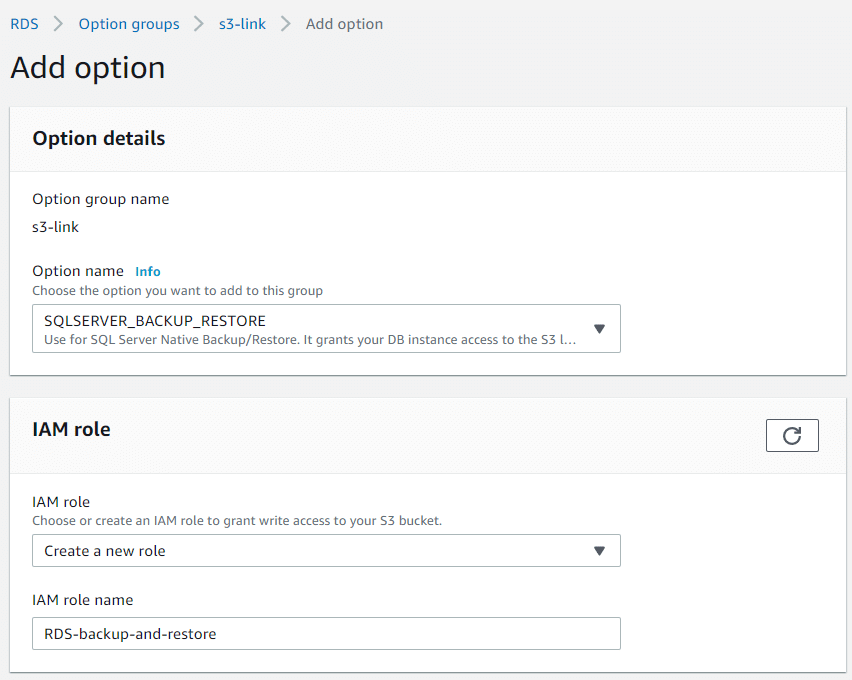
5. Specify “SQLSERVER\_BACKUP\_RESTORE” and choose to create a new role in the “IAM role” section. In this case, the role with all the necessary permissions will be created.
6. Specify a bucket where you prefer to store your backups at the “S3 Destination” section and click on the “Add Option”
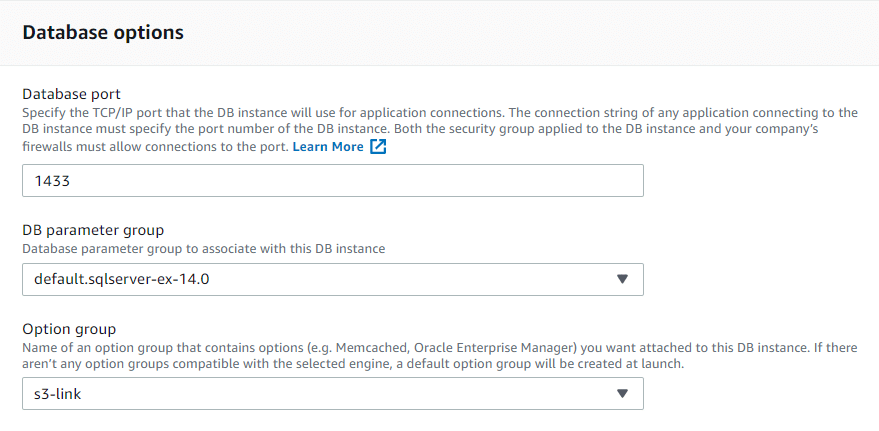
7. Now set the “Option Group” option in a database’s settings. To do this choose a database from the list and click “Modify”. In the “Database Option” section, specify the “Option Group” that was created.
8. Apply the changes
Now everything is set. As a rule, it takes about fifteen minutes to have all settings applied, even if “apply immediately” was chosen.
Backups and restores are performed via T-SQL commands. The easiest way to do this is to use SQL Server Management Studio.
To perform a backup, please execute the following T-SQL command:
EXEC \[msdb].\[dbo].\[rds\_backup\_database]@source\_db\_name = '\',@S3\_arn\_to\_backup\_to = N'arn:aws:s3:::\/sample.backup'
If successful, a table in which information about the created backup task will be displayed:
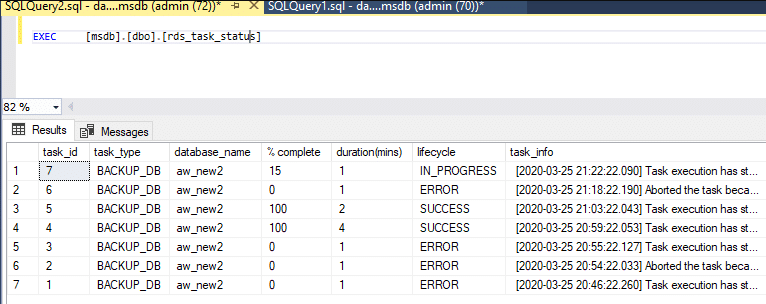
To track the backup process, execute another procedure **EXEC \[msdb]. \[Dbo]. \[Rds\_task\_status]**
**Restore**
To restore a database, execute the following T-SQL script:
exec msdb.dbo.rds\_restore\_database @restore\_db\_name='\', @s3\_arn\_to\_restore\_from='arn:aws:s3:::\/sample.backup';
More details about the native backup/restore on S3 can be found [here](https://aws.amazon.com/premiumsupport/knowledge-center/native-backup-rds-sql-server/).
---
# Agent Instructions
This documentation is published with GitBook. GitBook is the documentation platform designed so that both humans and AI agents can read, navigate, and reason over technical content effectively. Learn more at gitbook.com.
## Querying This Documentation
If you need additional information that is not directly available in this page, you can query the documentation dynamically by asking a question.
Perform an HTTP GET request on the current page URL with the `ask` query parameter, and the optional `goal` query parameter:
```
GET https://docs.sprinto.com/monitors/cloud-and-infrastructure-monitoring/aws/enabling-rds-backup.md?ask=&goal=
```
`ask` is the immediate question: it should be specific, self-contained, and written in natural language.
`goal` is optional and describes the broader end goal you are ultimately trying to accomplish on behalf of the user. GitBook uses it to tailor the answer towards what is most useful for that goal.
The response will contain a direct answer to the question and relevant excerpts and sources from the documentation.
Use this mechanism when the answer is not explicitly present in the current page, you need clarification or additional context, or you want to retrieve related documentation sections.