> For the complete documentation index, see [llms.txt](https://docs.sprinto.com/llms.txt). Markdown versions of documentation pages are available by appending `.md` to page URLs; this page is available as [Markdown](https://docs.sprinto.com/monitors/cloud-and-infrastructure-monitoring/aws/how-to-resolve-sprinto-check-for-monitoring-aws-dynamodb-database-write-capacity.md).
# How to resolve Sprinto check for monitoring AWS DynamoDB Database write capacity
#### About:
Sprinto check: AWS DynamoDB write capacity should be monitored
This check verifies that you are monitoring the write capacity utilization of your Amazon DynamoDB tables or other NoSQL databases in your AWS environment. Monitoring write capacity is crucial for maintaining the performance and scalability of your applications or services that rely on these databases.
#### Purpose:
This check ensures visibility into the write capacity utilization of your DynamoDB databases. In DynamoDB, write capacity units (WCUs) determine the maximum number of writes per second that your application can perform. If your application exceeds the provisioned write capacity, DynamoDB will throttle the requests, potentially causing performance issues or disruptions.
#### How to Fix This Check:
Follow the below steps to fix this check:
#### Before you begin
* Ensure you have administrator privilege on the AWS account to configure the AWS CloudWatch alert.
#### Monitor DynamoDB write capacity monitoring
Follow the below steps to create a DynamoDB write monitoring alert:
1. Log in to [AWS Console](https://aws.amazon.com/console/) using your credentials or the available Single Sign-On (SSO) options.
2. Navigate to the AWS CloudWatch service.
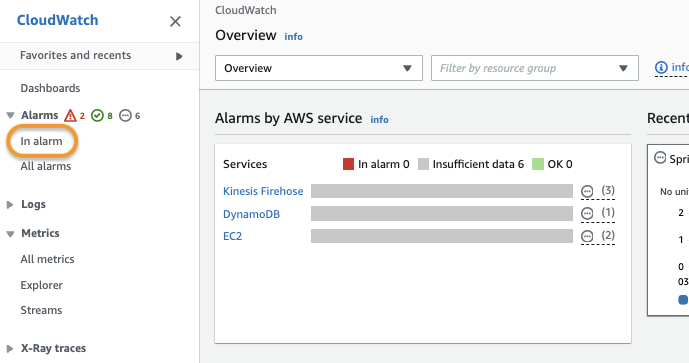
3. Click In Alarm under the Alarm option from the left-side navigation bar.
4. Click Create alarm to create a new monitoring alert.
5. Click Select metric.
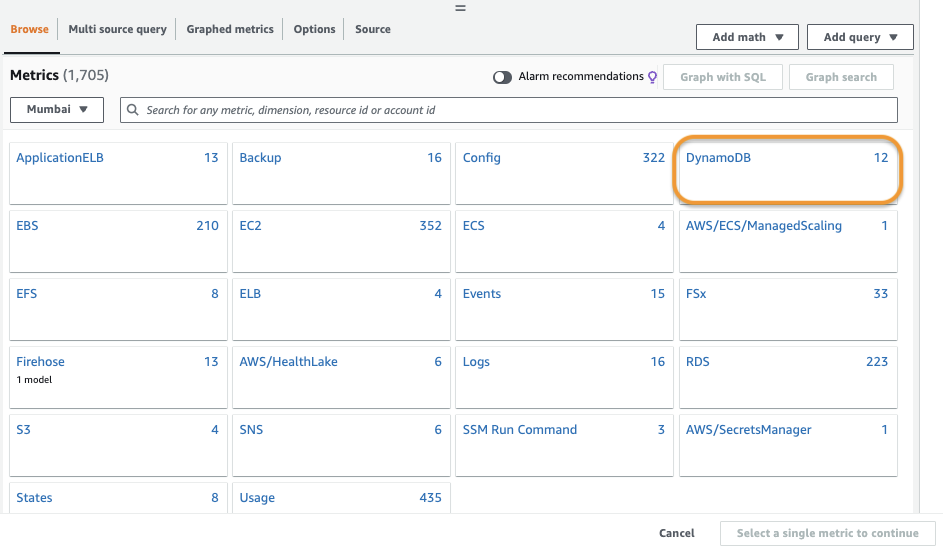
6. Select DynamoDB from the namespace selector.
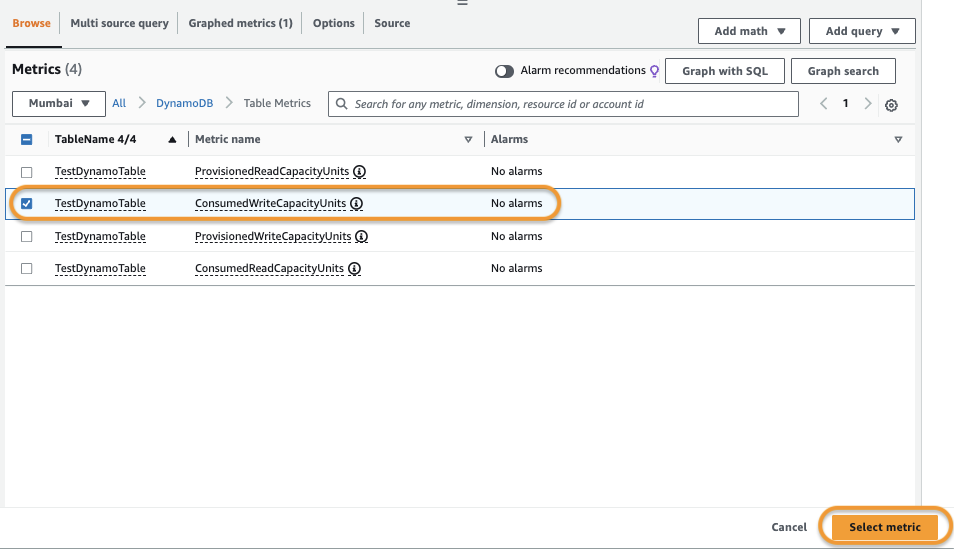
7. Select the ConsumedWriteCapacityUnits metric and click Select metric.
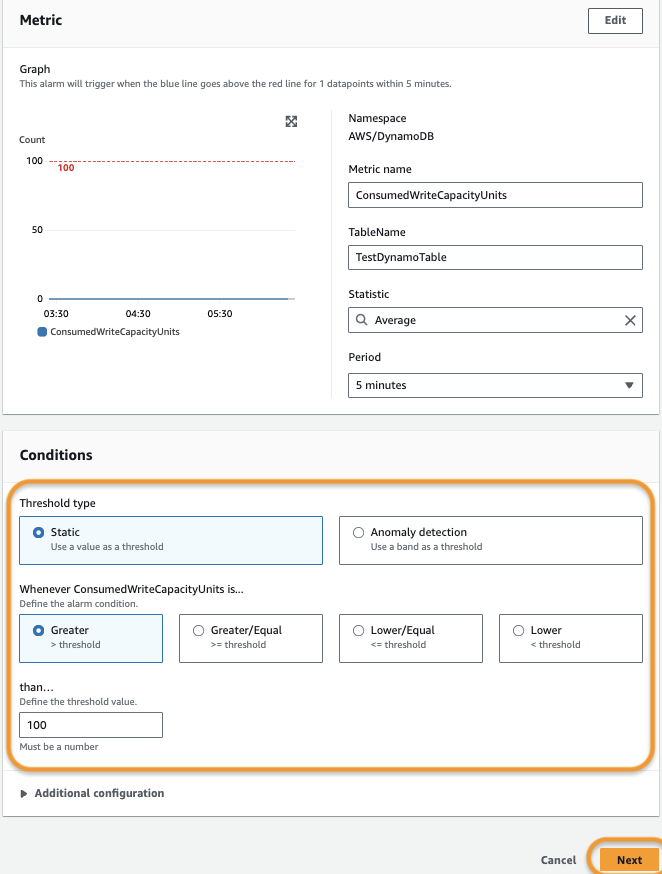
8. Define the alert trigger condition per your organization’s requirement, and click Next.
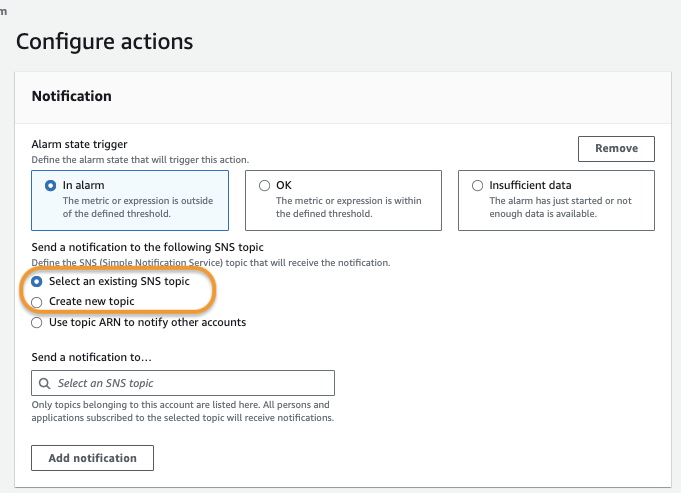
9. Define the alert notification channel. Select an existing SNS or create a new topic, then click Next.
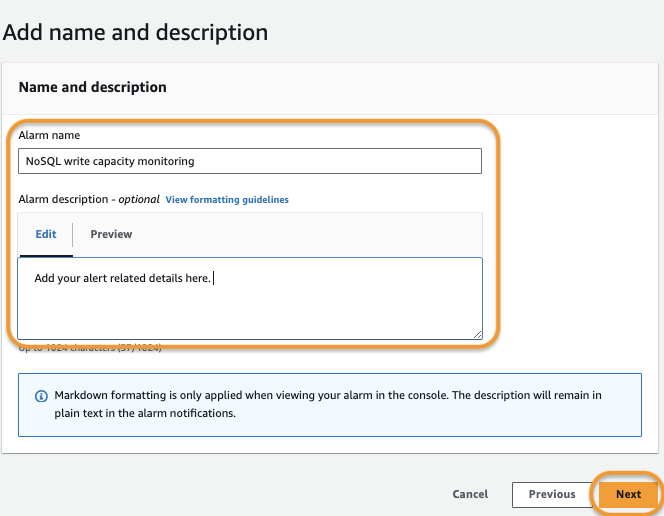
10. Enter a name and description for the created alert.
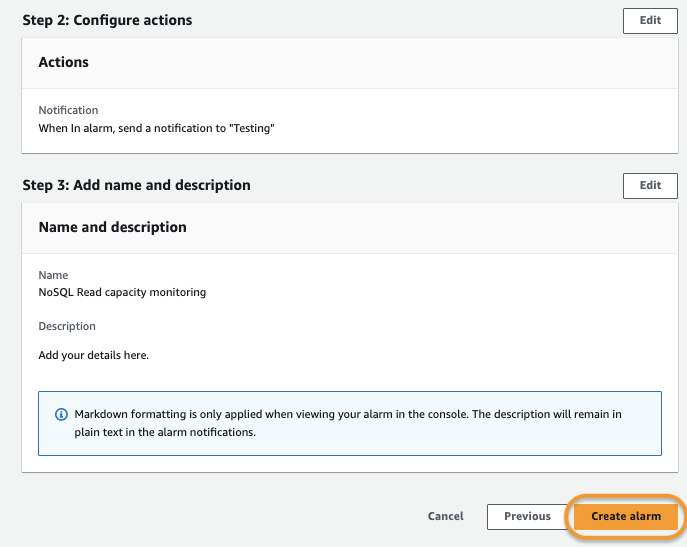
11. Review your selections, and click Create alarm to apply the changes.
Sprinto detects the alert configuration and sets the respective Sprinto check’s status to “Passing.”
Contact [Sprinto support](mailto:www.support@sprinto.com) if you have any queries related to the check or need assistance.
---
# Agent Instructions
This documentation is published with GitBook. GitBook is the documentation platform designed so that both humans and AI agents can read, navigate, and reason over technical content effectively. Learn more at gitbook.com.
## Querying This Documentation
If you need additional information that is not directly available in this page, you can query the documentation dynamically by asking a question.
Perform an HTTP GET request on the current page URL with the `ask` query parameter, and the optional `goal` query parameter:
```
GET https://docs.sprinto.com/monitors/cloud-and-infrastructure-monitoring/aws/how-to-resolve-sprinto-check-for-monitoring-aws-dynamodb-database-write-capacity.md?ask=&goal=
```
`ask` is the immediate question: it should be specific, self-contained, and written in natural language.
`goal` is optional and describes the broader end goal you are ultimately trying to accomplish on behalf of the user. GitBook uses it to tailor the answer towards what is most useful for that goal.
The response will contain a direct answer to the question and relevant excerpts and sources from the documentation.
Use this mechanism when the answer is not explicitly present in the current page, you need clarification or additional context, or you want to retrieve related documentation sections.