> For the complete documentation index, see [llms.txt](https://docs.sprinto.com/llms.txt). Markdown versions of documentation pages are available by appending `.md` to page URLs; this page is available as [Markdown](https://docs.sprinto.com/risks/dashboard-actions/risk-registers.md).
# Risk Registers
Create and manage multiple risk registers in Sprinto to segment risks by teams, regions, or frameworks while retaining consistent risk management workflows.
Multiple Risk Registers in Sprinto let you segment and manage risks across different business units, regions, frameworks, or operational contexts—without mixing unrelated risks into a single register. Each risk register functions independently, with its own set of risks, metrics, and views, while retaining the same core risk management workflows you already use in Sprinto.
This capability is useful when different teams or geographies require separate ownership, reporting, or analysis of risks, but still need a consistent and auditable risk management experience.
{% hint style="info" %}
#### **Note**
Multiple Risk Registers is an **Enterprise-only feature**. It is available exclusively on Sprinto’s Enterprise plan and is designed for organisations that need to manage risks across multiple business units, geographies, frameworks, or regulatory scopes within a single Sprinto account.
{% endhint %}
***
### Key features
* Create and maintain multiple risk registers from a single Risks workspace.
* View high-level risk metrics for each register, including inherent risk, residual risk, effective residual risk, and treatment effectiveness.
* Rename or delete risk registers as organisational needs evolve.
* Manage risks within each register independently, without affecting other registers.
* Use existing workflows inside a register, such as adding risks, periodic risk assessments, and configuration, without any changes to the current risk flow.
***
### Procedure
#### Create a new risk register
1. Log in to the Sprinto dashboard.
2. Navigate to **Risks** from the left navigation menu.
3. On the **Overview** tab, click **Create risk register** in the top-right corner.
4. In the **Create risk register** dialog, enter a name for the risk register.
5. Click **Create risk register**.
The new risk register is added to the Risks overview and appears alongside your existing registers.
***
#### Edit a risk register
1. From the **Risks** overview, locate the risk register you want to update.
2. Click the three-dot menu next to the risk register.
3. Select **Edit register**.
4. Enter the updated name.
5. Select the zones you wish to map to this register.
6. Click **Save changes**.
The updated name and mapped zones are reflected immediately on the risk register.
***
#### Delete a risk register
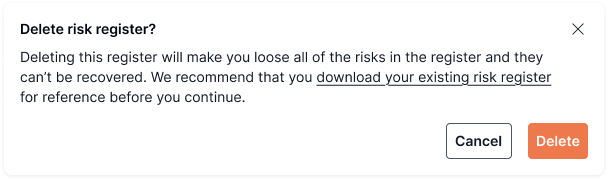
1. From the **Risks** overview, click the three-dot menu next to the risk register.
2. Select **Delete register**.
3. Review the confirmation message.
4. Click **Delete** to confirm.
{% hint style="warning" %}
#### **Warning**
Deleting a risk register permanently removes all risks in that register and cannot be undone. Sprinto recommends downloading or exporting the risk register before deletion if you need a reference.
{% endhint %}
***
#### Access and manage risks within a register
1. Click on a risk register from the **Risks** overview.
2. You are taken into the selected register, where you can:
* Add and manage risks
* Perform periodic risk assessments
* Configure register-level settings
These workflows remain unchanged from the existing risk management experience.
***
#### Share risks across risk registers
Share risks across multiple risk registers to reuse existing risk entries and maintain consistency across related registers.
**Share risks to another risk register**
1. Sign in to the Sprinto dashboard.
2. Navigate to **Risks**.
3. Select the source risk register from which you want to share risks.
4. In the **Risk register** tab, select the required risks.
5. Click the overflow menu (three dots) above the table.
6. Select **Share risks**.
7. In the dialog that opens, select one or more destination risk registers.
8. Click **Share**.
Sprinto shares the selected risks with the chosen destination risk registers.
**View shared risks**
Shared risks appear in the destination risk register with a link icon next to the risk name, indicating that the risk was shared from another register.
You can also use the **View** filter to switch between:
* **All** – Displays all risks in the register.
* **Shared** – Displays only shared risks.
{% hint style="info" %}
#### Note
Shared risks are excluded from heatmaps if the scoring configuration differs between the source and destination risk registers.
{% endhint %}
***
### Risk register status indicators
Each risk register displays summary metrics to help you quickly assess its overall posture:
* **Average inherent risk**: The average risk score before controls are applied.
* **Average residual risk**: The average risk score after controls are applied.
* **Average effective residual risk**: The adjusted residual risk based on control effectiveness.
* **Average treatment effectiveness**: A percentage indicating how effective current treatments are across risks in the register.
These indicators are calculated independently for each register.
***
### Reference Risks Across Risk Registers
You can reference risks across multiple Risk Registers without creating duplicate records. Referenced risks remain linked to the original (source) Risk Register, allowing teams to view the same risk in multiple registers while maintaining a single source of truth.
When a referenced risk is updated in the source register, the changes are automatically reflected in all destination registers where the risk has been shared.
#### Share risks to another Risk Register
1. Go to **Risks** and open the source **Risk Register**.
2. Select one or more risks using the checkboxes.
3. Select the **More actions** menu and click **Share risks**.
4. In the **Share risks to register** window, select one or more destination Risk Registers.
5. Click **Share**.
The selected risks are added to the destination Risk Registers as referenced risks.
#### View referenced risks
1. Open the destination **Risk Register**.
2. Referenced risks are identified by a **link icon** next to the risk name.
3. Select a referenced risk to view its details.
A banner indicates the source Risk Register from which the risk was referenced. You can use the **Go to source** option to navigate directly to the original risk.
{% hint style="warning" %}
#### Important considerations
* Referenced risks can only be edited from the source Risk Register.
* Changes made in the source register are automatically reflected in all destination registers.
* Referenced risks retain their relationship with the original risk and do not create duplicate records.
* Destination registers provide a read-only view of referenced risks.
{% endhint %}
#### Remove a referenced risk
1. Open the referenced risk in the destination Risk Register.
2. Click **Unshare**.
3. Confirm the action by selecting **Remove**.
Removing a referenced risk only removes it from the destination register. The original risk in the source Risk Register remains unchanged.
***
### Key notes
* You can create multiple risk registers, but each register is managed independently.
* Deleting a risk register permanently deletes all associated risks.
* Risk workflows inside a register (adding risks, assessments, configuration) behave the same as in the single-register setup.
* Metrics shown on the Risks overview are calculated per register and do not roll up across registers by default.
---
# Agent Instructions
This documentation is published with GitBook. GitBook is the documentation platform designed so that both humans and AI agents can read, navigate, and reason over technical content effectively. Learn more at gitbook.com.
## Querying This Documentation
If you need additional information that is not directly available in this page, you can query the documentation dynamically by asking a question.
Perform an HTTP GET request on the current page URL with the `ask` query parameter, and the optional `goal` query parameter:
```
GET https://docs.sprinto.com/risks/dashboard-actions/risk-registers.md?ask=&goal=
```
`ask` is the immediate question: it should be specific, self-contained, and written in natural language.
`goal` is optional and describes the broader end goal you are ultimately trying to accomplish on behalf of the user. GitBook uses it to tailor the answer towards what is most useful for that goal.
The response will contain a direct answer to the question and relevant excerpts and sources from the documentation.
Use this mechanism when the answer is not explicitly present in the current page, you need clarification or additional context, or you want to retrieve related documentation sections.