> For the complete documentation index, see [llms.txt](https://docs.sprinto.com/llms.txt). Markdown versions of documentation pages are available by appending `.md` to page URLs; this page is available as [Markdown](https://docs.sprinto.com/risks/dashboard-actions/create-custom-risk-scores.md).
# Create Custom Risk Scores
Create custom risk scores in Sprinto using flexible scoring logic to accurately assess and prioritise organisational risks.
Sprinto provides two default, system-defined formulas—Inherent Risk and Residual Risk. On top of these, you can create your own formulas to align with your organisation’s specific risk methodology.
The **Custom Risk Scores** feature enables administrators to define risk scores using their own logic and internal parameters. These formulas can be used to power monitoring, visualise risk data, and replace the default system scores entirely.
### **Who Can Use This Feature**
**Admin** permissions are required to create new risk scores.
### **Key Capabilities**
* Create new risk scores using the new formula builder.
* Configure scoring scales with custom ranges and labels.
* Replace default Inherent and Residual Risk scores.
* Enable risk monitoring and calculate the effective residual risk score using custom risk scores.
* Visualise risk scores in charts such as heat maps and doughnuts.
* Retain full control over formula ordering, deletion, and visibility.
### **Step 1: Create a Custom Scores Field**
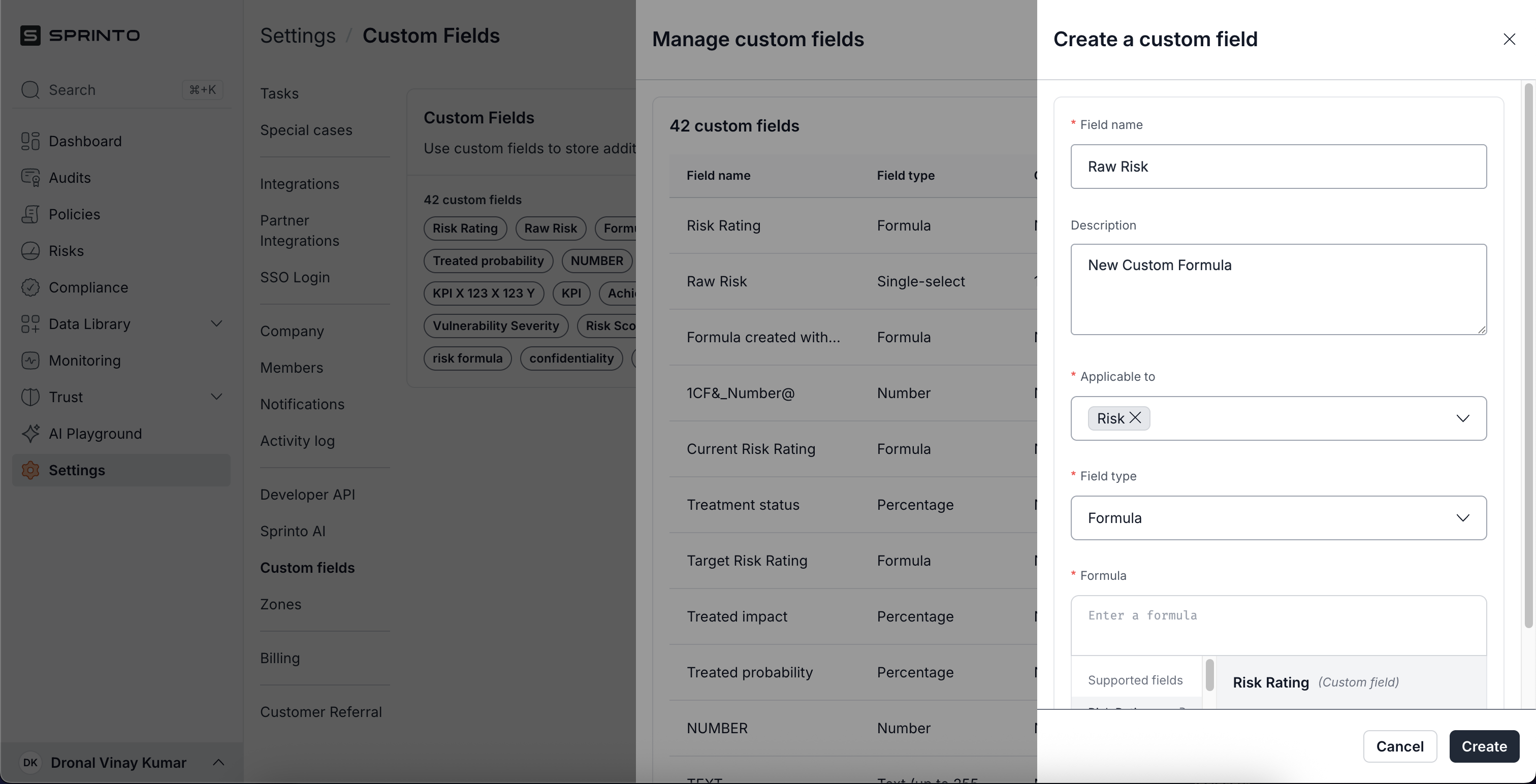
1. Go to **Settings** > **Custom Fields**.
2. Click **Manage** and then Select **Create custom field**.
3. Fill in the following details:
* **Field name**
* **Description**
* **Applicable to**: Select **Risks**
* **Field type:** Select **Formula**
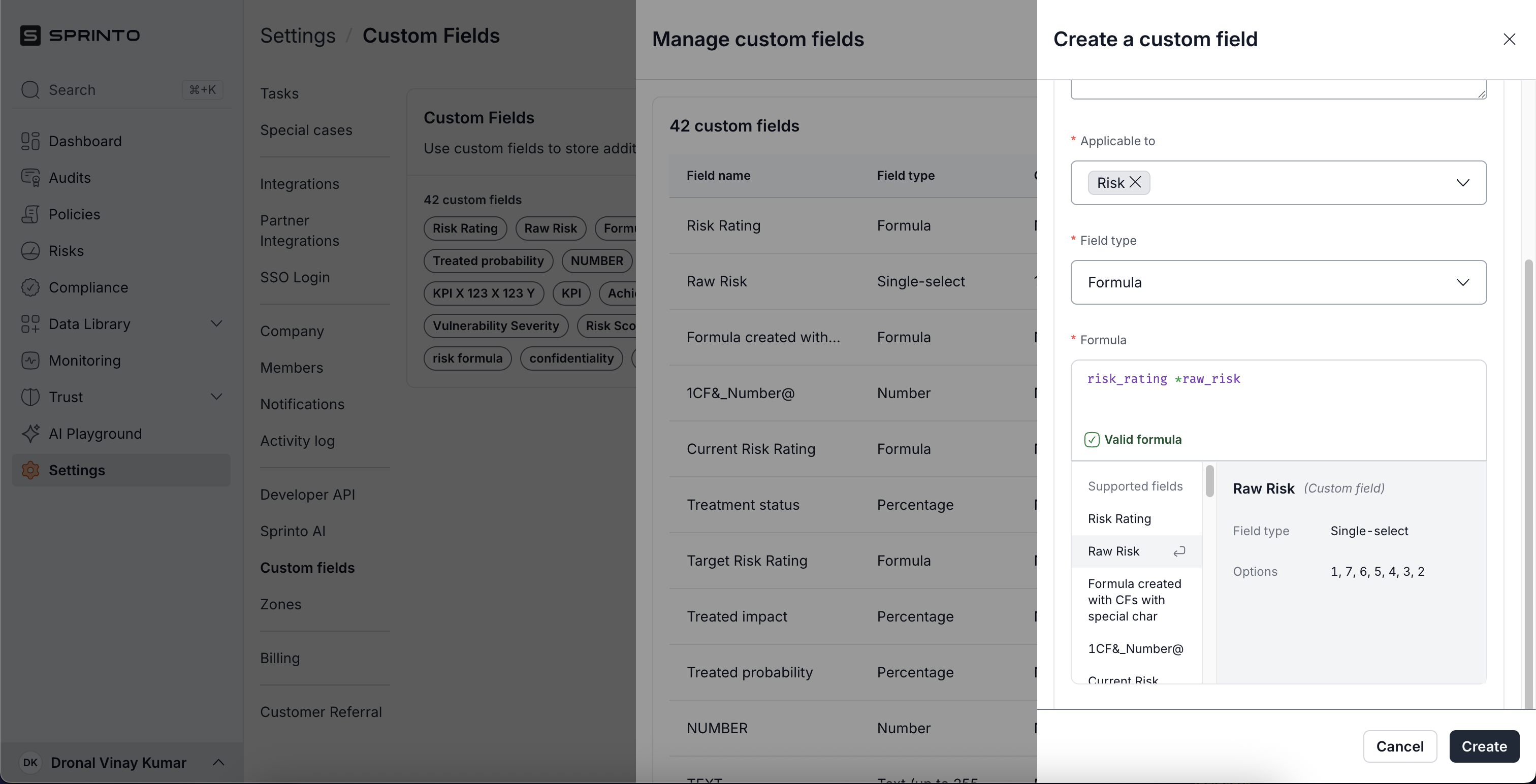
4. Use the Formula Builder to create your logic and click **Create.**
#### Supported input types:
* Custom fields of type:
* **Number**
* **Percentage**
* **Single select** (with numeric-only options)
* Other **formula fields** (nested formulas are supported)
5. The builder supports arithmetic operations (`+`, `-`, `*`, `/`) and offers real-time validation, displaying relevant messages for invalid syntax, unsupported operators, or non-numeric inputs.
### **Step 2: Add the Scores to Risk Configuration**
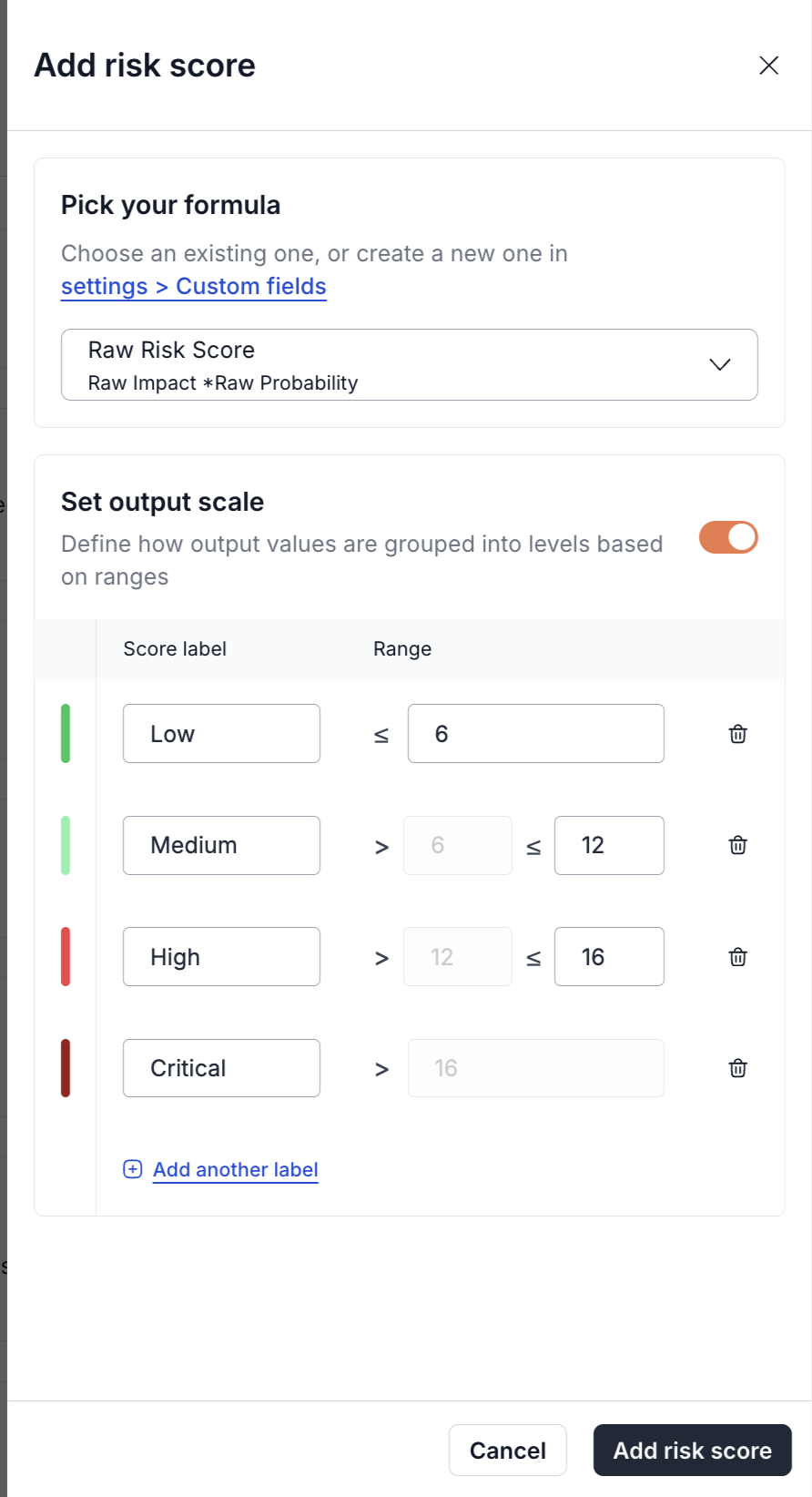
1. Navigate to **Risks** > **Configuration** > **Risk Scores**.
2. Click **Add Score** and select the formula field created earlier.
3. Optionally, toggle on **Set output scale** to define score ranges and risk labels.
#### **Scale setup:**
* Minimum of **2** and maximum of **5** levels supported.
* Users must manually define value ranges (no prefilled defaults).
* Each level must be assigned a label (e.g., Low, Medium, High).
* Colours for each level are predefined and cannot be edited.
{% hint style="info" %}
If no scale is configured, the formula can still be used but will not support visualisation or monitoring.
{% endhint %}
### **Step 3: View Scores in the Risk Register**
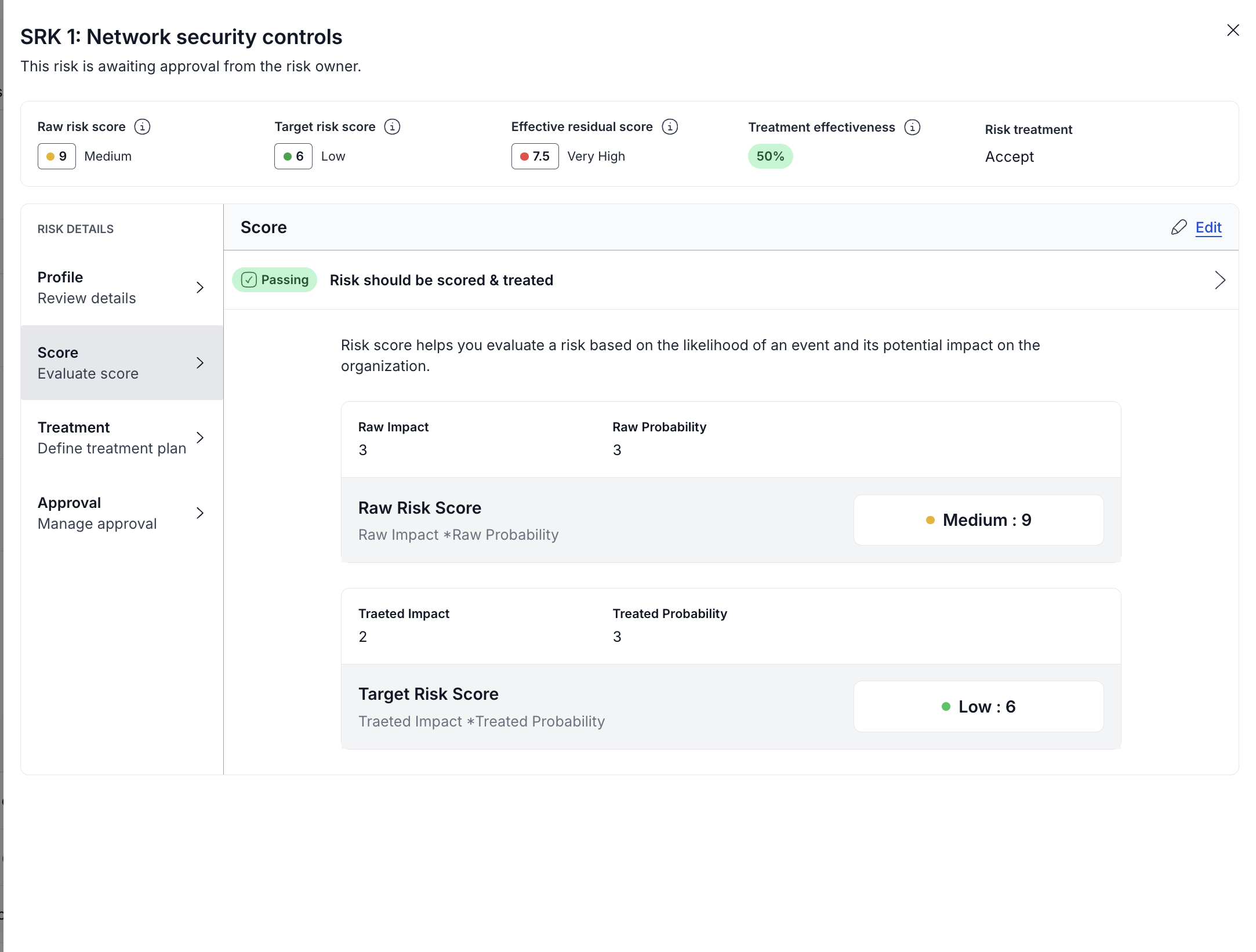
Once a formula is added to Risk Configuration:
* It appears in the **Risk Score** section within each risk drawer.
* Any custom fields used in the formula are also displayed here.
* These scores do not appear in the **Risk Profile** section.
* Use the **Reorder** option in the configuration screen to change the display order in the risk drawer.
### **Step 4: Delete or Re-add a Formula**
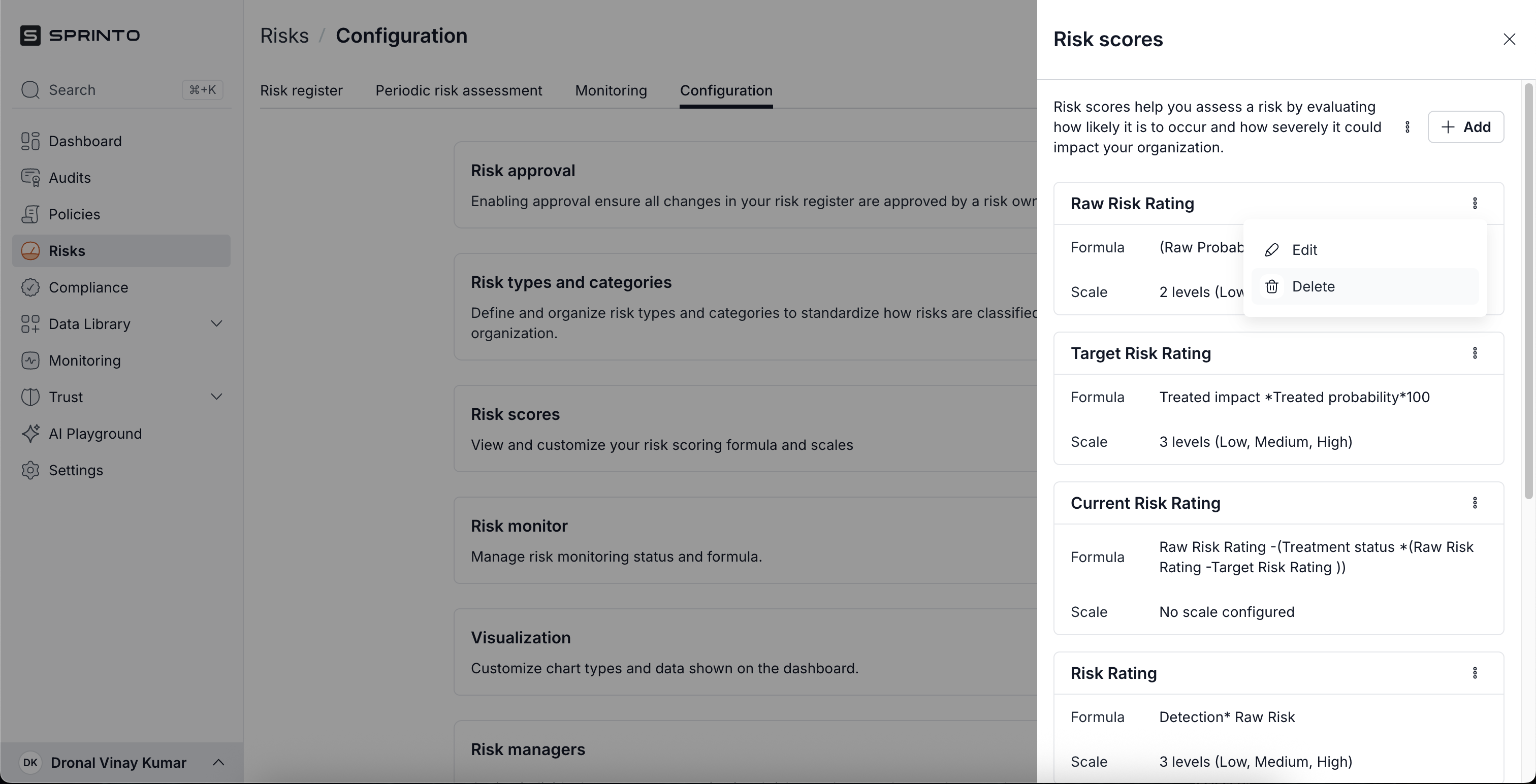
1\. To delete a formula, navigate to **Risks** > **Configuration** > **Risk Scores**.
2\. Select the formula you wish to delete and click **Delete**.
**Deleting a formula** from Risk Configuration is a **front-end action only**.
* The formula is removed from the UI but retained in the backend.
* All previously computed values are preserved.
* You can **re-add** the formula later, and all data will be restored.
* Use this behaviour to toggle formula visibility without data loss.
### **Step 5: Enable Risk Monitoring (Optional)**
To calculate the **Effective Residual Risk Score**, admins can enable monitoring and map custom scores as inputs.
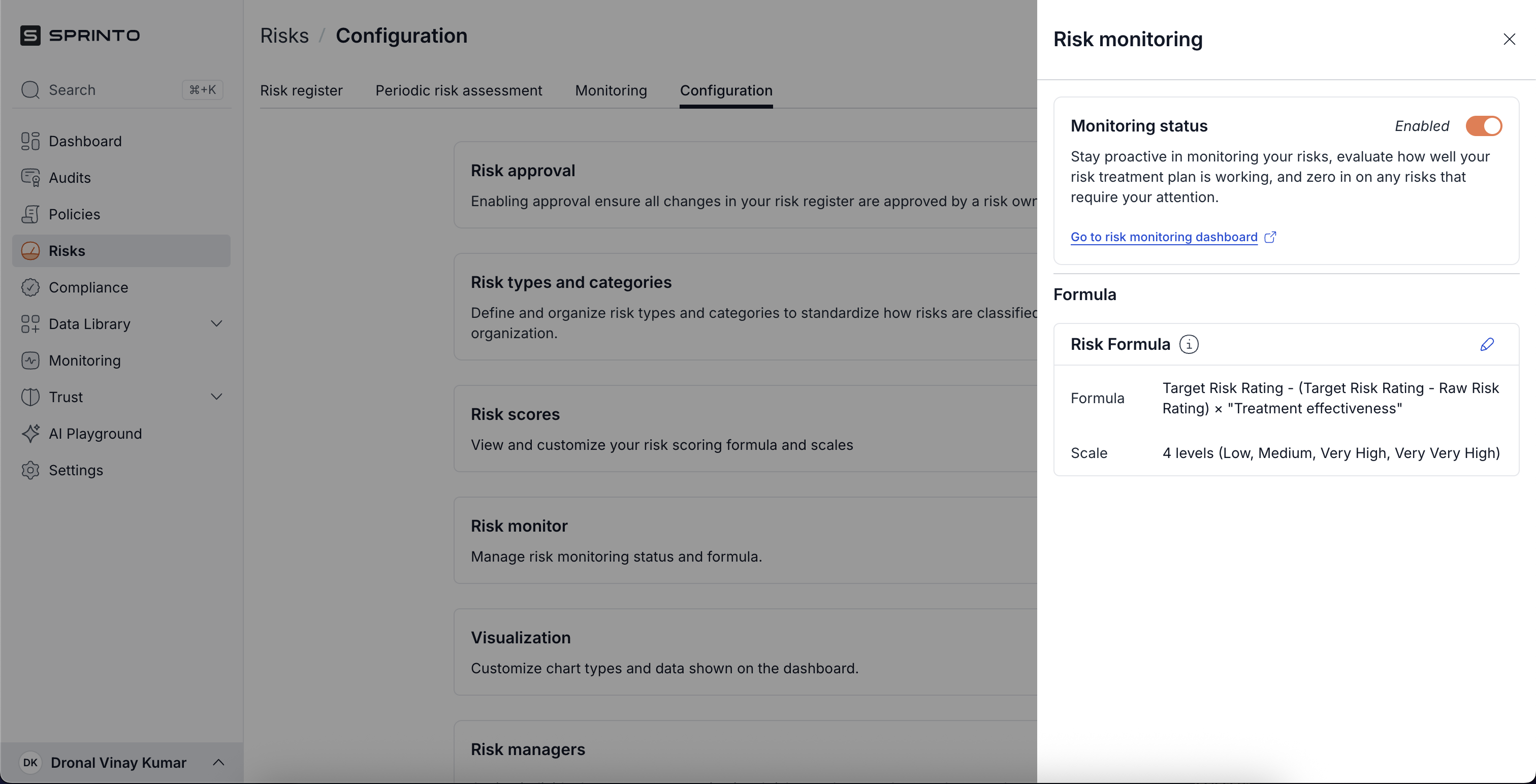
1. Go to **Risks** > **Configuration** > **Risk monitor**.
2. Turn on the **Monitoring status** toggle and click on the Edit icon.
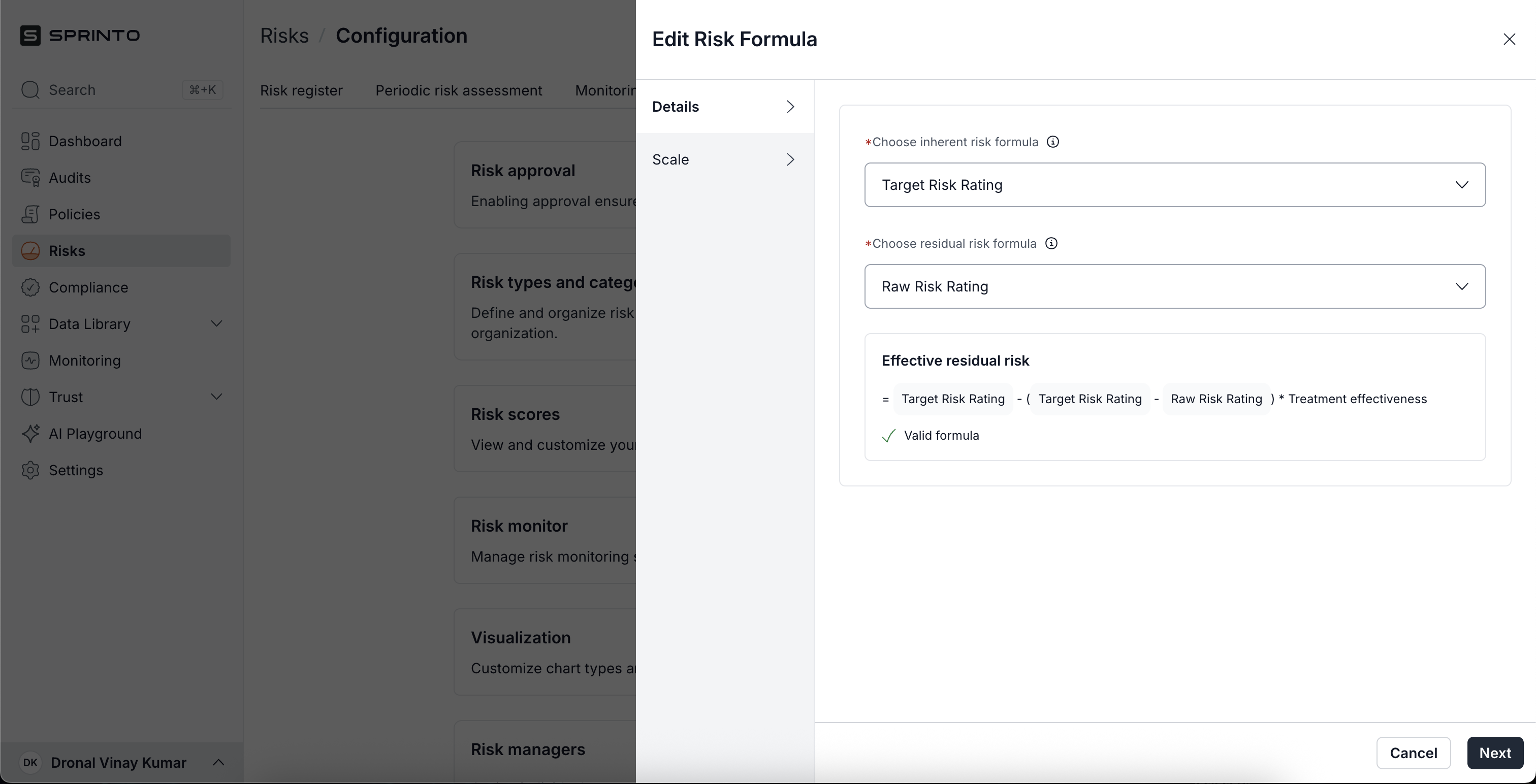
3. Select formulas to represent:
* **Inherent Risk formula**
* **Residual Risk formula**
Sprinto will use this formula by default:\
**Inherent Risk − (Inherent Risk - Residual Risk) × Treatment Effectiveness**
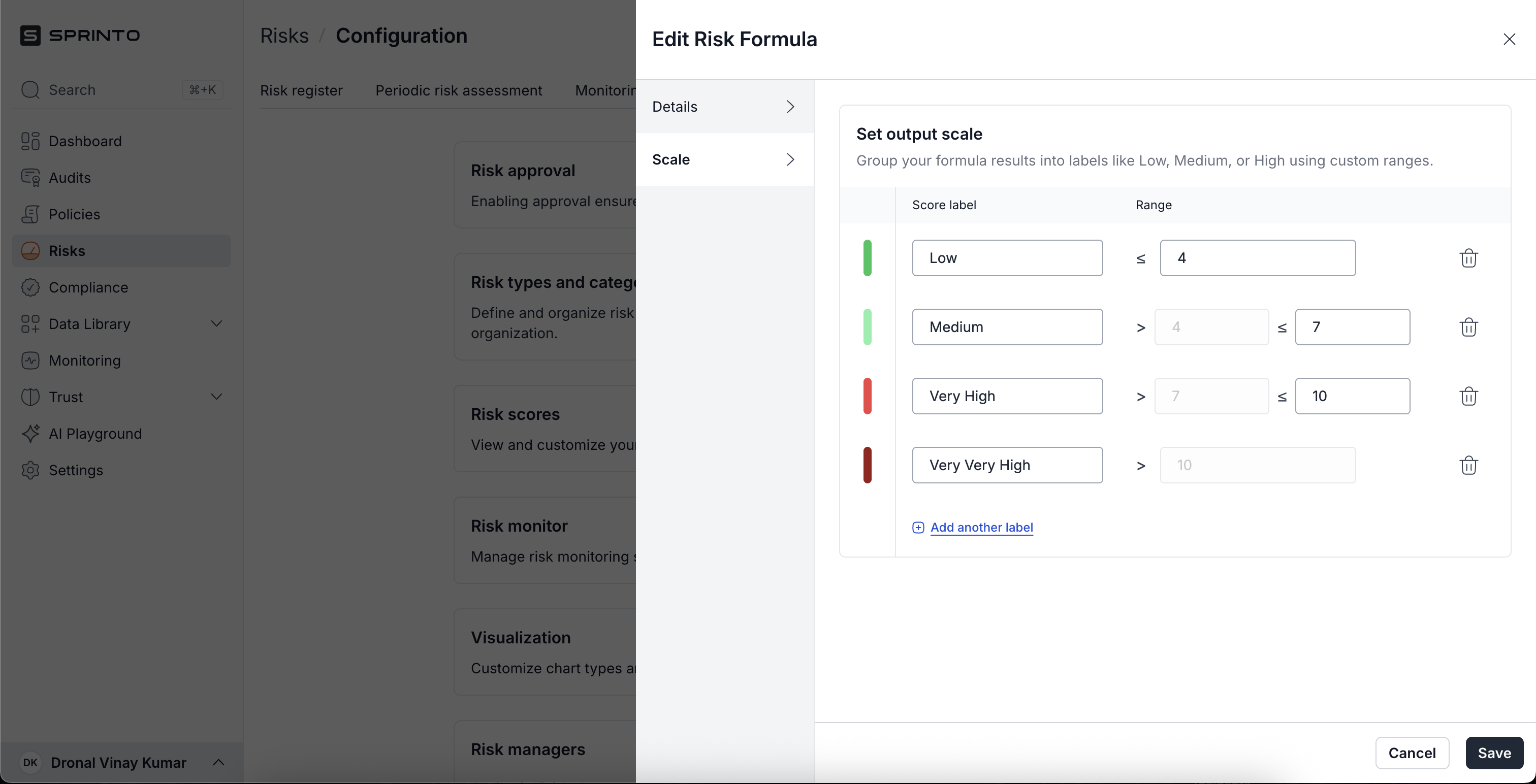
4\. Click **Next** to go to the **Scale** section.
5\. Define the ranges as per your choice and click **Save**.
#### **Monitoring behaviour:**
* If any formula is deleted or invalid, monitoring is turned off automatically and an error is shown.
* Once valid formulas are restored, monitoring is re-enabled automatically.
### **Additional Notes**
* **Single select** fields must have **numeric-only options**.
* **Nested formulas** are fully supported.
* **Inherent Risk** and **Residual Risk** default scores can be replaced or hidden.
* Deleting a formula does **not** erase its historical values.
### **Frequently Asked Questions**
**1. What happens if I delete a formula from the Risk Configuration tab?**
Deleting a formula from the configuration tab only removes it from the user interface. It does not delete the formula or its historical values from the backend. You can re-add the formula at any time, and previously computed scores will be restored.
**2. Can I use the same formula in both monitoring and visualisation?**
Yes. Any formula that has been added to the Risk Score section can be used for both monitoring and visualisation purposes.
**3. What field types are supported in the formula builder?**
You can use custom fields of type **Number**, **Percentage**, **Single Select** (with numeric-only options), and other **Formula** fields. System-defined fields such as *Inherent Impact* or *Residual Likelihood* are not currently supported.
**4. Why can’t I visualise my formula?**
If your formula does not have a configured scale, or if it has more than two variables (in the case of a heat map), it will not be eligible for visualisation. Also, if the formula was deleted, the chart will be disabled until it is re-added.
**5. What is the minimum and maximum number of scale levels I can configure?**
Each formula must have at least **2** and at most **5** scale levels. You can define the ranges and labels manually; Sprinto does not pre-fill these values.
**6. Why did risk monitoring turn off automatically?**
Risk monitoring is disabled if any formula used in the calculation is deleted or becomes invalid. An error message will appear until the formula is corrected, at which point monitoring will automatically resume.
---
# Agent Instructions
This documentation is published with GitBook. GitBook is the documentation platform designed so that both humans and AI agents can read, navigate, and reason over technical content effectively. Learn more at gitbook.com.
## Querying This Documentation
If you need additional information that is not directly available in this page, you can query the documentation by asking a question.
Perform an HTTP GET request on the following URL with the `ask` and `goal` query parameters:
```
GET https://docs.sprinto.com/risks/dashboard-actions/create-custom-risk-scores.md?ask=&goal=
```
`ask` is the immediate question: it should be specific, self-contained, and written in natural language.
`goal` is what the user is ultimately trying to achieve, the reason they need the answer. Sharing it helps GitBook give you a better, more relevant answer. A goal is most helpful when it describes the outcome the user wants rather than restating the question. For example, with `ask=how do I create an API token`, a goal like `automate deployments from our CI pipeline` lets GitBook tailor the answer to that use case.
The response will contain a direct answer to the question and relevant excerpts and sources from the documentation.
Use this mechanism when the answer is not explicitly present in the current page, you need clarification or additional context, or you want to retrieve related documentation sections.
 **Deleting a formula** from Risk Configuration is a **front-end action only**.
* The formula is removed from the UI but retained in the backend.
* All previously computed values are preserved.
* You can **re-add** the formula later, and all data will be restored.
* Use this behaviour to toggle formula visibility without data loss.
### **Step 5: Enable Risk Monitoring (Optional)**
To calculate the **Effective Residual Risk Score**, admins can enable monitoring and map custom scores as inputs.
1. Go to **Risks** > **Configuration** > **Risk monitor**.
2. Turn on the **Monitoring status** toggle and click on the Edit icon.
**Deleting a formula** from Risk Configuration is a **front-end action only**.
* The formula is removed from the UI but retained in the backend.
* All previously computed values are preserved.
* You can **re-add** the formula later, and all data will be restored.
* Use this behaviour to toggle formula visibility without data loss.
### **Step 5: Enable Risk Monitoring (Optional)**
To calculate the **Effective Residual Risk Score**, admins can enable monitoring and map custom scores as inputs.
1. Go to **Risks** > **Configuration** > **Risk monitor**.
2. Turn on the **Monitoring status** toggle and click on the Edit icon.
 4\. Click **Next** to go to the **Scale** section.
5\. Define the ranges as per your choice and click **Save**.
#### **Monitoring behaviour:**
4\. Click **Next** to go to the **Scale** section.
5\. Define the ranges as per your choice and click **Save**.
#### **Monitoring behaviour:**