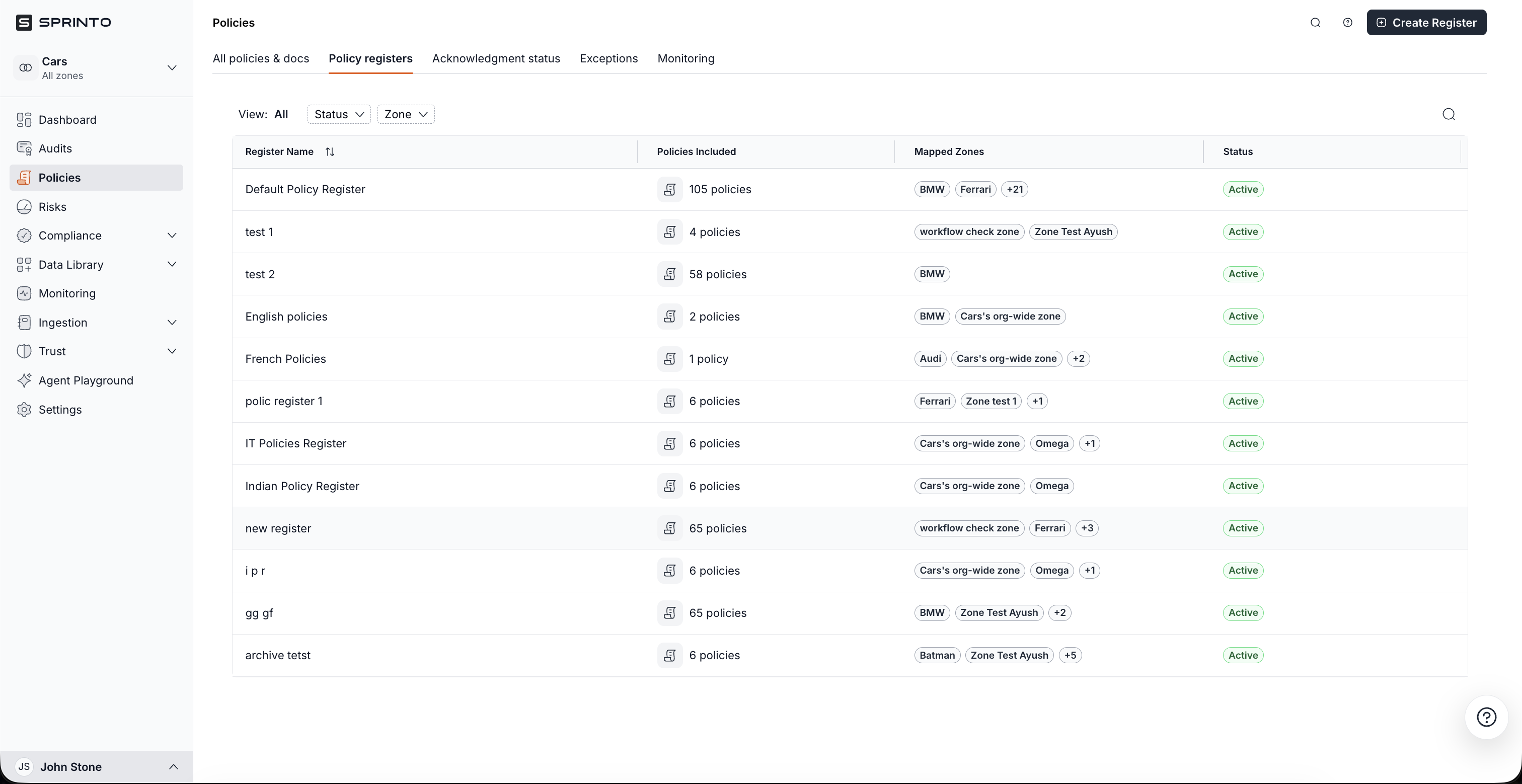
# Policy Registers

Policy Registers help you group policies and procedures into structured collections that apply to specific zones within your organisation. Registers make it easier to manage policies at scale by allowing you to:

* Organise policies into logical groups.
* Map policy collections to one or more zones.
* Request periodic acknowledgement from staff.
* Track acknowledgement completion across recipients.
* Maintain visibility into the policies included in each register.

Each policy register acts as a reusable policy collection that can be scoped to different areas of your organisation.

***

## How Policy Registers work

A policy register contains:

* A register name.
* One or more mapped zones.
* Selected policies and procedures.
* Acknowledgement workflows.
* Acknowledgement status tracking.

Once a register is created:

1. Policies included in the register become associated with the mapped zones.
2. Policy acknowledgement requests can be sent to staff.
3. Completion progress can be tracked from a single location.
4. Register-level updates remain visible across policy workflows.

{% hint style="info" %}

#### Note

Changes made to policies inside a register are reflected globally. Policy modifications are not register-scoped.
{% endhint %}

***

## Create a policy register

Create a policy register to organise policies by zone and acknowledgement workflow.

### Before you begin

Make sure that:

* Policies and procedures already exist in Sprinto.
* Zones are configured.
* You know which policies must belong to the register.

### Create a register

1. Log in to the Sprinto dashboard.
2. Go to **Policies**.
3. Select the **Policy registers** tab.
4. Click **Create register**.

<figure><img src="/files/4bCWOIG9qcGIx9RIVZv4" alt="" width="563"><figcaption></figcaption></figure>

5. In the drawer, enter a **Register name**.
6. Under **Map to zones**, select one or more zones.
7. Under **Select policies**, choose policies to include.
8. Click **Create register**.

<figure><img src="/files/DlQVn3mPLPtaVnGNRpRj" alt="" width="375"><figcaption></figcaption></figure>

The register appears in the Policy Registers dashboard.

### Select policies

You can add policies using either of the following methods:

#### Select all policies

Use **Select all** to add every available policy to the register.

#### Select specific policies

Select only the policies you want to include.

You can:

* Search for policies.
* Select individual policies.
* Remove selected policies before saving.

{% hint style="info" %}

#### Note

The zone field supports multiple selections. A single register can apply to multiple zones.
{% endhint %}

***

## View a policy register

Open a policy register to view included policies, status information, and acknowledgement workflows.

### Open a register

1. Go to **Policies** > **Policy registers**.
2. Click a register name.

<figure><img src="/files/CZNA52EMC2NJnmH9J9sx" alt="" width="563"><figcaption></figcaption></figure>

Inside the register, Sprinto displays:

* Policies and procedures included in the register.
* Policy type.
* Version status.
* Activity status.
* Author information.
* Approver details.
* Reviewer assignments.

<figure><img src="/files/Fr1K2KypWn2esPJZITPU" alt="" width="563"><figcaption></figcaption></figure>

### Available tabs

Each register contains the following tabs:

<table><thead><tr><th width="228.9765625">Tab</th><th>Description</th></tr></thead><tbody><tr><td>Policies &#x26; Scope</td><td>Displays all policies included in the register.</td></tr><tr><td>Policy Acknowledgement</td><td>Allows acknowledgement requests to be created and managed.</td></tr><tr><td>Acknowledgement Status</td><td>Displays recipient-level acknowledgement tracking.</td></tr></tbody></table>

***

## Manage policies inside a register

The **Policies & Scope** tab gives visibility into all policies included in the register.

### Available actions

You can:

* Filter by document type.
* Filter by latest version status.
* Search for policies.
* Duplicate the current table view.
* Sort policy data.
* Review approval ownership.

### Policy visibility

Each row shows:

<table><thead><tr><th width="133.57421875">Field</th><th width="327.578125">Description</th></tr></thead><tbody><tr><td>Name</td><td>Policy or procedure name.</td></tr><tr><td>Type</td><td>Policy or Procedure.</td></tr><tr><td>Status</td><td>Current lifecycle status.</td></tr><tr><td>Activity</td><td>Activity indicator for the document.</td></tr><tr><td>Author</td><td>Policy owner or creator.</td></tr><tr><td>Approver</td><td>Assigned approver.</td></tr><tr><td>Reviewers</td><td>Assigned reviewers.</td></tr></tbody></table>

{% hint style="info" %}

#### Note

Changes made to policies in a register affect the same policy globally across Sprinto.
{% endhint %}

***

## Edit a policy register

Update a register when policies, zones, or naming conventions change.

### Edit register details

1. Open a policy register.
2. Click **Edit details**.

<figure><img src="/files/Q8VcMmtA6OhLsQeqWXdJ" alt="" width="563"><figcaption></figcaption></figure>

3. Update any of the following:
   * Register name
   * Zone mapping
   * Included policies
4. Click **Save changes**.

<figure><img src="/files/1JObEdPykHUXw24gzsKa" alt="" width="375"><figcaption></figcaption></figure>

The updated configuration is immediately reflected inside the register.

### Update zones

The zone selector is a multi-select field.

You can:

* Add new zones.
* Remove existing zones.
* Map a register to multiple zones.

### Update policies

You can:

* Add additional policies.
* Remove policies.
* Use search to locate policies.
* Select or deselect policies individually.

***

## Archive a policy register

Archive a register when it is no longer required.

### Archive a register

1. Open a policy register.
2. Click **Archive register**.

<figure><img src="/files/pjNFXykLQ3VknqgWPZcR" alt="" width="563"><figcaption></figcaption></figure>

3. Review the confirmation message.
4. Click **Archive register** again.

<figure><img src="/files/DVqawDO2pRTgphp1KN4V" alt="" width="563"><figcaption></figcaption></figure>

The register status changes to **Archived**.

Archived registers remain visible in the dashboard.

### Archive behaviour

When a register is archived:

* Policies become unlinked from the register.
* Zone mapping is removed.
* Associated monitors stop running.
* Register workflows become inactive.

{% hint style="warning" %}

#### Important

Archiving a policy register deactivates monitors associated with the register.
{% endhint %}

***

## Unarchive a policy register

Restore a previously archived register when needed.

### Unarchive a register

1. Open an archived policy register.
2. Click **Unarchive register**.

<figure><img src="/files/HK29uQ8vI6DXWhAME1Xs" alt="" width="563"><figcaption></figcaption></figure>

Sprinto restores:

* Policies associated with the register.
* Zone mappings.
* Monitor relationships.

***

## Policy acknowledgement

Use policy acknowledgement requests to confirm that staff have reviewed policies contained within a register.

### Policy acknowledgement overview

The **Policy Acknowledgement** tab allows administrators to:

* Create acknowledgement requests.
* Notify staff.
* Limit acknowledgement to selected staff.
* Track progress.
* Review acknowledgement history.

The page also displays:

* Upcoming acknowledgement-related tasks.
* Due reminders.
* Next acknowledgement cycle.

***

## Create a policy acknowledgement request

### Create a request

1. Open a policy register.
2. Go to the **Policy Acknowledgement** tab.
3. Click **Create new request**.

<figure><img src="/files/JbqyXyQN54sG3ekZDawa" alt="" width="563"><figcaption></figcaption></figure>

4. Enter a **Policy acknowledgement name**.
5. Review the included policies and procedures.

<figure><img src="/files/tN3bXttgGO6UfFwYNXJH" alt="" width="375"><figcaption></figcaption></figure>

The request is added to the acknowledgement table.

***

## Notify staff about acknowledgement requests

You can send email notifications alongside acknowledgement requests.

### Send notifications

1. Enable **Notify staff about this acknowledgement request**.
2. Configure:
   * Mail subject
   * Mail content
3. Review the email content.
4. Continue creating the request.

<figure><img src="/files/mWkOb1uu6i52cSZeo8HL" alt="" width="375"><figcaption></figcaption></figure>

### Email placeholders

Email content supports dynamic values.

For example:

* `{{staff_name}}`

Sprinto replaces placeholders with recipient-specific values.

***

## Review included policies

The acknowledgement request drawer displays all policies included in the request.

Each row displays:

<table><thead><tr><th width="166.5546875">Column</th><th width="411.70703125">Description</th></tr></thead><tbody><tr><td>Document name</td><td>Policy or procedure title.</td></tr><tr><td>Version</td><td>Current policy version.</td></tr><tr><td>Applicable for</td><td>Number of staff who must acknowledge the policy.</td></tr></tbody></table>

***

## Send acknowledgement to specific staff

By default, acknowledgement applies to all eligible staff.

You can instead limit the request to selected recipients.

### Select specific staff

1. Click **Select staff**.

<figure><img src="/files/2gmbGSvrt7t7szXCwiBt" alt="" width="375"><figcaption></figcaption></figure>

2. Search for staff members.
3. Select one or more recipients.
4. Click **Save**.

<figure><img src="/files/TcMW37CQFNtDnbVlVQL5" alt="" width="375"><figcaption></figcaption></figure>

Sprinto displays the number of selected staff.

### Edit selected recipients

After selecting staff:

1. Click **Edit** to update recipients.

<figure><img src="/files/I7Kd4jaYPO7vibilSNXD" alt="" width="375"><figcaption></figcaption></figure>

2. Add or remove staff from the selected list.
3. Click **Save** to save changes.

<figure><img src="/files/sg5dXo64nL7W4UCMQpUl" alt="" width="375"><figcaption></figcaption></figure>

### Reset to default audience

Click **Reset to default** to restore acknowledgement to all eligible staff.

<figure><img src="/files/873GqZDdl4nYUXtfsK6Q" alt="" width="375"><figcaption></figcaption></figure>

***

## Employee-group applicability

Policy acknowledgement can be customised using employee groups.

This depends on policy-level applicability settings.

### Configure employee-group applicability

1. Open a policy.
2. Go to policy details.
3. Locate the **Applicable to** section.
4. Select employee groups.

Employee groups are sourced from your identity provider.

Click **Request acknowledgement** to send your Policy acknowledgement.

***

## View acknowledgement requests

The acknowledgement request table displays created requests.

### Available columns

<table><thead><tr><th width="287.1484375">Column</th><th width="270.390625">Description</th></tr></thead><tbody><tr><td>Acknowledgement request name</td><td>Request identifier.</td></tr><tr><td>Requested on</td><td>Date the request was created.</td></tr><tr><td>Policies &#x26; Procedures</td><td>Number of included policies.</td></tr><tr><td>Progress</td><td>Completion percentage.</td></tr><tr><td>Actions</td><td>Available request actions.</td></tr></tbody></table>

### Available actions

You can:

* View included policies.
* Open acknowledgement details.
* Track progress.

***

## Track acknowledgement status

The **Acknowledgement Status** tab provides recipient-level tracking.

This helps administrators monitor who has acknowledged policies.

### Open acknowledgement status

1. Open a policy register.
2. Go to **Acknowledgement Status**.

<figure><img src="/files/ycHI8LsYLBH7nJqBXfyc" alt="" width="563"><figcaption></figcaption></figure>

### Available columns

<table><thead><tr><th width="220.6796875">Column</th><th width="358.58203125">Description</th></tr></thead><tbody><tr><td>Acknowledgement name</td><td>Name of the acknowledgement request.</td></tr><tr><td>Register</td><td>Policy register name.</td></tr><tr><td>Person</td><td>Recipient.</td></tr><tr><td>Requested on</td><td>Date acknowledgement was requested.</td></tr><tr><td>Acknowledged on</td><td>Date acknowledgement was completed.</td></tr><tr><td>Checks</td><td>Current acknowledgement state.</td></tr></tbody></table>

### Status indicators

Acknowledgement status may display:

<table><thead><tr><th width="133.0546875">Status</th><th width="335.16015625">Description</th></tr></thead><tbody><tr><td>Due</td><td>Awaiting acknowledgement.</td></tr><tr><td>Completed</td><td>Policy acknowledgement finished.</td></tr><tr><td>Pending</td><td>Request exists but action is incomplete.</td></tr></tbody></table>

***

## Policy lifecycle within registers

The following lifecycle explains how policy registers move through configuration and acknowledgement workflows.

<table><thead><tr><th width="220.96875">Stage</th><th width="419.36328125">Description</th></tr></thead><tbody><tr><td>Create register</td><td>Create a register and map policies to zones.</td></tr><tr><td>Configure scope</td><td>Add or remove policies and update zone mapping.</td></tr><tr><td>Send acknowledgement</td><td>Create acknowledgement requests for staff.</td></tr><tr><td>Track acknowledgement</td><td>Monitor completion progress and recipient status.</td></tr><tr><td>Archive</td><td>Deactivate the register and associated workflows.</td></tr><tr><td>Unarchive</td><td>Restore the register and resume workflows.</td></tr></tbody></table>


---

# Agent Instructions: Querying This Documentation

If you need additional information that is not directly available in this page, you can query the documentation dynamically by asking a question.

Perform an HTTP GET request on the current page URL with the `ask` query parameter:

```
GET https://docs.sprinto.com/policies/dashboard-actions/policy-registers.md?ask=<question>
```

The question should be specific, self-contained, and written in natural language.
The response will contain a direct answer to the question and relevant excerpts and sources from the documentation.

Use this mechanism when the answer is not explicitly present in the current page, you need clarification or additional context, or you want to retrieve related documentation sections.
