> For the complete documentation index, see [llms.txt](https://docs.sprinto.com/llms.txt). Markdown versions of documentation pages are available by appending `.md` to page URLs; this page is available as [Markdown](https://docs.sprinto.com/monitors/workflow-check-resolution/how-to-resolve-sprinto-check-change-requests-must-be-approved-before-implementation.md).
# How to resolve Sprinto check Change Requests Must Be Approved Before Implementation
### About
Sprinto: Change request should be approved before implementation
A change management system follows a workflow for logged change requests. This workflow often includes a stage where a relevant stakeholder evaluates and approves the change request before going ahead with implementation. For any compliant change management system, change request approval mechanism adds a additional security layer by ensuring the requested changes go through a examination and gets validated before getting implemented into the system.
### Purpose
The purpose of the check is to ensure that any change management system configured on Sprinto adheres to the compliance change request approval requirement by defining the requests approval process for the system. The above-mentioned Sprinto checks get activated against a system If the approval state for change requests is not defined. The check gets assigned to the assigned system owner or InfraOps person (based on system assignment) to take the necessary action defined below to pass it.
### How to fix this check
The above-mentioned Sprinto check passes automatically once the change request approval conditions are defined on Sprinto.
Follow the procedure below to define the approval condition for the change management system:
#### Define the Approval Condition for a Change Management System
1. Go to Data Library > Change Management > Change management systems, and select the ticketing system to define the request approval condition.
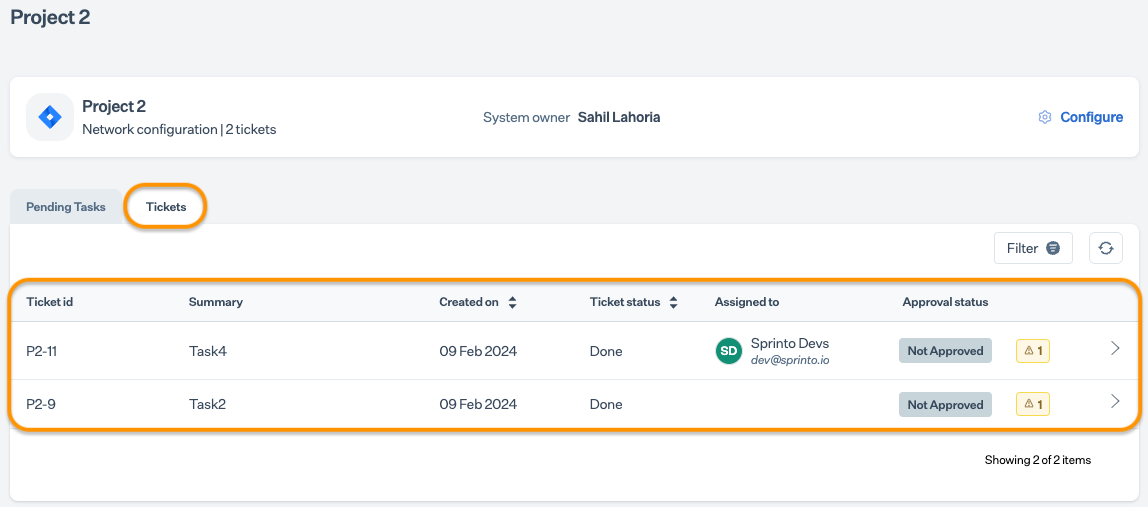
2. Select the **Tickets** tab and click **Configure** to define the ticket approval state. Alternatively, you can click on any listed ticket.
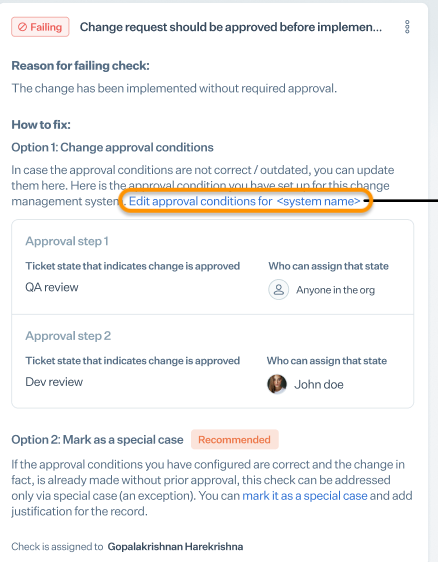
3. If the approval condition is not defined, click Edit approval conditions for …\
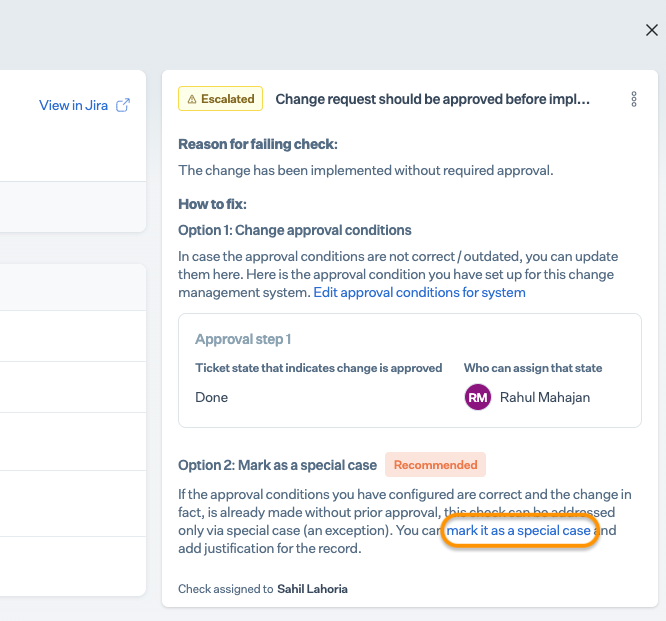
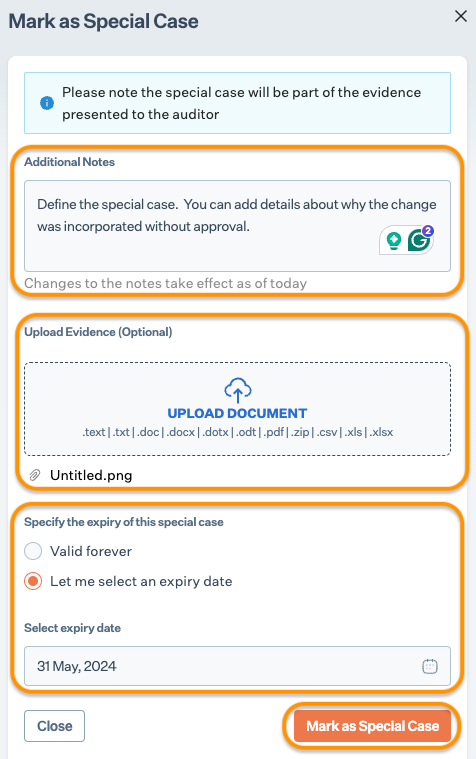
Note: You can choose to **Mark a change request as a Special Case** if the approval condition is already defined, but the requested change has already been implemented without Approval.
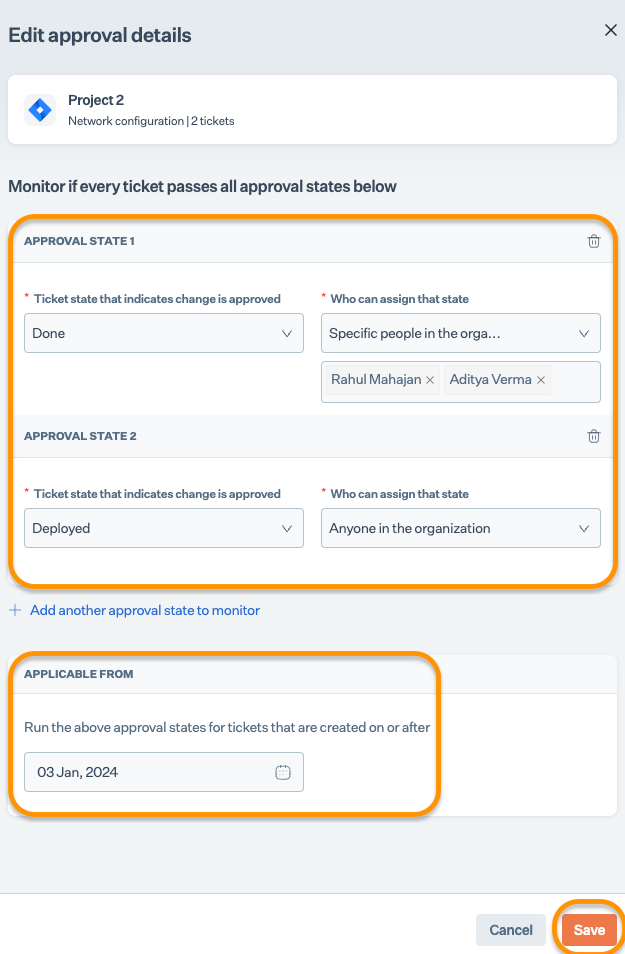
4. Define the approval states for change requests:\
Note: If required, click Add another approval state to monitor to add multiple approval conditions.
* Ticket approval status: Select a review compilation status for change request tickets. For example, a code change request may reach the "QA review" status after peer review completion; in this case, "QA review" is the ticket-approved status for the change request.
* Who can assign the state: Select a relevant option from the list to define who can approve the requested change and update the ticket status to the approved state. You can select the "anyone in the org" option or select "Specific people in the org" and select the stakeholder names.
* Applicable from: Select an date for the change request approval condition. Based on your selected date, Sprinto runs the computation and activates the check against the requests that do not meet the approval conditions.\
Note: You can modify the following approval conditions at any time if necessary. Click on Manage Approval to modify the approval conditions.
#### Marking as a special case
Marking a change request as special case is helpful in case when the change request gets incorporated without getting to the approved.
Marking a change request as special case is helpful in case when the change request gets incorporated without getting to the approved.
1. Go to **Security Hub** > **Change mgmt** > **Change** **management** **systems**, and select the ticketing system.
2. Select the **Tickets** tab, then select the request from the list that you wish to mark as a special case.
3. Click **Mark it as a special case**.
4. Add notes to define the special case, and select the expiry for a special case. You can choose forever or select an expiry date.\
**Note**: All special categorized cases are submitted separately during the compliance audit.
5. Click **Mark as a special case** to save the changes.
Sprinto sets the check status to "Passing" for the respective change request ticket.
---
# Agent Instructions
This documentation is published with GitBook. GitBook is the documentation platform designed so that both humans and AI agents can read, navigate, and reason over technical content effectively. Learn more at gitbook.com.
## Querying This Documentation
If you need additional information that is not directly available in this page, you can query the documentation by asking a question.
Perform an HTTP GET request on the following URL with the `ask` and `goal` query parameters:
```
GET https://docs.sprinto.com/monitors/workflow-check-resolution/how-to-resolve-sprinto-check-change-requests-must-be-approved-before-implementation.md?ask=&goal=
```
`ask` is the immediate question: it should be specific, self-contained, and written in natural language.
`goal` is what the user is ultimately trying to achieve, the reason they need the answer. Sharing it helps GitBook give you a better, more relevant answer. A goal is most helpful when it describes the outcome the user wants rather than restating the question. For example, with `ask=how do I create an API token`, a goal like `automate deployments from our CI pipeline` lets GitBook tailor the answer to that use case.
The response will contain a direct answer to the question and relevant excerpts and sources from the documentation.
Use this mechanism when the answer is not explicitly present in the current page, you need clarification or additional context, or you want to retrieve related documentation sections.