> For the complete documentation index, see [llms.txt](https://docs.sprinto.com/llms.txt). Markdown versions of documentation pages are available by appending `.md` to page URLs; this page is available as [Markdown](https://docs.sprinto.com/monitors/workflow-check-resolution/how-to-enable-and-fix-workflow-checks-on-encryption-key-management.md).

# How to enable and fix workflow checks on encryption key management

### **About** <a href="#about" id="about"></a>

Encrypting stored data provides an additional layer of security, ensuring that information remains protected. Once encrypted, data can only be decrypted using a valid encryption key. Organizations commonly use industry-standard encryption algorithms to generate these keys.

Sprinto introduces workflow checks to help organizations meet compliance requirements for encryption key management:

| Workflow check                                          | Description                                                                                      |
| ------------------------------------------------------- | ------------------------------------------------------------------------------------------------ |
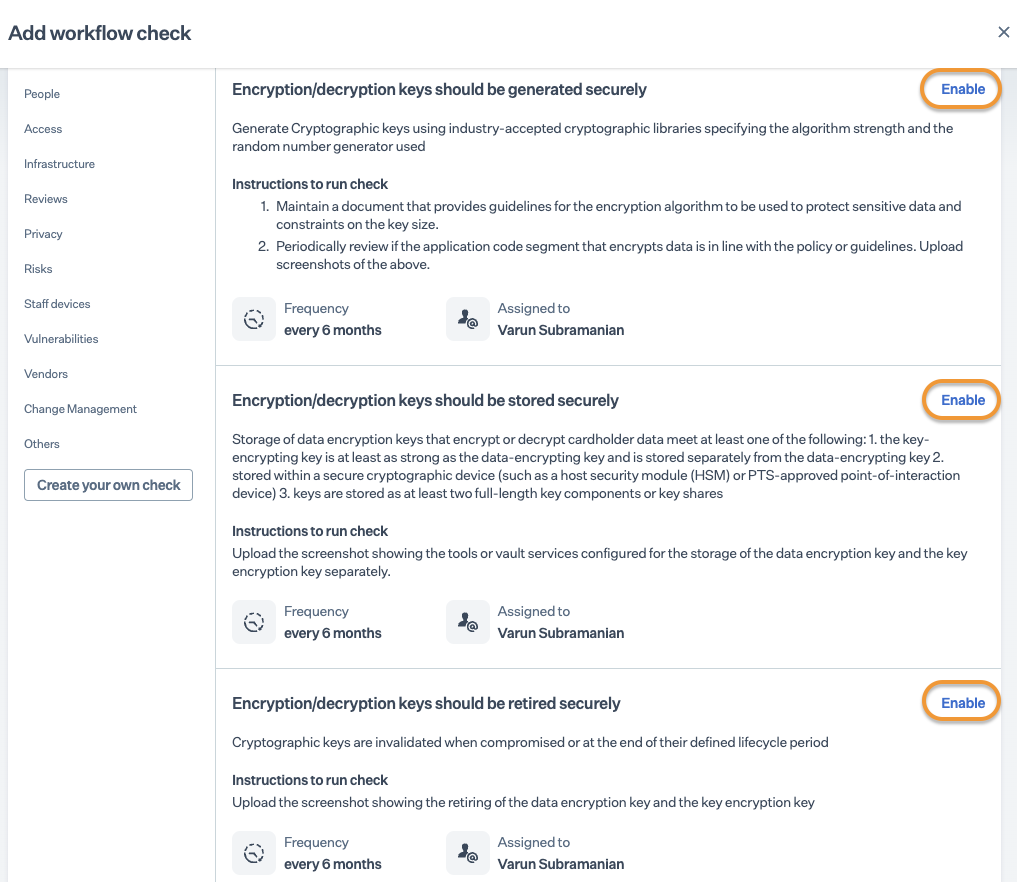
| Encryption/decryption keys should be generated securely | Organizations must maintain a document outlining the usage guidelines for encryption algorithms. |
| Encryption/decryption keys should be stored securely    | Use a standard vault or storage service to store encryption keys securely.                       |
| Encryption/decryption keys should be retired securely   | Retire any encryption keys that expire or are compromised to ensure secure data management.      |

### **Enabling workflow check** <a href="#enabling-workflow-check" id="enabling-workflow-check"></a>

Follow the below procedure to enable workflow check:

1. Log in to Sprinto as administrator.
2. Go to Data Library > Workflow Checks.
3. Click Create check > Single workflow check.
4. Click **Enable** next to the workflow you want to enable.

   <figure><img src="https://s3.amazonaws.com/cdn.freshdesk.com/data/helpdesk/attachments/production/72077028583/original/O4DN353FX97O5VHtccAbsNZg5pOKmq0uew.png?1702119670" alt="" width="563"><figcaption></figcaption></figure>
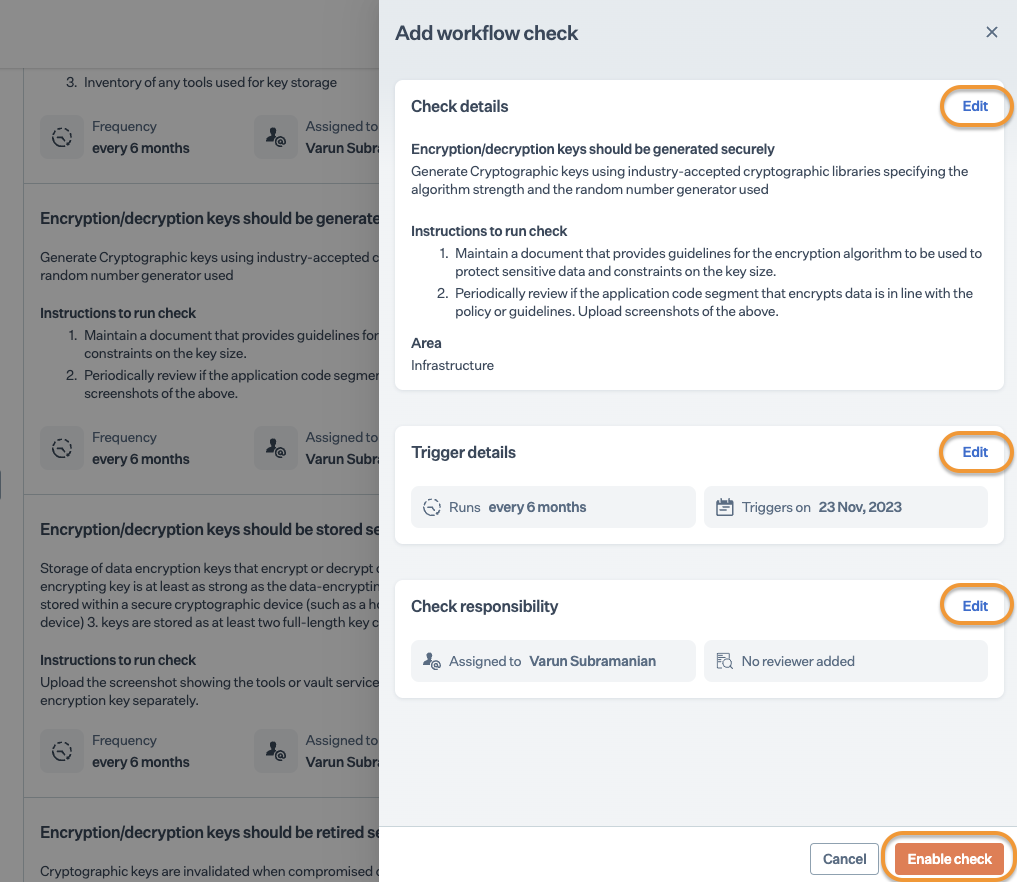
5. If required, click on **Edit** to modify the following details, then click **Enable check**.

* **Check details**: Modify the Title, Description, and Instructions defined for the workflow check.
* **Trigger details**: Modify the next date for activation and regular activation frequency.
* **Check responsibilities**: Assign the workflow check owner and assign an evidence reviewer if required.

  <figure><img src="https://s3.amazonaws.com/cdn.freshdesk.com/data/helpdesk/attachments/production/72077028589/original/KKS9cXSc4HGjXbnzqeaxz4Ui1lwR86HGFg.png?1702119689" alt="" width="563"><figcaption></figcaption></figure>

### **Fixing workflow check** <a href="#fixing-workflow-check" id="fixing-workflow-check"></a>

Follow the procedure below to fix the check once the enabled workflow checks are activated (Due/ Critical/ Failing).

1. Log in to Sprinto as administrator.
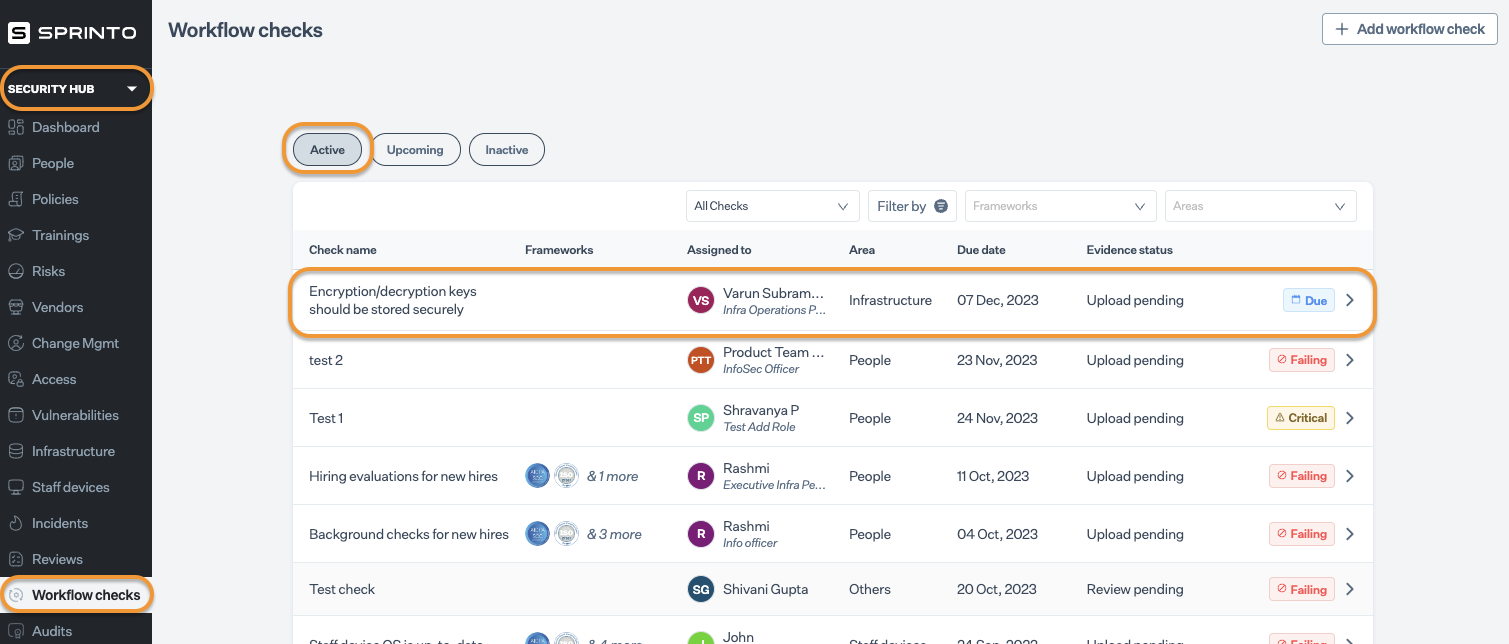
2. Go to **Data Library** > **Workflow check**.

   <figure><img src="https://s3.amazonaws.com/cdn.freshdesk.com/data/helpdesk/attachments/production/72077028608/original/APqrYsUSeRvzix5rHOYlprWEimzC9mGsuQ.png?1702119720" alt="" width="563"><figcaption></figcaption></figure>
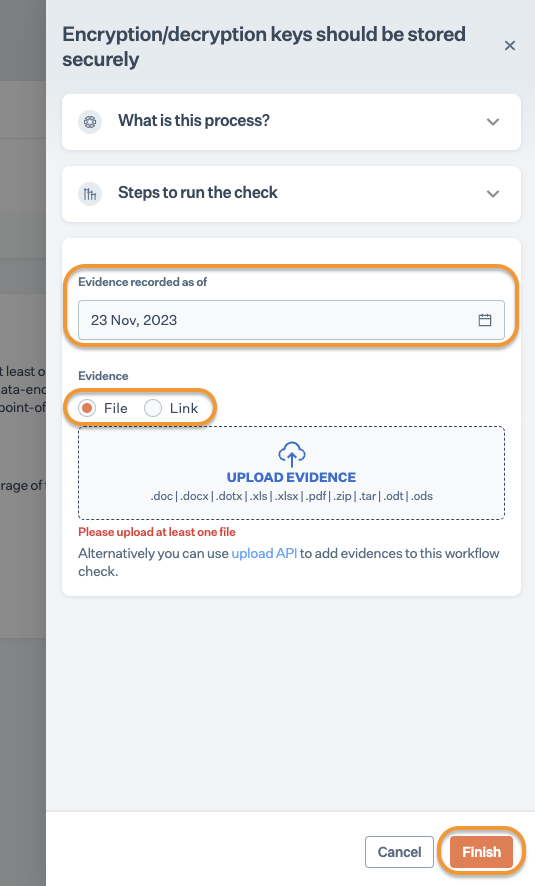
3. Choose the workflow check, and click **Upload evidence**.
4. Select the evidence record date and choose one of the following options to add evidence.

* **File**: Upload the file from your computer.
* **Link**: Provide a link for the cloud-stored evidence file.

Following are the evidence types to upload based on the activated workflow check.

<table><thead><tr><th width="240.33203125">Workflow check</th><th>Evidence</th></tr></thead><tbody><tr><td>Encryption/decryption keys should be generated securely</td><td>Upload an encryption document defining guidelines for using the encryption algorithm. Periodically review to ensure alignment with guidelines.</td></tr><tr><td>Encryption/decryption keys should be stored securely</td><td>Upload a screen capture showing the tools or vault service used to store the data encryption key.</td></tr><tr><td>Encryption/decryption keys should be retired securely</td><td>Upload a screenshot showcasing the retired encryption keys.</td></tr></tbody></table>

&#x20;   5\. Click **Finish; i**f an evidence reviewer is configured, they will review the uploaded evidence against the check.

<figure><img src="https://s3.amazonaws.com/cdn.freshdesk.com/data/helpdesk/attachments/production/72077028634/original/TTMRdWq-MOPGsP31cXupEwNSH8os94-d4g.png?1702119743" alt="" width="375"><figcaption></figcaption></figure>


---

# Agent Instructions
This documentation is published with GitBook. GitBook is the documentation platform designed so that both humans and AI agents can read, navigate, and reason over technical content effectively. Learn more at gitbook.com.

## Querying This Documentation
If you need additional information that is not directly available in this page, you can query the documentation dynamically by asking a question.

Perform an HTTP GET request on the current page URL with the `ask` query parameter:

```
GET https://docs.sprinto.com/monitors/workflow-check-resolution/how-to-enable-and-fix-workflow-checks-on-encryption-key-management.md?ask=<question>
```

The question should be specific, self-contained, and written in natural language.
The response will contain a direct answer to the question and relevant excerpts and sources from the documentation.

Use this mechanism when the answer is not explicitly present in the current page, you need clarification or additional context, or you want to retrieve related documentation sections.