> For the complete documentation index, see [llms.txt](https://docs.sprinto.com/llms.txt). Markdown versions of documentation pages are available by appending `.md` to page URLs; this page is available as [Markdown](https://docs.sprinto.com/monitors/workflow-check-resolution/how-to-configure-and-resolve-sprinto-workflow-check-for-disaster-recovery.md).
# How to configure and resolve Sprinto workflow check for disaster recovery
A disaster recovery exercise is a carefully planned simulation designed to evaluate how well an organization can respond and recover from possible disasters or disruptions. Through this Sprinto workflow check, we aim to verify the effectiveness of the organization's disaster recovery plan and policies, ensuring they align with compliance requirements.
### Before you begin
Log in on Sprinto as administrator.
Here's a short video on how to conduct Disaster Recovery.
{% embed url="" %}
### Configuring workflow check
Important: If Sprinto has already activated the following workflow check as a security complaince requirement of your chosen compliance framework, you may proceed to the Resolving Workflow Check section.
1. Go to Data Library > Workflow Checks.
2. Click Create check > Single workflow check.
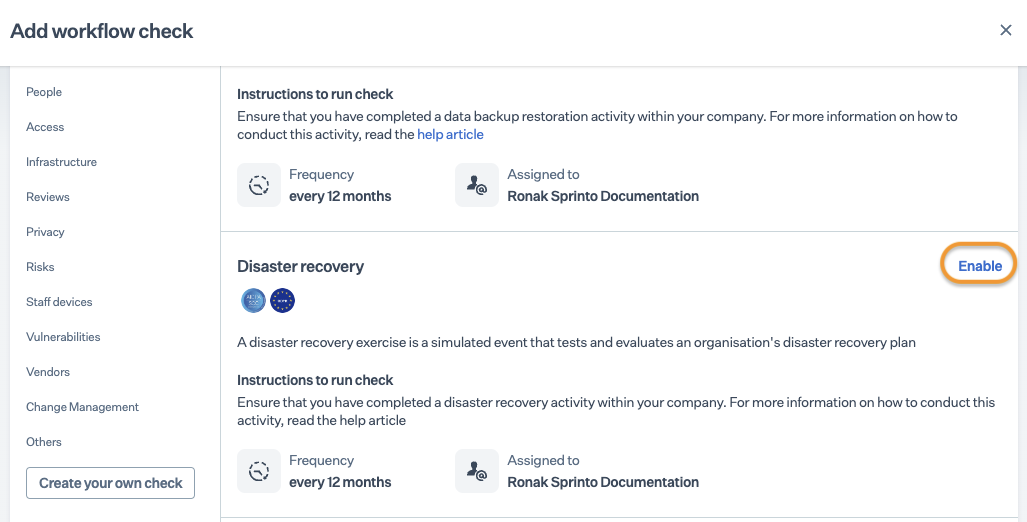
3. Locate Disaster Recovery in the workflow checklist, and click Enable.
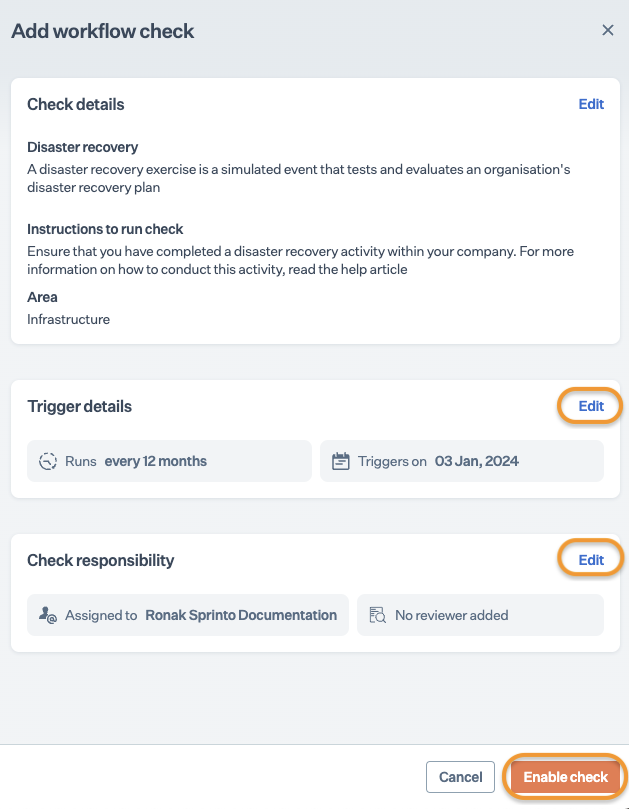
4. On the Add Workflow Check page, click Edit to adjust the check frequency and assign personnel or configure an evidence reviewer if necessary.
5. Note: The default frequency for the workflow check is every twelve months. You can customize the frequency as per your requirements.
6. Click Enable check.
### Resolving Workflow Check
Once the check is activated, it will be in a "Due/Critical/Failing" status. To successfully pass the following workflow check, relevant evidence must be uploaded. Once the evidence is uploaded, the check status gets updated to "Passing."
Evidence: To fulfill this Sprinto check, submit a comprehensive report detailing the organization's Disaster Recovery activity, emphasizing the activity's scope, prerequisites, and executed recovery plan.
Use the provided Sprinto template within the check for evidence upload or, if preferred, upload your own template to meet the check requirements efficiently.
* Log in to the Sprinto Admin portal and go to Data Library> Workflow Checks.
* Select the Disaster Recovery check.
* Click Upload Evidence.
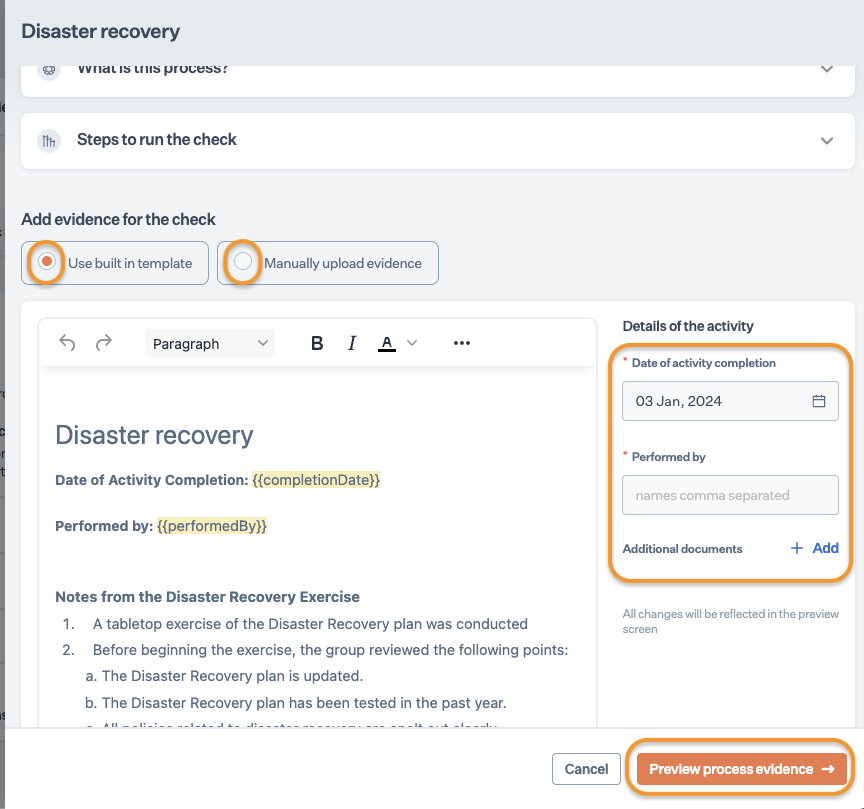
* In the Add evidence for the check section, choose your preferred option:
* Use built-in template: Utilize the ready-to-use template by replacing placeholders with your details. If needed, customize the template content. Select the activity completion date and input the name of the staff member who performed the activity.
* Manually upload evidence: Upload the disaster recovery activity report directly from your computer. You can either upload the file or provide a shareable link for a cloud-stored file.
* Finally, click Preview process evidence / Save to complete the check resolution for the current cycle.
Please contact [Sprinto support](https://www.notion.so/87579d48b79142188a59e103471772b0?pvs=21) if you need any assistance on the workflow check.
---
# Agent Instructions
This documentation is published with GitBook. GitBook is the documentation platform designed so that both humans and AI agents can read, navigate, and reason over technical content effectively. Learn more at gitbook.com.
## Querying This Documentation
If you need additional information that is not directly available in this page, you can query the documentation by asking a question.
Perform an HTTP GET request on the following URL with the `ask` and `goal` query parameters:
```
GET https://docs.sprinto.com/monitors/workflow-check-resolution/how-to-configure-and-resolve-sprinto-workflow-check-for-disaster-recovery.md?ask=&goal=
```
`ask` is the immediate question: it should be specific, self-contained, and written in natural language.
`goal` is what the user is ultimately trying to achieve, the reason they need the answer. Sharing it helps GitBook give you a better, more relevant answer. A goal is most helpful when it describes the outcome the user wants rather than restating the question. For example, with `ask=how do I create an API token`, a goal like `automate deployments from our CI pipeline` lets GitBook tailor the answer to that use case.
The response will contain a direct answer to the question and relevant excerpts and sources from the documentation.
Use this mechanism when the answer is not explicitly present in the current page, you need clarification or additional context, or you want to retrieve related documentation sections.