> For the complete documentation index, see [llms.txt](https://docs.sprinto.com/llms.txt). Markdown versions of documentation pages are available by appending `.md` to page URLs; this page is available as [Markdown](https://docs.sprinto.com/monitors/dr.-sprinto-and-manual-inputs/what-is-manual-device-health-status-reporting.md).
# What is manual device health status reporting
### About
Occasionally, Dr. Sprinto may face challenges in automatically collecting device health data. In such cases, manual evidence submission becomes crucial for maintaining compliance. Below are the steps to provide evidence for different system health checks.
### Purpose
There are instances where Dr. Sprinto's automatic data collection might fail due to various reasons such as insufficient privileges or unsupported operating systems. To ensure a seamless compliance journey, individuals can capture and manually upload screenshots of specific device settings.
### Required Evidences
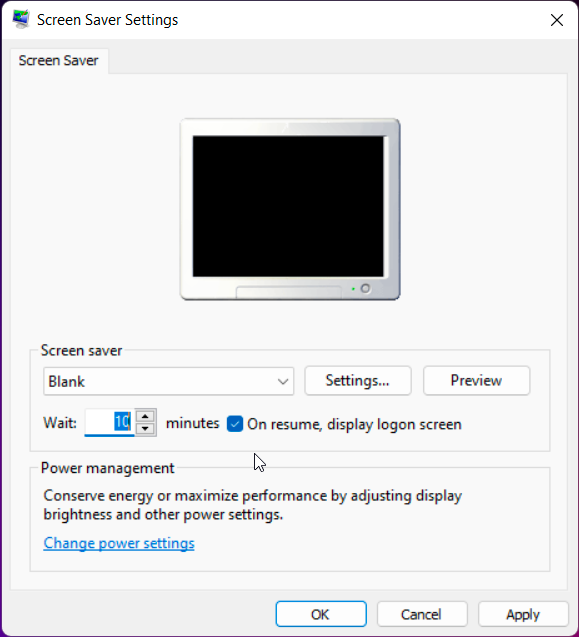
1. Screenlock Enabled:
* Mac:
* Go to System Preferences > Security & Privacy.
* Ensure "Require password" is checked and set Screen Saver preferences.
* Capture and upload a screenshot.
* Windows:
* Search for Lock Screen, turn it on.
* Capture and upload a screenshot.
* Linux:
* Navigate to Settings > Privacy > ScreenLock.
* Confirm settings and upload a screenshot.
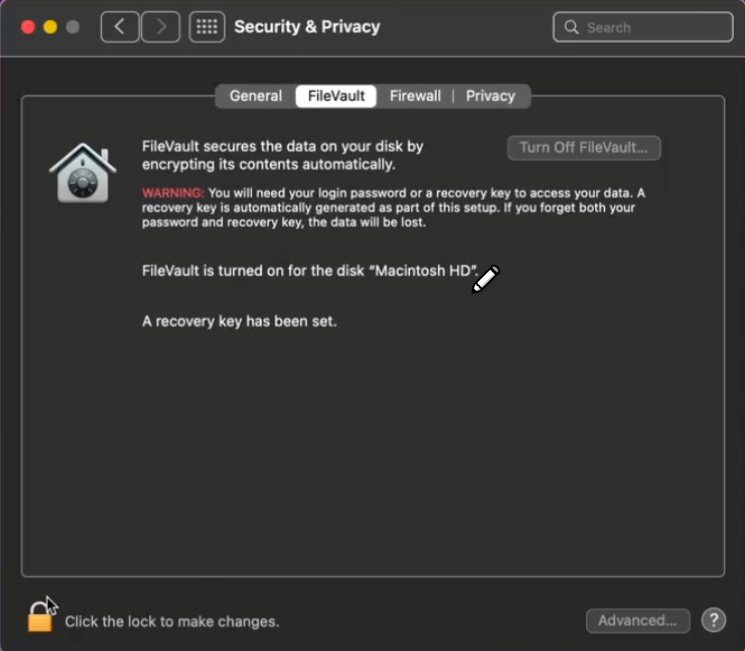
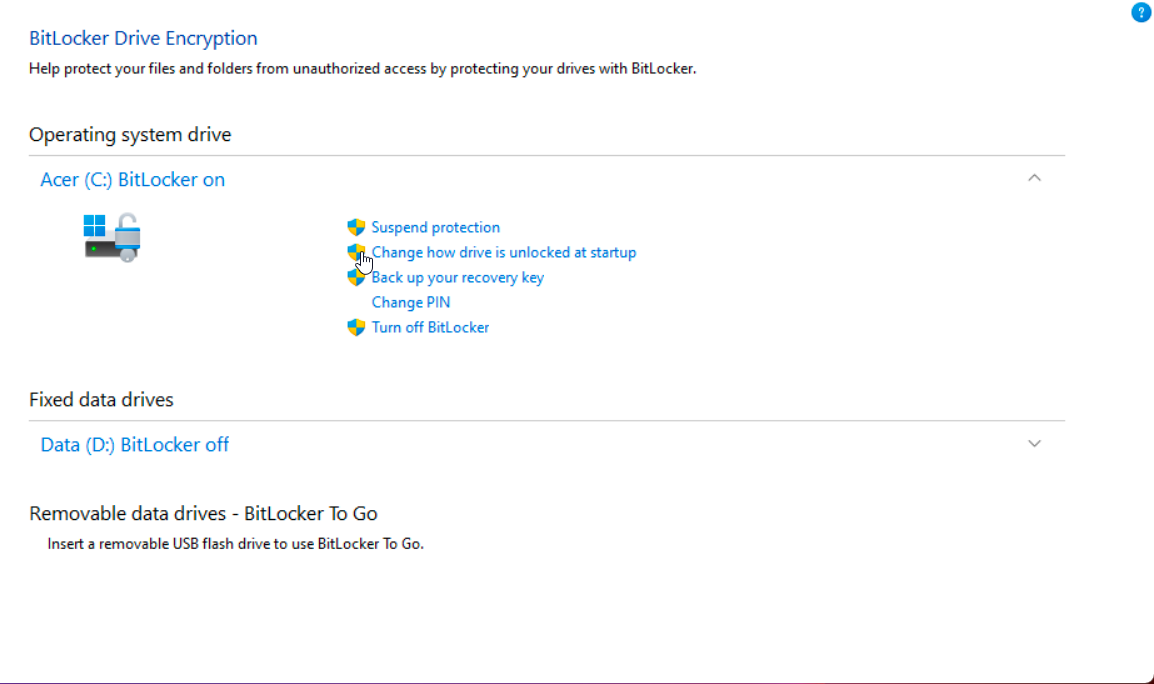
2. Harddisk Encryption:
* Mac:
* Go to System Preferences > Security & Privacy > FileVault.
* Click "Turn On FileVault."
* Capture and upload a screenshot.
* Windows:
* Search for Manage Bitlocker, turn it on.
* Capture and upload a screenshot.
* Linux:
* Open terminal, type ls -A /home to check encryption status.
* Capture and upload a screenshot.
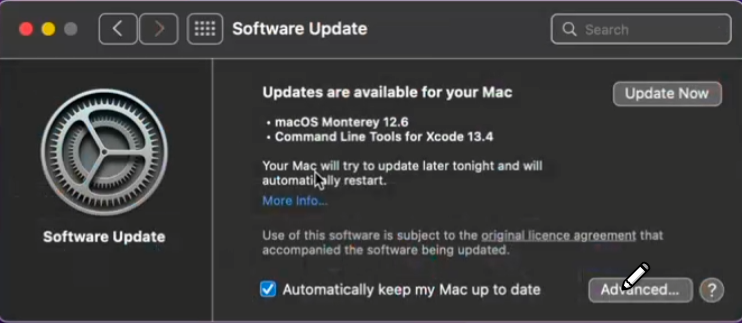
3. Operating System Up to Date:
* Mac:
* Go to System Preferences > Software Update.
* Click Update Now.
* Capture and upload a screenshot.
* Windows:
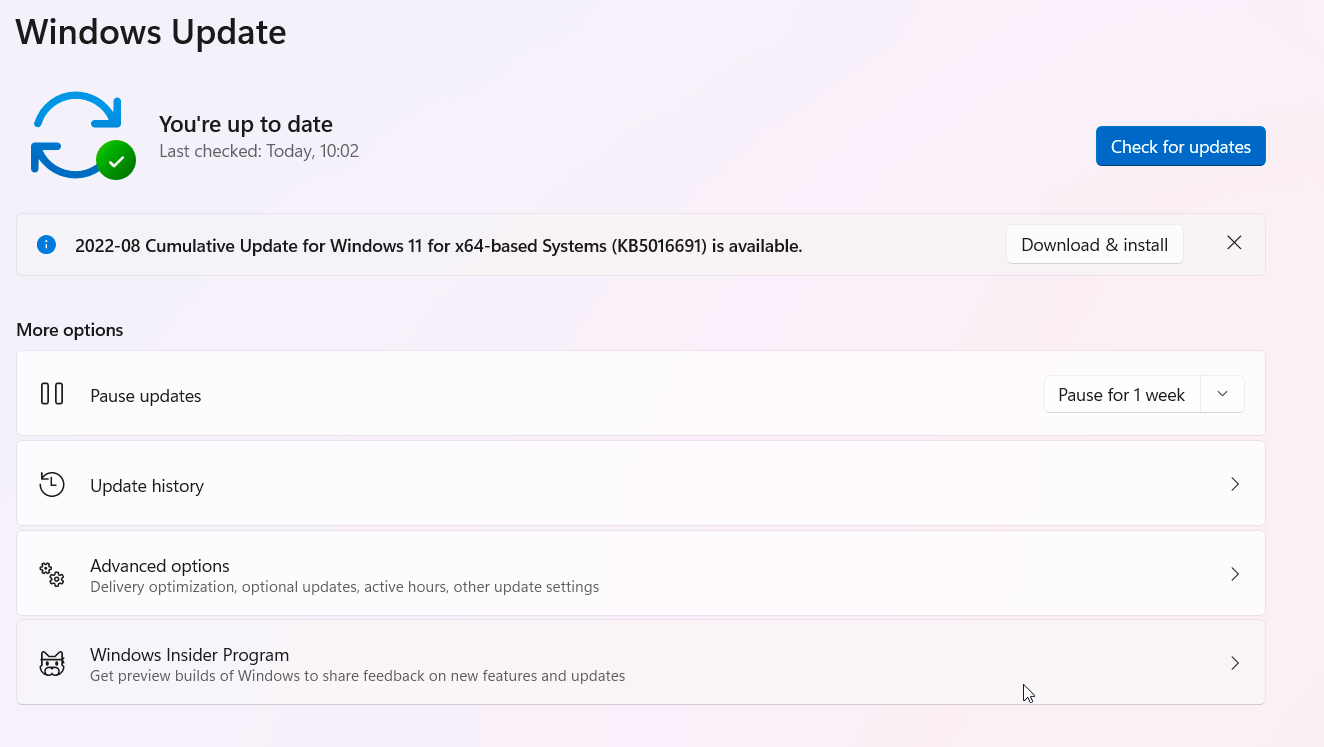
* Search for Windows Update Settings, update if needed.
* Capture and upload a screenshot.
* Linux:
* Open terminal, use commands like cat /etc/os-release.
* Capture and upload a screenshot.
4. Antivirus Running (Optional):
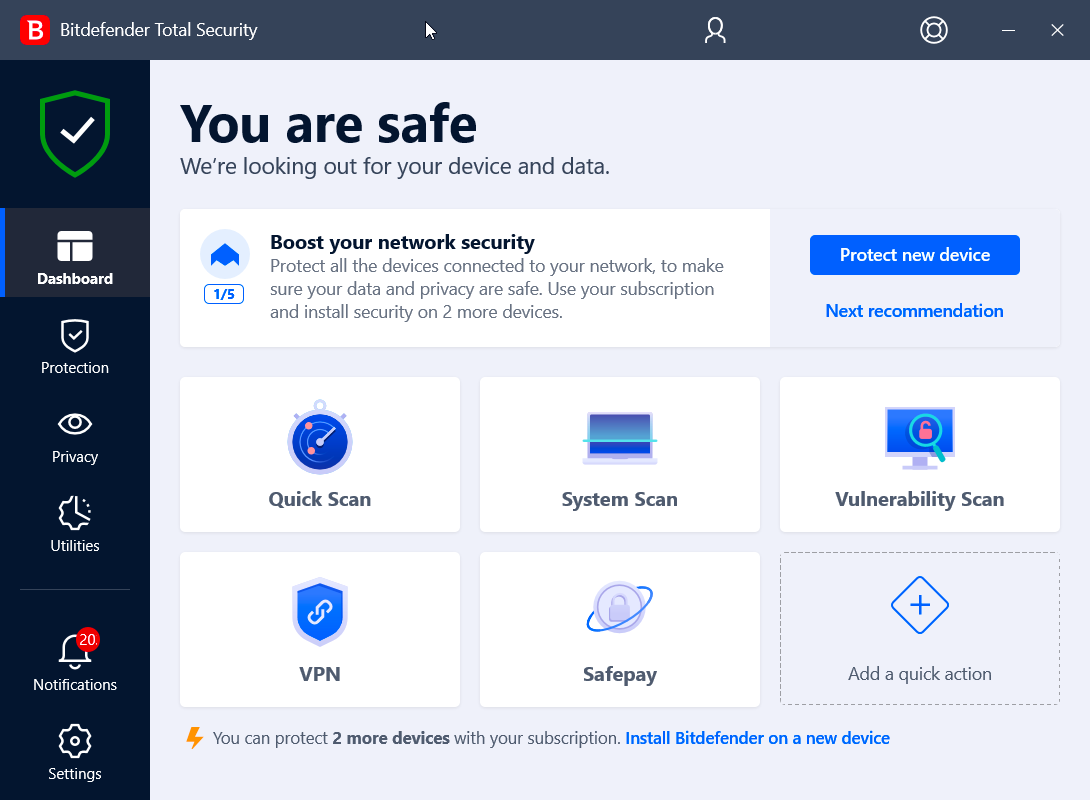
* Ensure antivirus is active on systems with access to critical data.
* Capture and upload a screenshot.
### Conclusion
Manual evidence submission ensures compliance continuity when Dr. Sprinto faces challenges in automated data collection. By following these simplified steps, users can effortlessly contribute to their device's compliance status.
---
# Agent Instructions
This documentation is published with GitBook. GitBook is the documentation platform designed so that both humans and AI agents can read, navigate, and reason over technical content effectively. Learn more at gitbook.com.
## Querying This Documentation
If you need additional information that is not directly available in this page, you can query the documentation by asking a question.
Perform an HTTP GET request on the following URL with the `ask` and `goal` query parameters:
```
GET https://docs.sprinto.com/monitors/dr.-sprinto-and-manual-inputs/what-is-manual-device-health-status-reporting.md?ask=&goal=
```
`ask` is the immediate question: it should be specific, self-contained, and written in natural language.
`goal` is what the user is ultimately trying to achieve, the reason they need the answer. Sharing it helps GitBook give you a better, more relevant answer. A goal is most helpful when it describes the outcome the user wants rather than restating the question. For example, with `ask=how do I create an API token`, a goal like `automate deployments from our CI pipeline` lets GitBook tailor the answer to that use case.
The response will contain a direct answer to the question and relevant excerpts and sources from the documentation.
Use this mechanism when the answer is not explicitly present in the current page, you need clarification or additional context, or you want to retrieve related documentation sections.
.png?alt=media&token=7c474770-eed9-46b5-b80c-e53b74e3074a)