> For the complete documentation index, see [llms.txt](https://docs.sprinto.com/llms.txt). Markdown versions of documentation pages are available by appending `.md` to page URLs; this page is available as [Markdown](https://docs.sprinto.com/monitors/dr.-sprinto-and-manual-inputs/how-to-resolve-dr.-sprintos-auto-screen-lock-issue-for-windows-devices.md).
# How to resolve Dr. Sprinto's auto screen lock issue for Windows devices
### Introduction
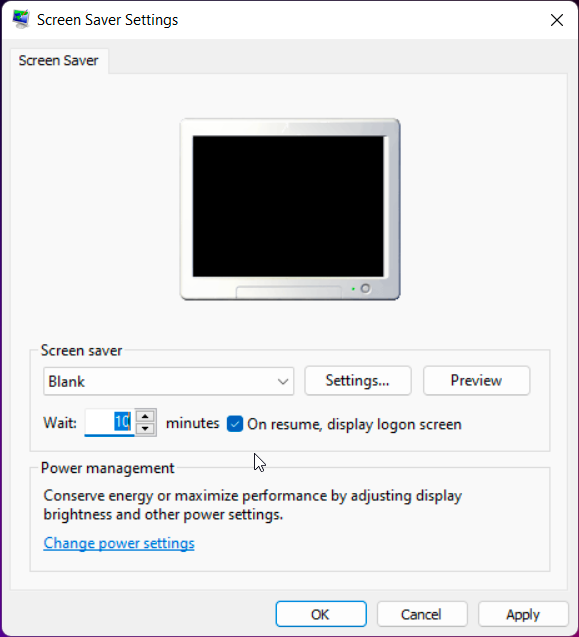
At times, DrSprinto might encounter difficulties in capturing certain device information due to specific configuration issues. One common scenario is the inability to pick up the screen lock status on Windows devices. Let's address this concern with a step-by-step guide.
### Enabling Screen Lock on Windows
1. Navigate to **Settings** > **Personalization** > Lock screen.
2. Select Screen saver settings.
3. In the Screen Saver Settings window:
* Choose a screensaver from the drop-down list.
* Set the time to anything less than 15 minutes.
* Select On resume, display logon screen.
### Additional Verification Steps
In some cases, even after completing the screen lock setup, DrSprinto might still face challenges due to centrally managed antivirus blocking specific PowerShell commands.
Follow these steps to verify and address the issue:
1. Open Powershell as administrator.
2. Run the following command:
```
Get-WmiObject win32_desktop | where name -eq (whoami)
```
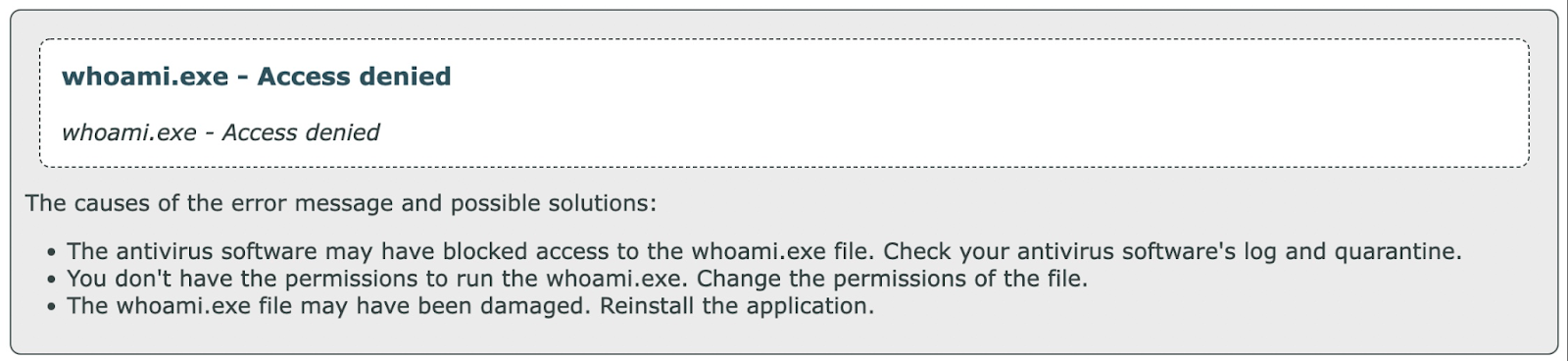
* If you encounter an access denied error, it indicates antivirus blocking the command.
* In this scenario, manually upload a screenshot of your screen lock status after reporting your device to Sprinto.
### Conclusion
By ensuring your screen lock is configured correctly and addressing potential antivirus-related hurdles, you can contribute to DrSprinto's accurate reporting of your device's status. Following these steps ensures a smooth and reliable compliance assessment process.
---
# Agent Instructions
This documentation is published with GitBook. GitBook is the documentation platform designed so that both humans and AI agents can read, navigate, and reason over technical content effectively. Learn more at gitbook.com.
## Querying This Documentation
If you need additional information that is not directly available in this page, you can query the documentation by asking a question.
Perform an HTTP GET request on the following URL with the `ask` and `goal` query parameters:
```
GET https://docs.sprinto.com/monitors/dr.-sprinto-and-manual-inputs/how-to-resolve-dr.-sprintos-auto-screen-lock-issue-for-windows-devices.md?ask=&goal=
```
`ask` is the immediate question: it should be specific, self-contained, and written in natural language.
`goal` is what the user is ultimately trying to achieve, the reason they need the answer. Sharing it helps GitBook give you a better, more relevant answer. A goal is most helpful when it describes the outcome the user wants rather than restating the question. For example, with `ask=how do I create an API token`, a goal like `automate deployments from our CI pipeline` lets GitBook tailor the answer to that use case.
The response will contain a direct answer to the question and relevant excerpts and sources from the documentation.
Use this mechanism when the answer is not explicitly present in the current page, you need clarification or additional context, or you want to retrieve related documentation sections.