> For the complete documentation index, see [llms.txt](https://docs.sprinto.com/llms.txt). Markdown versions of documentation pages are available by appending `.md` to page URLs; this page is available as [Markdown](https://docs.sprinto.com/monitors/dr.-sprinto-and-manual-inputs/how-to-fix-windows-powershell-issue-for-dr.-sprinto.md).
# How to fix Windows Powershell issue for Dr. Sprinto
Encountering errors running the Dr. Sprinto app is a rare sight, but if you encounter one, you can follow the steps below for the workaround. Windows machines are highly configurable; sometimes, these configurations can block the Windows Powershell command; the Dr. Sprinto app runs in the background to fetch the computer configuration.
In a few devices, you could encounter an issue: Dr. Sprinto doesn’t get loaded and ends up with a spinning wheel on the loading screen.
1. **Confirming the Windows Powershell issue.**
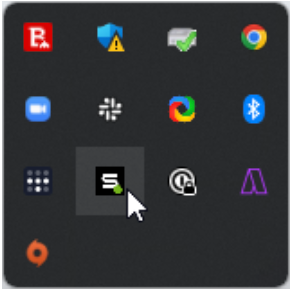
1. From the Windows taskbar, navigate to the installed Dr. Sprinto app icon.
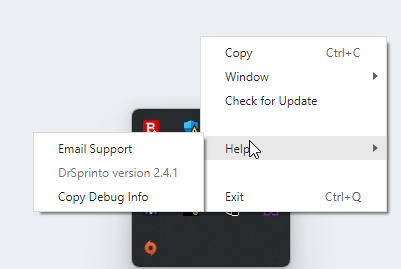
2. **Right-click** the Dr. Sprinto app icon, and navigate to **Help** > **Copy Debug Info**. This copies the debug log on your clipboard.
3. Open any text editor and paste the copied debug log.
4. Look for the **Powershell** error in the debug log. Refer to the below image for reference.
2. **Fixing Powershell issue**.
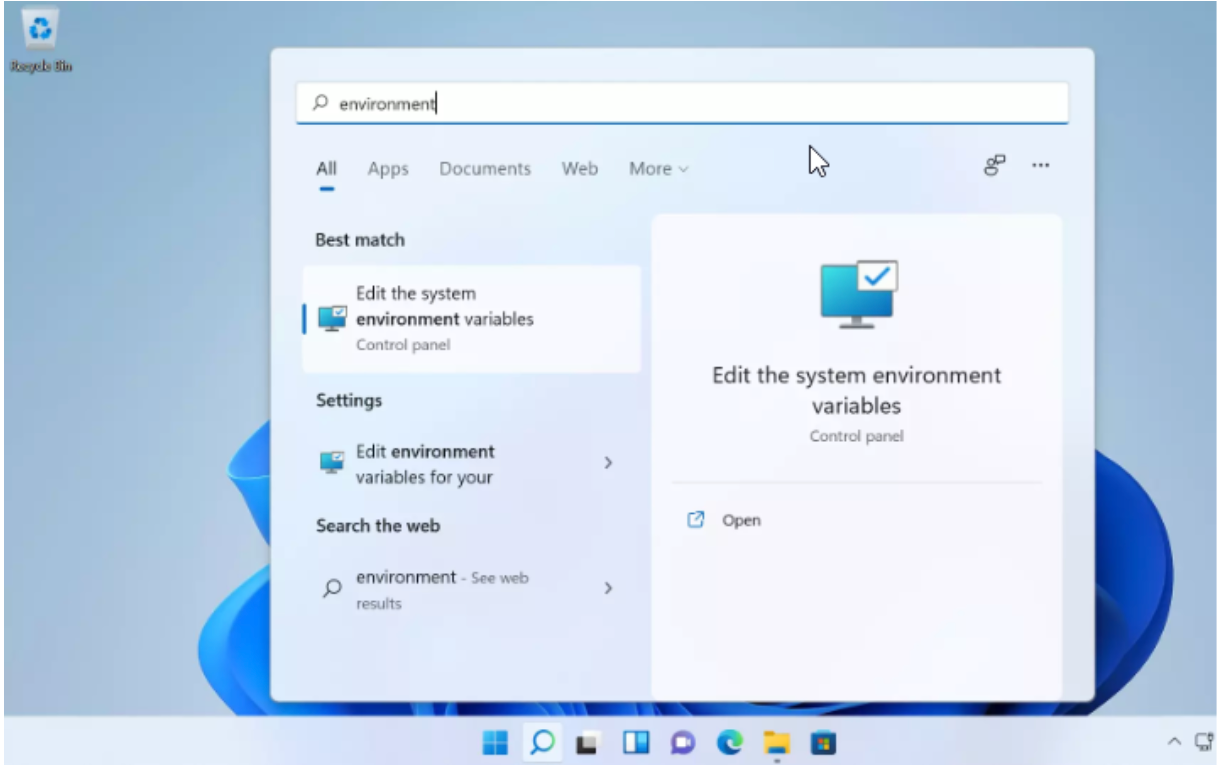
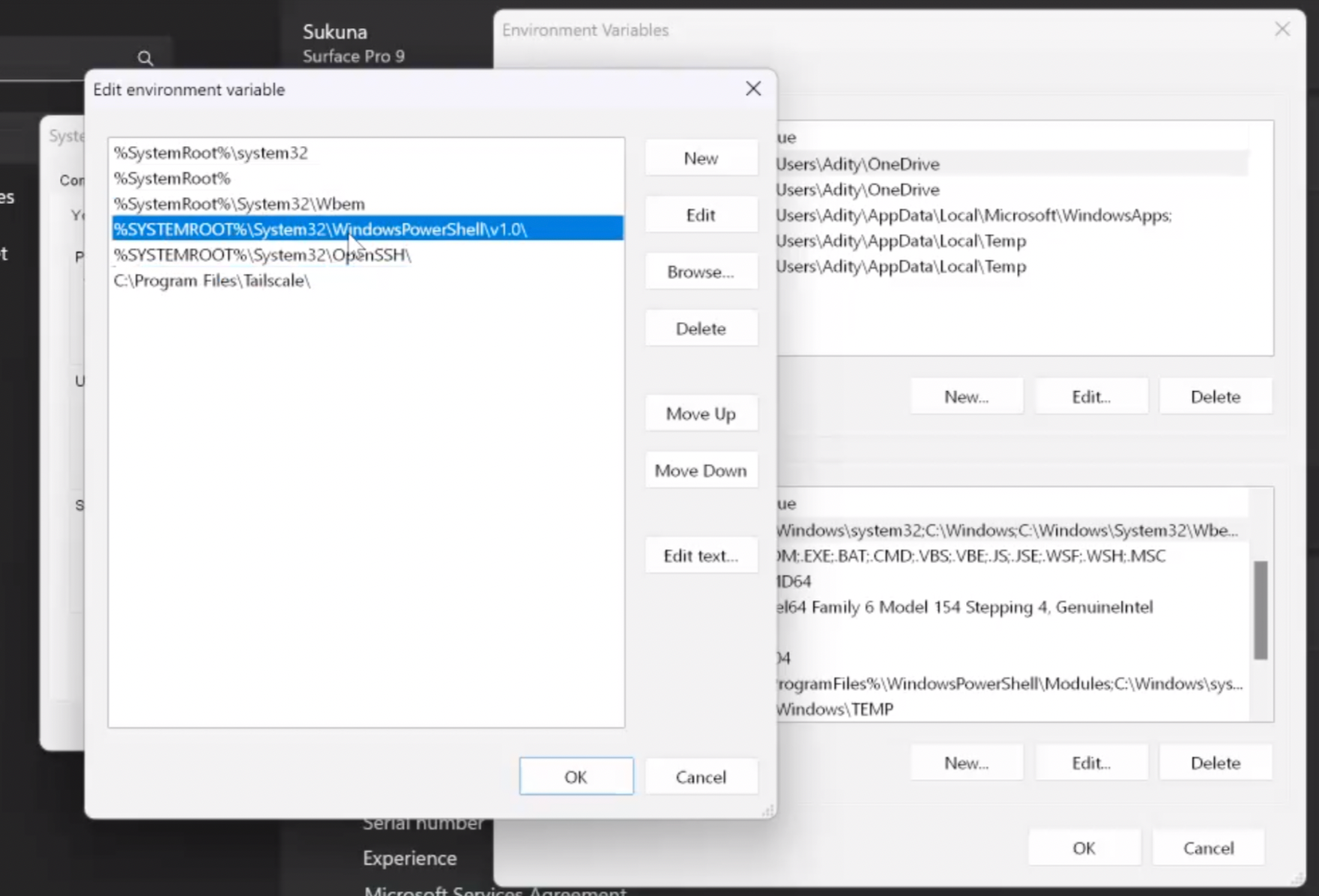
1. From the Windows search option, search for **Environment** and select the **Edit the system environment variables** option from the search result.
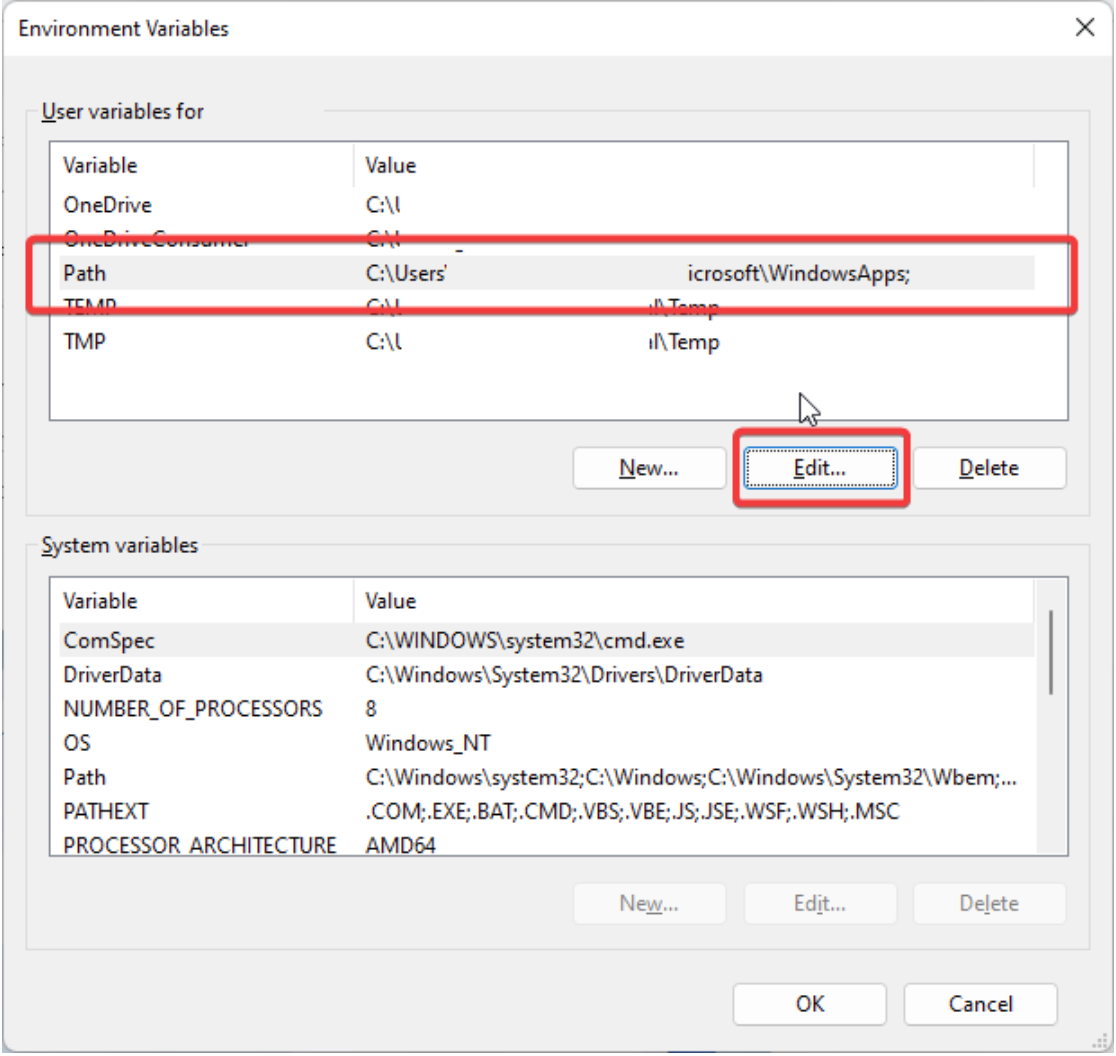
2. On **the Environment variables** window, select **Path** and click **Edit**.
3. You need to enter the commands below one at a time. Click **New** each time to create a new entry.
1. ```
%SystemRoot%\system32
```
2. ```
%SystemRoot%
```
3. ```
%SystemRoot%\System32\Wbem
```
4. ```
%SYSTEMROOT%\System32\WindowsPowerShell\v1.0\
```
5.
```
```
4. Open the **Task manager** and end the Dr. Sprinto operations.
5. Now, re-open the Dr. Sprinto app. It should work as expected.
If you still face issues running Dr. Sprinto, repeat Step 1 and send the copied debug report to [Sprinto support](mailto:WWW.support@Sprinto.com). We will investigate the matter and get back to you with a resolution.
---
# Agent Instructions
This documentation is published with GitBook. GitBook is the documentation platform designed so that both humans and AI agents can read, navigate, and reason over technical content effectively. Learn more at gitbook.com.
## Querying This Documentation
If you need additional information that is not directly available in this page, you can query the documentation by asking a question.
Perform an HTTP GET request on the following URL with the `ask` and `goal` query parameters:
```
GET https://docs.sprinto.com/monitors/dr.-sprinto-and-manual-inputs/how-to-fix-windows-powershell-issue-for-dr.-sprinto.md?ask=&goal=
```
`ask` is the immediate question: it should be specific, self-contained, and written in natural language.
`goal` is what the user is ultimately trying to achieve, the reason they need the answer. Sharing it helps GitBook give you a better, more relevant answer. A goal is most helpful when it describes the outcome the user wants rather than restating the question. For example, with `ask=how do I create an API token`, a goal like `automate deployments from our CI pipeline` lets GitBook tailor the answer to that use case.
The response will contain a direct answer to the question and relevant excerpts and sources from the documentation.
Use this mechanism when the answer is not explicitly present in the current page, you need clarification or additional context, or you want to retrieve related documentation sections.

 ```
4. Open the **Task manager** and end the Dr. Sprinto operations.
5. Now, re-open the Dr. Sprinto app. It should work as expected.
If you still face issues running Dr. Sprinto, repeat Step 1 and send the copied debug report to [Sprinto support](mailto:WWW.support@Sprinto.com). We will investigate the matter and get back to you with a resolution.
---
# Agent Instructions
This documentation is published with GitBook. GitBook is the documentation platform designed so that both humans and AI agents can read, navigate, and reason over technical content effectively. Learn more at gitbook.com.
## Querying This Documentation
If you need additional information that is not directly available in this page, you can query the documentation by asking a question.
Perform an HTTP GET request on the following URL with the `ask` and `goal` query parameters:
```
GET https://docs.sprinto.com/monitors/dr.-sprinto-and-manual-inputs/how-to-fix-windows-powershell-issue-for-dr.-sprinto.md?ask=
```
4. Open the **Task manager** and end the Dr. Sprinto operations.
5. Now, re-open the Dr. Sprinto app. It should work as expected.
If you still face issues running Dr. Sprinto, repeat Step 1 and send the copied debug report to [Sprinto support](mailto:WWW.support@Sprinto.com). We will investigate the matter and get back to you with a resolution.
---
# Agent Instructions
This documentation is published with GitBook. GitBook is the documentation platform designed so that both humans and AI agents can read, navigate, and reason over technical content effectively. Learn more at gitbook.com.
## Querying This Documentation
If you need additional information that is not directly available in this page, you can query the documentation by asking a question.
Perform an HTTP GET request on the following URL with the `ask` and `goal` query parameters:
```
GET https://docs.sprinto.com/monitors/dr.-sprinto-and-manual-inputs/how-to-fix-windows-powershell-issue-for-dr.-sprinto.md?ask=