> For the complete documentation index, see [llms.txt](https://docs.sprinto.com/llms.txt). Markdown versions of documentation pages are available by appending `.md` to page URLs; this page is available as [Markdown](https://docs.sprinto.com/monitors/code-and-repository-monitors/how-to-resolve-sprinto-check-for-enabling-dependabot-vulnerability-scan.md).
# How to resolve Sprinto check for enabling Dependabot vulnerability scan
### About
Procedure: Dependabot vulnerability scan should be enabled
Enabling Dependabot vulnerability scans on your GitHub repositories is crucial to identifying and addressing potential security vulnerabilities in your project dependencies. Dependabot helps keep your dependencies up-to-date, ensuring a more secure and reliable codebase.
### Purpose
This procedure guides you through the steps to enable Dependabot Alerts and Dependabot Security updates on your GitHub repositories. This proactive approach to dependency management helps in identifying and fixing vulnerabilities promptly.
### How to Implement
Follow these steps to enable Dependabot vulnerability scans:
### Video guide
#### Step-by-Step Guide
1. Go to[ GitHub](https://github.com/) and log in using your credentials.
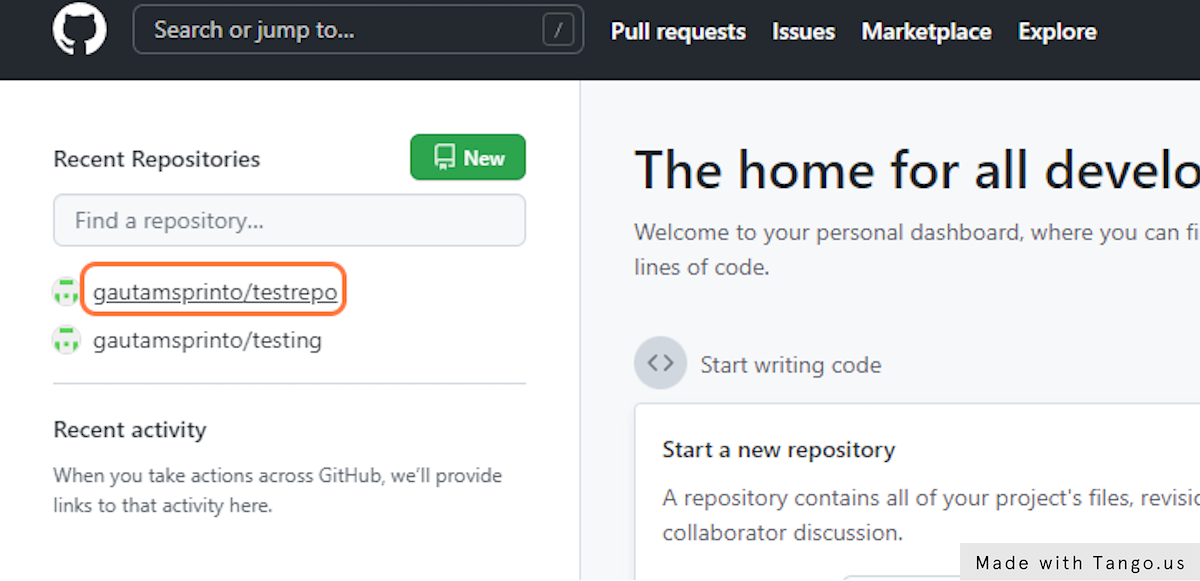
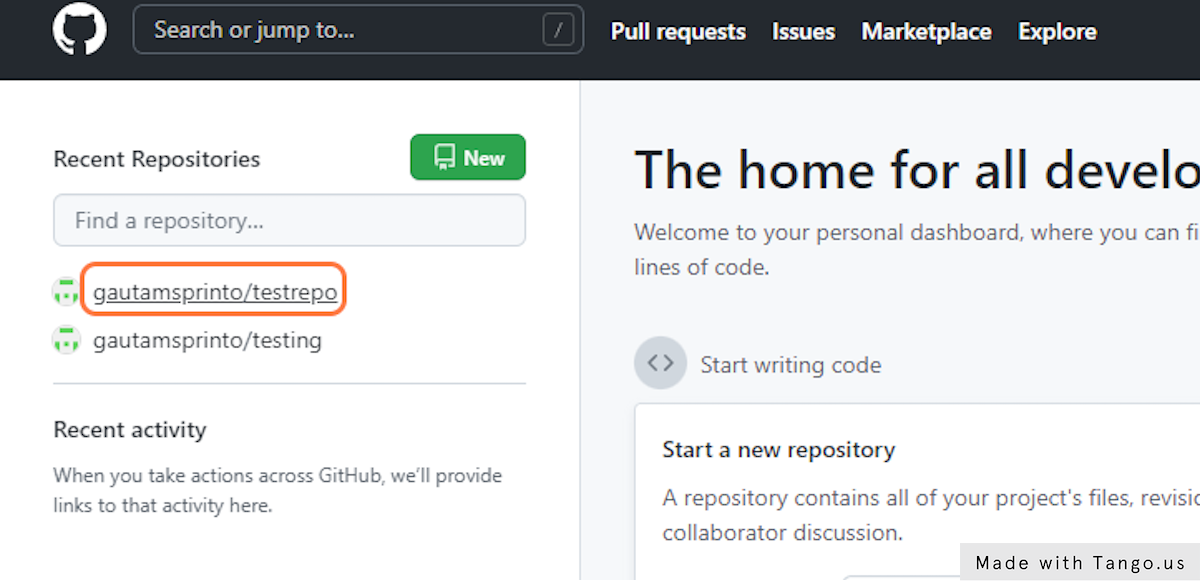
2. Click on the repository you want to enable Dependabot for. This is typically your production repository.
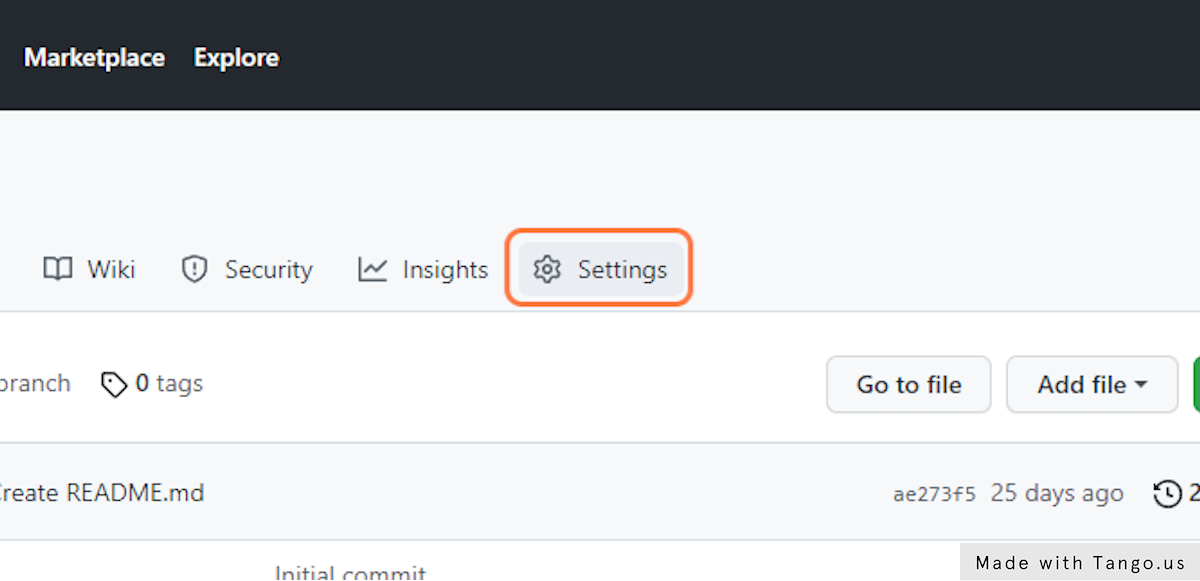
3. Click on the Settings tab of your repository.
4. In the settings menu, find and click Code Security and analysis.
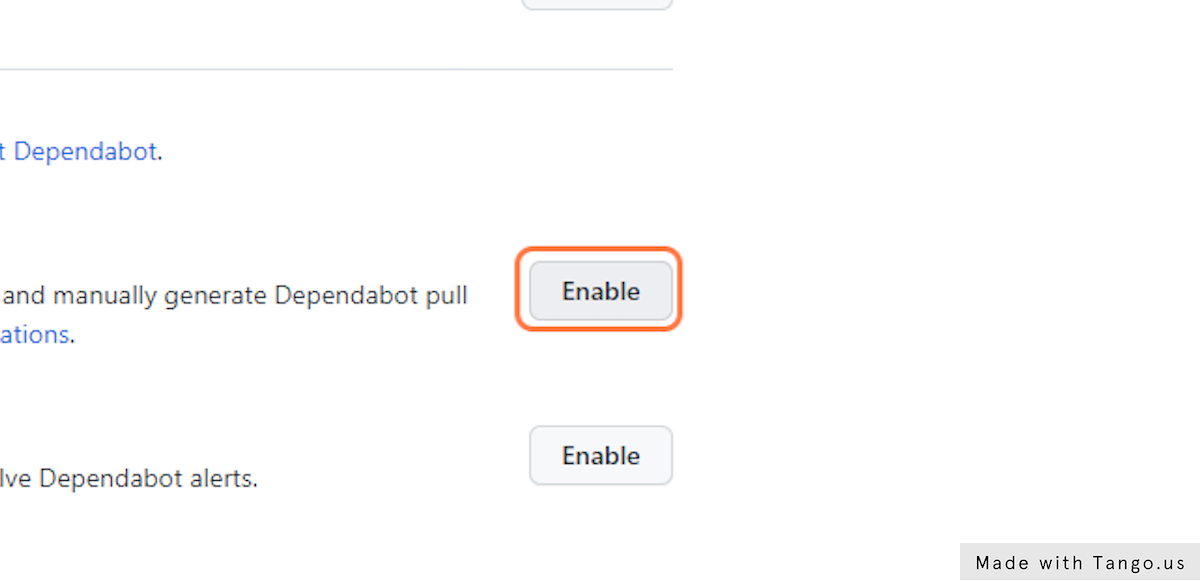
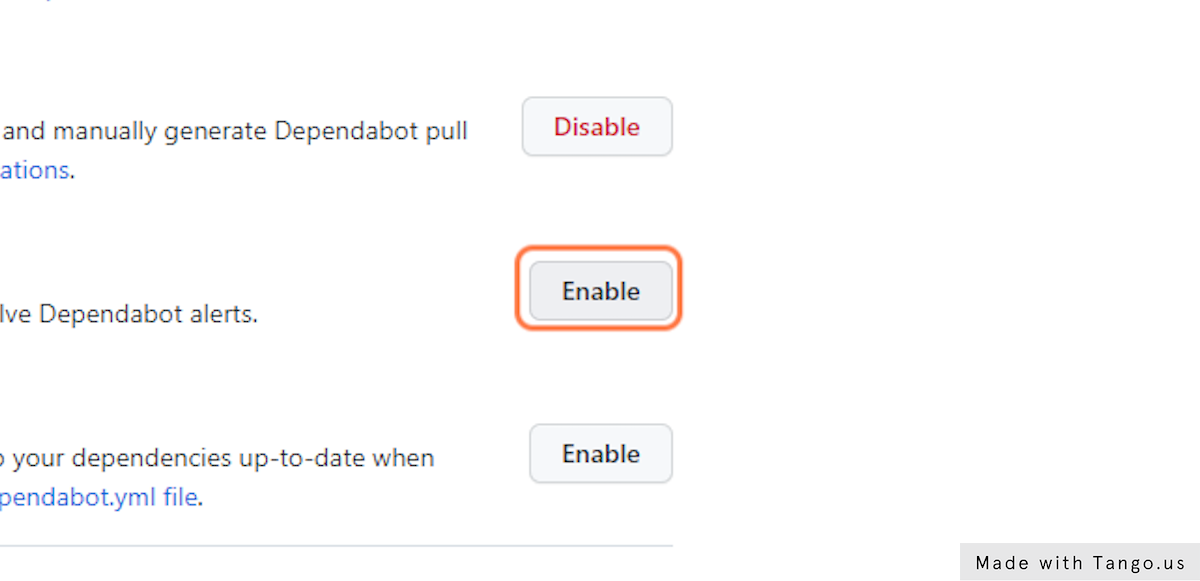
5. Find the option to enable Dependabot Alerts and click on Enable.
6. Similarly, locate the option for Dependabot Security updates and click on Enable.
7. If you have multiple production repositories, repeat steps 2 to 6 for each one.
8. After enabling Dependabot, regularly check and fix any vulnerabilities found by Dependabot in your repositories.
That's it! Following these steps, you have successfully enabled Dependabot vulnerability scans on your GitHub repositories. Sprinto retrieves the changes and sets the check status to "Passing.”
If you need any assistance with the check, please get in touch with [Sprinto support](mailto:www.support@Sprinto.com).
---
# Agent Instructions
This documentation is published with GitBook. GitBook is the documentation platform designed so that both humans and AI agents can read, navigate, and reason over technical content effectively. Learn more at gitbook.com.
## Querying This Documentation
If you need additional information that is not directly available in this page, you can query the documentation dynamically by asking a question.
Perform an HTTP GET request on the current page URL with the `ask` query parameter, and the optional `goal` query parameter:
```
GET https://docs.sprinto.com/monitors/code-and-repository-monitors/how-to-resolve-sprinto-check-for-enabling-dependabot-vulnerability-scan.md?ask=&goal=
```
`ask` is the immediate question: it should be specific, self-contained, and written in natural language.
`goal` is optional and describes the broader end goal you are ultimately trying to accomplish on behalf of the user. GitBook uses it to tailor the answer towards what is most useful for that goal.
The response will contain a direct answer to the question and relevant excerpts and sources from the documentation.
Use this mechanism when the answer is not explicitly present in the current page, you need clarification or additional context, or you want to retrieve related documentation sections.