> For the complete documentation index, see [llms.txt](https://docs.sprinto.com/llms.txt). Markdown versions of documentation pages are available by appending `.md` to page URLs; this page is available as [Markdown](https://docs.sprinto.com/monitors/cloud-and-infrastructure-monitoring/oracle/how-to-resolve-sprinto-check-to-protect-oracle-cloud-instance-from-direct-internet-access.md).
# How to resolve Sprinto check to protect Oracle Cloud Instance from direct internet access
### About
Sprinto check: Compute instance should be protected from direct internet traffic
Protecting Oracle Cloud Compute Instances from direct public internet access is essential for enhancing security, reducing the attack surface, and mitigating potential cyber threats.
### Purpose
The purpose of protecting Oracle Cloud Compute Instances from direct public internet access is to:
1. Enhance Security: Minimize the risk of unauthorized access, data breaches, and malicious attacks by restricting direct access to compute instances from the public internet.
2. Reduce Attack Surface: Limit exposure to potential security vulnerabilities and exploits by preventing direct communication between compute instances and external networks.
3. Compliance Requirements: Align with regulatory compliance requirements and industry standards by implementing robust security measures, including network access controls and segmentation, to protect compute instances from external threats.
### How to resolve
Follow the below steps to restrict the public internet access of Oracle Cloud compute instance
#### Before you begin
* Ensure you have “Admin” access to the Oracle Cloud account where you wish to perform the following action.
#### Modifying internet access
1. Log in on [Oracle Cloud](https://www.oracle.com/in/cloud/sign-in.html) using your credentials.
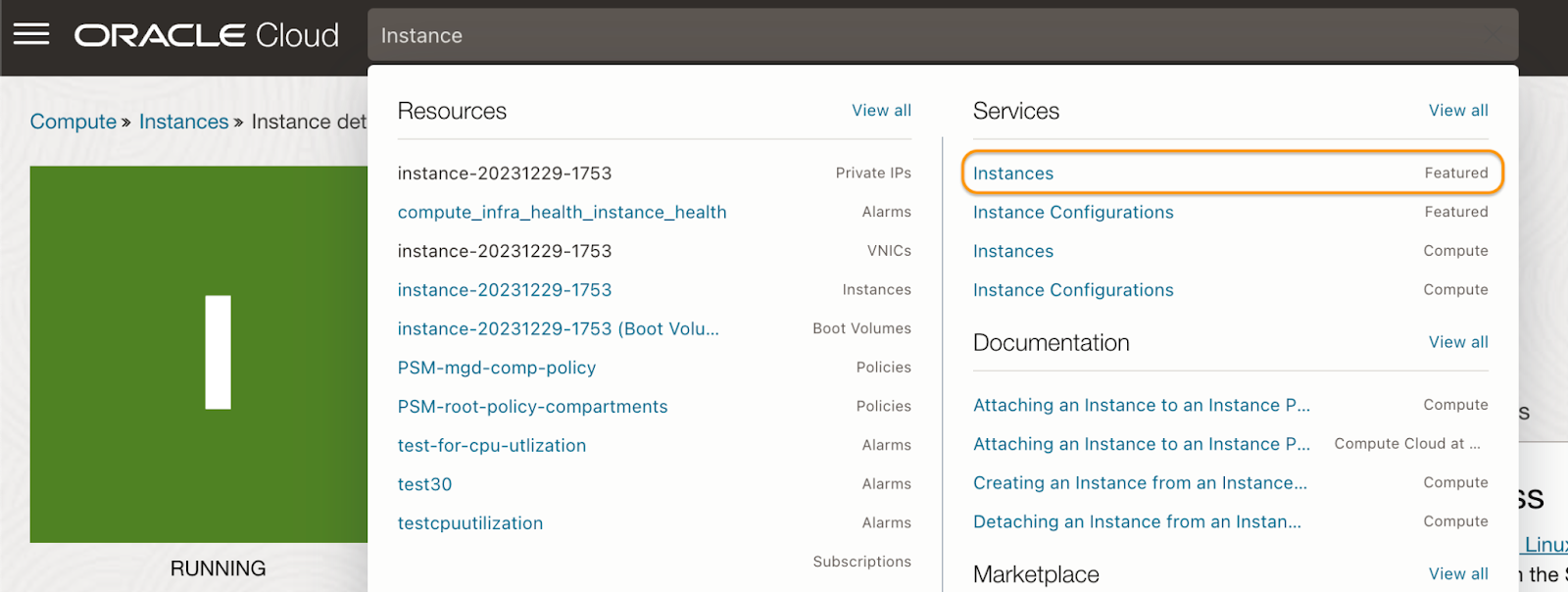
2. Navigate to Instance services.
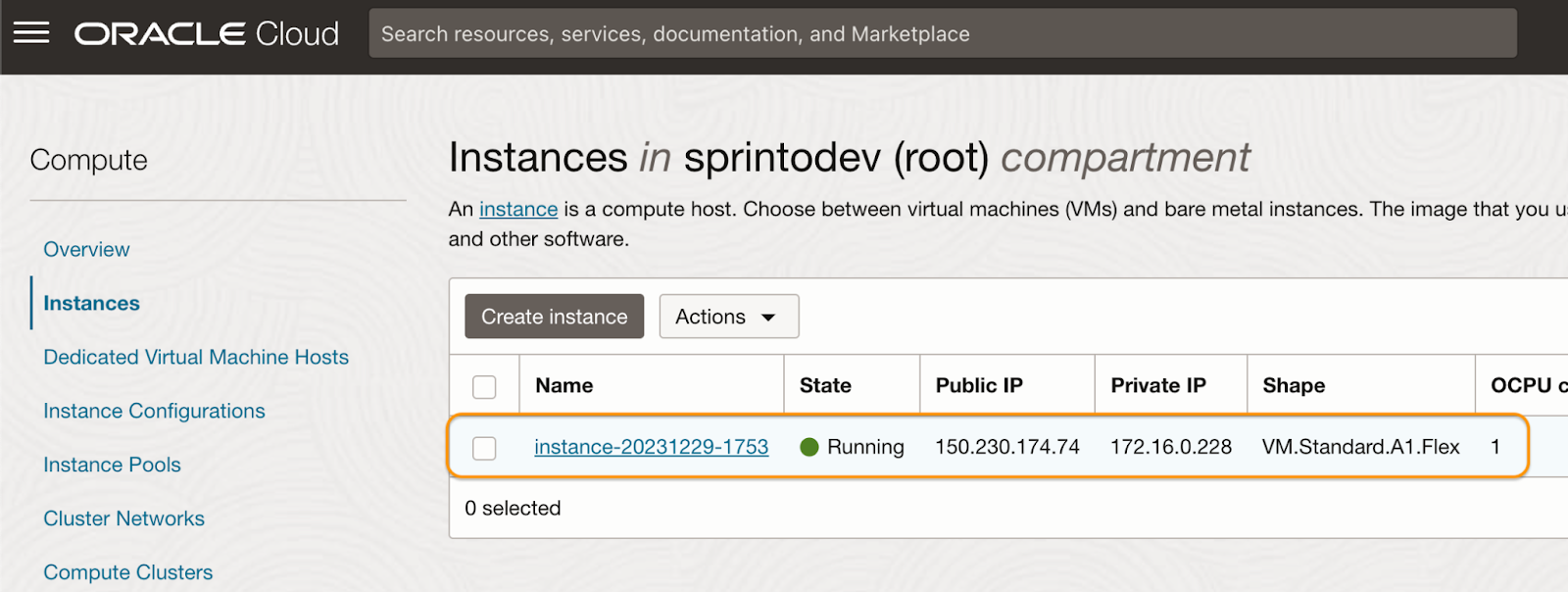
3. Select the Instance for which you wish to restrict public internet access.
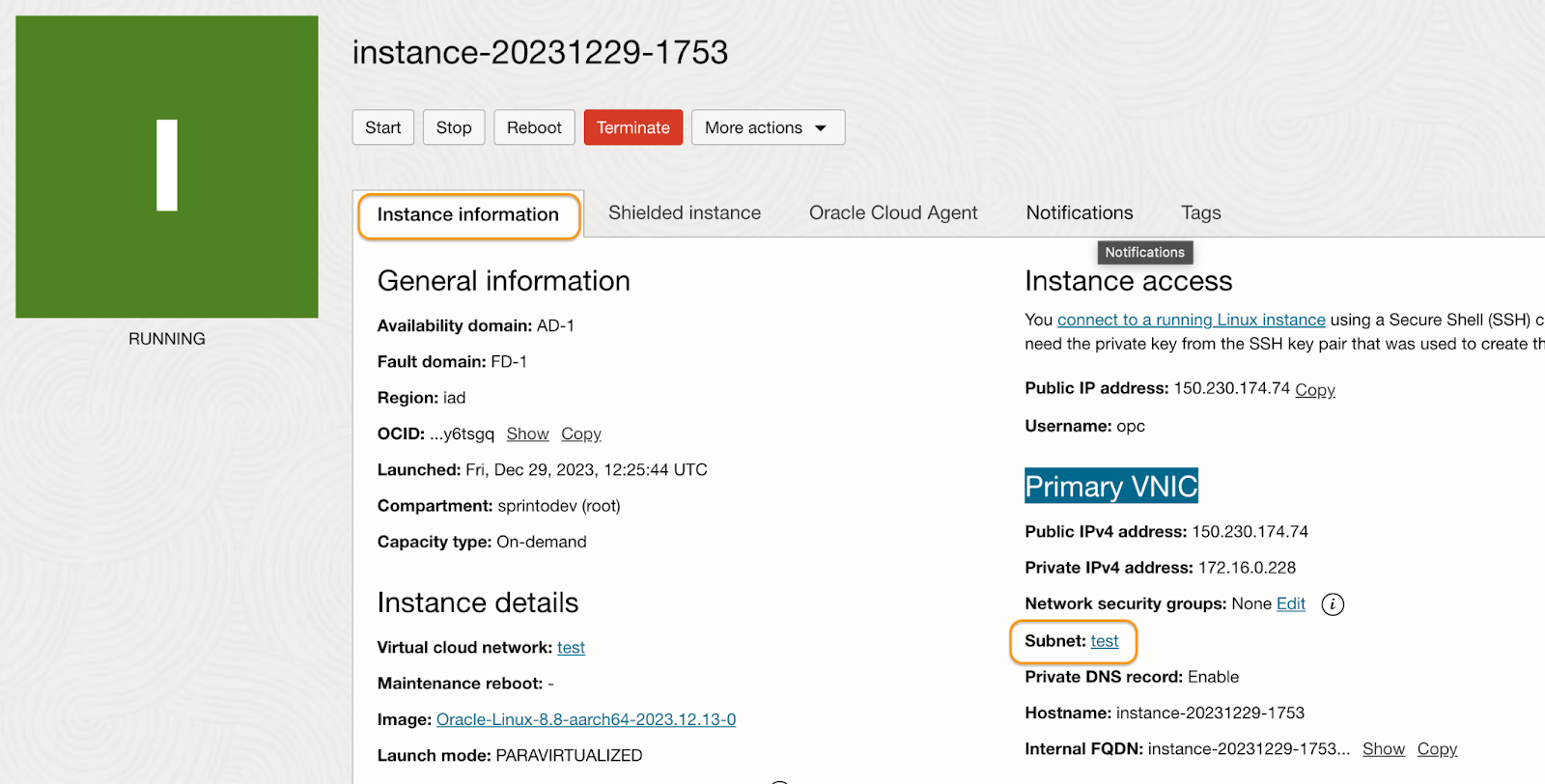
4. On Instance details page, select the Instance information tab and select the Subnet option under the Primary VNIC.
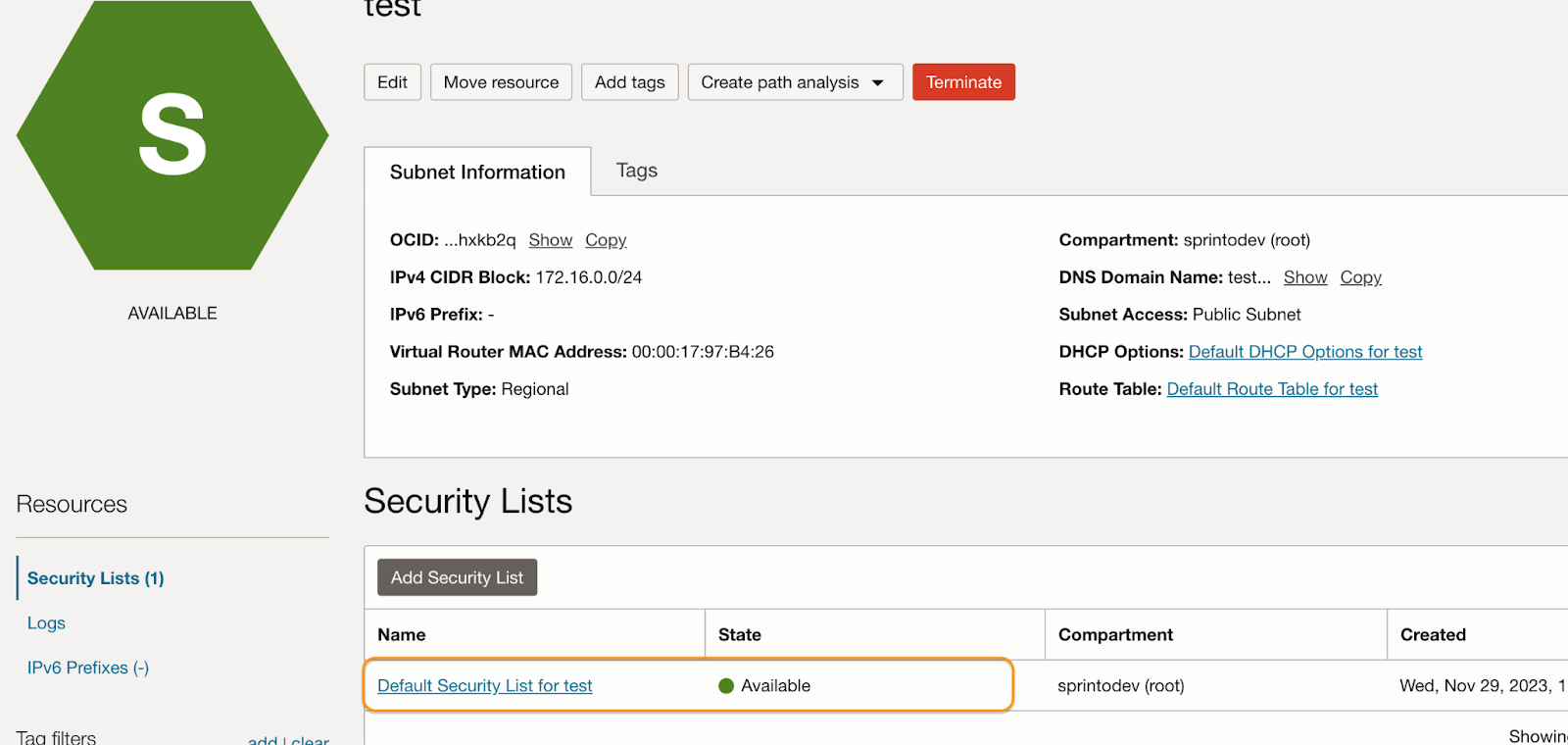
5. Select your current configured Security List.
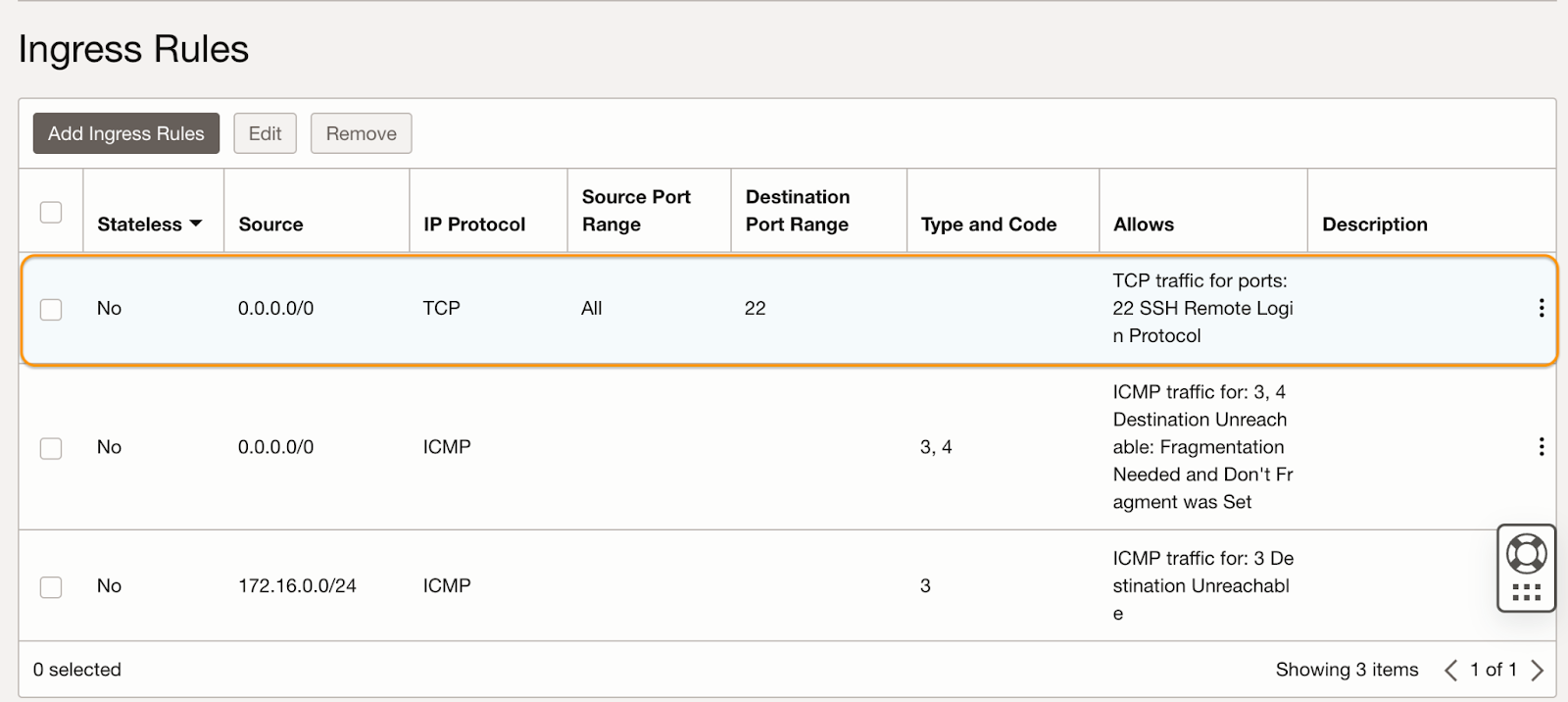
6. Under Ingress Rules, ensure the Source configured as 0.0.0.0/0 for **port 22** is removed.
7. To remove this rule, select it and click **Remove**.
Once the alert is created, Sprinto retrieves the change from your integrated Oracle Cloud account on Sprinto and sets the assigned check status to "Passing."
If you need any assistance with the Sprinto check, please contact Sprinto Support.
---
# Agent Instructions
This documentation is published with GitBook. GitBook is the documentation platform designed so that both humans and AI agents can read, navigate, and reason over technical content effectively. Learn more at gitbook.com.
## Querying This Documentation
If you need additional information that is not directly available in this page, you can query the documentation dynamically by asking a question.
Perform an HTTP GET request on the current page URL with the `ask` query parameter, and the optional `goal` query parameter:
```
GET https://docs.sprinto.com/monitors/cloud-and-infrastructure-monitoring/oracle/how-to-resolve-sprinto-check-to-protect-oracle-cloud-instance-from-direct-internet-access.md?ask=&goal=
```
`ask` is the immediate question: it should be specific, self-contained, and written in natural language.
`goal` is optional and describes the broader end goal you are ultimately trying to accomplish on behalf of the user. GitBook uses it to tailor the answer towards what is most useful for that goal.
The response will contain a direct answer to the question and relevant excerpts and sources from the documentation.
Use this mechanism when the answer is not explicitly present in the current page, you need clarification or additional context, or you want to retrieve related documentation sections.