> For the complete documentation index, see [llms.txt](https://docs.sprinto.com/llms.txt). Markdown versions of documentation pages are available by appending `.md` to page URLs; this page is available as [Markdown](https://docs.sprinto.com/monitors/cloud-and-infrastructure-monitoring/gcp/how-to-resolve-gcp-cloud-sql-memory-utilization-should-be-monitored.md).
# How to resolve GCP Cloud SQL memory utilization should be monitored
**Procedure:**
Step 1: Login to GCP console ()
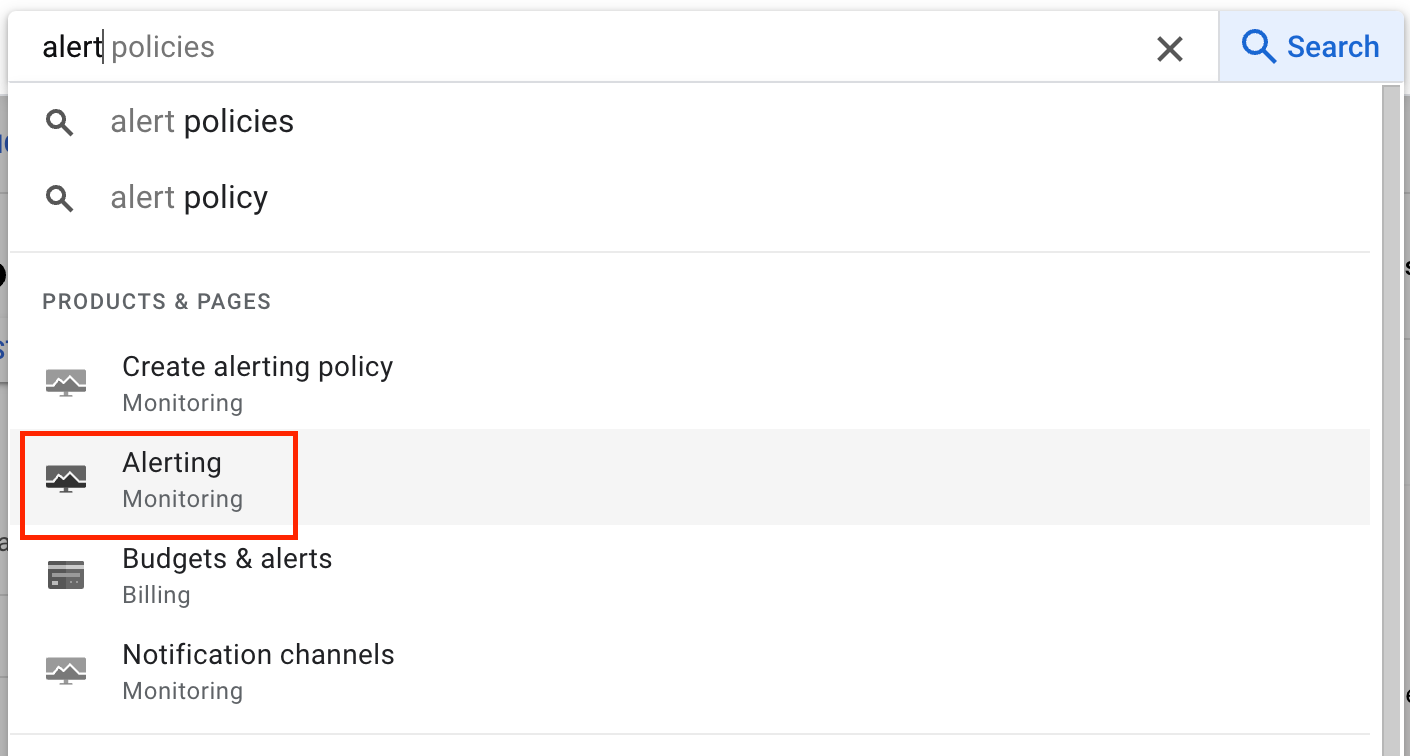
Step 2: In the global search type Alerting and click on Alerting as highlighted below.
Step 3: On the Alerting page click on Create Policy
Step 4: Under new condition, click on Select a Metric
Step 5: Search for Cloud SQL Database in the dropdown
Step 6: Goto Cloud SQL Database Instance -> Database -> Select the Memory Ulitization metric and click on Apply.
Step 7: Click on Next
Step 8: Enter a Threshold value, make any other changes as per requirement.
Step 9: Click on Next
Step 10: Choose a notification channel, if already setup, choose the incident auto-closure time period.
Step 11: Scroll to the bottom and add the Alert Policy name
Step 12: Click on Create Policy
Once the above steps are completed the monitor will start passing in Sprinto. Please feel free to reach out for any further assistance.
---
# Agent Instructions
This documentation is published with GitBook. GitBook is the documentation platform designed so that both humans and AI agents can read, navigate, and reason over technical content effectively. Learn more at gitbook.com.
## Querying This Documentation
If you need additional information that is not directly available in this page, you can query the documentation dynamically by asking a question.
Perform an HTTP GET request on the current page URL with the `ask` query parameter, and the optional `goal` query parameter:
```
GET https://docs.sprinto.com/monitors/cloud-and-infrastructure-monitoring/gcp/how-to-resolve-gcp-cloud-sql-memory-utilization-should-be-monitored.md?ask=&goal=
```
`ask` is the immediate question: it should be specific, self-contained, and written in natural language.
`goal` is optional and describes the broader end goal you are ultimately trying to accomplish on behalf of the user. GitBook uses it to tailor the answer towards what is most useful for that goal.
The response will contain a direct answer to the question and relevant excerpts and sources from the documentation.
Use this mechanism when the answer is not explicitly present in the current page, you need clarification or additional context, or you want to retrieve related documentation sections.