> For the complete documentation index, see [llms.txt](https://docs.sprinto.com/llms.txt). Markdown versions of documentation pages are available by appending `.md` to page URLs; this page is available as [Markdown](https://docs.sprinto.com/monitors/authentication-and-access-monitors/how-to-resolve-sprinto-check-for-collecting-evidence-against-configured-login-protection-mechanism.md).

# How to resolve Sprinto check for collecting evidence against configured login protection mechanism

### About

Sprinto Check: Periodic review of login protection methods for critical system {critical system name}

The primary compliance requirement for access control on critical systems is establishing login protection methods. Once you've defined the methods used to control access, the next step is to provide implementation evidence.

### Purpose

The purpose of this check is to collect evidence for the login protection methods defined for the critical systems. The collected evidence is submitted for the compliance audit.

The check is periodic and becomes active six months after the last evidence submission. You can adjust the check activation frequency if necessary.

### How to Resolve

To resolve this check, you need to upload evidence for the login protection methods configured for the critical system.

Here is the evidence you can upload for this check:

<table data-header-hidden><thead><tr><th width="196.046875">Login Protection Method</th><th>Evidence type</th></tr></thead><tbody><tr><td>Multi-Factor Authentication (MFA)</td><td>Upload a screenshot showcasing the MFA configuration for this system. Additionally, you can upload screenshots or reports demonstrating MFA enabled for the relevant user accounts.</td></tr><tr><td>Complex Password</td><td>Upload a screenshot illustrating the password complexity requirements set up for this system.</td></tr><tr><td>Single Sign-On (SSO)</td><td>Upload a screenshot displaying the configured SSO provider for this system.</td></tr><tr><td>Virtual Private Network (VPN)</td><td>Upload a screenshot presenting the configured VPN provider for this system.</td></tr></tbody></table>

#### Procedure

1. Log in to[ Sprinto](http://www.app.sprinto.io/) as an administrator.
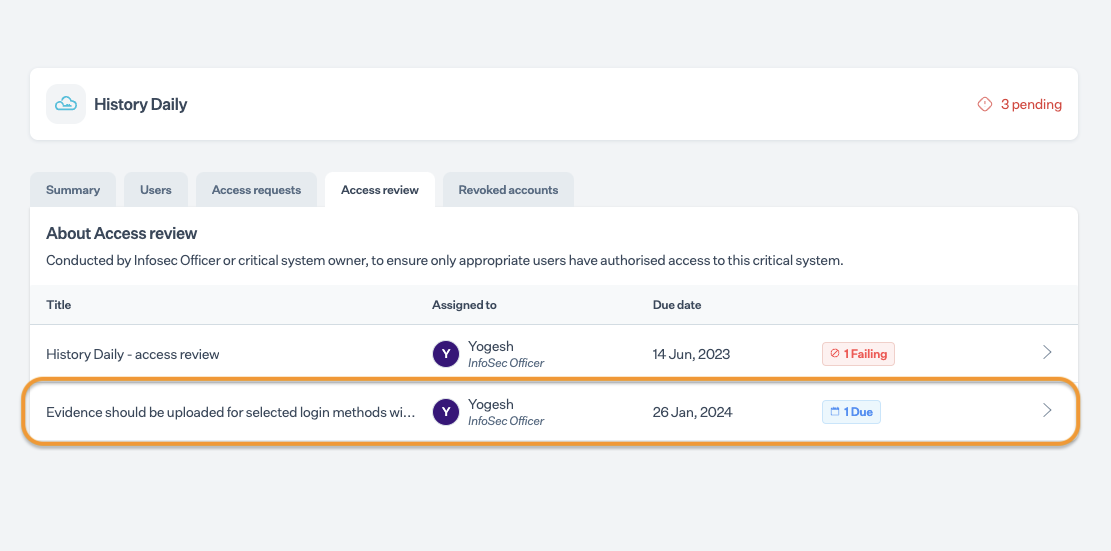
2. Navigate to Data Library > Access, then select the critical system you want to address.
3. Choose the Access Review tab and select the Evidence should be uploaded for selected login methods within the critical system {critical system name} check.

   <figure><img src="https://s3.amazonaws.com/cdn.freshdesk.com/data/helpdesk/attachments/production/72081352089/original/vxOQH1t44z1QrbOwx41J9e1xYzkbEtJOlA.png?1705312981" alt="" width="563"><figcaption></figcaption></figure>
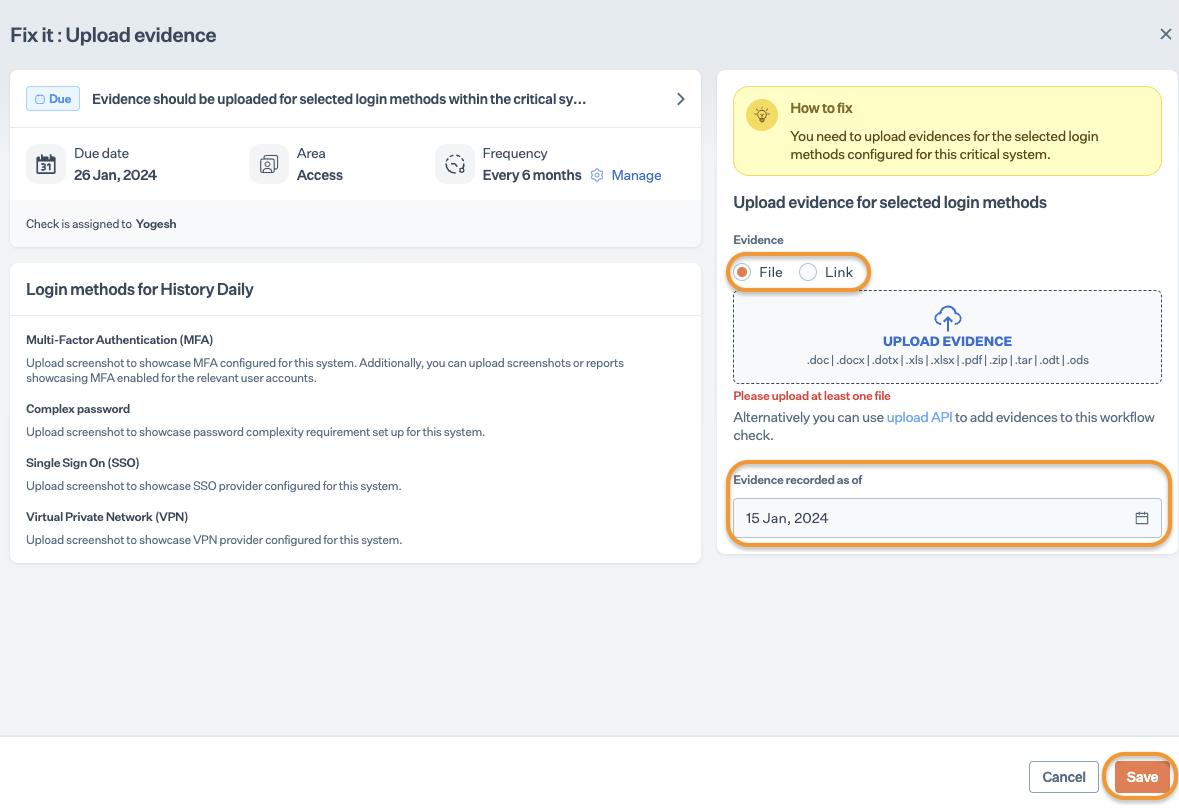
4. On the Fix it page, choose one of the following options to upload a file.
   * File: To upload evidence files from your computer.
   * Link: If the evidence is stored online, paste the shareable link.
5. Select the evidence record date, then click Save.

   <figure><img src="https://s3.amazonaws.com/cdn.freshdesk.com/data/helpdesk/attachments/production/72081351971/original/E9bV22oEUKWzZOTrq6h5xS63rUjQARL5fQ.png?1705312930" alt="" width="563"><figcaption></figcaption></figure>


---

# Agent Instructions
This documentation is published with GitBook. GitBook is the documentation platform designed so that both humans and AI agents can read, navigate, and reason over technical content effectively. Learn more at gitbook.com.

## Querying This Documentation
If you need additional information that is not directly available in this page, you can query the documentation dynamically by asking a question.

Perform an HTTP GET request on the current page URL with the `ask` query parameter:

```
GET https://docs.sprinto.com/monitors/authentication-and-access-monitors/how-to-resolve-sprinto-check-for-collecting-evidence-against-configured-login-protection-mechanism.md?ask=<question>
```

The question should be specific, self-contained, and written in natural language.
The response will contain a direct answer to the question and relevant excerpts and sources from the documentation.

Use this mechanism when the answer is not explicitly present in the current page, you need clarification or additional context, or you want to retrieve related documentation sections.