> For the complete documentation index, see [llms.txt](https://docs.sprinto.com/llms.txt). Markdown versions of documentation pages are available by appending `.md` to page URLs; this page is available as [Markdown](https://docs.sprinto.com/monitors/authentication-and-access-monitors/how-to-configure-and-resolve-workflow-checks-for-setting-up-auto-account-lockout-on-critical-systems.md).
# How to configure and resolve workflow checks for setting up auto account lockout on critical systems
**In this article:**
Enhance the security of your critical services by activating automatic account lockout for users who experience multiple failed login attempts within a specified time frame. The Sprinto check facilitates the collection of evidence to ensure the proper configuration of this security measure on your critical system is maintained to meet the security compliance requirements.
### Before You Begin
* Log in on Sprinto as administrator.
### Configuring Workflow Check
1. Go to Data Library > Workflow Checks.
2. Click on Create Check > Single workflow check.
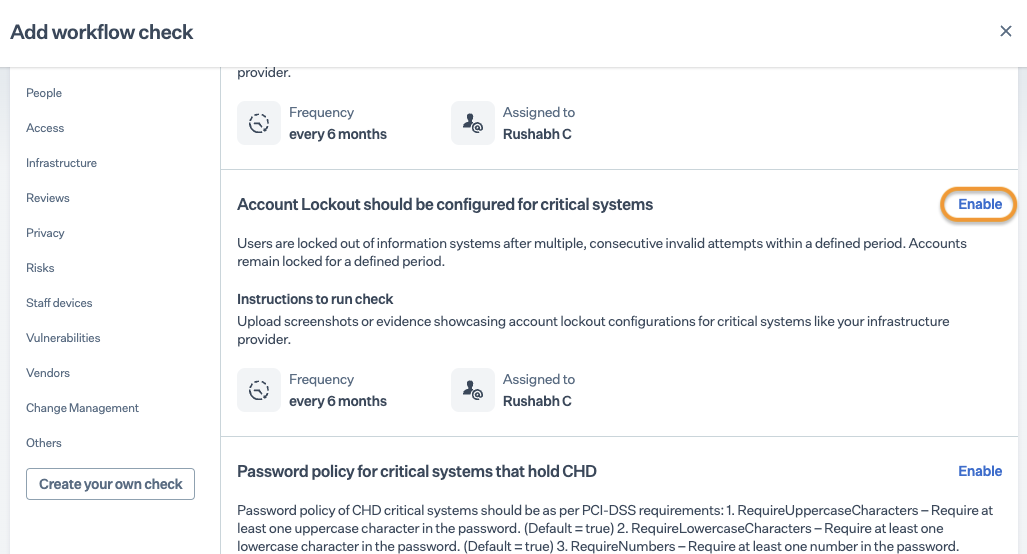
3. Locate Account Lockout should be configured for critical systems in the workflow checklist, and click Enable.
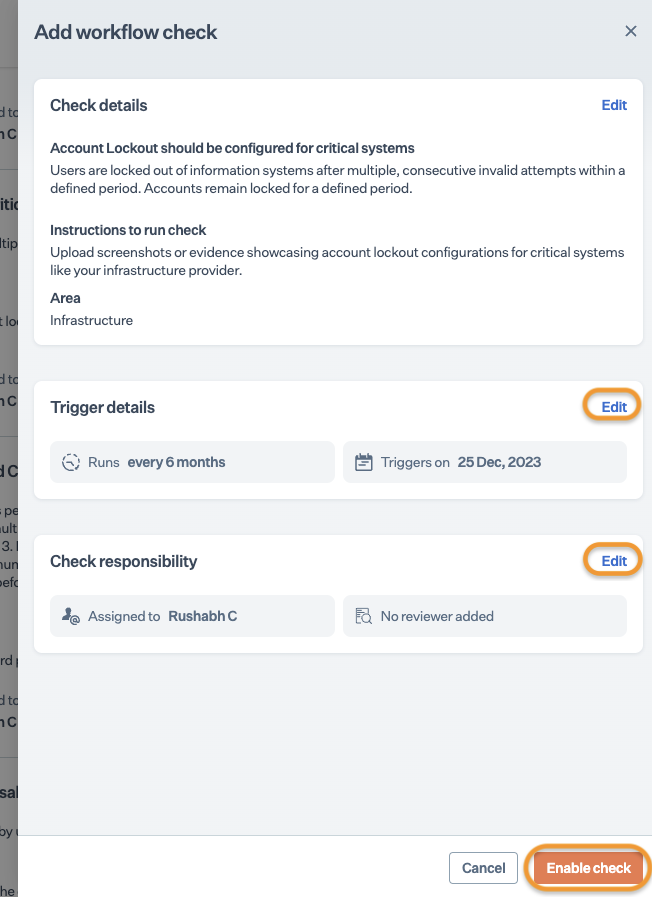
4. On the Add Workflow Check page, click Edit to adjust the check frequency and assign personnel or configure an evidence reviewer if necessary.\
Note: The default frequency for the workflow check is every six months. You can customize the frequency as per your requirements.
5. Click **Enable**.
### Resolving Workflow Check
Once the check is activated, it will be in a "Due/Critical/Failing" status. To successfully pass the check, relevant evidence must be uploaded, and the status will be updated to "Passing."
Evidence: Upload a screen capture illustrating a critical system’s configured settings for automatic account lockout after multiple invalid login attempts within the defined period.
* Log in to the Sprinto Admin portal and go to Data Library > Workflow Checks > Active.
* Select the Password Policy for Critical Systems Holding CHD check.
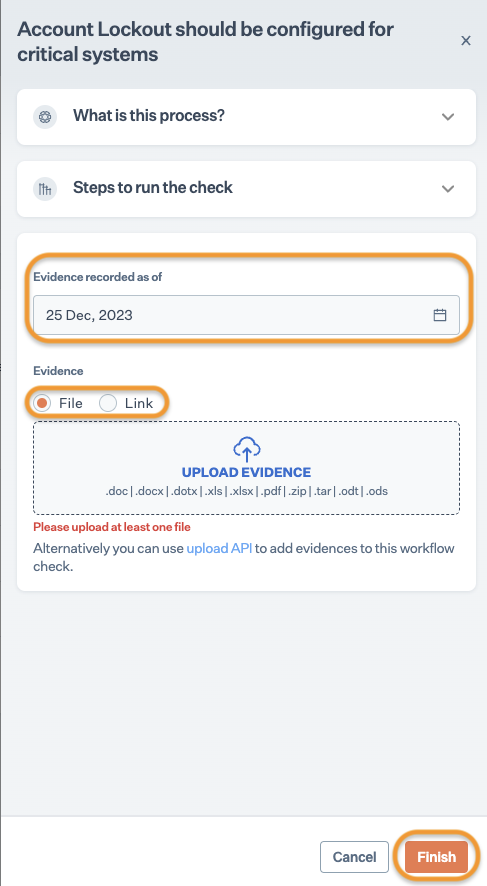
* Click Upload Evidence.
* Choose the Evidence Record Date and opt for either the File or Link attachment option.\
\* File: Upload the file from your computer.\
\* Link: If the evidence is stored online, provide the shareable link.
* Click Finish.
Please contact [Sprinto Support](mailto:www.support@sprinto.com) if you need any assistance with the workflow check.
---
# Agent Instructions
This documentation is published with GitBook. GitBook is the documentation platform designed so that both humans and AI agents can read, navigate, and reason over technical content effectively. Learn more at gitbook.com.
## Querying This Documentation
If you need additional information that is not directly available in this page, you can query the documentation dynamically by asking a question.
Perform an HTTP GET request on the current page URL with the `ask` query parameter, and the optional `goal` query parameter:
```
GET https://docs.sprinto.com/monitors/authentication-and-access-monitors/how-to-configure-and-resolve-workflow-checks-for-setting-up-auto-account-lockout-on-critical-systems.md?ask=&goal=
```
`ask` is the immediate question: it should be specific, self-contained, and written in natural language.
`goal` is optional and describes the broader end goal you are ultimately trying to accomplish on behalf of the user. GitBook uses it to tailor the answer towards what is most useful for that goal.
The response will contain a direct answer to the question and relevant excerpts and sources from the documentation.
Use this mechanism when the answer is not explicitly present in the current page, you need clarification or additional context, or you want to retrieve related documentation sections.