> For the complete documentation index, see [llms.txt](https://docs.sprinto.com/llms.txt). Markdown versions of documentation pages are available by appending `.md` to page URLs; this page is available as [Markdown](https://docs.sprinto.com/monitors/authentication-and-access-monitors/how-to-configure-and-resolve-workflow-checks-for-maintaining-password-policy-for-critical-systems.md).
# How to configure and resolve workflow checks for maintaining password policy for critical systems
Per the PCI-DSS data security framework, a robust password policy is required to maintain secure access to critical systems containing Cardholder Details (CHD). The following outlines the specific password requirements mandated by PCI-DSS:
* Require Uppercase Characters: Ensure at least one uppercase character is included in the password. (Default = true)
* Require Lowercase Characters: Mandate at least one lowercase character in the password. (Default = true)
* Require Numbers: Enforce the inclusion of at least one numerical digit in the password. (Default = true)
* Minimum Password Length: Set the minimum length for passwords. (Default = 7 or longer)
* Password Reuse Prevention: Specify the number of unique passwords before permitting reuse. (Default = 4)
* Max Password Age: Define the number of days before a password expires. (Default = 90)
### Before You Begin
* Log in on Sprinto as administrator.
### Configuring Workflow Check
1. Go to Data Library > Workflow Checks.
2. Click on Create Check > Single workflow check.
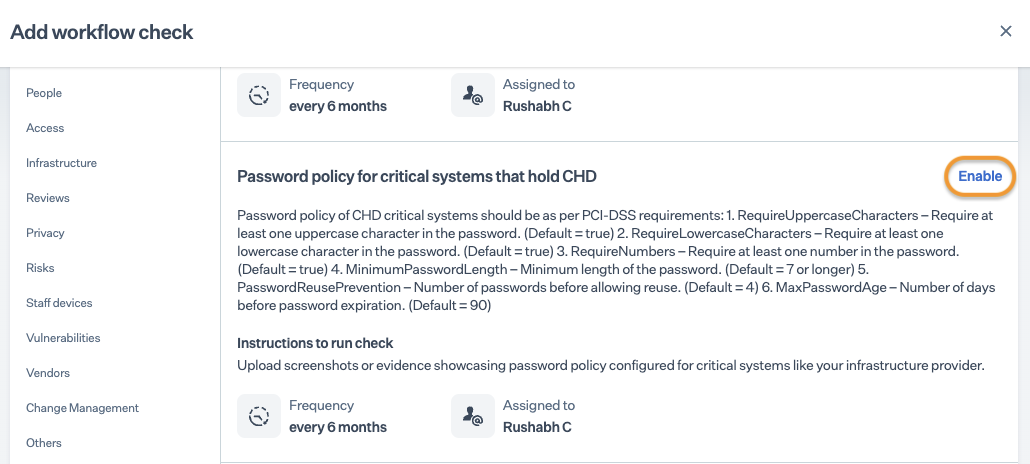
3. Locate Password Policy for Critical Systems Holding CHD in the workflow checklist and click Enable.
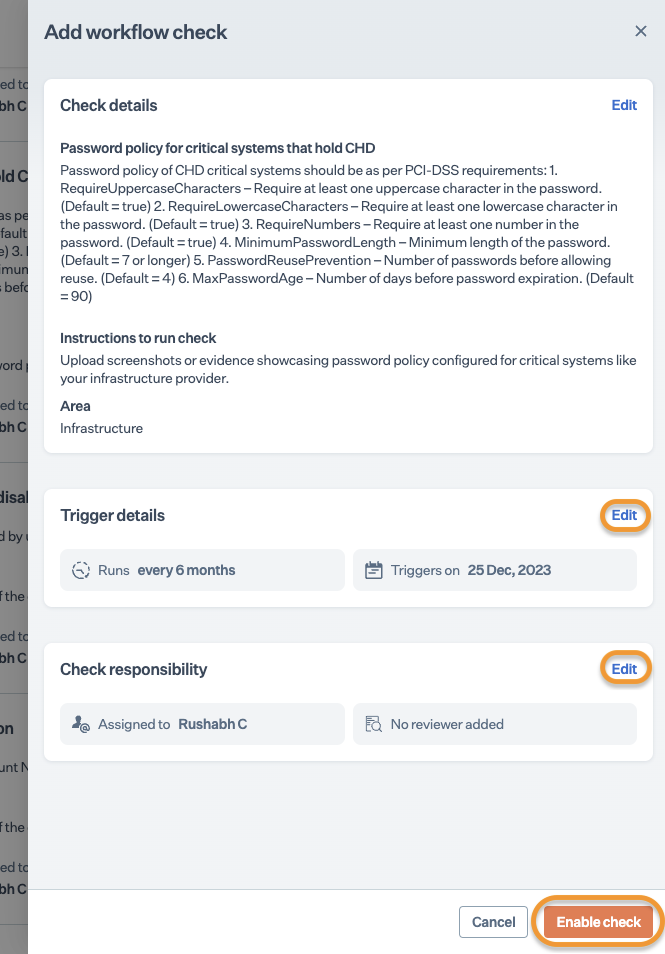
4. On the Add Workflow Check page, click Edit to adjust the check frequency and assign personnel or configure an evidence reviewer if necessary.\
**Note**: The default frequency for the workflow check is every six months. You can customize the frequency as per your requirements.
5. Click Enable.[ ](https://prod-files-secure.s3.us-west-2.amazonaws.com/f23d1d57-24f7-4d0f-ab01-646c77683298/0bb9da33-7c41-41a3-867e-55785ed9af7f/Untitled.png)
### Resolving Check
Once the check is activated, it will be in a "Due/Critical/Failing" status. To successfully pass the check, relevant evidence must be uploaded, and the status will be updated to "Passing."
Evidence: Upload a screenshot of the password policy ensuring the secure management of passwords for critical systems containing CHD.
1. Log in to the Sprinto Admin portal and go to Data Library > Workflow Checks > Active.
2. Select the Password Policy for Critical Systems Holding CHD check.
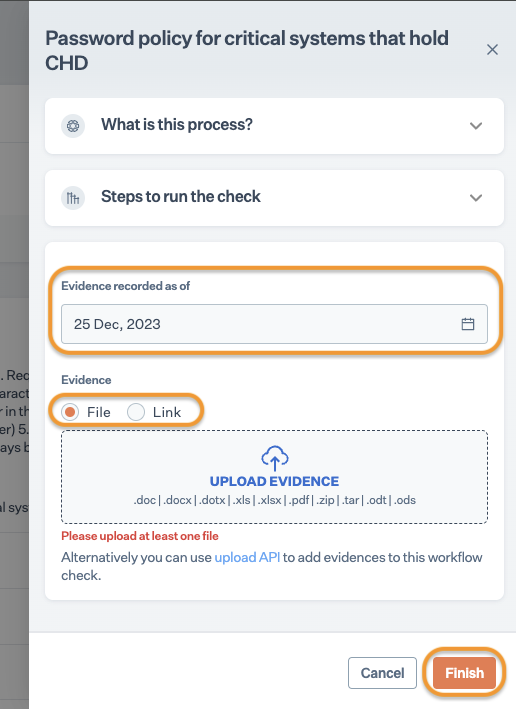
3. Click Upload Evidence.
4. Choose the Evidence Record Date and opt for either the File or Link attachment option.
* File: Upload the file from your computer.
* Link: If the evidence is stored online, provide the shareable link.
5. Click Finish.
---
# Agent Instructions
This documentation is published with GitBook. GitBook is the documentation platform designed so that both humans and AI agents can read, navigate, and reason over technical content effectively. Learn more at gitbook.com.
## Querying This Documentation
If you need additional information that is not directly available in this page, you can query the documentation by asking a question.
Perform an HTTP GET request on the following URL with the `ask` and `goal` query parameters:
```
GET https://docs.sprinto.com/monitors/authentication-and-access-monitors/how-to-configure-and-resolve-workflow-checks-for-maintaining-password-policy-for-critical-systems.md?ask=&goal=
```
`ask` is the immediate question: it should be specific, self-contained, and written in natural language.
`goal` is what the user is ultimately trying to achieve, the reason they need the answer. Sharing it helps GitBook give you a better, more relevant answer. A goal is most helpful when it describes the outcome the user wants rather than restating the question. For example, with `ask=how do I create an API token`, a goal like `automate deployments from our CI pipeline` lets GitBook tailor the answer to that use case.
The response will contain a direct answer to the question and relevant excerpts and sources from the documentation.
Use this mechanism when the answer is not explicitly present in the current page, you need clarification or additional context, or you want to retrieve related documentation sections.