> For the complete documentation index, see [llms.txt](https://docs.sprinto.com/llms.txt). Markdown versions of documentation pages are available by appending `.md` to page URLs; this page is available as [Markdown](https://docs.sprinto.com/monitors/audit-logs-and-evidence-trails/how-to-resolve-sprinto-check-for-capturing-flow-logs-on-oracle-cloud-virtual-cloud-network-vcn.md).
# How to resolve Sprinto check for capturing flow logs on Oracle Cloud Virtual Cloud Network (VCN)
### About
Sprinto check: VCN flow logs should be captured
Monitoring the count of virtual flow logs on Oracle Cloud is essential for maintaining network visibility, detecting potential security threats, and ensuring compliance with regulatory requirements.
### Purpose
The purpose of monitoring virtual flow logs count on Oracle Cloud is to:
1. Network Visibility: Gain insights into network traffic patterns, source, and destination IP addresses, and protocols by monitoring virtual flow logs count across your Oracle Cloud infrastructure.
2. Security Monitoring: Detect and investigate security incidents, anomalies, and suspicious activities by analyzing changes in virtual flow logs count and identifying potential threats or unauthorized access attempts.
3. Compliance Requirements: Meet regulatory compliance requirements and industry standards by ensuring comprehensive logging and monitoring of network traffic using virtual flow logs.
### How to resolve
Follow the steps below to capture Oracle Cloud Virtual Cloud Networks (**VCN**) flow logs.
#### Before you begin
* Ensure you have “Admin” access to the Oracle Cloud account where you wish to capture the virtual flow logs.
### Capturing flow logs
1. Log in to[ Oracle Cloud](https://www.oracle.com/in/cloud/sign-in.html) using your credentials.
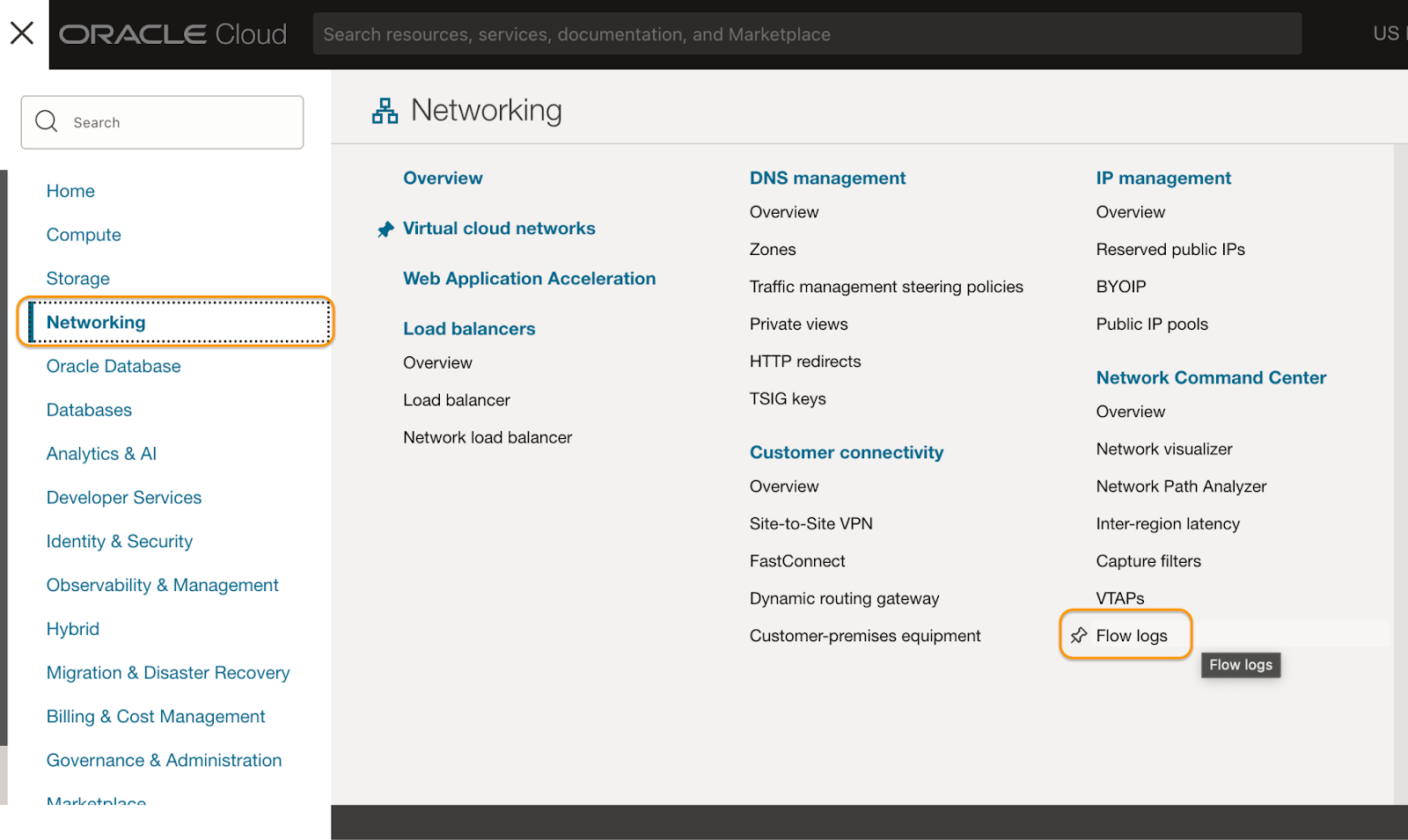
2. From the main menu, go to Networking > Flow logs.
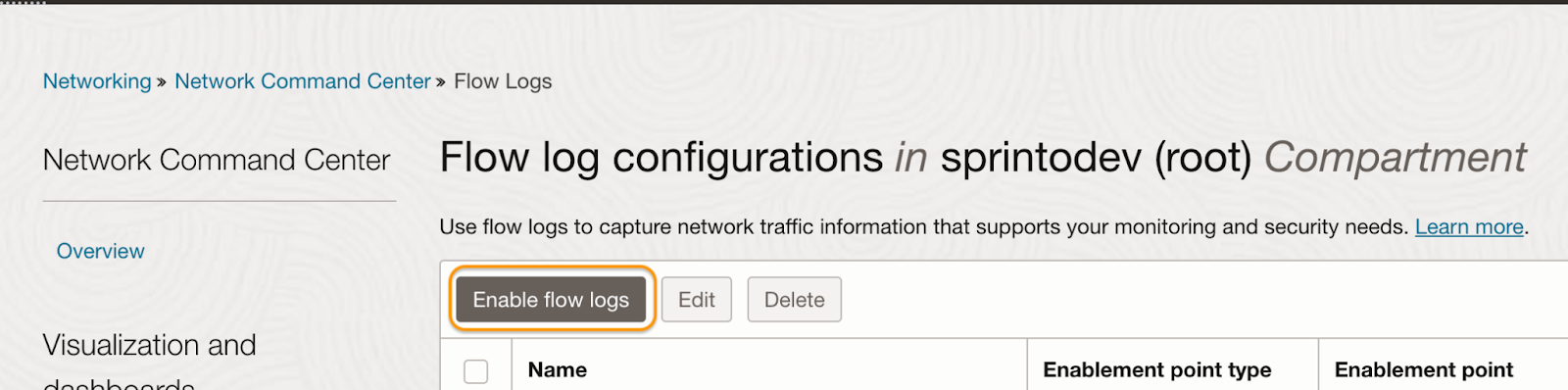
3. On Flow logs configuration page, click Enable flow logs.
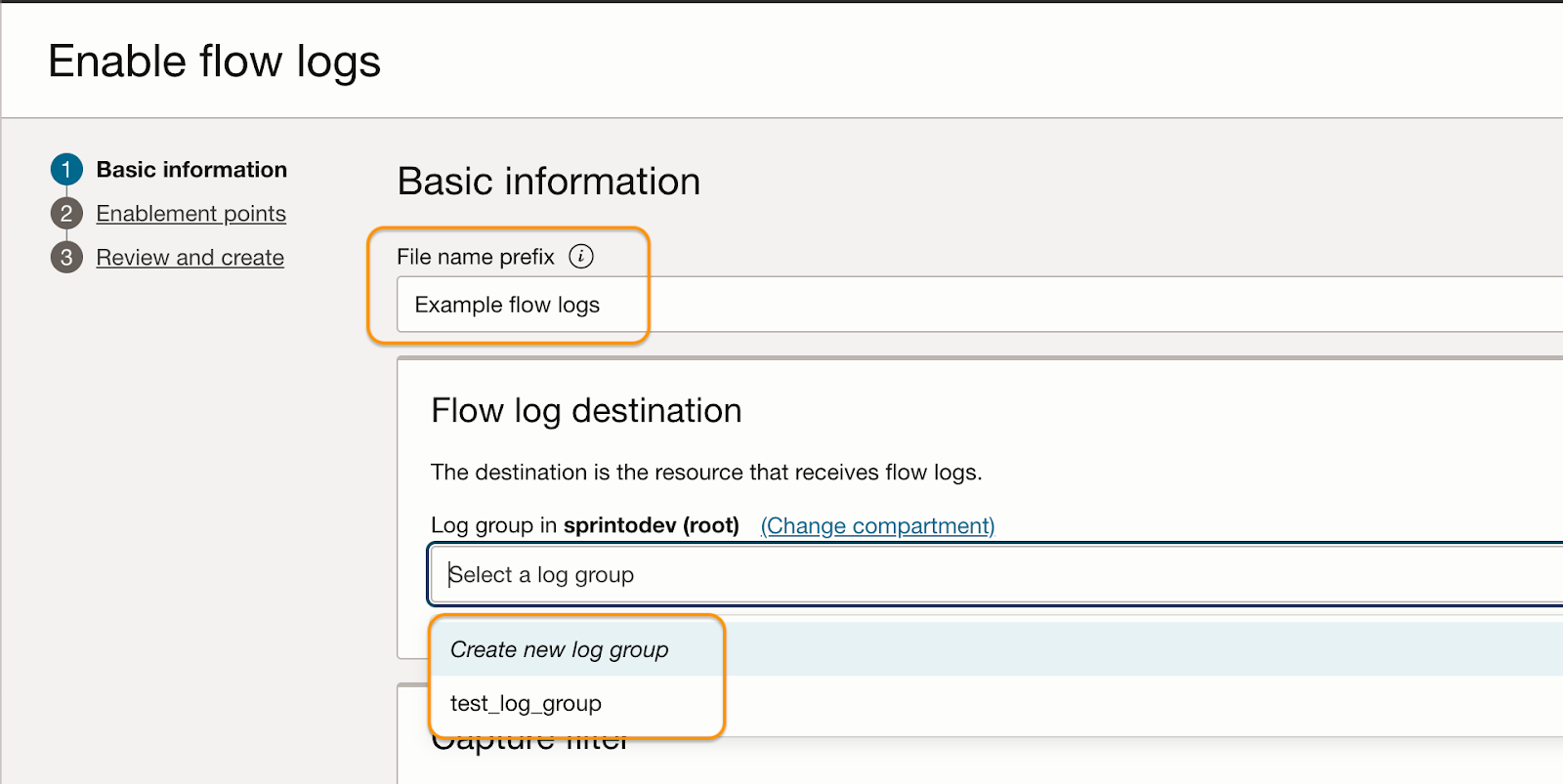
4. On Enable flow logs page, enter a file name and select a log group to capture the flow logs. If you don’t have a log group created previously, you can create a new one.
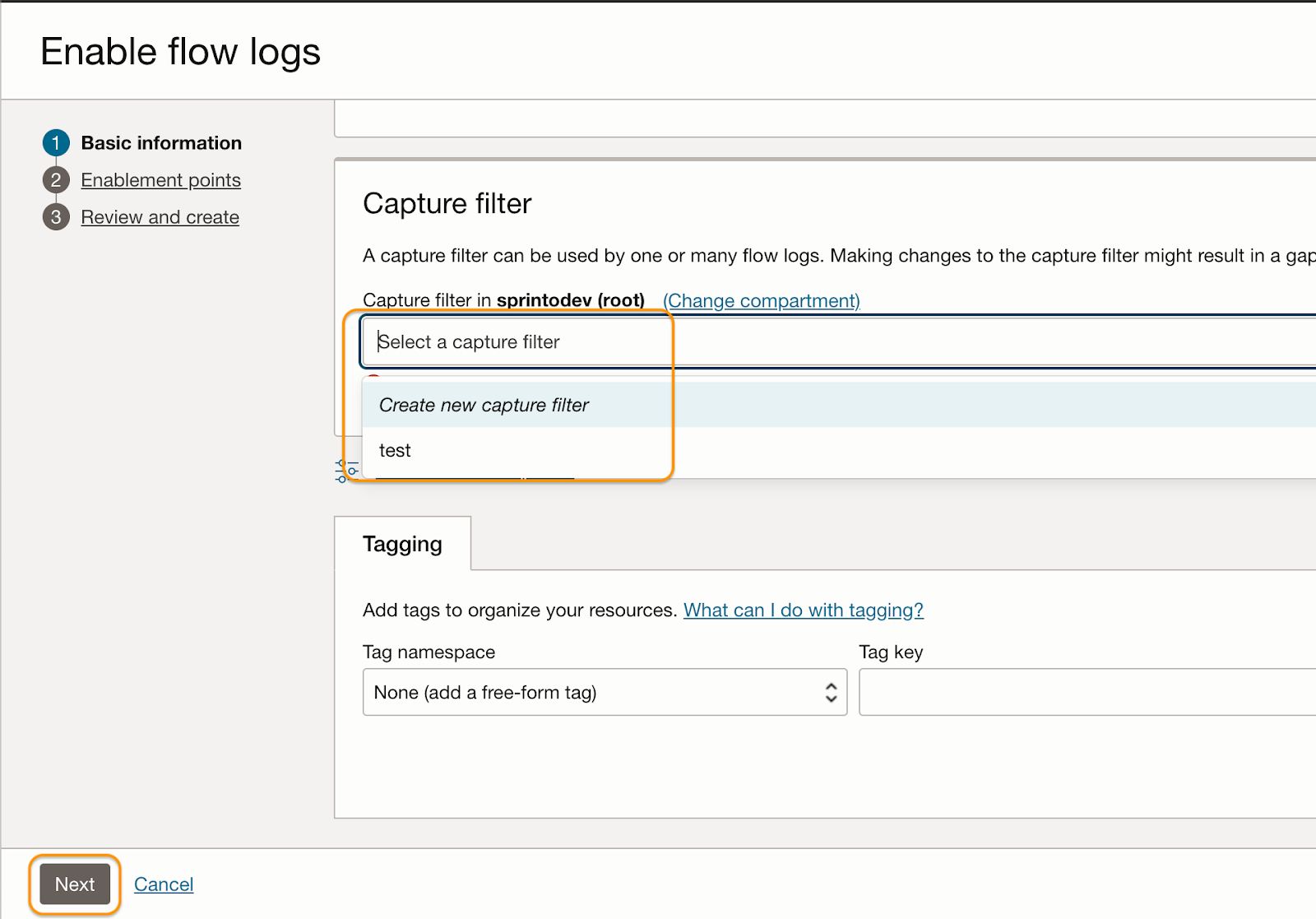
5. Select a log capture filter from the drop-down menu or create a new one if required. Click Next.
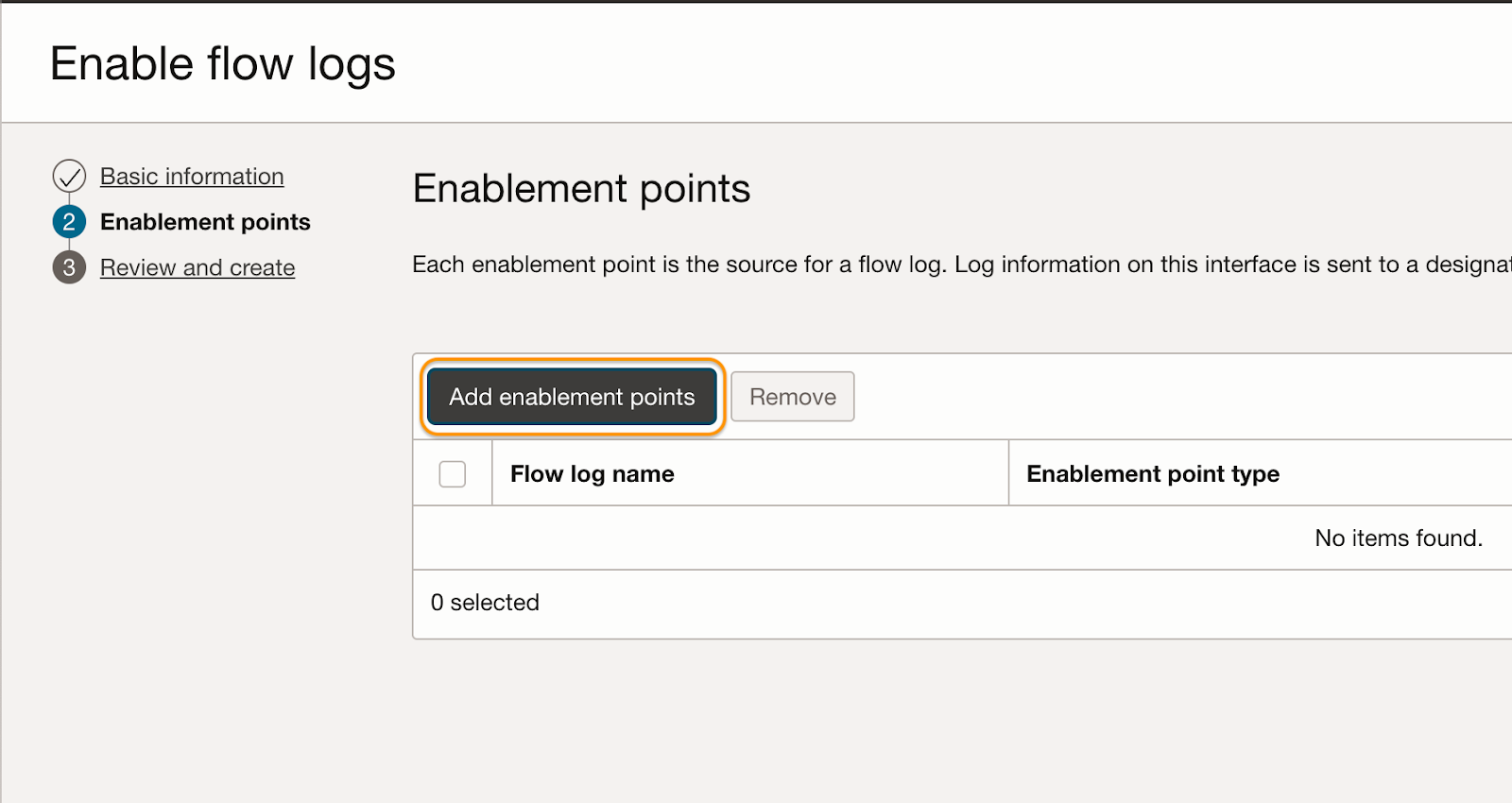
6. On Enable points page, click Add Enablement points.
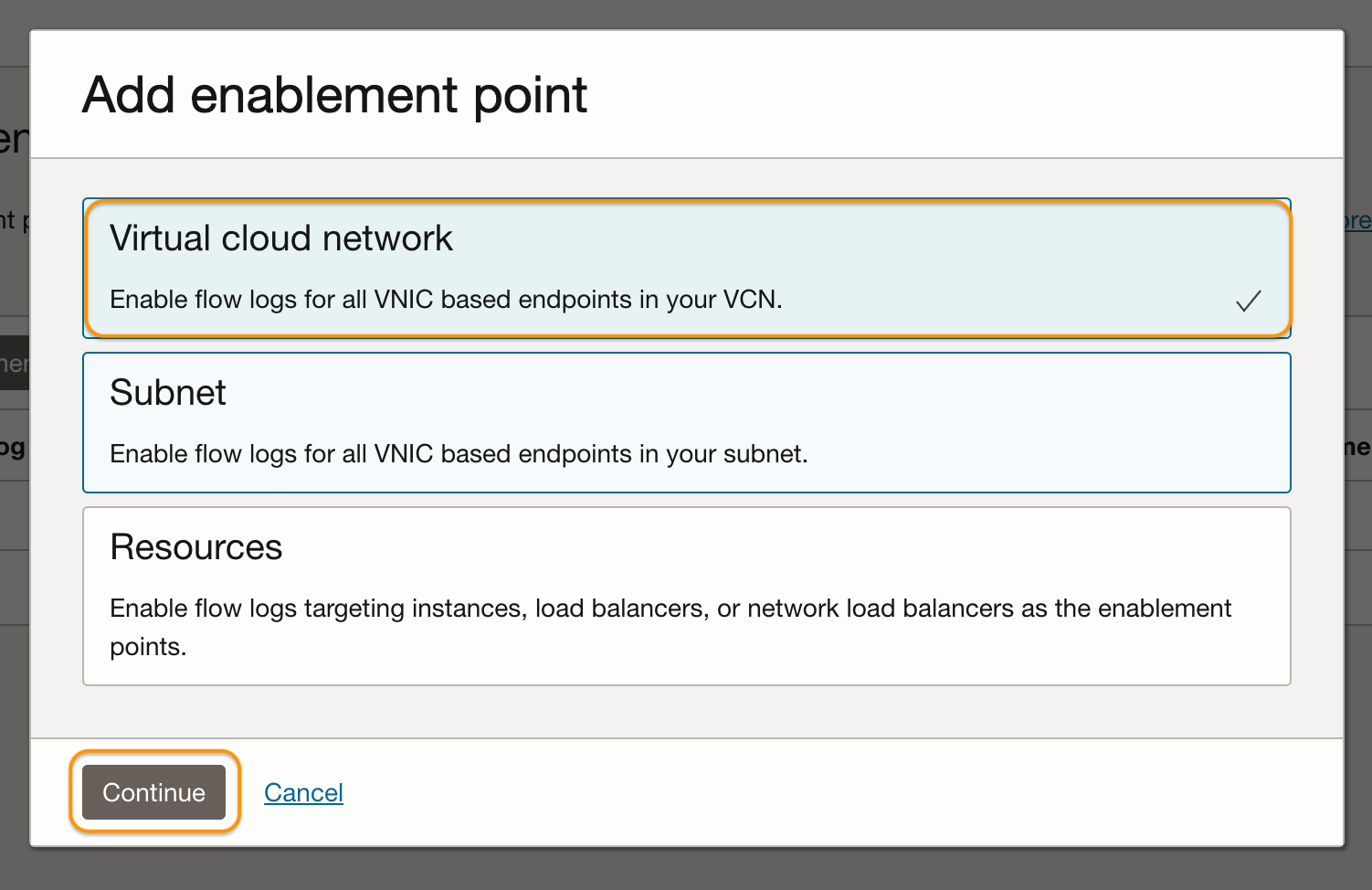
7. On the pop-up window, select Virtual Cloud Network and click Continue.
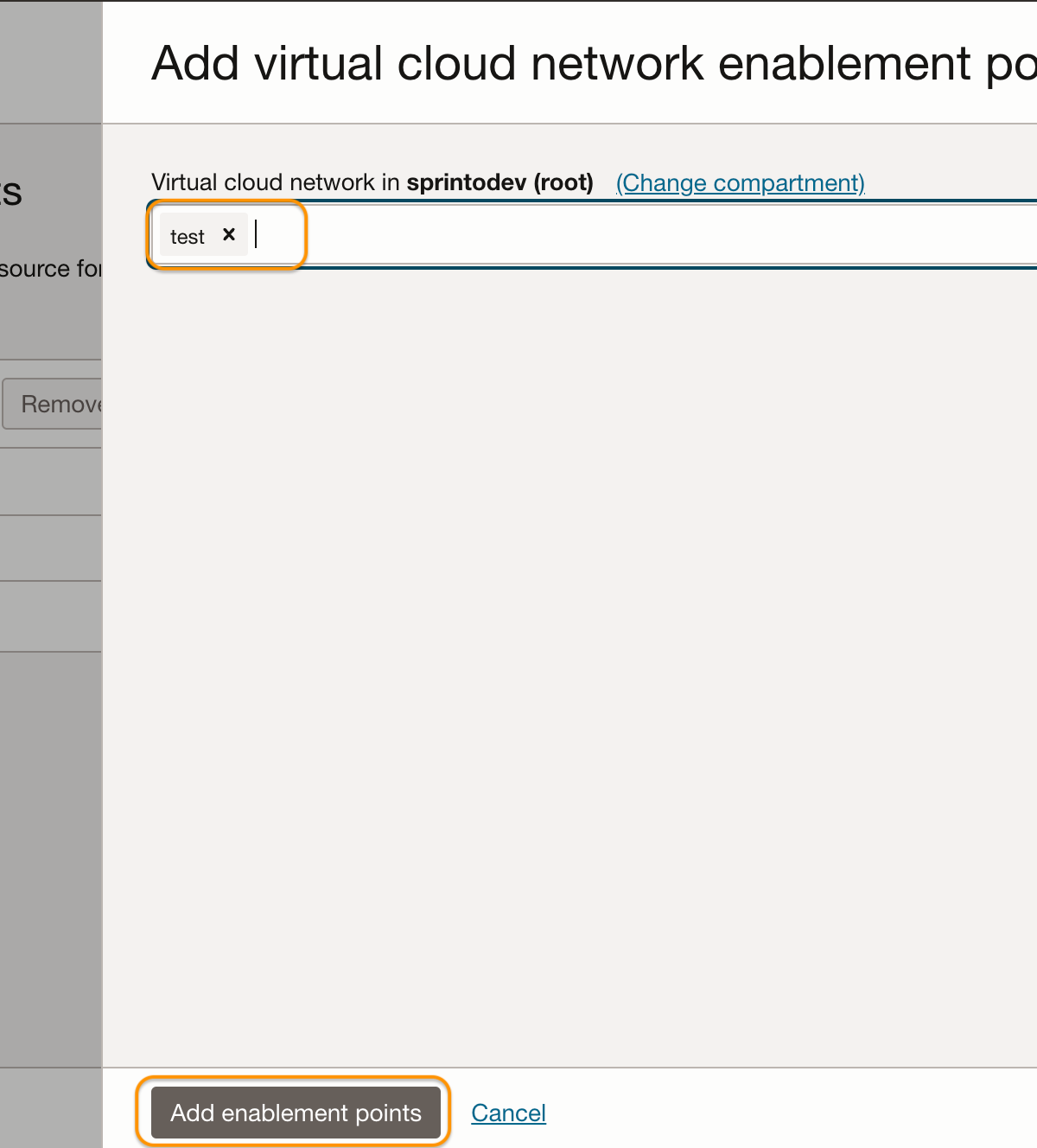
8. On Add Virtual Cloud Network Enablement Points page, select your desired VCN and click Add enablement point.
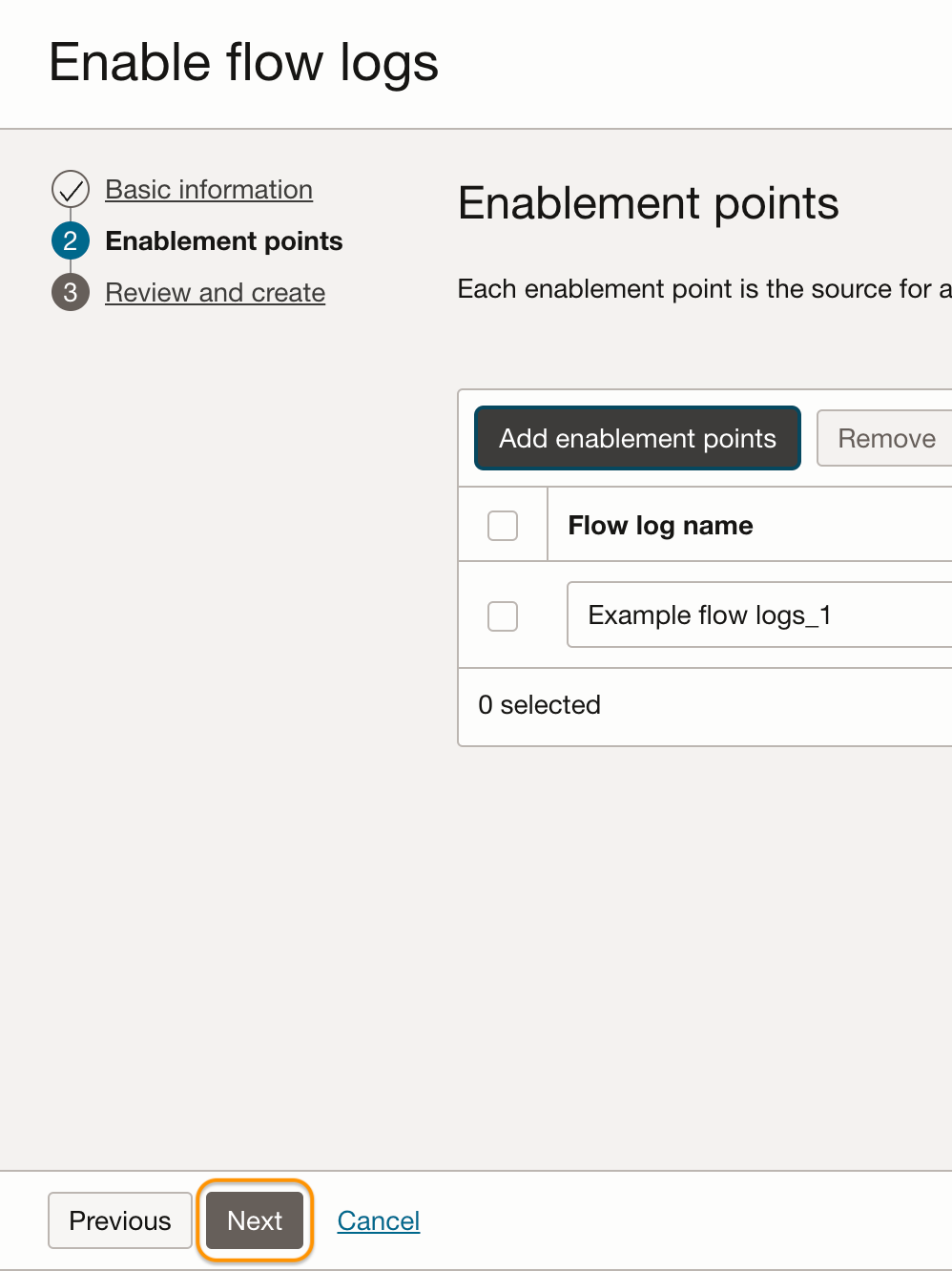
9. Click Next.
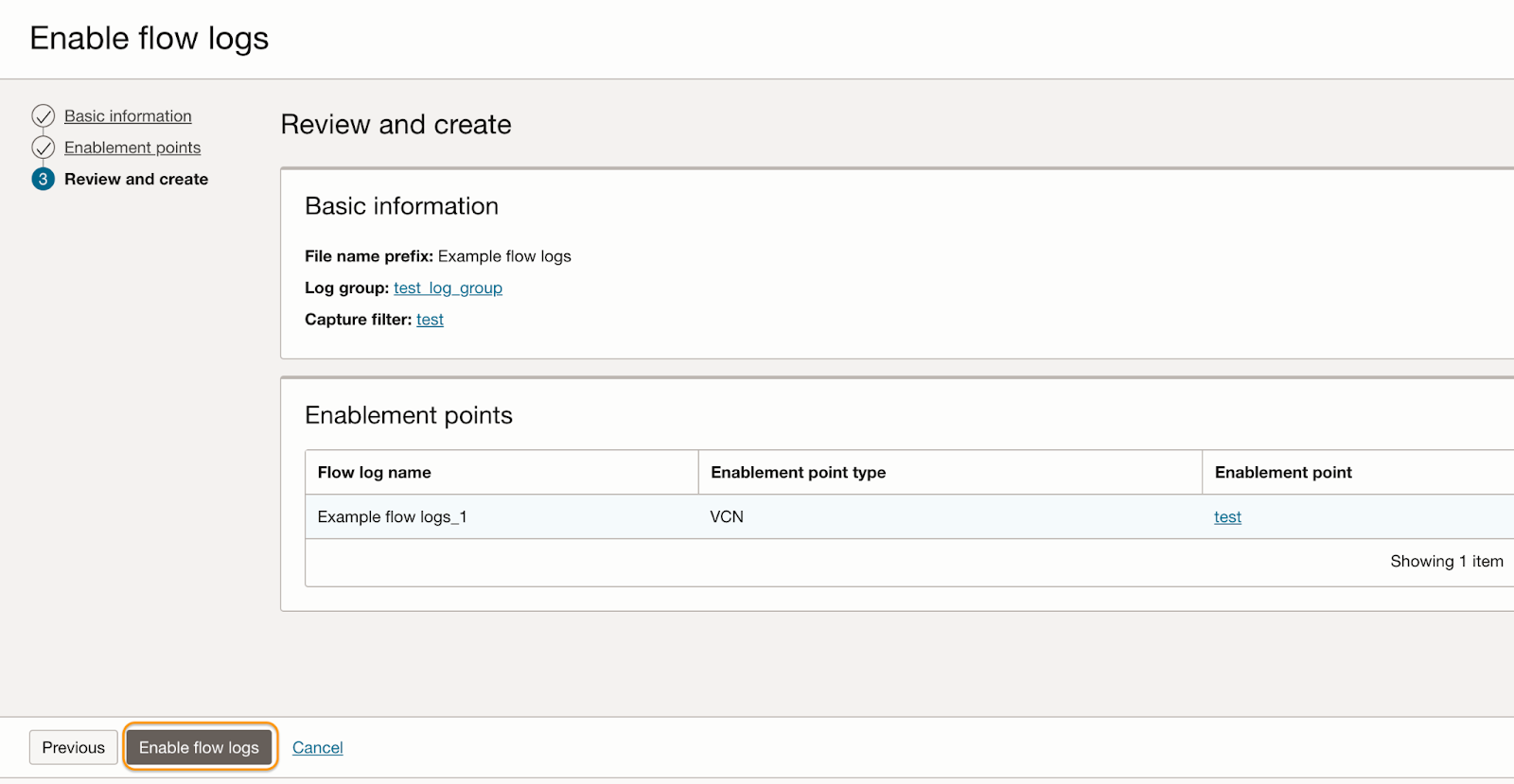
10. Review your selections, and click Enable flow logs.
Once the alert is created, Sprinto retrieves the change from your integrated Oracle Cloud account on Sprinto, and sets the assigned check status to "Passing."
If you need any assistance with the Sprinto check, please contact Sprinto Support.
---
# Agent Instructions
This documentation is published with GitBook. GitBook is the documentation platform designed so that both humans and AI agents can read, navigate, and reason over technical content effectively. Learn more at gitbook.com.
## Querying This Documentation
If you need additional information that is not directly available in this page, you can query the documentation dynamically by asking a question.
Perform an HTTP GET request on the current page URL with the `ask` query parameter, and the optional `goal` query parameter:
```
GET https://docs.sprinto.com/monitors/audit-logs-and-evidence-trails/how-to-resolve-sprinto-check-for-capturing-flow-logs-on-oracle-cloud-virtual-cloud-network-vcn.md?ask=&goal=
```
`ask` is the immediate question: it should be specific, self-contained, and written in natural language.
`goal` is optional and describes the broader end goal you are ultimately trying to accomplish on behalf of the user. GitBook uses it to tailor the answer towards what is most useful for that goal.
The response will contain a direct answer to the question and relevant excerpts and sources from the documentation.
Use this mechanism when the answer is not explicitly present in the current page, you need clarification or additional context, or you want to retrieve related documentation sections.