# Jamf Integration (Access Review)

Jamf Access Review helps you monitor and review administrative access within your Jamf environment. Unlike the Jamf Staff Device Management integration, this integration focuses on syncing Jamf administrative users, account statuses, roles, and authentication settings for access review workflows.

Sprinto integrates with Jamf Access Review using OAuth 2.0 authentication through Truto. Once connected, Sprinto automatically syncs Jamf user access information to support access review controls and compliance monitoring.

***

### Permissions Required

The integration requires a Jamf account with full administrator access.

Sprinto uses these permissions to:

* Fetch Jamf administrative users.
* Sync roles and permission levels.
* Identify active and inactive users.
* Capture authentication-related information such as MFA status (if available).

***

### Data Used by Sprinto

Sprinto syncs the following data from Jamf Access Review:

* Primary email address.
* Username.
* User account status.
* Roles and permission levels.
* MFA or 2FA status (if available).

***

### Prerequisites

Before integrating Jamf Access Review with Sprinto, ensure that:

* You are logged in to the Sprinto Admin portal.
* You have administrator access to your Jamf account.
* You have access to retrieve OAuth 2.0 credentials from Jamf.
* Your Jamf environment allows OAuth-based API authentication.
* You have your Jamf URL available.

***

### How to Connect Jamf Access Review to Sprinto

#### Step 1: Open the Jamf Integration

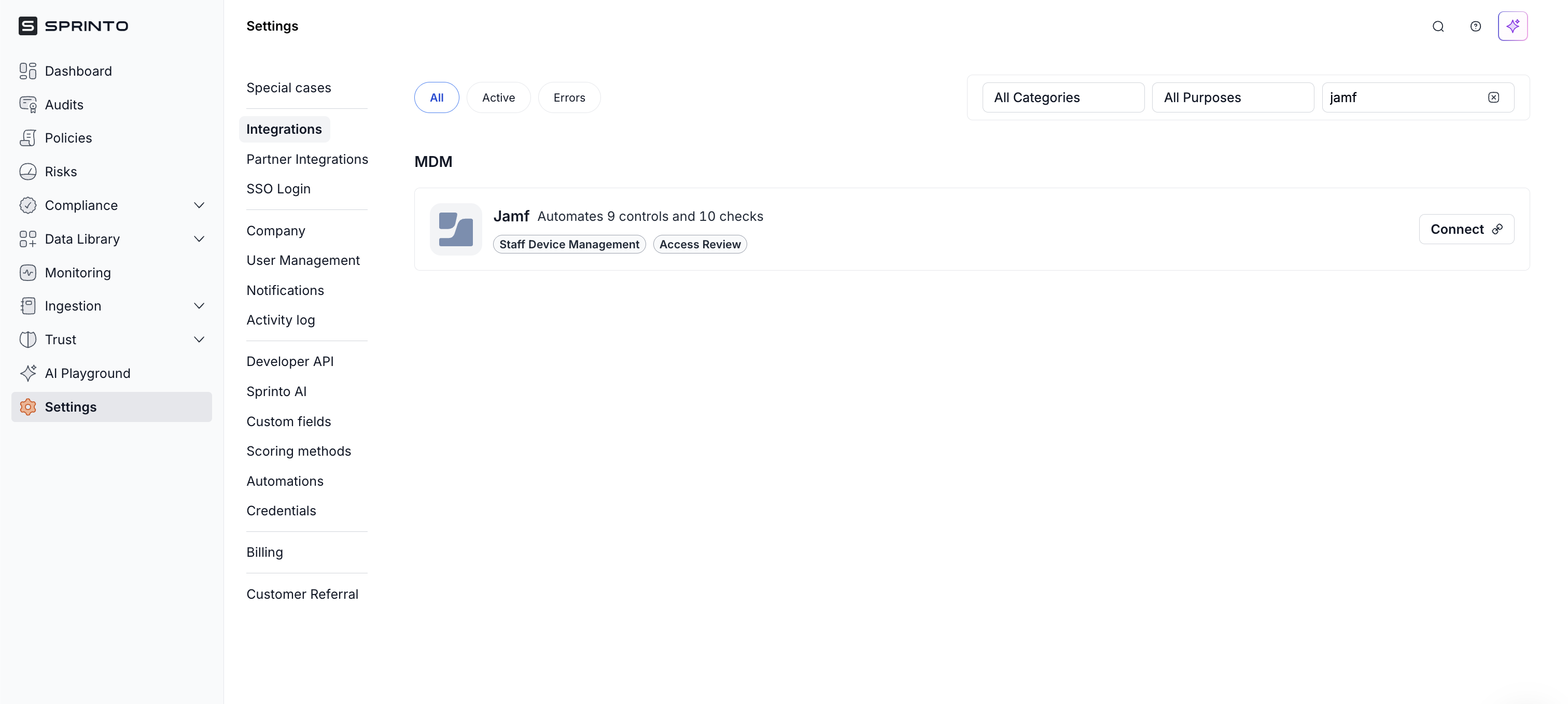
1. Log in to Sprinto.
2. Navigate to **Settings** → **Integrations**.
3. Under the **All** tab, search for **Jamf**.
4. Click **Connect** next to **Jamf**.

<figure><img src="https://3220032727-files.gitbook.io/~/files/v0/b/gitbook-x-prod.appspot.com/o/spaces%2FEsyn5VMU6e0OyGjRtKgx%2Fuploads%2FH8g3HYtl8mxAOkBkiQsk%2FScreenshot%202026-04-27%20at%2014.56.51.png?alt=media&#x26;token=7a3df35a-c34e-4e16-803d-569418259a0e" alt="" width="563"><figcaption></figcaption></figure>

A side drawer opens showing available Jamf integrations.

#### Step 2: Select Jamf Access Review

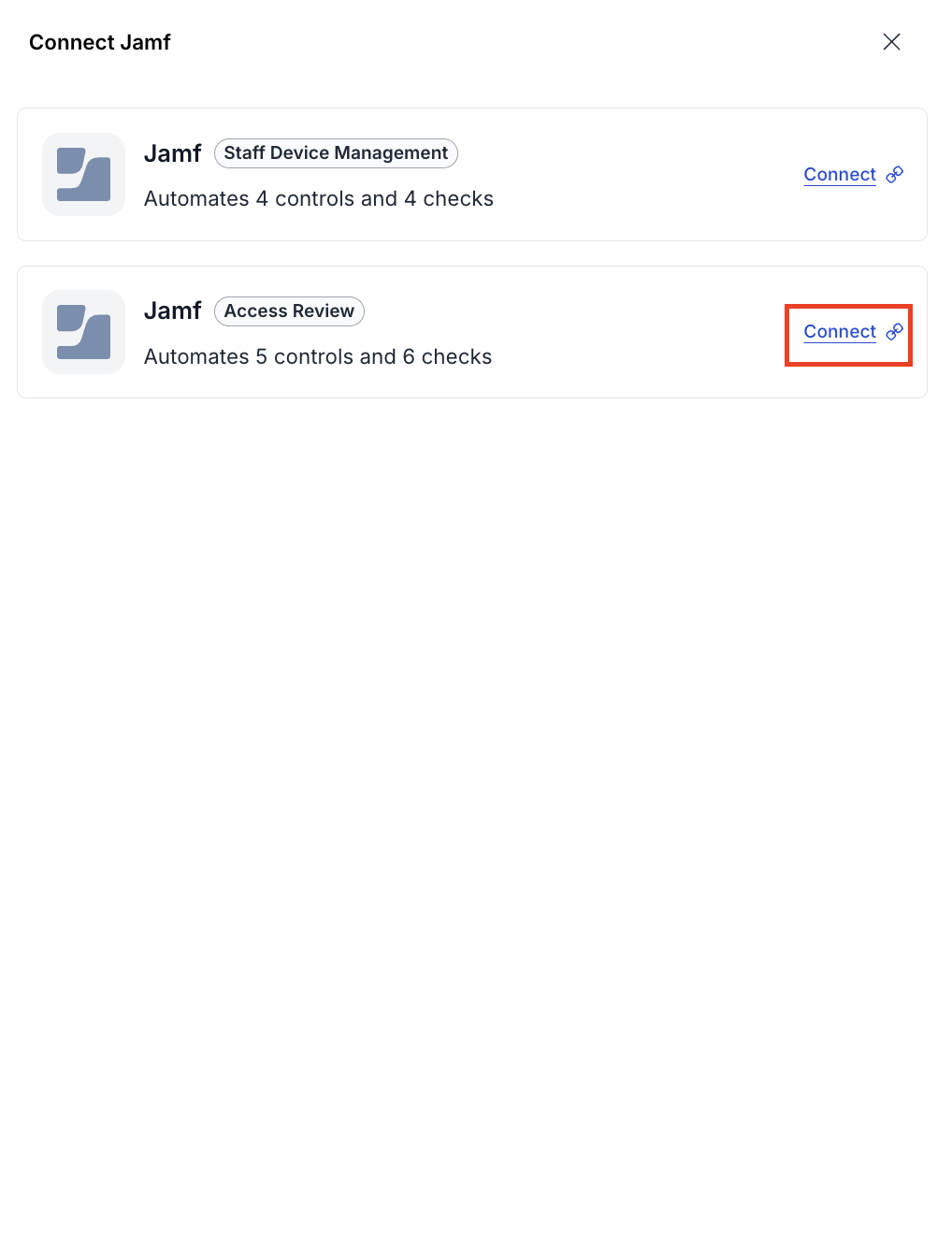
1. In the drawer, locate **Jamf – Access Review**.
2. Click **Connect** next to the Access Review option.

<figure><img src="https://3220032727-files.gitbook.io/~/files/v0/b/gitbook-x-prod.appspot.com/o/spaces%2FEsyn5VMU6e0OyGjRtKgx%2Fuploads%2FIBBe5llyMQhIUR8fjiOY%2FScreenshot%202026-04-27%20at%2015.50.47.png?alt=media&#x26;token=2139417a-492b-4251-ae99-ae2b56918531" alt="" width="375"><figcaption></figcaption></figure>

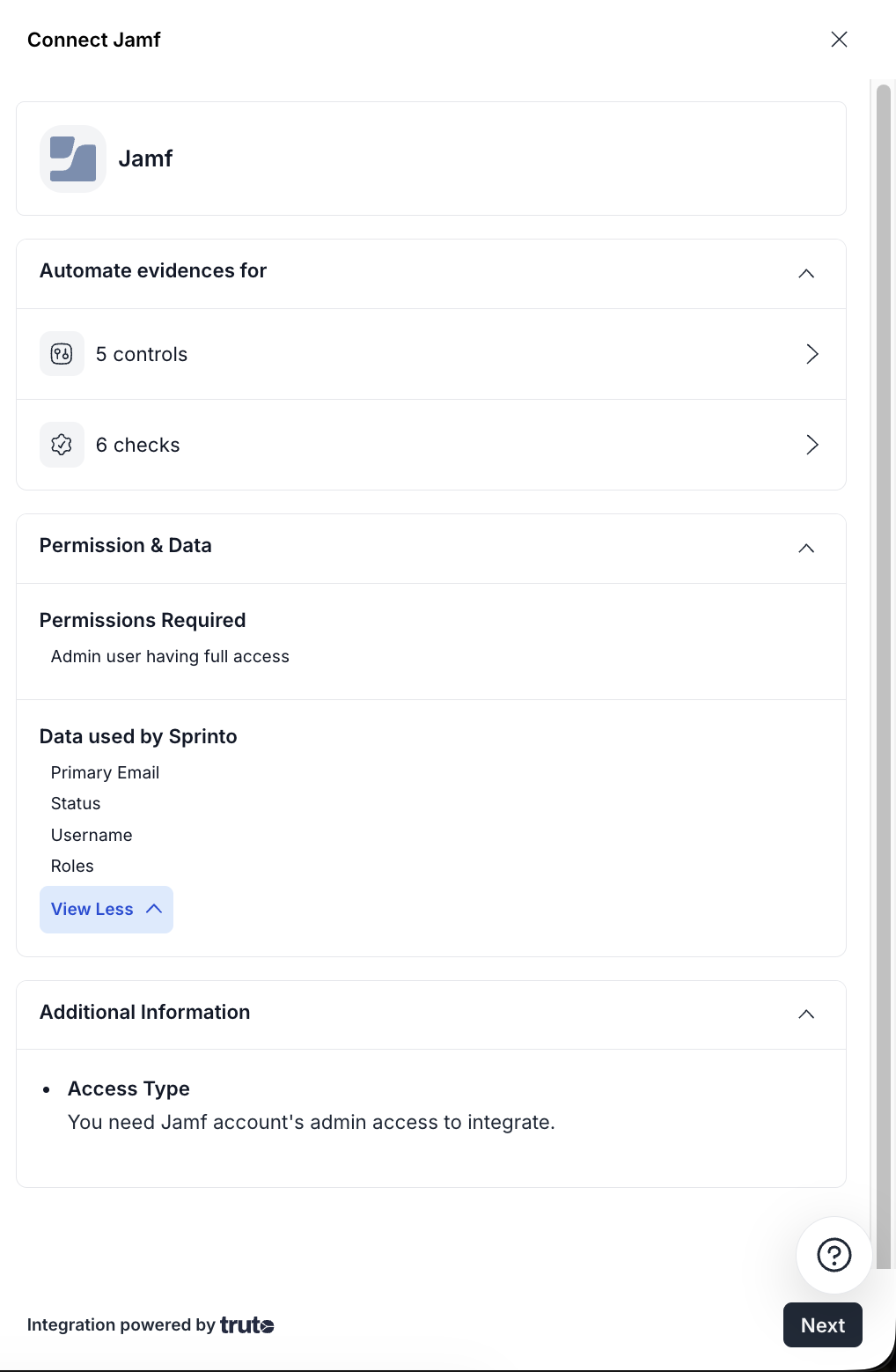
Sprinto opens a second drawer displaying:

* Controls automated through the integration.
* Checks automated through the integration.
* Required permissions.
* Data accessed by Sprinto.

#### Step 3: Review Permissions and Continue

1. Review the permissions required and data accessed.
2. Click **Next**.

<figure><img src="https://3220032727-files.gitbook.io/~/files/v0/b/gitbook-x-prod.appspot.com/o/spaces%2FEsyn5VMU6e0OyGjRtKgx%2Fuploads%2FzXu8h9zMEcaeuVMIxNiU%2FScreenshot%202026-04-27%20at%2015.51.42.png?alt=media&#x26;token=4d0b5607-5f1f-43f1-b768-6ba0d6d68ba1" alt="" width="375"><figcaption></figcaption></figure>

#### Step 4: Review the Integration Instructions

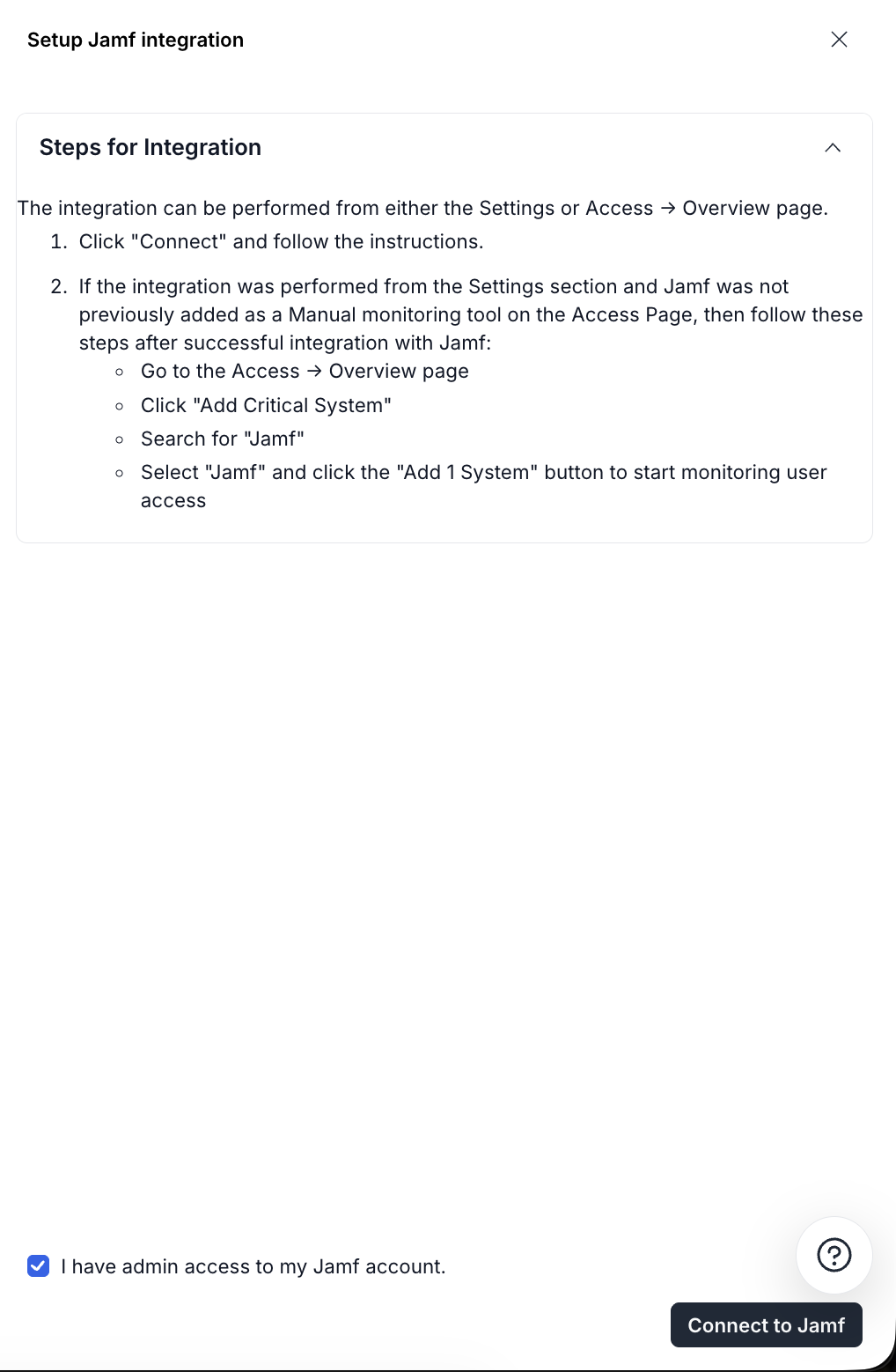
Sprinto displays the integration instructions panel.

1. Review the setup steps shown on screen.
2. Confirm that you have administrator access to your Jamf account.
3. Select the **I have admin access to my Jamf account** checkbox.
4. Click **Connect to Jamf**.

<figure><img src="https://3220032727-files.gitbook.io/~/files/v0/b/gitbook-x-prod.appspot.com/o/spaces%2FEsyn5VMU6e0OyGjRtKgx%2Fuploads%2FlEhFjfeLnoleGSR0Gwtd%2FScreenshot%202026-04-27%20at%2015.53.09.png?alt=media&#x26;token=ec0a2571-51df-4e90-a08c-dfa288ddc84a" alt="" width="375"><figcaption></figcaption></figure>

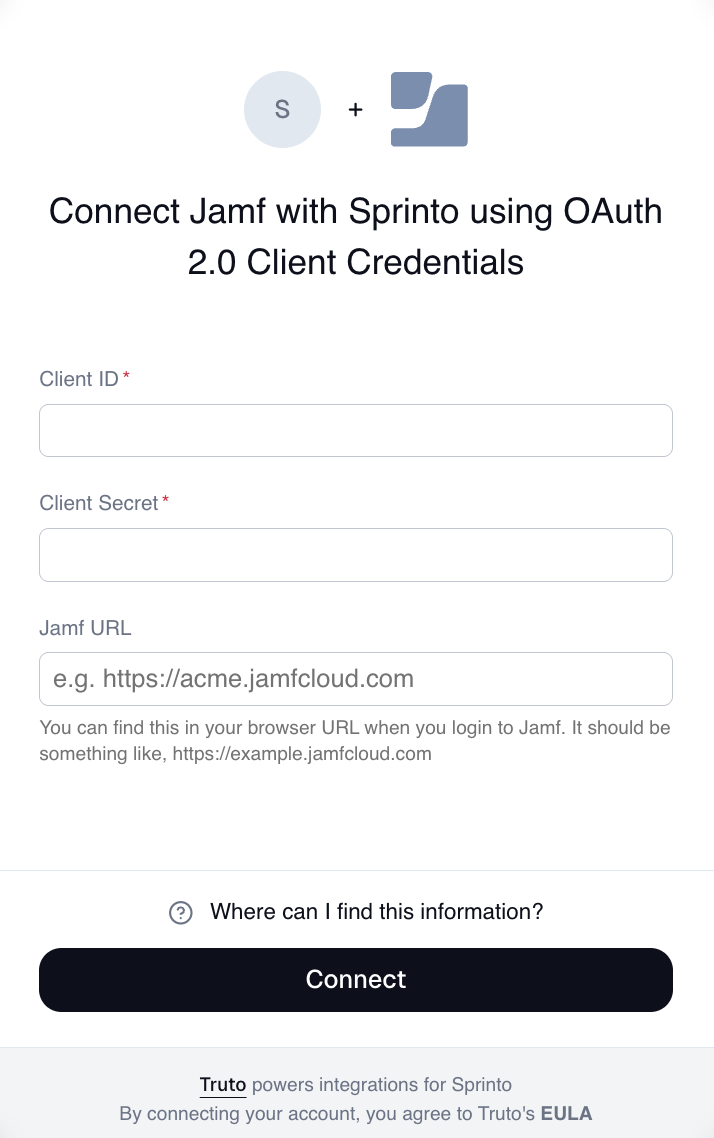
This opens the OAuth connection modal.

#### Step 5: Enter OAuth Credentials

In the OAuth setup modal, enter the following details:

* **Client ID**
* **Client Secret**
* **Jamf URL**

Click **Connect** to complete the integration.

<figure><img src="https://3220032727-files.gitbook.io/~/files/v0/b/gitbook-x-prod.appspot.com/o/spaces%2FEsyn5VMU6e0OyGjRtKgx%2Fuploads%2FxBvMfHp4O4yinEFsAGFn%2FScreenshot%202026-04-27%20at%2015.53.49.png?alt=media&#x26;token=c7835879-ecff-446c-abbc-dd7f5558fe49" alt="" width="357"><figcaption></figcaption></figure>

### Retrieve OAuth Credentials From Jamf

To retrieve your Jamf OAuth credentials and connection information, refer to the [official setup instructions](https://truto.notion.site/Jamf-29bac512f5a5804fae55f307e4f92e74).

### Authentication Method

Jamf Access Review uses OAuth 2.0 authentication.

Unlike Jamf Device Management, which uses username and password credentials, Jamf Access Review connects using OAuth client credentials.

***

### APIs Used by Sprinto

Sprinto connects to Jamf Access Review using Truto's integration layer.

#### Authentication and Connection APIs

* `POST /api/v1/auth/token` — Authenticates the integration using OAuth.
* Validation endpoint — Verifies connection health.

#### User Directory APIs

* `GET /unified/user-directory/users` — Retrieves Jamf users.
* `GET /unified/user-directory/users/{id}` — Retrieves detailed user information.

#### Credential Management APIs

* `POST /integrated-account/refresh-credentials` — Refreshes OAuth credentials when required.

***

### What Data Is Synced

Sprinto syncs the following information from Jamf:

<table><thead><tr><th width="163.625">Data Type</th><th width="293.4375">Description</th></tr></thead><tbody><tr><td>Primary Email</td><td>User email address</td></tr><tr><td>Username</td><td>Jamf account username</td></tr><tr><td>Status</td><td>Active or inactive user state</td></tr><tr><td>Roles</td><td>Permission or role assignments</td></tr><tr><td>MFA Status</td><td>Two-factor authentication status</td></tr></tbody></table>

***

### Post-Connection Flow

After the integration is complete:

1. Sprinto validates the OAuth connection.
2. Jamf users are synced automatically.
3. Access review monitors are enabled.
4. Sprinto begins tracking user status and access changes.
5. User permissions become available for compliance workflows.

***

### Monitors Created Automatically

The integration can create the following monitors:

* `JAMF_ACCESS_REMOVED_ON_EXIT` — Tracks whether Jamf access is removed for exited users.
* `JAMF_USER_MFA_ENABLED` — Tracks MFA enablement for Jamf users.

### Key Difference Between Jamf Device Management and Jamf Access Review

<table><thead><tr><th width="199.21484375">Feature</th><th width="285.4296875">Jamf Device Management</th><th>Jamf Access Review</th></tr></thead><tbody><tr><td>Purpose</td><td>Device monitoring</td><td>User access monitoring</td></tr><tr><td>Authentication</td><td>Username + Password</td><td>OAuth 2.0</td></tr><tr><td>Data Synced</td><td>Devices, encryption, OS version</td><td>Users, roles, permissions</td></tr><tr><td>Integration Type</td><td>Native Jamf API</td><td>Truto-powered integration</td></tr><tr><td>Permissions Required</td><td>Device inventory access</td><td>Admin user access</td></tr></tbody></table>

***

### Important Notes

* Jamf Access Review is separate from Jamf Device Management.
* Sprinto uses Truto to standardise Jamf user access data.
* OAuth tokens are refreshed automatically where supported.
* Rate limits follow Truto's API thresholds.
* Depending on configuration, Sprinto may sync only Jamf administrators or all Jamf-linked users.

***

### Troubleshooting

#### Connection Fails

* Confirm the connecting account has Jamf administrator permissions.
* Verify the Client ID, Client Secret, and Jamf URL are correct.
* Ensure OAuth access is enabled in Jamf.

#### No Users Are Synced

* Verify that user filtering is configured correctly.
* Confirm whether the integration is set to fetch admin users only.
* Contact Sprinto support if user sync remains incomplete.

#### OAuth Token Expiration

* Sprinto refreshes OAuth credentials automatically.
* If token refresh fails, reconnect the integration manually.

### Frequently Asked Questions

#### Does Jamf Access Review monitor devices?

No. Jamf Access Review monitors administrative users and permissions only.

#### Is this different from Jamf Staff Device Management?

Yes. Jamf Staff Device Management focuses on managed devices, while Jamf Access Review focuses on user access and permissions.

#### What authentication method does Jamf Access Review use?

Jamf Access Review uses OAuth 2.0 Client Credentials.

#### What type of users are synced?

Sprinto syncs Jamf users and can optionally be configured to sync only administrative users.

#### Does Sprinto refresh OAuth tokens automatically?

Yes. OAuth tokens are refreshed automatically whenever supported by the integration provider.

***

### **Support** <a href="#support" id="support"></a>

If you encounter any issues or need assistance with your integration, contact the Sprinto support team at <support@sprinto.com>.


---

# Agent Instructions: Querying This Documentation

If you need additional information that is not directly available in this page, you can query the documentation dynamically by asking a question.

Perform an HTTP GET request on the current page URL with the `ask` query parameter:

```
GET https://docs.sprinto.com/integrations/overview/jamf-integration-access-review.md?ask=<question>
```

The question should be specific, self-contained, and written in natural language.
The response will contain a direct answer to the question and relevant excerpts and sources from the documentation.

Use this mechanism when the answer is not explicitly present in the current page, you need clarification or additional context, or you want to retrieve related documentation sections.
