> For the complete documentation index, see [llms.txt](https://docs.sprinto.com/llms.txt). Markdown versions of documentation pages are available by appending `.md` to page URLs; this page is available as [Markdown](https://docs.sprinto.com/ingestion/get-started-with-ingestion-in-sprinto/run-and-debug-ingestion-workflows.md).

# Run and Debug Ingestion Workflows

After creating an ingestion workflow, you can run and troubleshoot it directly from the plan overview page.

Sprinto provides execution and debugging tools that help you:

* Run workflows manually
* Troubleshoot workflow issues
* Validate ingestion logic
* Review execution history
* Monitor workflow activity
* Restore previous workflow versions

These tools help ensure ingestion workflows run successfully before moving into production use.

***

## Before You Begin

Ensure that:

* An ingestion plan already exists
* Required credentials are attached
* Providers are configured correctly
* Workflow configuration has been reviewed

***

## Open the Plan Overview

To manage workflow execution:

1. Log in to the Sprinto dashboard.
2. Go to **Ingestion**.
3. Open the **Plans** tab.
4. Locate the required plan.

You can open the workflow overview using either:

* **Detailed** from the three-dot menu
* The workflow drawer for template-based plans

<figure><img src="/files/4z58QQxRCrBroPDgtriV" alt="" width="563"><figcaption></figcaption></figure>

***

## Run a Workflow

Running a workflow executes all configured ingestion steps.

### Run the Workflow

1. Open the required workflow.
2. Click **Run**.

<figure><img src="/files/YkhrWgkXEzDdkWADL5o7" alt="" width="563"><figcaption></figcaption></figure>

3. Configure the execution settings.
4. Click **Run Plan**.

<figure><img src="/files/Jpv0oBbHYzxTuv0SAqkT" alt="" width="563"><figcaption></figcaption></figure>

Sprinto begins processing the ingestion workflow immediately.

***

## Configure Execution Settings

Before execution starts, Sprinto displays additional run options.

### Disable Cache

Enable **Disable Cache** to force Sprinto to retrieve fresh data instead of using cached responses.

Use this when:

* Testing updated integrations
* Reviewing recent API changes
* Troubleshooting stale results

### Verbose Logging

Enable **Verbose Logging** to generate detailed execution logs.

Verbose logs help when:

* Investigating failures
* Reviewing workflow behaviour
* Inspecting step execution

***

## Review Workflow Status

After execution starts, Sprinto updates the workflow status automatically.

Execution outcomes may include:

* Successful execution
* Failed execution
* Validation errors
* Partial processing

Workflow behaviour depends on:

* Workflow configuration
* Provider connectivity
* Credentials
* API responses
* Step logic

***

## Troubleshoot a Workflow

Use **Troubleshoot** to validate or debug workflows before production execution.

Troubleshooting provides additional controls that help test workflow behaviour safely.

### Open Troubleshoot

1. Click **Debug** to open the required workflow.

<figure><img src="/files/0IU9CX3YAyDD7cOAh4Rv" alt="" width="563"><figcaption></figcaption></figure>

Sprinto opens the troubleshooting modal.

***

## Configure Troubleshooting Options

The troubleshooting modal includes additional execution controls.

### Commit Data

Enable **Commit Data** to save records created during troubleshooting.

Disable this option when testing workflows without storing output.

### Disable Cache

Enable **Disable Cache** to ignore cached responses during troubleshooting.

This helps validate fresh processing behaviour.

***

## Select a Troubleshooting Scope

Sprinto supports multiple troubleshooting scopes.

### Entire Workflow

Runs the complete ingestion workflow.

Use this to validate full workflow behaviour.

### Single Step

Runs one specific workflow step.

Use this when troubleshooting:

* API requests
* Transformations
* Processing conditions
* Entity insertion

#### Run a Single Step

1. Select **Single Step**.
2. Choose the required step.
3. Start troubleshooting.

### Range of Steps

Runs a selected portion of the workflow.

Use this when validating part of the ingestion pipeline.

#### Run a Step Range

1. Select **Range**.
2. Select the starting step.
3. Select the ending step.
4. Click **Debug Run** to start troubleshooting.

<figure><img src="/files/Otj9xw7pMmqjZAmUobTM" alt="" width="563"><figcaption></figcaption></figure>

***

## Review Steps

The **Steps** section displays all workflow steps included in the plan.

This helps you understand:

* Step order
* Workflow behaviour
* Processing flow
* Execution dependencies

You can review workflow structure before troubleshooting.

***

## Review Run History

Run History displays previous workflow executions.

Use Run History to:

* Review workflow activity
* Investigate failures
* Track execution duration
* Review previous runs

### Open Run History

1. Open the required workflow.
2. Click **Run History**.

<figure><img src="/files/AxwzHzMPCEz0Lc9pHyXH" alt="" width="563"><figcaption></figcaption></figure>

Sprinto displays all recorded executions.

***

## Understand Run History

Each execution may include:

<table><thead><tr><th width="112.14453125">Field</th><th width="226.68359375">Description</th></tr></thead><tbody><tr><td>Status</td><td>Execution outcome</td></tr><tr><td>Started At</td><td>Workflow start time</td></tr><tr><td>Duration</td><td>Total execution time</td></tr><tr><td>Version</td><td>Workflow version used</td></tr><tr><td>Actions</td><td>Opens execution details</td></tr></tbody></table>

***

## View Execution Details

Execution details provide deeper visibility into workflow behaviour.

### Open Execution Details

1. Open **Run History**.
2. Locate the required execution.
3. Click **View**.

<figure><img src="/files/aXod0oykyZzc5wtmfIfD" alt="" width="563"><figcaption></figcaption></figure>

Sprinto opens the execution details drawer.

***

## Review Execution Information

Execution details may include:

* Workflow timeline
* Step execution progress
* Runtime metadata
* Error messages
* Processing logs

### Timeline View

The execution timeline helps identify where processing stopped.

Typical statuses include:

* Scheduled
* Started
* Running
* Completed
* Failed

<figure><img src="/files/hMfgZCZ28yzuY5rG0saj" alt="" width="563"><figcaption></figcaption></figure>

***

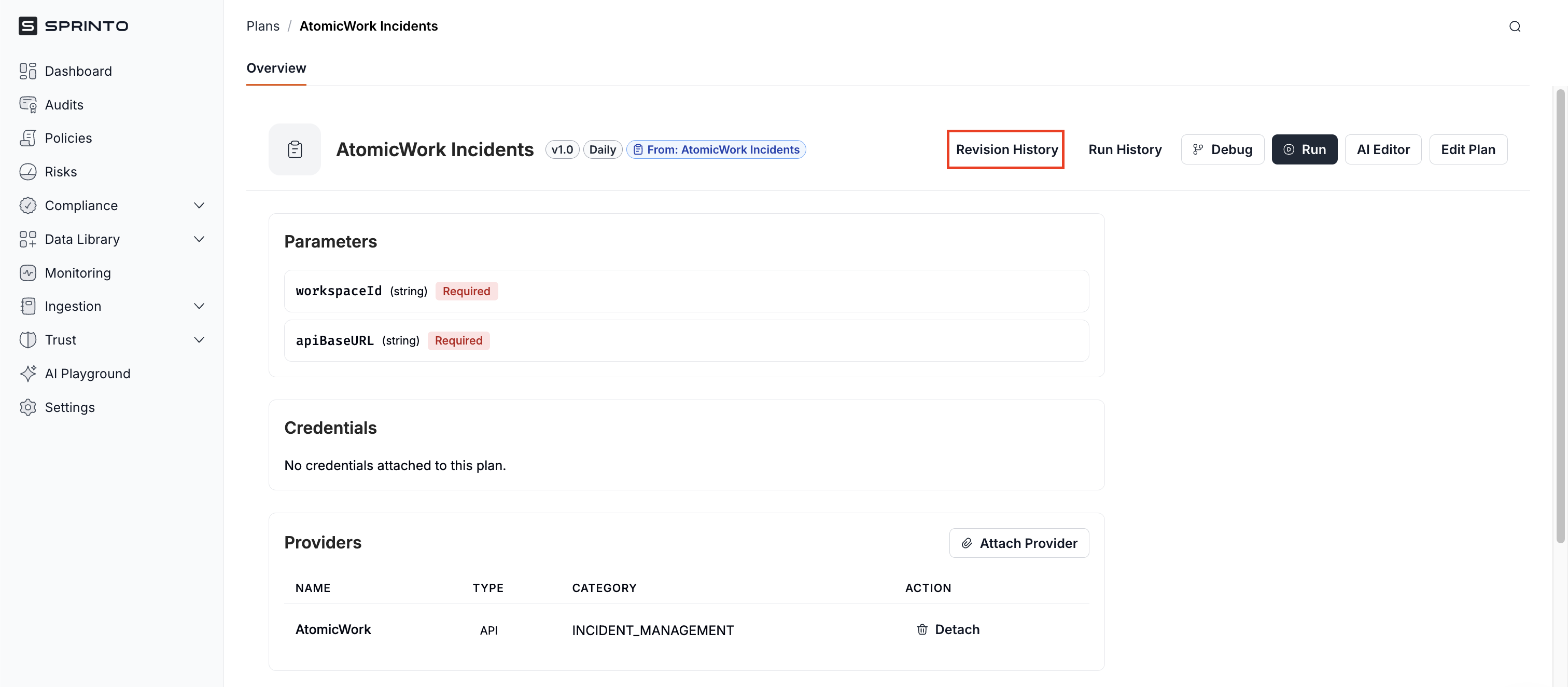
## Review Revision History

Revision History tracks workflow changes over time.

Each saved change creates a new revision entry.

Use Revision History to:

* Review workflow changes
* Compare versions
* Restore earlier configurations

### Open Revision History

1. Open the required workflow.
2. Click **Revision History**.

<figure><img src="/files/sF68kpAuj64gCfum4QRe" alt="" width="563"><figcaption></figcaption></figure>

Sprinto displays all saved revisions.

***

## Compare Workflow Versions

Revision comparison helps identify workflow changes between saves.

Comparison views may include:

* YAML comparison
* JSON comparison
* Highlighted configuration changes

You can review:

* Added workflow steps
* Removed configuration
* Updated parameters
* Modified logic

***

## Restore a Previous Version

Rollback restores an earlier workflow revision.

Use rollback when:

* Recent changes introduced issues
* Workflow behaviour must be restored
* A stable configuration is required

### Restore a Workflow Version

1. Open **Revision History**.
2. Locate the required revision.
3. Click **Rollback to this version**.

<figure><img src="/files/pO0qS0boYL35CjHiRWMA" alt="" width="563"><figcaption></figcaption></figure>

4. Confirm the action.

Sprinto restores the selected workflow version.

{% hint style="info" %}

#### Note

Restoring a version creates a new revision entry.
{% endhint %}

***

## Use Additional Workflow Actions

Additional workflow actions are available from the three-dot menu next to each workflow.

Available actions include:

<table><thead><tr><th width="106.05078125">Action</th><th width="349.77734375">Description</th></tr></thead><tbody><tr><td>Detailed</td><td>Opens the workflow overview page</td></tr><tr><td>Edit</td><td>Opens Visual Editor or YAML Editor</td></tr><tr><td>AI Editor</td><td>Opens the conversational workflow editor</td></tr><tr><td>Delete</td><td>Removes the workflow</td></tr></tbody></table>

***

## Delete or Mark a Workflow Inactive

Deleting a workflow permanently removes the configuration.

Before deletion, Sprinto allows you to:

* Confirm deletion
* Mark the workflow as inactive instead

Marking a workflow inactive disables execution without permanently removing the workflow.

***

## When to Troubleshoot Workflows

Troubleshooting is recommended when:

* A workflow fails unexpectedly
* API responses change
* Entity records are not appearing
* Workflow logic was recently updated
* Credentials were modified
* New processing steps were added

Use Troubleshoot before production execution whenever possible.

***

## Best Practices

Use the following recommendations when running ingestion workflows:

* Review execution steps before running workflows
* Use Troubleshoot before production execution
* Enable Verbose Logging when debugging
* Disable cache when validating recent updates
* Review Run History regularly
* Use Revision History before major changes
* Restore stable versions when troubleshooting configuration issues

***

## Related Topics

* [Get Started with Ingestion in Sprinto](/ingestion/get-started-with-ingestion-in-sprinto.md)
* [Build and Edit Workflows Using AI Editor](/ingestion/get-started-with-ingestion-in-sprinto/build-and-edit-workflows-using-ai-editor.md)
* [Review Ingested Data and Entity Records](/ingestion/get-started-with-ingestion-in-sprinto/review-ingested-data-and-entity-records.md)
* [Create and Manage Webhooks](/ingestion/get-started-with-ingestion-in-sprinto/create-and-manage-webhooks.md)
* [Edit Workflows Using YAML Editor](/ingestion/get-started-with-ingestion-in-sprinto/edit-workflows-using-yaml-editor.md)


---

# Agent Instructions
This documentation is published with GitBook. GitBook is the documentation platform designed so that both humans and AI agents can read, navigate, and reason over technical content effectively. Learn more at gitbook.com.

## Querying This Documentation
If you need additional information that is not directly available in this page, you can query the documentation dynamically by asking a question.

Perform an HTTP GET request on the current page URL with the `ask` query parameter:

```
GET https://docs.sprinto.com/ingestion/get-started-with-ingestion-in-sprinto/run-and-debug-ingestion-workflows.md?ask=<question>
```

The question should be specific, self-contained, and written in natural language.
The response will contain a direct answer to the question and relevant excerpts and sources from the documentation.

Use this mechanism when the answer is not explicitly present in the current page, you need clarification or additional context, or you want to retrieve related documentation sections.