# Get Started with Ingestion in Sprinto

Sprinto’s Ingestion module helps you connect external systems and bring their data into Sprinto for processing, monitoring, and automation.

Most workflows can be built directly using the **AI Editor**. Instead of manually configuring every workflow step, you can describe what you want in plain language and let Sprinto generate the ingestion workflow for you.

You can use Ingestion to:

* Connect external systems and APIs
* Process incoming data and events
* Create custom ingestion workflows
* Store records as entities
* Monitor and troubleshoot ingestion activity

***

## Before You Begin

Ensure that:

* You have access to the **Ingestion** module
* API keys or credentials for the external system are available
* You know which system or workflow you want to connect

***

## Step 1: Create an Ingestion Plan

To create a plan:

1. Log in to the Sprinto dashboard.
2. Go to **Ingestion**.
3. Open the **Plans** tab.
4. Click **New Plan**.

<figure><img src="/files/vVoiM9SozIC1PjGbCGrk" alt="" width="563"><figcaption></figcaption></figure>

You can create a plan using either of the following options:

<table><thead><tr><th width="141.5234375">Option</th><th width="490.8359375">Description</th></tr></thead><tbody><tr><td>From Template</td><td>Uses a preconfigured ingestion workflow provided by Sprinto</td></tr><tr><td>From Scratch</td><td>Creates a fully custom ingestion workflow</td></tr></tbody></table>

***

## Create a Plan from a Template

Template-based plans are recommended for most users because they already include the workflow structure required for supported integrations.

### Use a Template

1. Click **New Plan**.
2. Select **From Template**.

<figure><img src="/files/9D6Kds4Nixd8u8tBZ44o" alt="" width="563"><figcaption></figcaption></figure>

3. Browse the available templates.
4. Click **Preview** on the required template.

<figure><img src="/files/bILoC57sKGfLwyvtUeOG" alt="" width="563"><figcaption></figcaption></figure>

5. Review:
   1. Integration details
   2. Required credentials
   3. Available checks
   4. Included configuration
6. Click **Use This Template**.

<figure><img src="/files/v6d2yvqvEf47HXJgj0D0" alt="" width="563"><figcaption></figcaption></figure>

Sprinto creates the ingestion plan using the selected template.

After the plan is created, Sprinto opens the plan overview drawer.

***

## Configure the Workflow

After the template is created, review and configure the workflow settings.

You can configure:

* Parameters
* Credentials
* Providers
* Sync settings
* Execution steps

<figure><img src="/files/uS8Q8gSQkY5NmsGvyZe3" alt="" width="375"><figcaption></figcaption></figure>

***

## Configure Parameters

Some templates require parameters before they can sync successfully.

To configure parameters:

1. Locate the **Parameters** section.
2. Click **Edit**.
3. Enter the required values.
4. Click **Save**.

<figure><img src="/files/GaTRC6jksUrfbpuRjb4I" alt="" width="375"><figcaption></figcaption></figure>

Parameters help the workflow retrieve the correct data from the external system.

***

## Connect Credentials

Templates often require authentication before data can sync successfully.

You can either:

* Attach an existing credential
* Create a new credential connection

### Use an Existing Credential

1. In the **Credentials** section, click **Add Existing**.
2. Select the required credential.
3. Click **Attach**.

<figure><img src="/files/MhIXjrXEDl2BjJjJ3YnJ" alt="" width="563"><figcaption></figcaption></figure>

### Create a New Credential

1. Click **Connect** next to the required credential.
2. Enter the required authentication details.
3. Save the connection.

Depending on the integration, authentication may require:

* API keys
* Tokens
* OAuth credentials
* Secret values

<figure><img src="/files/89u5wU0nJLEulOk8uKVd" alt="" width="563"><figcaption></figcaption></figure>

***

## Use AI Editor to Modify the Workflow

Once the workflow is connected, you can open the **AI Editor** to customise or extend the ingestion logic.

To open AI Editor:

1. Open the three-dot menu next to the plan.
2. Click **AI Editor**.

<figure><img src="/files/zh1oit27piEx7qmsZoYS" alt="" width="563"><figcaption></figcaption></figure>

The AI Editor allows you to modify workflows using natural language prompts.

Instead of manually editing workflow steps, you can describe the changes you want Sprinto to make.

Example prompts:

```
Add a webhook workflow that processes security alerts from our monitoring platform.
```

```
Create additional entities for failed login events.
```

```
Add a step that filters inactive employee records before ingestion.
```

The AI Editor can help generate or modify:

* Workflow steps
* Entity mappings
* Parameters
* Providers
* Checks
* Processing logic

<figure><img src="/files/gmbYn0PTtIErk7ork2RD" alt="" width="563"><figcaption></figcaption></figure>

***

## Review Execution Steps

The **Execution Steps** section displays all workflow steps included in the ingestion plan.

This helps you understand:

* What actions are executed
* How data is processed
* Which steps are included in the workflow

You can review the execution flow before running the plan.

Click **Execute** to execute the steps.

<figure><img src="/files/STZ27nWpShCSvHVmf0BW" alt="" width="563"><figcaption></figcaption></figure>

***

## Run the Workflow

After configuration is complete:

1. Open the plan overview page.
2. Click **Run** to execute the workflow immediately.

<figure><img src="/files/wkCxyAXWFrw9xTvpxqS0" alt="" width="563"><figcaption></figcaption></figure>

3. Enter the required parameters.
4. Select the **Disable cache** and **Verbose logging** check box if needed.
5. Click **Run Plan**.

<figure><img src="/files/NlOOqI9ljzF1PW9Gq3Fd" alt="" width="563"><figcaption></figcaption></figure>

Sprinto begins processing the configured ingestion steps.

***

## Troubleshoot the Workflow

If the workflow encounters issues, use the **Troubleshoot** option.

<figure><img src="/files/5PDiTluFfsl2N0xMaTCn" alt="" width="375"><figcaption></figcaption></figure>

Troubleshooting allows you to:

* Provide parameter values
* Run the workflow in debug mode
* Disable cache
* Commit data during debugging
* Test full or partial execution

***

## Review Run History

Use the **History** option to review previous executions.

<figure><img src="/files/9AxpM0rdYUL4E3GSdcjq" alt="" width="375"><figcaption></figcaption></figure>

Run history helps you monitor:

* Execution status
* Workflow duration
* Processing history
* Previous runs

***

## Create a Plan from Scratch

Use a from-scratch plan when you need a fully custom ingestion workflow.

From-scratch plans provide access to:

* AI Editor
* Visual Editor
* YAML Editor

### Create a Custom Plan

1. Click **New Plan**.
2. Select **From Scratch**.

<figure><img src="/files/GeXtbdLgVf8SspdK5sHT" alt="" width="563"><figcaption></figcaption></figure>

3. Enter:
   * Plan name
   * Description
4. Click **Create**.

<figure><img src="/files/Ed0Bx5Q960mZVidRQy3N" alt="" width="375"><figcaption></figcaption></figure>

Sprinto creates an empty ingestion workflow and opens the plan overview page.

***

## Build the Workflow Using AI Editor

For most custom workflows, Sprinto recommends starting with the AI Editor.

To open AI Editor:

1. Open the plan overview page.
2. Click **AI Editor**.

<figure><img src="/files/fcs1mH1Hz3AaZ2ejfDq9" alt="" width="563"><figcaption></figcaption></figure>

Describe the workflow you want Sprinto to build.

Example prompts:

```
Pull employee records from our HR system every 6 hours and store them as entities.
```

```
Create a workflow that syncs cloud infrastructure data from Vercel.
```

The AI Editor can automatically generate:

* Workflow steps
* Entity mappings
* Parameters
* Checks
* Providers
* Processing logic

<figure><img src="/files/oGeqDpFL56qdTJc1CVvh" alt="" width="563"><figcaption></figcaption></figure>

***

## Use Advanced Editors

Sprinto also provides advanced editing options for manual workflow configuration.

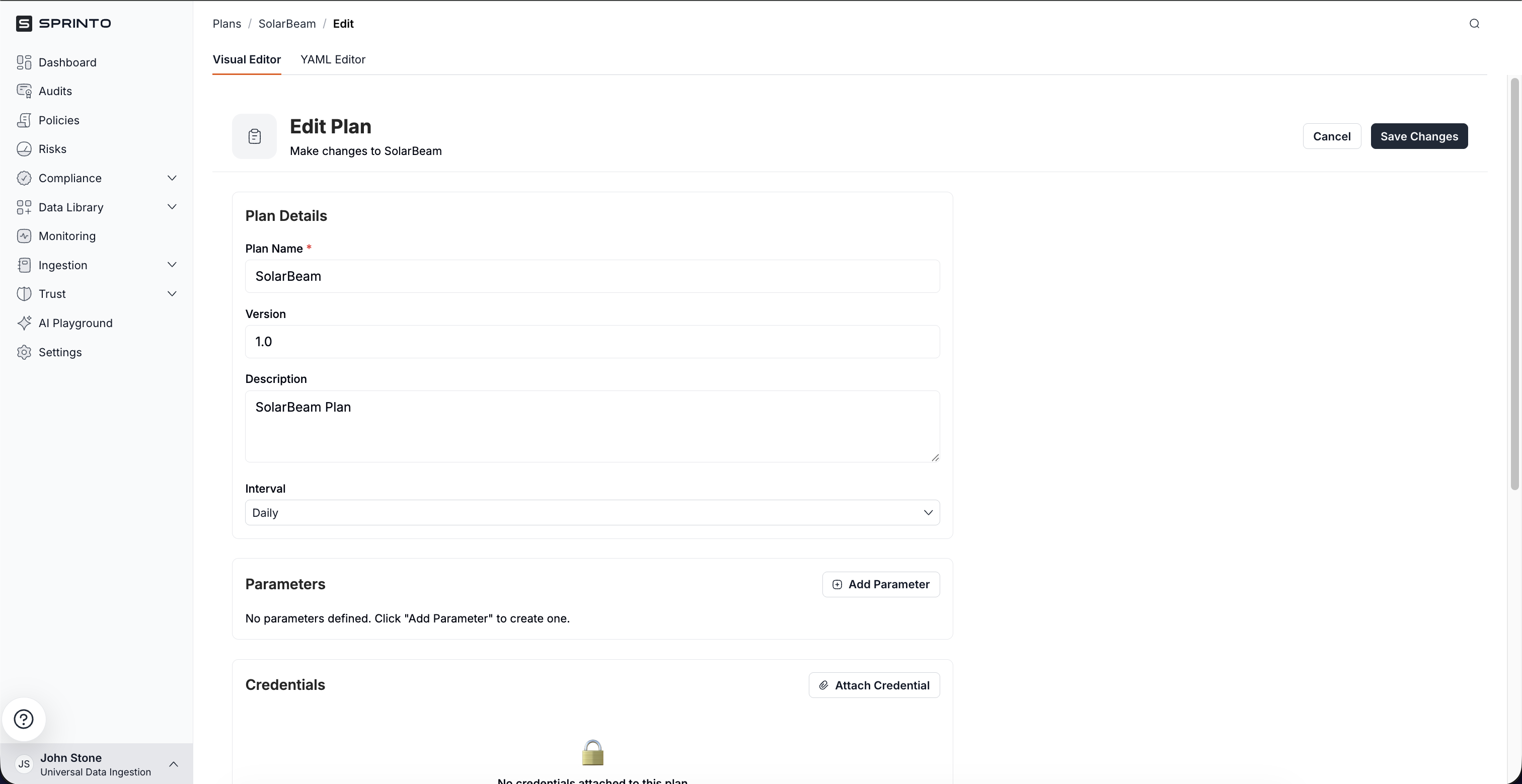
Click **Edit Plan** in you plan overview tab to access these editors.

<figure><img src="/files/CMyShHi9Quax1QEy1SjK" alt="" width="563"><figcaption></figcaption></figure>

### Visual Editor

Use the **Visual Editor** to manually configure:

* Plan details
* Parameters
* Credentials
* Providers
* Steps
* Outputs

Click **Save Changes** after you are done with configuring your plan.

<figure><img src="/files/y8O8Ii2IQAhya6SpYqwN" alt="" width="563"><figcaption></figcaption></figure>

### YAML Editor

Use the **YAML Editor** for direct configuration editing.

<figure><img src="/files/9qM18paZqkgvod4WG8Cf" alt="" width="563"><figcaption></figcaption></figure>

{% hint style="info" %}

#### **Note**

AML Editor is only available for from-scratch plans. Template-based plans support Visual Editor only.
{% endhint %}

***

## Use Additional Plan Actions

Each plan includes additional actions available from the three-dot menu.

<figure><img src="/files/MdddVChayDrdzD5Y9lbU" alt="" width="563"><figcaption></figcaption></figure>

Available actions include:

<table><thead><tr><th width="122.78125">Action</th><th width="365.1875">Description</th></tr></thead><tbody><tr><td>Detailed</td><td>Opens the plan overview page</td></tr><tr><td>Edit</td><td>Opens Visual Editor and YAML Editor</td></tr><tr><td>AI Editor</td><td>Opens the conversational workflow editor</td></tr><tr><td>Delete</td><td>Permanently removes the plan</td></tr></tbody></table>

***

## Delete or Mark a Plan Inactive

Deleting a plan permanently removes its configuration.

Before deletion, Sprinto allows you to:

* Confirm the deletion by selecting the I **understand this action cannot be undone** check box and click **Delete.**
* Mark the plan as inactive instead.

<figure><img src="/files/dBlbIm4bp4vekPqxwJjI" alt="" width="563"><figcaption></figcaption></figure>

Marking a plan inactive disables the workflow without permanently removing the configuration.

***

## Review Ingested Data

After execution completes, review the ingested records.

To review entity records:

1. Go to **Ingestion**.
2. Open the **Entities** tab.
3. Select the required entity type.
4. Click **View Entities**.

<figure><img src="/files/SsSj6hhdiTCyBt9dYVUM" alt="" width="563"><figcaption></figcaption></figure>

You can review:

* Ingested records
* Entity field values
* Source metadata
* Monitoring information

<figure><img src="/files/auyI2ODG4aG9ZtQlz0AR" alt="" width="563"><figcaption></figcaption></figure>

***

## Next Steps

After completing the initial setup, you can continue configuring advanced ingestion workflows.

Learn more about:

* [Build and edit workflows using AI Editor](/ingestion/get-started-with-ingestion-in-sprinto/build-and-edit-workflows-using-ai-editor.md)
* Run and debug ingestion workflows
* Review ingested data and entity records
* Create and manage webhooks
* Edit workflows using YAML Editor


---

# Agent Instructions: Querying This Documentation

If you need additional information that is not directly available in this page, you can query the documentation dynamically by asking a question.

Perform an HTTP GET request on the current page URL with the `ask` query parameter:

```
GET https://docs.sprinto.com/ingestion/get-started-with-ingestion-in-sprinto.md?ask=<question>
```

The question should be specific, self-contained, and written in natural language.
The response will contain a direct answer to the question and relevant excerpts and sources from the documentation.

Use this mechanism when the answer is not explicitly present in the current page, you need clarification or additional context, or you want to retrieve related documentation sections.