# Manage Plan Execution and Version History

After creating an ingestion plan, you can execute it, troubleshoot issues, monitor previous runs, and restore earlier versions.

The **Plan Overview** page provides operational controls that help you:

* Run plans manually
* Debug workflows before execution
* Review historical runs
* Inspect execution logs
* Compare plan revisions
* Restore previous configurations

These actions help validate workflow behaviour and maintain version control over ingestion logic.

***

## Before You Begin

Ensure that:

* The ingestion plan has been created and saved
* Required credentials and providers are attached
* Workflow steps are configured correctly
* You have access to edit or execute ingestion plans

***

## Access the Plan Overview Page

To manage plan execution:

1. Log in to the Sprinto dashboard.
2. Go to **Ingestion**.
3. Open the **Plans** tab.
4. Click **View** to select the required plan.

<figure><img src="/files/rc3FoKP9sGapngTPgQHm" alt="" width="563"><figcaption></figcaption></figure>

The plan overview page displays execution controls and history options.

***

## Run an Ingestion Plan

Running a plan triggers the ingestion workflow immediately.

This executes all configured steps in sequence.

### Run a Plan

1. Open the required plan.
2. Click **Run**.

<figure><img src="/files/hTwh04uEOjZPs3FoQpFx" alt="" width="563"><figcaption></figcaption></figure>

3. Configure execution preferences.
4. Click **Run Plan**.

<figure><img src="/files/u6unBUT89Wn5pWW09l6c" alt="" width="563"><figcaption></figcaption></figure>

Sprinto begins processing the workflow.

***

## Run Configuration Options

Before execution, Sprinto displays a run configuration modal.

### Disable Cache

Enable **Disable Cache** to force Sprinto to ignore cached step outputs.

Use this option when:

* Testing updated API responses
* Validating new step logic
* Refreshing previously cached data

### Verbose Logging

Enable **Verbose Logging** to capture detailed execution logs.

Verbose logging helps when:

* Troubleshooting failures
* Reviewing execution behaviour
* Understanding step-level processing

***

## Understand Run Results

After execution begins, the plan either:

* Completes successfully
* Fails during processing
* Stops due to validation or dependency issues

Execution outcomes depend on:

* Step configuration
* Credentials
* Runtime inputs
* API availability
* Workflow logic

***

## Debug a Plan

Debug mode allows you to test workflows without running a full production execution.

You can use debug mode to:

* Validate workflow behaviour
* Inspect execution output
* Test individual steps
* Troubleshoot workflow logic

### Start a Debug Run

1. Open the plan overview page.
2. Click **Debug**.

<figure><img src="/files/bY8uMMojGOMdZQvYGrw0" alt="" width="563"><figcaption></figcaption></figure>

3. Configure execution options.
4. Click **Debug Run**.

<figure><img src="/files/jUUs26v41GxKsrbENvZo" alt="" width="563"><figcaption></figcaption></figure>

Sprinto begins a debug execution.

***

## Debug Options

The debug modal includes additional execution controls.

### Commit Data

Enable **Commit Data** to persist changes created during debugging.

Disable this option when you want to test without permanently storing output.

### Disable Cache

Enable **Disable Cache** to force fresh processing during debugging.

***

## Debug Run Types

Sprinto supports multiple debug execution scopes.

### Entire Plan

Runs all configured steps.

Use this when validating full workflow behaviour.

### Single Step

Runs a specific step.

Use this when troubleshooting a single action.

#### Select a Step

1. Choose **Single Step**.
2. Select the required step.
3. Start the debug run.

<figure><img src="/files/Kr12VQ6gWOpuwvsbZuzU" alt="" width="563"><figcaption></figcaption></figure>

### Range of Steps

Runs a selected sequence of steps.

Use this when testing part of the workflow.

#### Select a Step Range

1. Choose **Range**.
2. Select a start step.
3. Select an end step.
4. Start the debug run.

<figure><img src="/files/OBdPp7vGW30yK6ANAmjA" alt="" width="563"><figcaption></figcaption></figure>

***

## View Run History

Run history provides visibility into previous plan executions.

It helps track execution performance and troubleshooting information.

### Open Run History

1. Open the required plan.
2. Click **Run History**.

<figure><img src="/files/Xw7p2eLQ9ZKprfpBYBs2" alt="" width="563"><figcaption></figcaption></figure>

Sprinto displays all recorded runs.

***

## Run History Information

Each run includes:

<table><thead><tr><th width="135.4296875">Column</th><th width="313.80859375">Description</th></tr></thead><tbody><tr><td>Status</td><td>Execution result</td></tr><tr><td>Started At</td><td>Execution start timestamp</td></tr><tr><td>Duration</td><td>Total runtime</td></tr><tr><td>Version</td><td>Plan version used during execution</td></tr><tr><td>Actions</td><td>Opens run details</td></tr></tbody></table>

Run history allows you to review historical workflow behaviour.

<figure><img src="/files/JKRxH8afpe4g0xfAHsnJ" alt="" width="563"><figcaption></figcaption></figure>

***

## View Run Details

Run details provide execution-level visibility.

### Open Run Details

1. Open **Run History**.
2. Locate the required run.
3. Click **View**.

<figure><img src="/files/VvdNs0kH5wazBIbd6zmJ" alt="" width="563"><figcaption></figcaption></figure>

The run details drawer displays additional execution information.

***

## Run Details Information

Run details may include:

* Timeline progression
* Step-level processing
* Errors and failure reasons
* Execution metadata
* Runtime context

<figure><img src="/files/rFt8woL3FOWAzcyQdsKe" alt="" width="563"><figcaption></figcaption></figure>

### Timeline View

The timeline shows execution progress.

Typical states include:

* Scheduled
* Started
* Running
* Completed
* Failed

This helps identify where processing stopped.

***

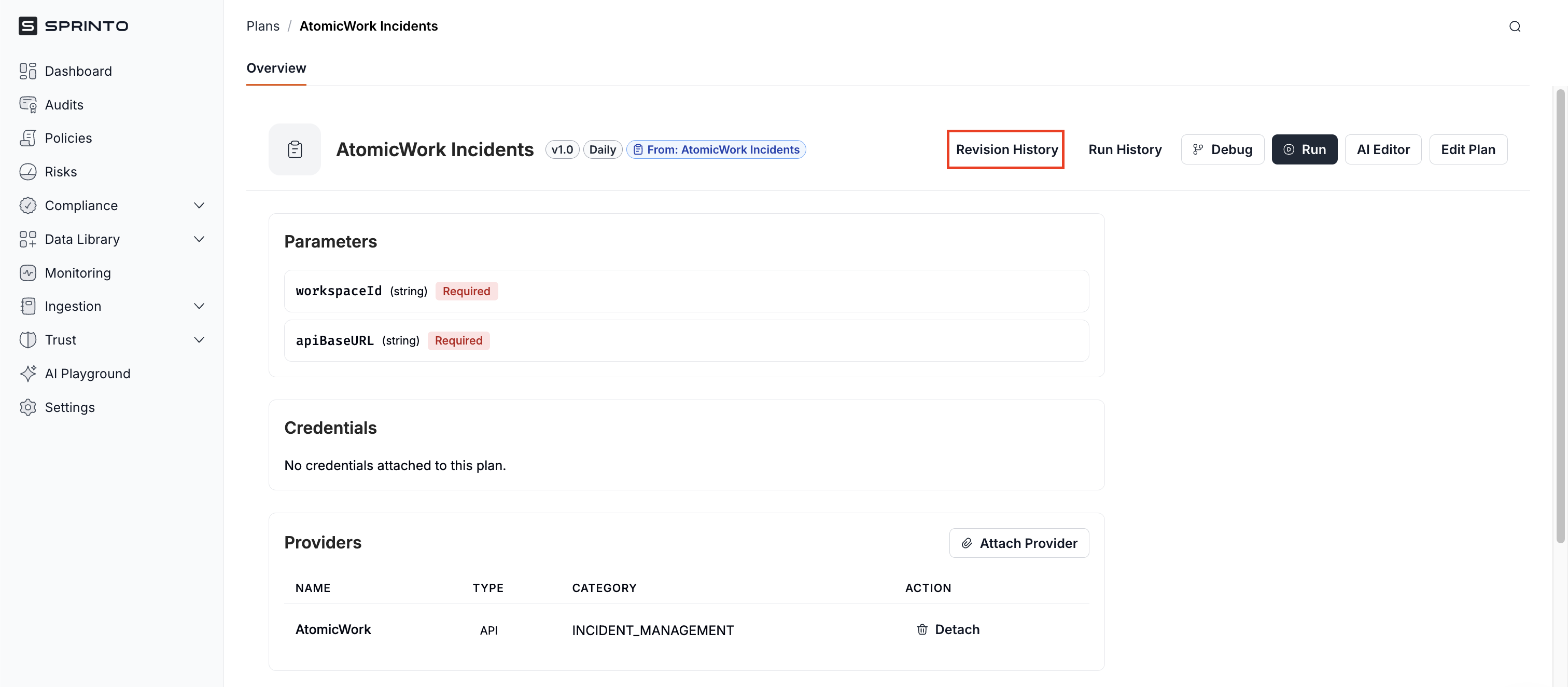
## View Revision History

Revision history tracks plan changes over time.

Each save operation creates a new version.

Revision history helps teams:

* Track configuration changes
* Review historical edits
* Compare versions
* Restore previous configurations

### Open Revision History

1. Open the required plan.
2. Click **Revision History**.

<figure><img src="/files/sF68kpAuj64gCfum4QRe" alt="" width="563"><figcaption></figcaption></figure>

Sprinto displays all saved versions.

***

## Revision History Information

Each revision includes:

<table><thead><tr><th width="167.71484375">Column</th><th width="256.265625">Description</th></tr></thead><tbody><tr><td>Version</td><td>Saved version number</td></tr><tr><td>Updated By</td><td>User who made the change</td></tr><tr><td>Updated At</td><td>Save timestamp</td></tr><tr><td>Actions</td><td>Opens revision details</td></tr></tbody></table>

***

## View Revision Details

Revision details display configuration differences between versions.

### Open Revision Details

1. Open **Revision History**.
2. Locate the required revision.
3. Click **View**.

<figure><img src="/files/d0Ip7SSeLA7bnMIDMcTj" alt="" width="563"><figcaption></figcaption></figure>

Sprinto displays a detailed comparison.

***

## Compare Versions

Revision comparison helps identify changes between saves.

Comparison views may include:

* YAML comparison
* JSON comparison
* Highlighted configuration changes

You can review:

* Added fields
* Removed steps
* Modified configuration values
* Updated workflow logic

***

## Roll Back to a Previous Version

Rollback restores an earlier revision.

Use rollback when:

* A recent change introduced errors
* Workflow logic needs to be restored
* A previous version is more stable

### Roll Back a Plan Version

1. Open **Revision History**.
2. Locate the required revision.
3. Click **Rollback to this version**.

<figure><img src="/files/pO0qS0boYL35CjHiRWMA" alt="" width="563"><figcaption></figcaption></figure>

4. Click Rollback to confirm the action.

<figure><img src="/files/b42rT9qC1BKOBVjnQXL8" alt="" width="563"><figcaption></figcaption></figure>

Sprinto restores the selected version.

{% hint style="warning" %}

#### Important

* Rollback creates a new revision entry.
* Previous versions remain available.
* Rollback affects future executions.
  {% endhint %}

***

## Execution Workflow

A typical plan execution lifecycle follows this sequence:

1. Open the plan.
2. Run or debug the workflow.
3. Review execution status.
4. Inspect run history.
5. Analyse errors if present.
6. Update workflow configuration.
7. Save changes.
8. Restore a previous version if needed.

***

## Best Practices

Use the following recommendations when managing ingestion plans:

* Debug workflows before production execution
* Enable verbose logging when troubleshooting
* Review run history after major updates
* Use revision history to track workflow evolution
* Restore stable versions when testing introduces issues
* Use step-range debugging for targeted validation
* Disable cache during testing to ensure fresh responses

***

### Related Information

* [Create and Configure an Ingestion Plan](/ingestion/dashboard-actions/create-and-configure-an-ingestion-plan.md)
* [Build and Edit Plans Using YAML and AI Editor](/ingestion/dashboard-actions/build-and-edit-plans-using-yaml-and-ai-editor.md)
* [Create and Manage Entity Types](/ingestion/dashboard-actions/create-and-manage-entity-types.md)
* [Create and Manage Webhooks](/ingestion/dashboard-actions/create-and-manage-webhooks.md)


---

# Agent Instructions: Querying This Documentation

If you need additional information that is not directly available in this page, you can query the documentation dynamically by asking a question.

Perform an HTTP GET request on the current page URL with the `ask` query parameter:

```
GET https://docs.sprinto.com/ingestion/dashboard-actions/manage-plan-execution-and-version-history.md?ask=<question>
```

The question should be specific, self-contained, and written in natural language.
The response will contain a direct answer to the question and relevant excerpts and sources from the documentation.

Use this mechanism when the answer is not explicitly present in the current page, you need clarification or additional context, or you want to retrieve related documentation sections.