# Monitor Device Compliance Checks

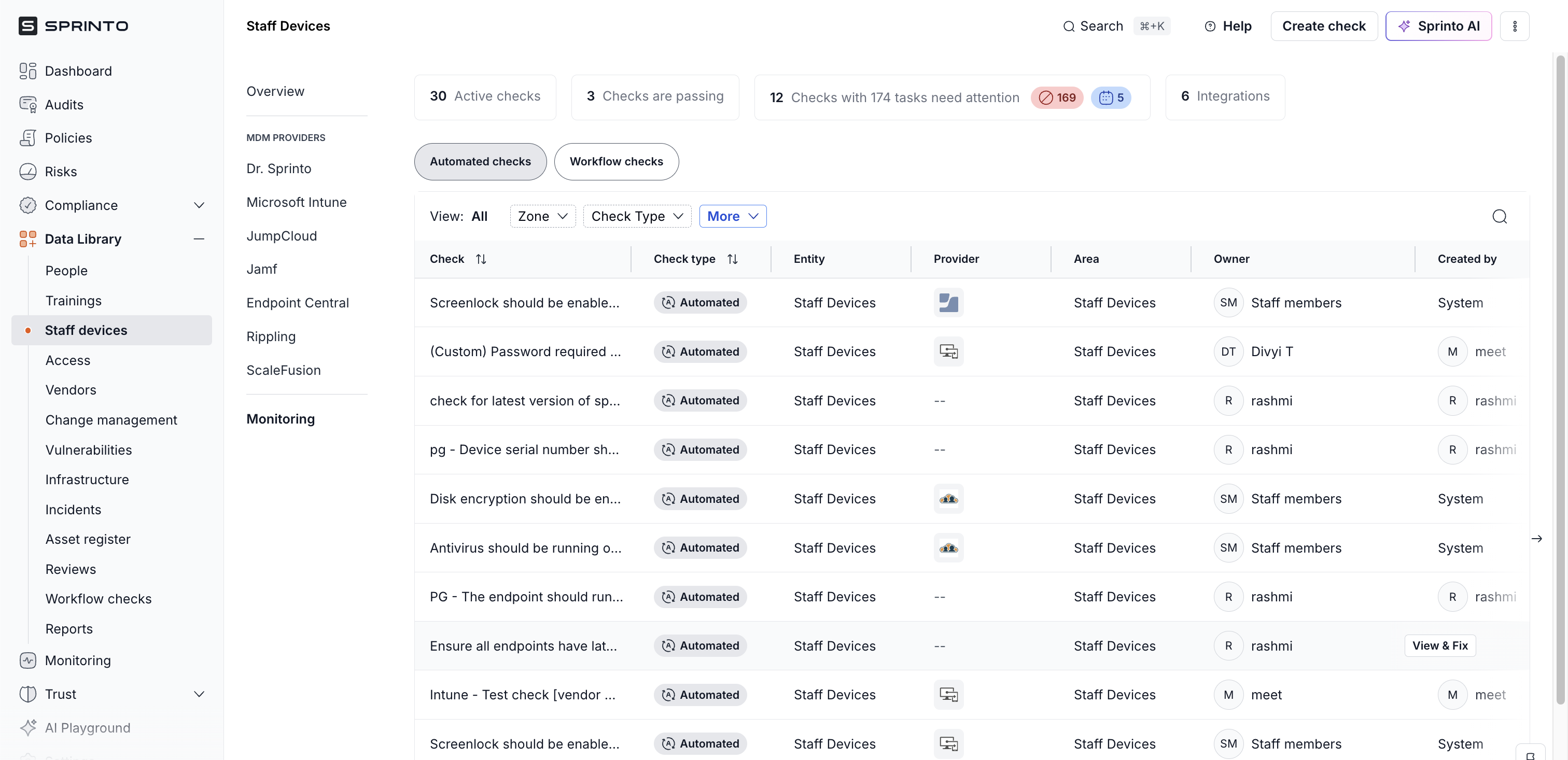
The **Monitoring** tab in the Staff Devices section helps you track the status of all device-related compliance checks across your organisation. Whether checks are fulfilled via Dr. Sprinto, third-party MDMs, or manual workflow submissions, this tab gives you a unified view to manage progress, follow-ups, and audit readiness.

***

### What You Can See

The Monitoring tab displays a tabular view of all device health checks that are currently:

* **Pending**
* **Passing**
* **Failing**
* **Due or Critical**

Each row in the table shows:

<table><thead><tr><th width="137.1875">Column</th><th>Description</th></tr></thead><tbody><tr><td><strong>Task Name</strong></td><td>The compliance check being evaluated (e.g. Disk encryption, Antivirus).</td></tr><tr><td><strong>Owner</strong></td><td>The staff member or admin responsible for providing evidence or completing the check.</td></tr><tr><td><strong>MDM Provider</strong></td><td>Indicates if the check is mapped to Dr. Sprinto, a third-party MDM, or a manual workflow.</td></tr><tr><td><strong>Status</strong></td><td>Displays one of: Passing, Failing, Pending, Due, or Critical.</td></tr><tr><td><strong>Evidence</strong></td><td>If submitted manually, the uploaded file is accessible here.</td></tr><tr><td><strong>Action</strong></td><td>For failing/pending checks, click <strong>View &#x26; Fix</strong> to guide the next steps.</td></tr></tbody></table>

<figure><img src="https://3220032727-files.gitbook.io/~/files/v0/b/gitbook-x-prod.appspot.com/o/spaces%2FEsyn5VMU6e0OyGjRtKgx%2Fuploads%2F5UyNOZX9f0CFCeZJnaDY%2FScreenshot%202025-11-03%20at%2015.02.31.png?alt=media&#x26;token=d41f0483-0a20-45d3-8846-fa0a1d50b7e6" alt="" width="563"><figcaption></figcaption></figure>

***

### Filter and Sort Options

You can use filters at the top of the Monitoring tab to narrow down checks by:

* **Status** (e.g. only Failing or Pending checks)
* **Check Name**
* **MDM Provider**
* **Owner**
* **Last updated date**

This allows you to prioritise remediation based on urgency or framework relevance.

***

### View & Fix

Clicking **View & Fix** for any check opens a side panel or detail view where you can:

* View the reason for failure
* See last reported evidence
* Download submitted files
* Add reviewer comments (if enabled)
* Trigger a rescan (Dr. Sprinto)
* Manually upload updated evidence

<figure><img src="https://3220032727-files.gitbook.io/~/files/v0/b/gitbook-x-prod.appspot.com/o/spaces%2FEsyn5VMU6e0OyGjRtKgx%2Fuploads%2FhehYS9s7l2ftQRzYRDTT%2FScreenshot%202025-11-03%20at%2015.03.57.png?alt=media&#x26;token=254fef02-bf2b-492a-9507-a359deb8e03a" alt="" width="563"><figcaption></figcaption></figure>

{% hint style="info" %}
Sprinto automatically maps each check to one or more compliance framework controls (e.g. ISO 27001 A.6.2.1, SOC 2 CC6.1), which you can see in this panel.
{% endhint %}

***

### Use Cases

<table><thead><tr><th width="181.890625">Role</th><th>Usage</th></tr></thead><tbody><tr><td><strong>IT Admins</strong></td><td>Identify failing encryption or antivirus checks and guide users to update settings.</td></tr><tr><td><strong>Security Teams</strong></td><td>Prioritise high-risk device gaps across internal and BYOD users.</td></tr><tr><td><strong>Compliance Officers</strong></td><td>Review supporting evidence during internal or external audits.</td></tr><tr><td><strong>Managers</strong></td><td>Ensure assigned staff have completed device reporting responsibilities.</td></tr></tbody></table>

***

### What You Can Do

* Track and export compliance status for all staff devices.
* Monitor recurring checks that require manual intervention.
* Filter and act on failing devices before upcoming audits.
