# Create and Manage Manual Workflow Checks

If your staff devices are not monitored via Dr. Sprinto or a supported third-party MDM tool, you can still ensure compliance by configuring manual workflow checks. These checks allow your team to periodically upload evidence from unmanaged devices—such as BYOD laptops or contractor endpoints—and validate them against your compliance controls.

***

### Before You Begin

Ensure that:

* You are logged in to the Sprinto admin portal.
* You have a list of device compliance checks that are required for your framework (e.g. OS version, encryption, antivirus, etc.).
* You’ve identified who will be responsible for uploading and reviewing evidence.

***

### Set Up Manual Monitoring

1. Go to **Data Library > Staff Devices > Overview**.
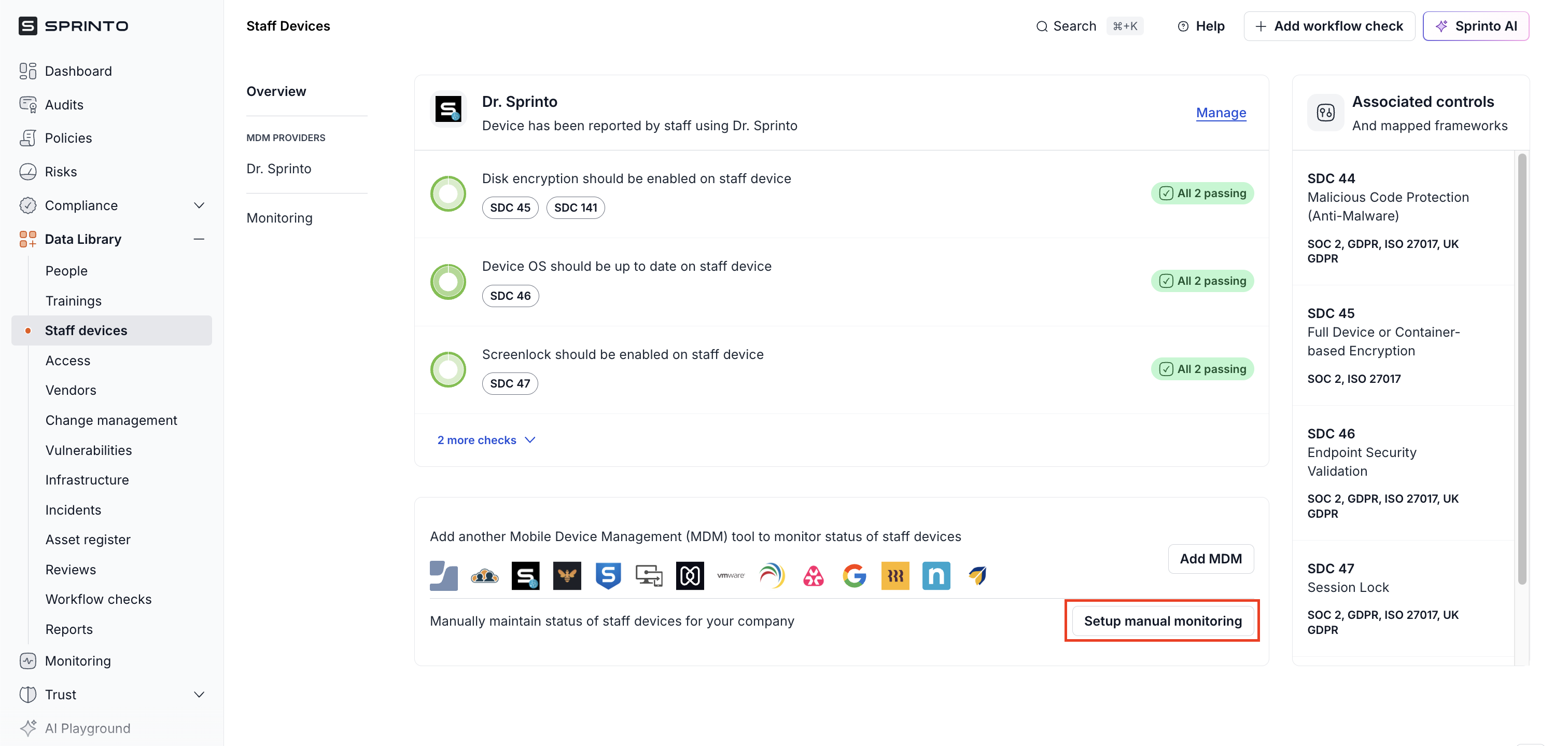
2. Click **Set up manual monitoring**.

<figure><img src="https://3220032727-files.gitbook.io/~/files/v0/b/gitbook-x-prod.appspot.com/o/spaces%2FEsyn5VMU6e0OyGjRtKgx%2Fuploads%2FWbowHcFPnWSPigfWpiKh%2FScreenshot%202025-11-03%20at%2013.31.36.png?alt=media&#x26;token=3dee200f-0773-4ed1-aee2-4c4e780cbb88" alt="" width="563"><figcaption></figcaption></figure>

3. Choose from the list of predefined device checks, or click **Create your own check**.

You can create:

* **Single evidence upload checks** – Ideal for one-time submissions.
* **Bulk upload workflow checks** – Ideal for adding checks in bulk.

***

### Configure the Workflow Check

For each selected check:

1. Review and edit the following details:

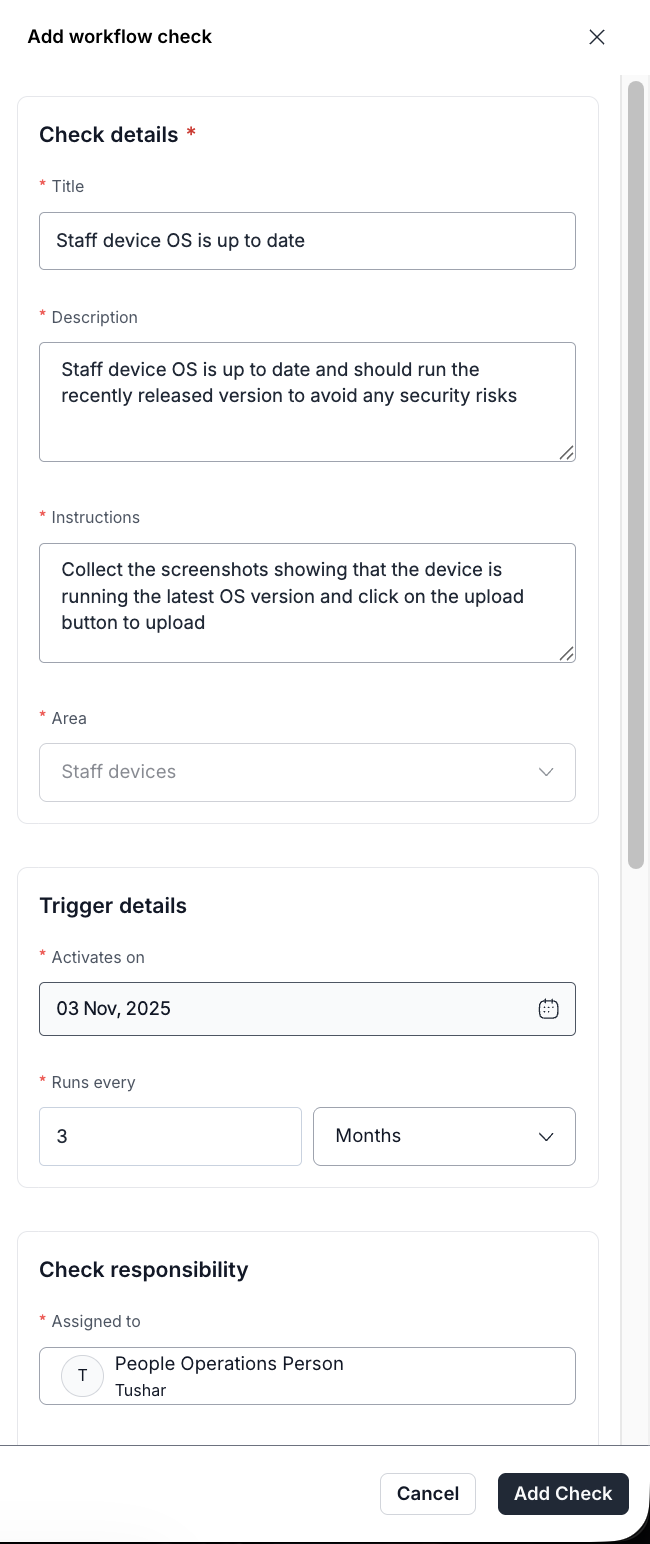
<table><thead><tr><th width="216.078125">Field</th><th>Description</th></tr></thead><tbody><tr><td><strong>Title</strong></td><td>The name of the check.</td></tr><tr><td><strong>Description</strong></td><td>A brief explanation of what the check covers.</td></tr><tr><td><strong>Check frequency</strong></td><td>How often the check should be performed (e.g. Monthly, Quarterly).</td></tr><tr><td><strong>Responsible person</strong></td><td>The staff member or team in charge of running the check.</td></tr><tr><td><strong>Instructions to run check</strong></td><td>Add clear guidance for how to collect and upload evidence.</td></tr><tr><td><strong>Activated from</strong></td><td>Select the date when the check should go live.</td></tr><tr><td><strong>Evidence review</strong></td><td>Enable this toggle if you want reviewers to approve each submission.</td></tr></tbody></table>

3. Click **Add Check** to complete the setup.

<figure><img src="https://3220032727-files.gitbook.io/~/files/v0/b/gitbook-x-prod.appspot.com/o/spaces%2FEsyn5VMU6e0OyGjRtKgx%2Fuploads%2F4Qxb1DjdPet6qjj0ZIEq%2FScreenshot%202025-11-03%20at%2013.53.17.png?alt=media&#x26;token=7499da8e-1b3e-4a80-89f7-2bdaff3e736c" alt="" width="488"><figcaption></figcaption></figure>

{% hint style="info" %}
If evidence review is enabled, you must assign a reviewer from the dropdown menu.
{% endhint %}

***

### Manage and Edit Checks

Once created, all checks appear under the **Workflow Checks** category in the **Monitoring** section.

To edit a check:

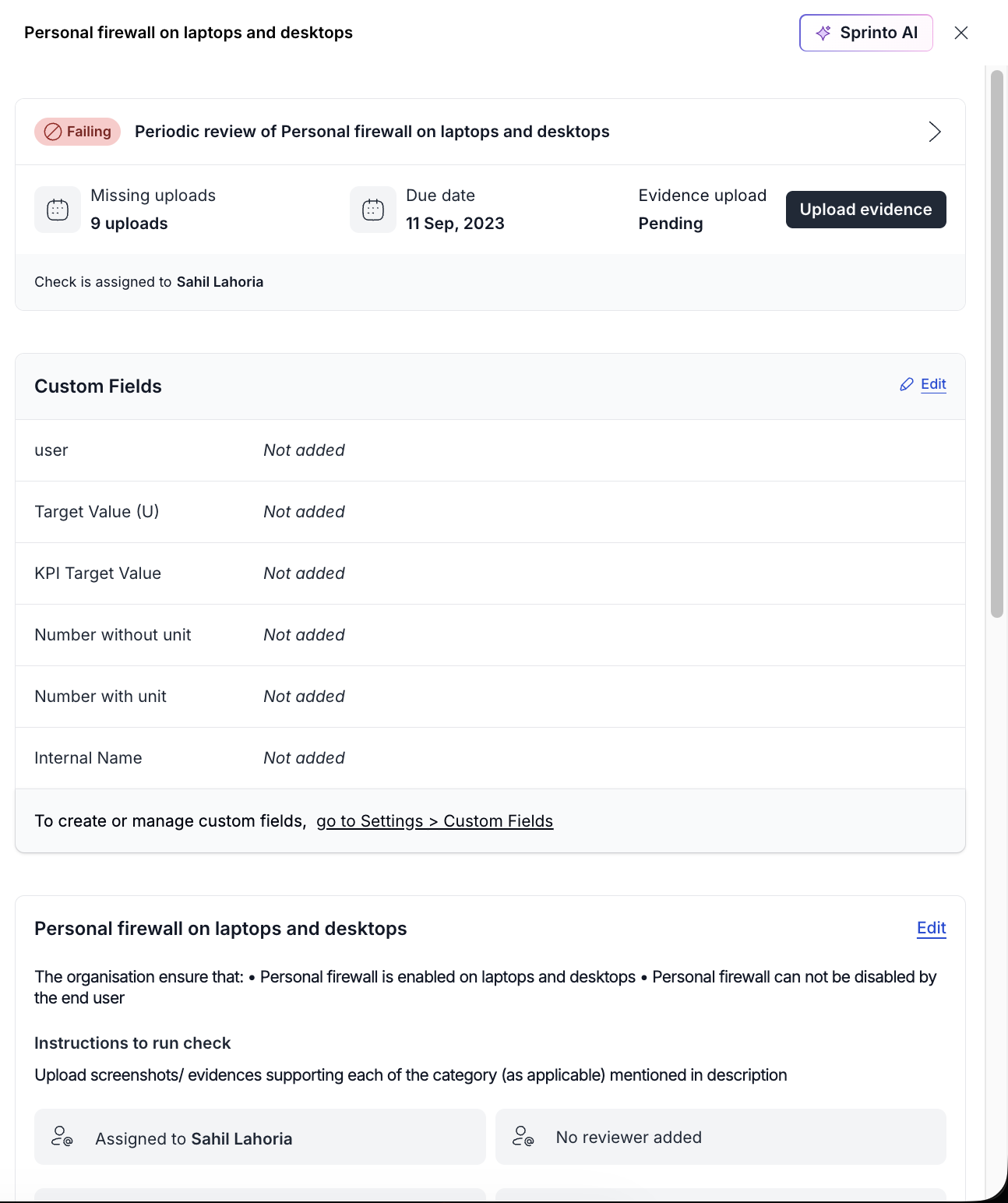
1. Navigate to the check and click **Edit**.
2. You can edit the custom fields or the check details.

<figure><img src="https://3220032727-files.gitbook.io/~/files/v0/b/gitbook-x-prod.appspot.com/o/spaces%2FEsyn5VMU6e0OyGjRtKgx%2Fuploads%2FJz2aeCm6mMb2YfXOtxet%2FScreenshot%202025-11-03%20at%2014.00.58.png?alt=media&#x26;token=6d7688ac-81b8-48d2-8916-0dc803d1b864" alt="" width="563"><figcaption></figcaption></figure>

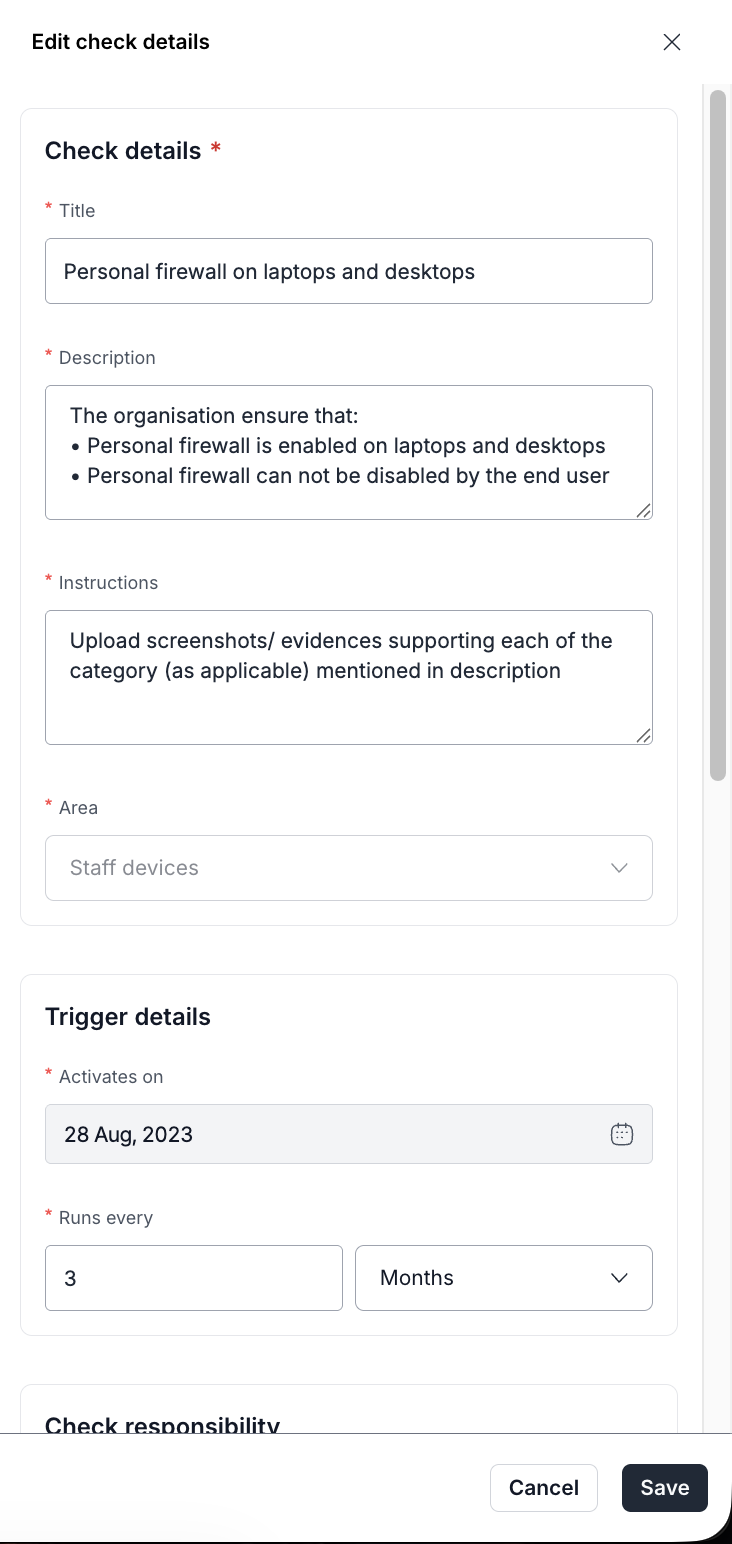
3. Update fields as needed.
4. Save changes to update the live configuration.

<figure><img src="https://3220032727-files.gitbook.io/~/files/v0/b/gitbook-x-prod.appspot.com/o/spaces%2FEsyn5VMU6e0OyGjRtKgx%2Fuploads%2FpIhHfTxA0TeZBeHodkVT%2FScreenshot%202025-11-03%20at%2014.02.08.png?alt=media&#x26;token=d2ce093a-a49a-4030-b281-cec5f6a2a892" alt="" width="366"><figcaption></figcaption></figure>

You can also disable or delete unused checks if they’re no longer required.

***

### Use Cases

<table><thead><tr><th width="274.0078125">Scenario</th><th width="422.03515625">Manual Check Example</th></tr></thead><tbody><tr><td>Contractor using personal laptop</td><td>Upload evidence of antivirus and disk encryption</td></tr><tr><td>Remote staff without MDM</td><td>Upload OS version and screen lock settings</td></tr><tr><td>Teams using niche devices</td><td>Upload system snapshots to prove device compliance</td></tr></tbody></table>

***

### What’s Next

* Use the **Run and Review Workflow Evidence Submissions** page to collect and approve evidence.
* Monitor failing or pending checks via the **Monitoring** tab.
* Train staff on how to submit compliant evidence using [manual upload instructions](https://docs.sprinto.com/data-library/staff-devices/dashboard-actions/report-device-status-via-employee-portal).