# Resolving Incident Tickets (PagerDuty)

### **Introduction**:

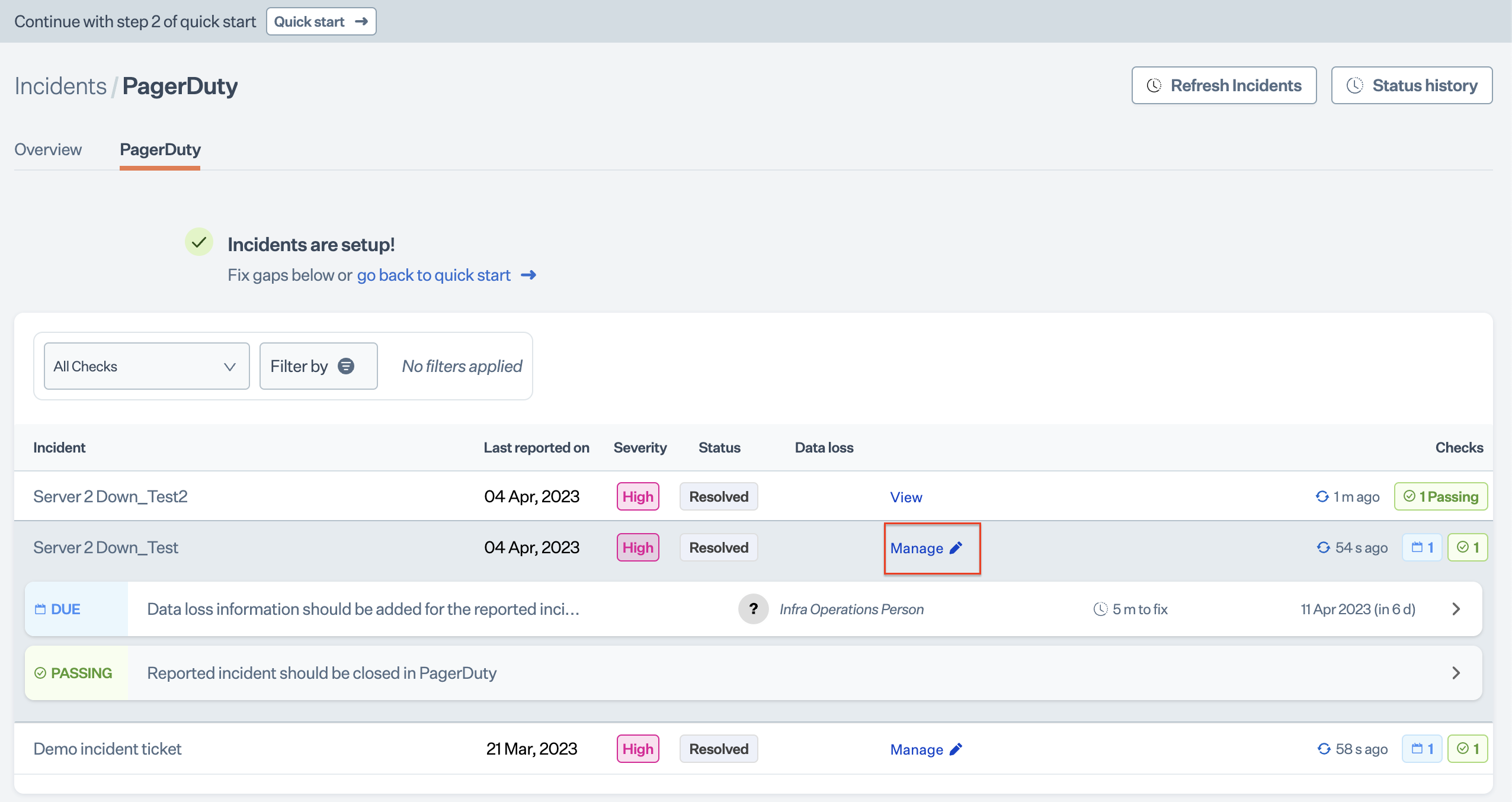
Sprinto fetches the details from the integrated PagerDuty account about the logged incident tickets and list them on Sprinto platform with the following details:  &#x20;

<figure><img src="https://s3.amazonaws.com/cdn.freshdesk.com/data/helpdesk/attachments/production/72048443398/original/b4D1N4lnTzYBdfxw9DLx4MrMrEnzJUcyzA.png?1683810068" alt=""><figcaption></figcaption></figure>

<table><thead><tr><th width="117.671875">Section</th><th>Details</th></tr></thead><tbody><tr><td>Incident</td><td>Title of the logged ticket from the source IMS.</td></tr><tr><td>Reported on </td><td>The date incident ticket is created.</td></tr><tr><td>Severity </td><td>Based on the logged incident ticket details following status is tagged to the tickets:<br>*High<br>*Low</td></tr><tr><td>Status </td><td>Current status of the logged ticket, following are the status ticket can have:<br>* Triggered: Ticket is in open status<br>*Resolved: Ticket is in closed status</td></tr><tr><td>Data Loss </td><td>Reflects if there is any form of data loss from the logged incident, the following can be status for the data loss:<br>* Yes <br>* No</td></tr><tr><td>Action </td><td>Action that can be taken against the logged incident ticket. Following status can be there for action: * Manage: Can take action to close<br>* View: Can view the details of the logged incident ticket</td></tr><tr><td>Checks </td><td>Status of the monitored check. Following status the monitor check can have:<br>* Failing:<br>* Passing:</td></tr></tbody></table>

The following procedure describes about how to resolve the incident tickets logged though the PagerDuty platform.

**Note:** Sprinto tracks the incident tickets logged on integrated PagerDuty account. You cannot resolve the incident tickets directly from the Sprinto platform.

### **Prerequisites**:

* Logged in on Sprinto as an administrator.
* Configured PagerDuty account on Sprinto, refer to

[Configure PagerDuty for Incident Ticket Management](https://sprinto.freshdesk.com/a/solutions/articles/72000602993)

### **Procedure**:

Step 1: Navigate to **Data Library** > **Incident**, then select the **PagerDuty** tab.  &#x20;

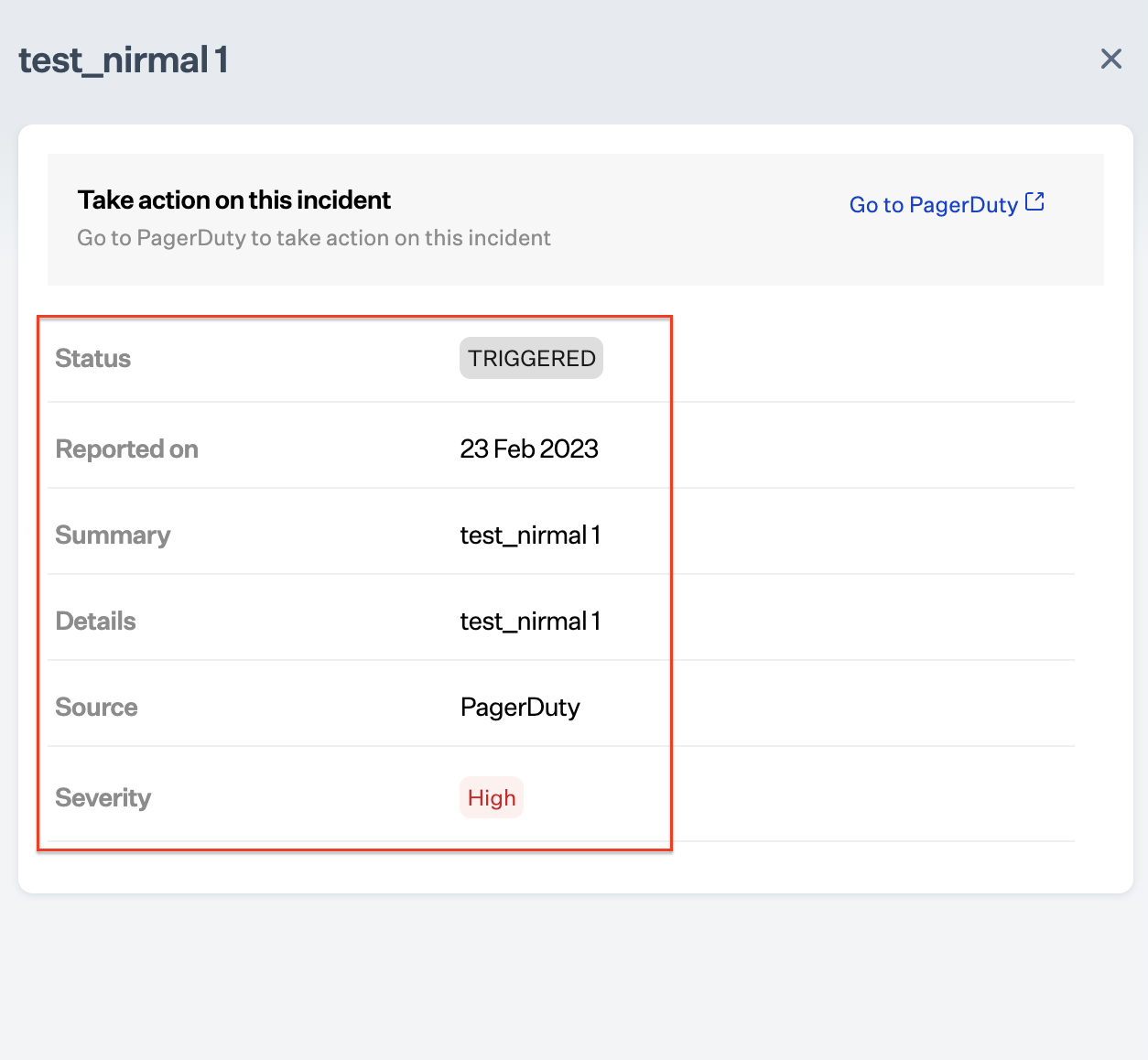
Step 2: Select the desired open incident ticket and click on Manage.   &#x20;

Step 3: Review the incident ticket details.   &#x20;

<figure><img src="https://s3.amazonaws.com/cdn.freshdesk.com/data/helpdesk/attachments/production/72048445807/original/45qJmb0K3HEG1U8Kzg5LCPog2eKTvT1A5w.png?1683810894" alt="" width="563"><figcaption></figcaption></figure>

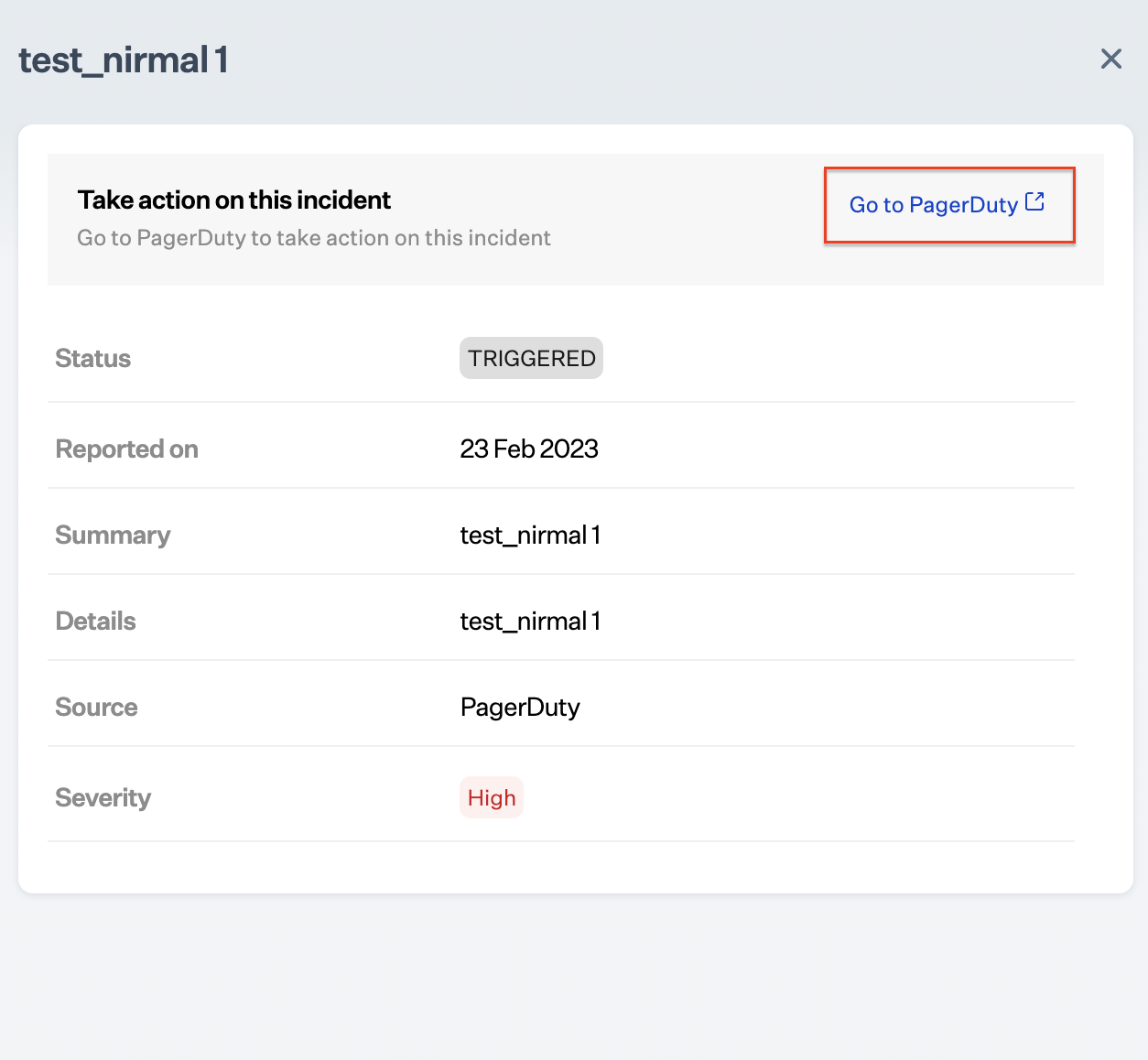
Step 4: Click on Go to Pagerduty to direct to the PagerDuty account.   &#x20;

<figure><img src="https://s3.amazonaws.com/cdn.freshdesk.com/data/helpdesk/attachments/production/72048445876/original/OU160SlS4MqiFRvfE2CGYW9BzrjvbLAiYQ.png?1683810925" alt="" width="563"><figcaption></figcaption></figure>

Step 5: Resolve the incident ticket.&#x20;

Refer to [resolve an incident](https://support.pagerduty.com/docs/incidents#resolve-an-incident).

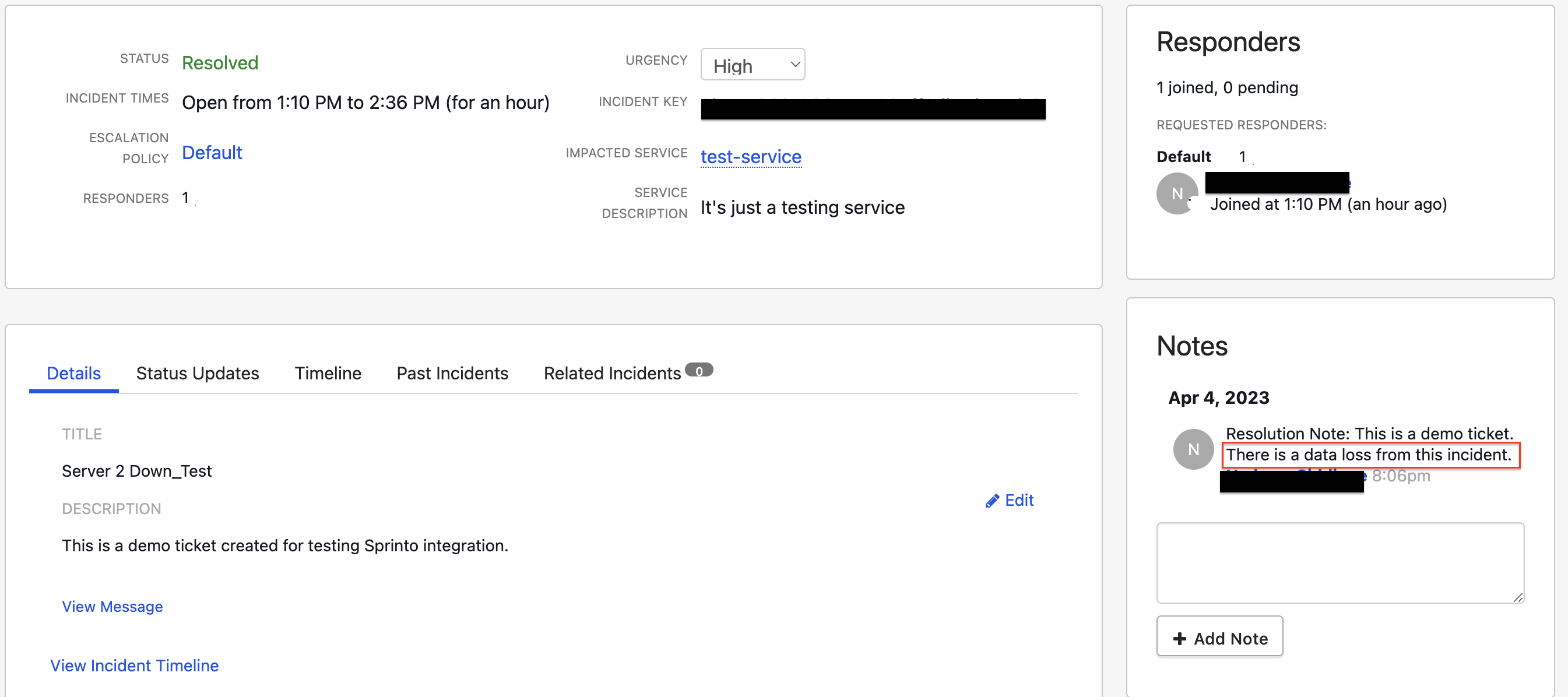
**Note**: If there is a data loss through the incident, mention the word “dataloss/data loss” in the closing note of the incident ticket on PagerDuty. This is important for Sprinto to detect the data loss incidents and manage a dataloss reporting incident ticket.

Step 6: If the resolved incident ticket has the word “dataloss/ data loss” mentioned in the closing notes on PagerDuty, do the following steps:

**Note**: If there is a data loss from the resolved incident ticket on PagerDuty, a new monitor gets tagged to the resolved incident ticket asking to report the data loss.  &#x20;

<figure><img src="https://s3.amazonaws.com/cdn.freshdesk.com/data/helpdesk/attachments/production/72048446097/original/2cnfm4Pw0cfvCSetDZmtpUCgLKOEWI53wQ.png?1683811021" alt="" width="563"><figcaption></figcaption></figure>

1. Click on **Manage** next to the incident ticket under the PagerDuty tab.

   **Note**: The new created ticket is regarding the data loss reporting from the previously closed incident ticket, and need to be resolve from the Sprinto platform. This ticket cannot be seen on the integrated PagerDuty account.  &#x20;

   <figure><img src="https://s3.amazonaws.com/cdn.freshdesk.com/data/helpdesk/attachments/production/72048446350/original/1_XEa6BKPysXry4zoKJfVQNL1BU3bB-IlQ.png?1683811129" alt="" width="563"><figcaption></figcaption></figure>
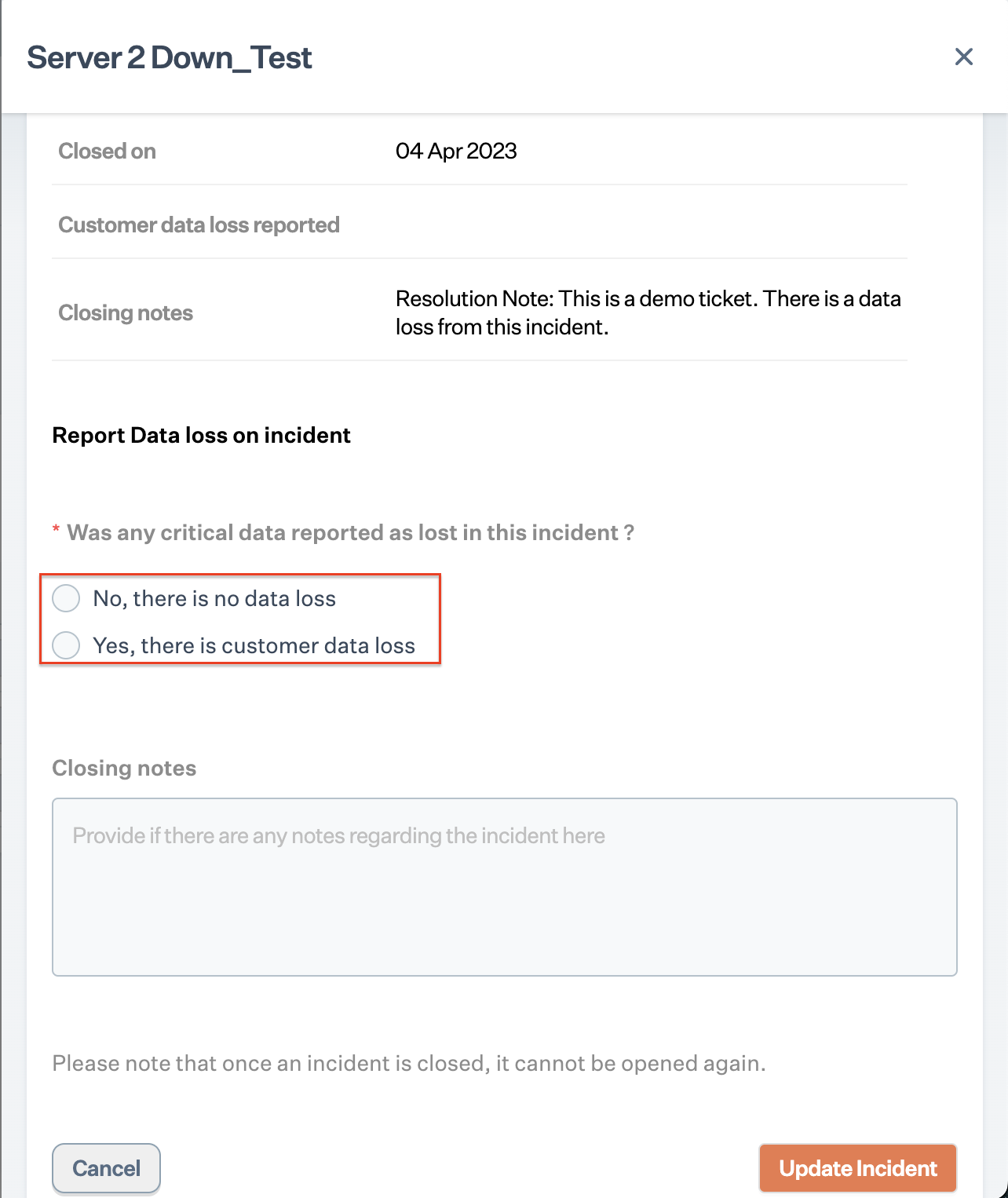
2. Select the following option:
   * **No**: If there is no data loss from the incident.
   * **Yes**: If there is any kind of data loss from the incident:  &#x20;

     <figure><img src="https://s3.amazonaws.com/cdn.freshdesk.com/data/helpdesk/attachments/production/72048446499/original/Jxm4vfZwCfk9VOV42WI4YVtoUprIE04WDg.png?1683811183" alt="" width="375"><figcaption></figcaption></figure>
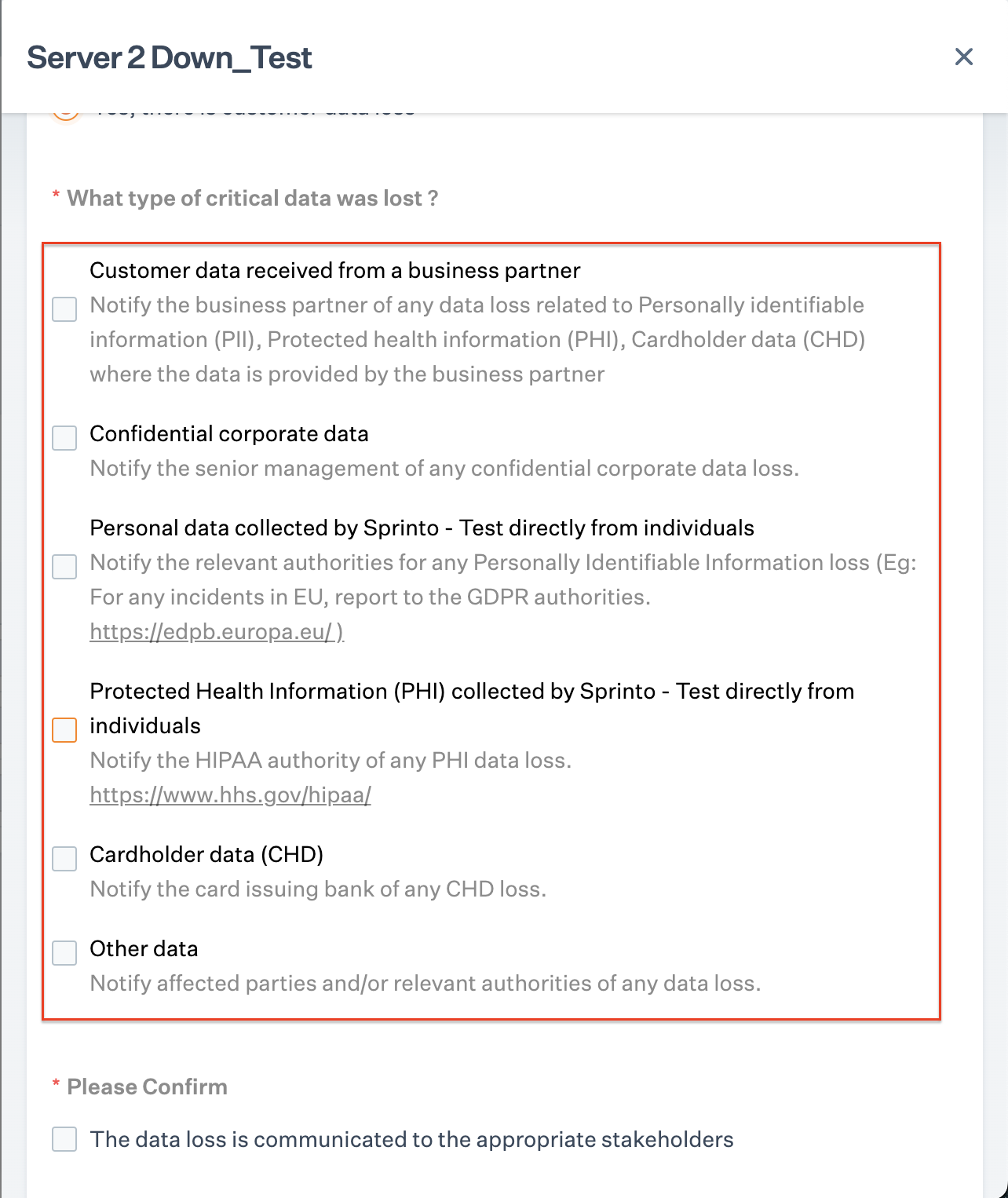
3. If you selected "yes" for data loss, choose the type of data loss from the available options.   &#x20;

   <figure><img src="https://s3.amazonaws.com/cdn.freshdesk.com/data/helpdesk/attachments/production/72048446735/original/QTXBaZCQEVa3TAK_10n2fGdIufXX1RpF9Q.png?1683811260" alt="" width="375"><figcaption></figcaption></figure>
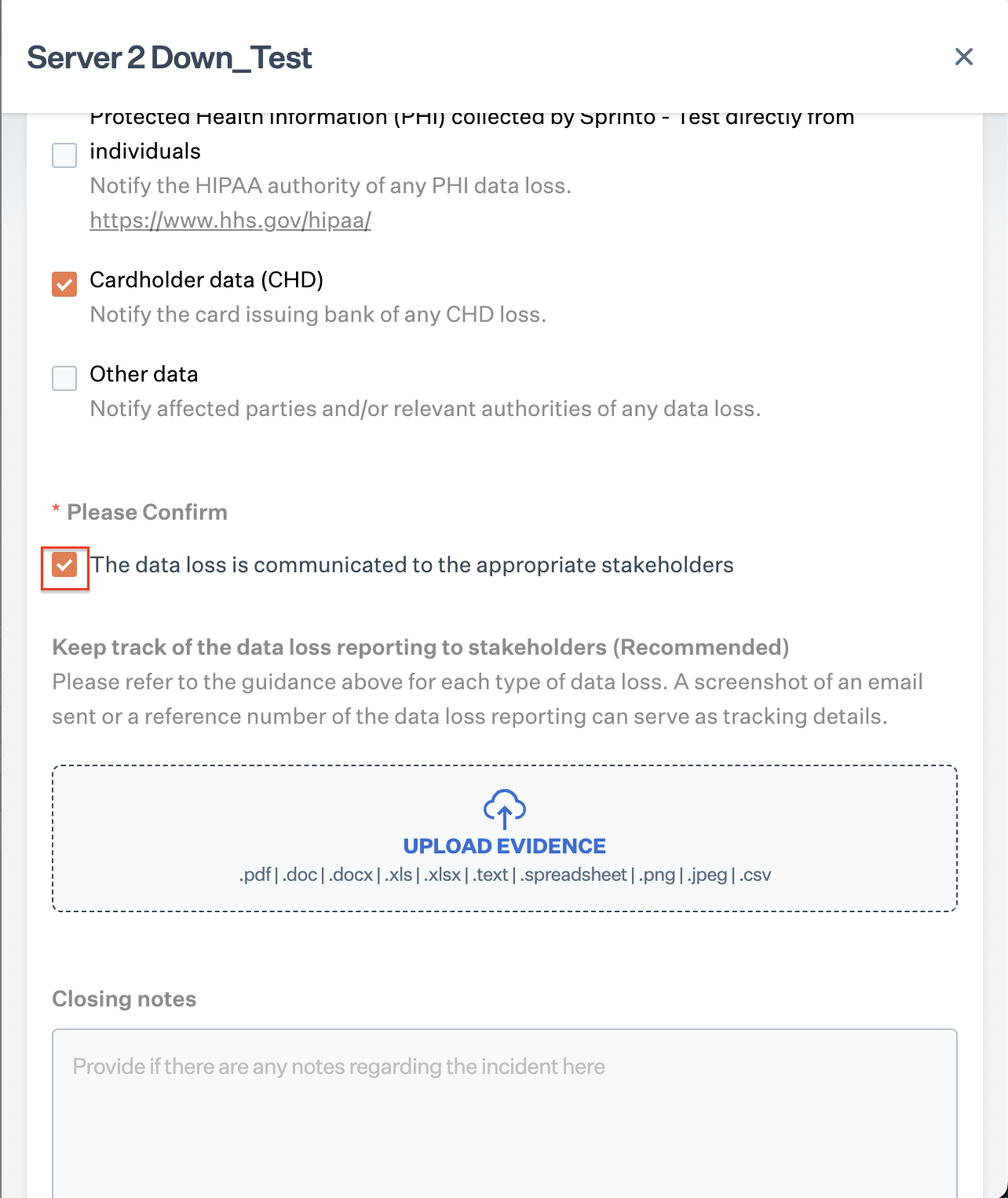
4. Notify the respective stakeholder about the data loss, and select the checkbox to acknowledge the data loss reporting. &#x20;

| Data loss type                               | Reporting stakeholder                                                                            |
| -------------------------------------------- | ------------------------------------------------------------------------------------------------ |
| Customer data received from business partner | Business partner                                                                                 |
| Confidential corporate data                  | Senior management                                                                                |
| Personal data collected by Sprinto           | Relevant authorities based on lost data type (For EU, report at [GDPR](https://edpb.europa.eu/)) |
| Protected Health Information (PHI)           | [HIPAA](https://www.hhs.gov/hipaa/)                                                              |
| Cardholder data                              | Card issuing bank                                                                                |
| Other data                                   | Affected party or relevant authorities                                                           |

<figure><img src="https://s3.amazonaws.com/cdn.freshdesk.com/data/helpdesk/attachments/production/72048448199/original/qTaaNJcIUwqXRZwIIBDcideuo7OeJH-wKQ.png?1683811653" alt="" width="375"><figcaption></figcaption></figure>

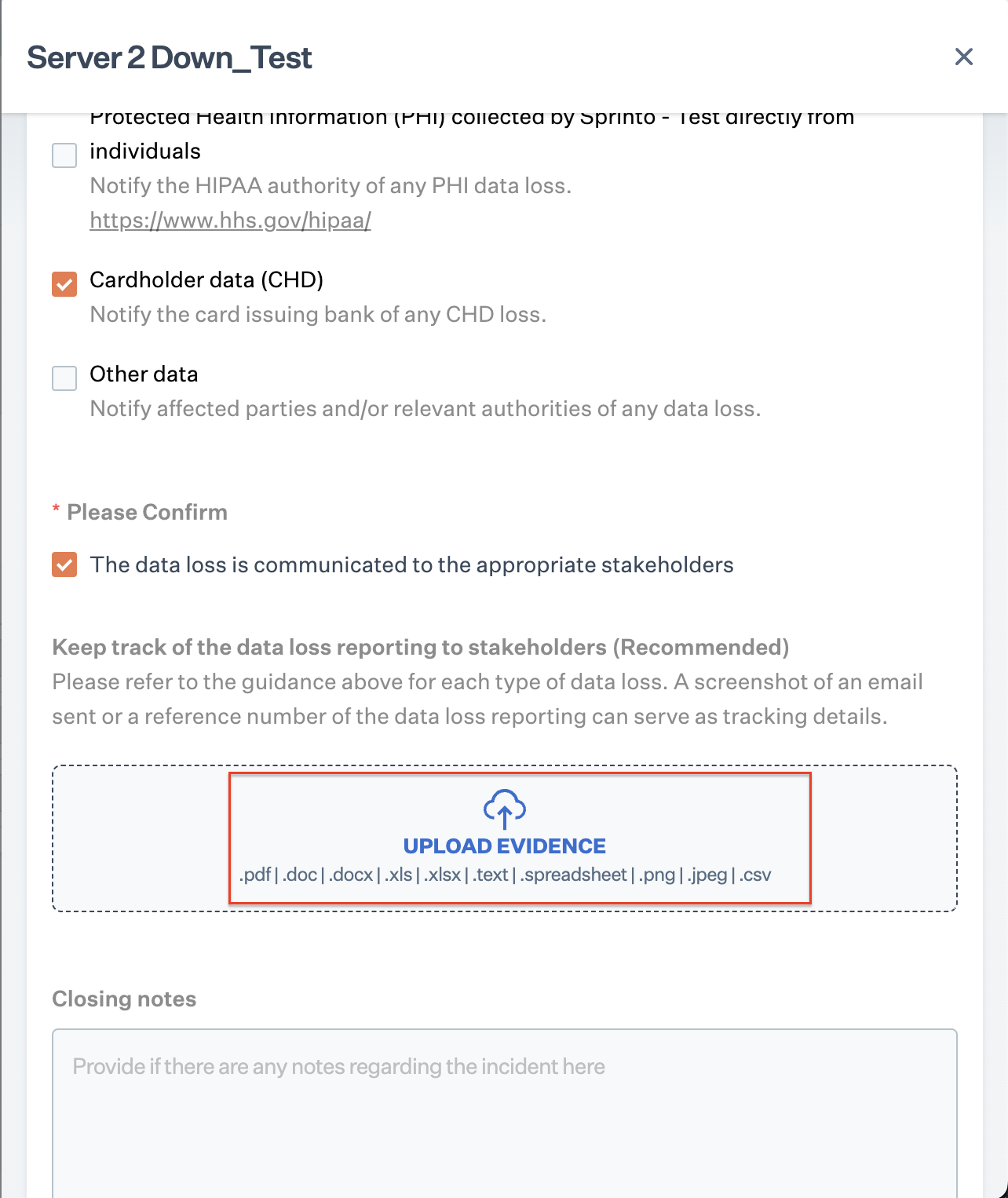
5. Click on **upload evidence** to upload the evidence for the data loss reporting.

{% hint style="info" %}
You can attach the data loss reporting email or reporting reference number as a evidence in the supported file format.  &#x20;
{% endhint %}

<figure><img src="https://s3.amazonaws.com/cdn.freshdesk.com/data/helpdesk/attachments/production/72048448379/original/sTpV7I3oSurz5clSXa1yAw1Liowfff-TnQ.png?1683811715" alt="" width="375"><figcaption></figcaption></figure>

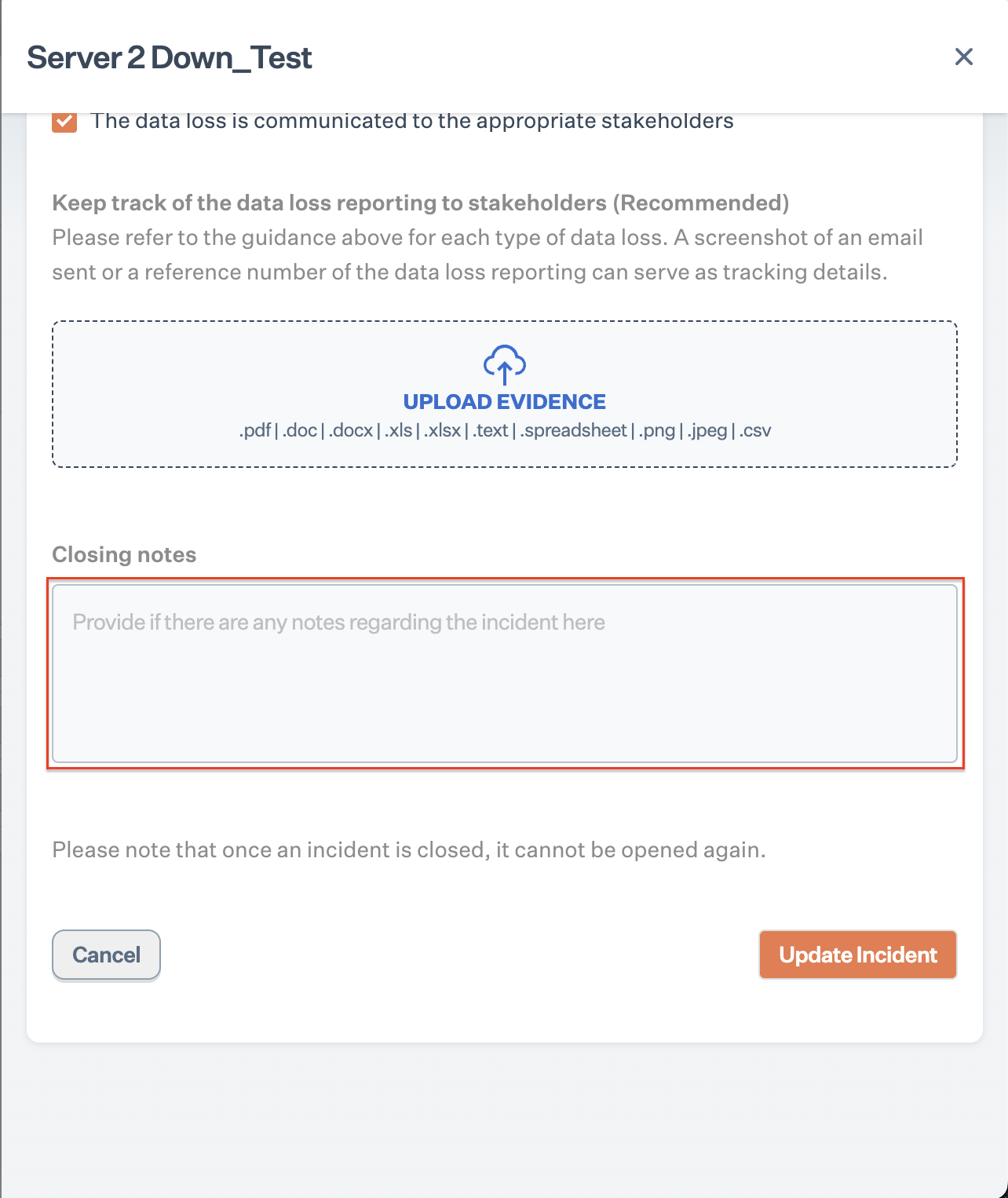
6. If required, enter any closing note regarding the incident.   &#x20;

<figure><img src="https://s3.amazonaws.com/cdn.freshdesk.com/data/helpdesk/attachments/production/72048448471/original/C1Ewhsuj88ah6N-EzDerQ1Yvl_EwonpsDQ.png?1683811741" alt="" width="375"><figcaption></figcaption></figure>

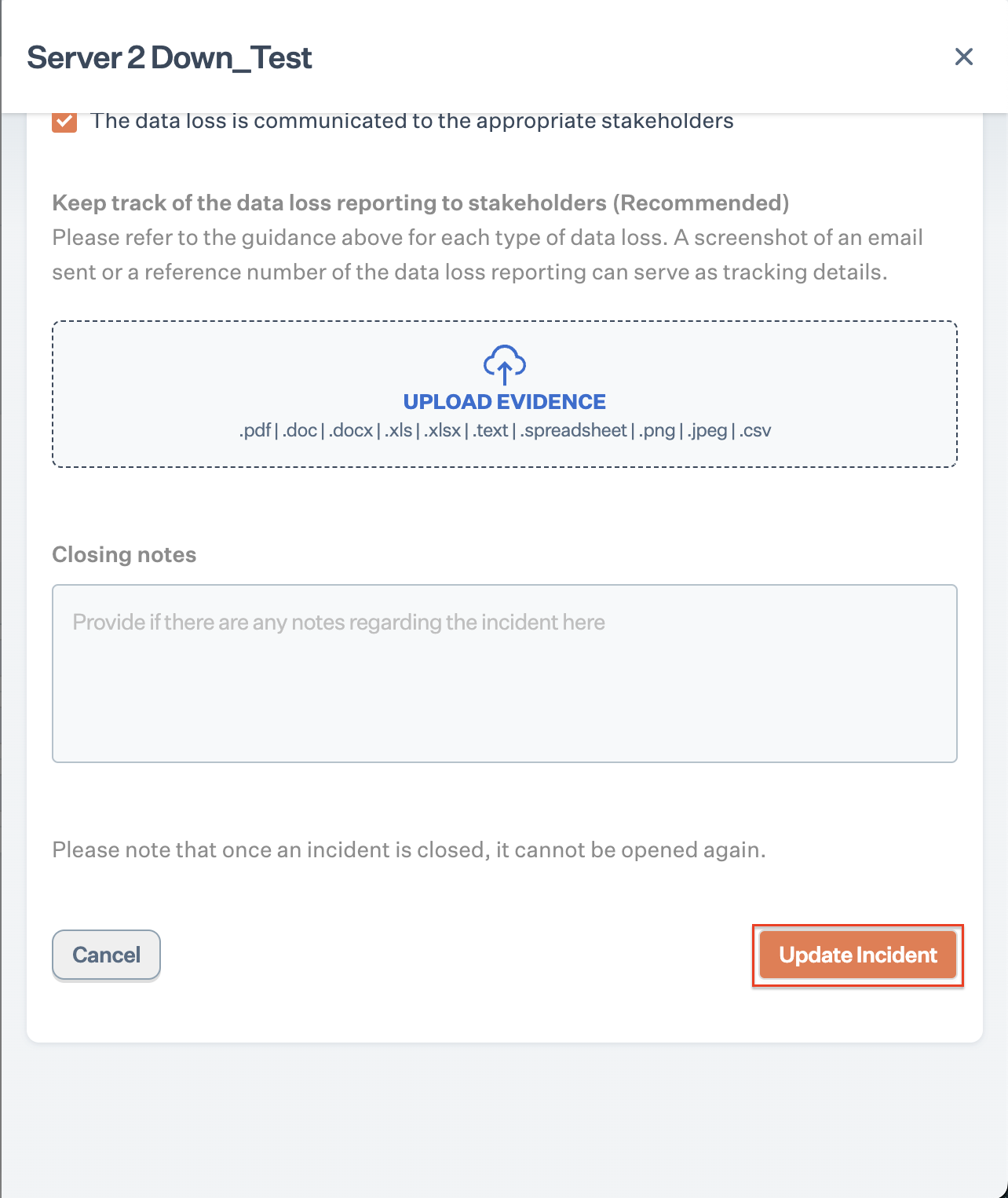
7. Click on Close Incident.&#x20;

<figure><img src="https://s3.amazonaws.com/cdn.freshdesk.com/data/helpdesk/attachments/production/72048448627/original/64xf2dYpVBQFNGt4NznYe6sBmGs1qX5--g.png?1683811783" alt="" width="375"><figcaption></figcaption></figure>

### **Result**:

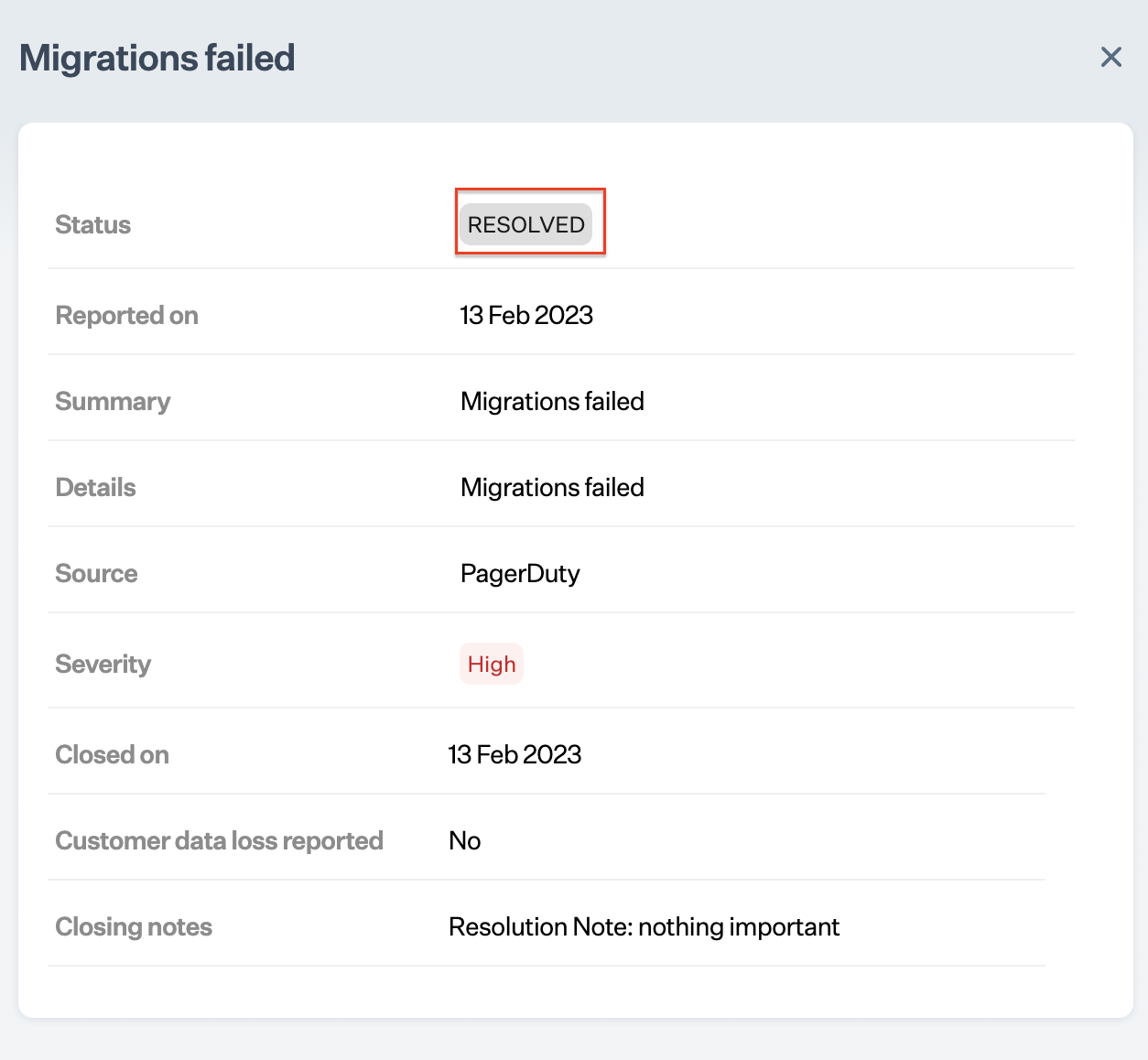
On successful ticket solution, incident ticket status changed to resolved.

<figure><img src="https://s3.amazonaws.com/cdn.freshdesk.com/data/helpdesk/attachments/production/72048448679/original/Vfpq3xz4ASP_i1m9YjbbWsDwy6UkGPg7DA.png?1683811804" alt="" width="375"><figcaption></figcaption></figure>