> For the complete documentation index, see [llms.txt](https://docs.sprinto.com/llms.txt). Markdown versions of documentation pages are available by appending `.md` to page URLs; this page is available as [Markdown](https://docs.sprinto.com/data-library/incidents/dashboard-actions/resolving-incident-ticket-sprinto.md).
# Resolving Incident Ticket (Sprinto)
The following procedure describes about how to resolve the incident tickets logged though the Sprinto Incident tickets. Sprinto fetches the following details from the threat detection tools offered by the cloud services to log a incident tickets on Sprinto:
Section
Details
Incident
Title of the logged ticket from the source IMS.
Reported on
The date incident ticket is created.
Severity
Based on the logged incident ticket details following status is tagged to the tickets: *High *Low
Status
Current status of the logged ticket, following are the status ticket can have: * Triggered: Ticket is in open status *Resolved: Ticket is in closed status
Data loss
Reflects if there is any form of data loss from the logged incident, the following can be status for the data loss: * Yes * No
Action
Action that can be taken against the logged incident ticket. Following status can be there for action: * Manage: Can take action to close * View: Can view the details of the logged incident ticket
Checks
Status of the monitored check. Following status the monitor check can have: * Failing: * Passing:
### **Prerequisites**:
* Logged in on Sprinto as an administrator.
* Configured Sprinto as incident management system, refer to
[Configure Sprinto for Incident Ticket Management](https://sprinto.freshdesk.com/a/solutions/articles/72000602963)
### **Procedure**:
Step 1: Navigate to **Data Library** > **Incidents**, then select the **Sprinto** tab.
Step 2: Select the desired open incident ticket and click on Manage.
Step 3: Review the incident ticket details.
Step 4: Do the following steps to close the incident ticket:
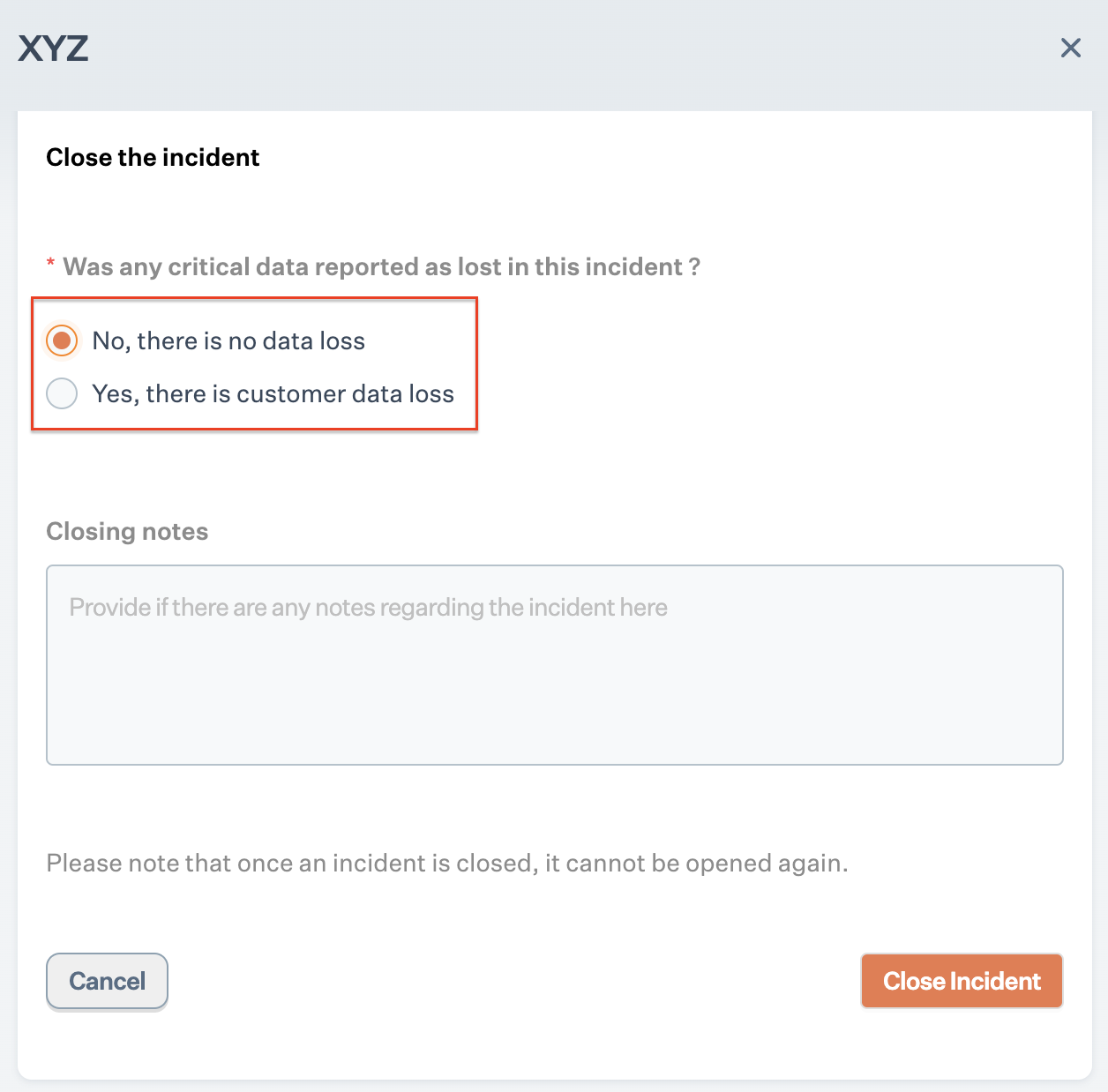
1.Define the data loss condition related to the selected incident ticket:
* **No**: If there is no data loss from the logged incident.
* **Yes**: If there is data loss from the logged incident
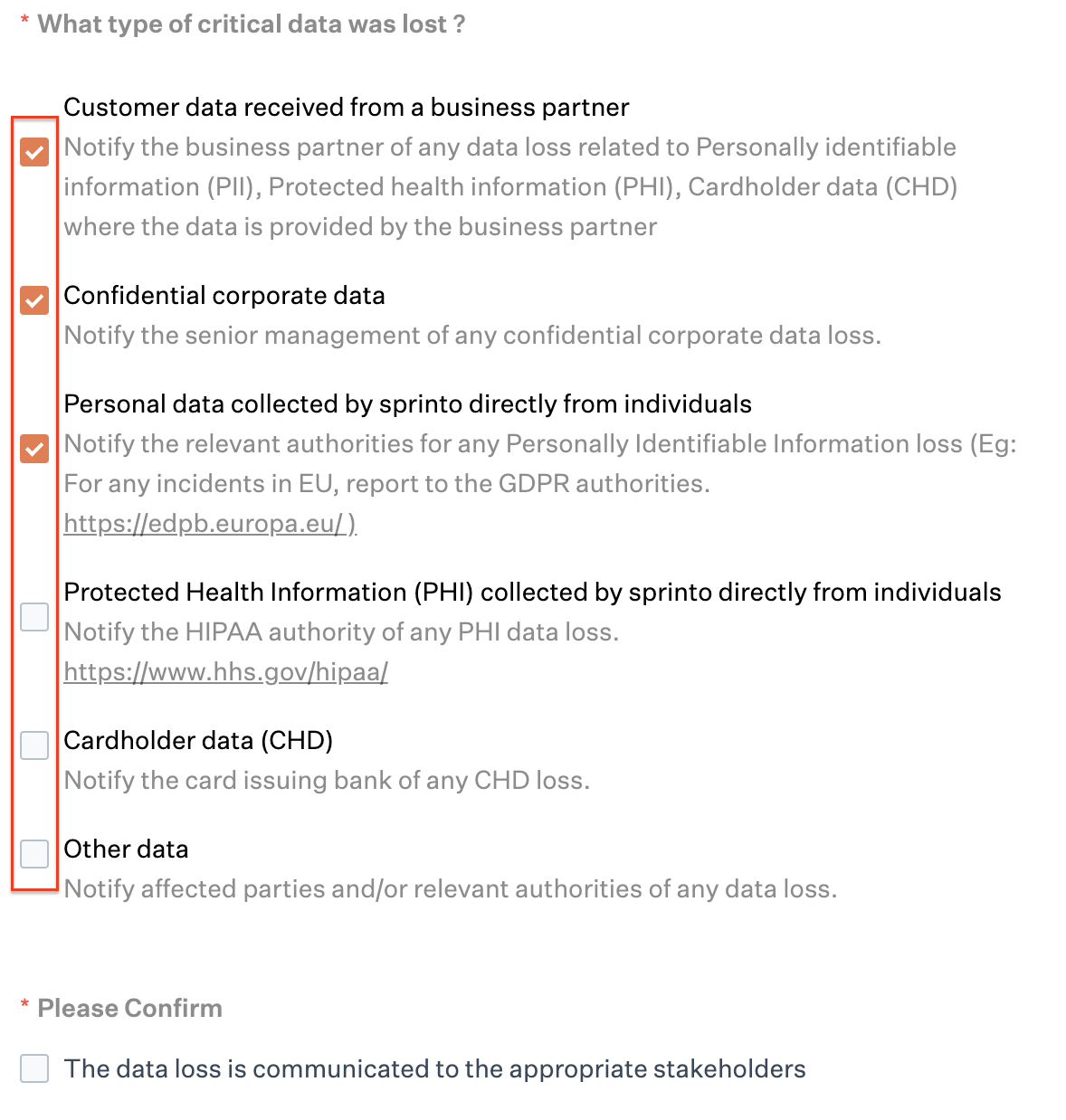
2\. If there is a data loss, select the applicable type of critical data loss:
**Note**: If required, you can select the multiple data loss types simultaneously.
| Data loss type | Reported to | Description |
| ------------------------------------------------------- | ----------------------------------------------------------------------------------------- | -------------------------------------------------------------------------------------------------------------------------------------------------------------------------------------------------------------------- |
| Customer data received from a business partner | Business partner |
\* If there is a customer data loss, received though your business partner. \* Report to the business partner about the customer data loss, specify the type of data loss.
|
| Confidential corporate data | Senior Management |
\* If there is a corporate confidential data loss. \* Report to the senior management about the corporate confidential data loss.
|
| Personal data collected by Sprinto | Relevant aturhority Europe: [GDPR](https://edpb.europa.eu/) |
\* If there is a personal identity related information loss. \* Report to the relevant authority about the data loss. Note: If the incident related to Europe, report to the GDPR about the data loss.
|
| Protected Health Information (PHI) collected by Sprinto | Health Information Privacy Protection Act ([HIPPA](https://www.hhs.gov/hipaa/index.html)) |
\* If there is a protected health information loss of a individual collected directly by Sprinto. \* Report to the HIPPA for any PHI data loss.
|
| Cardholder data (CHD) | Card Issuing Bank |
\* If there is a cardholder data loss. \* Report to the card issuing bank about the CHD loss.
|
| Other data | Relevant authority |
\* If there is any other type of data loss (other then the above mentioned category). \* Report to the affected party or the relevant authority about the data loss.
|
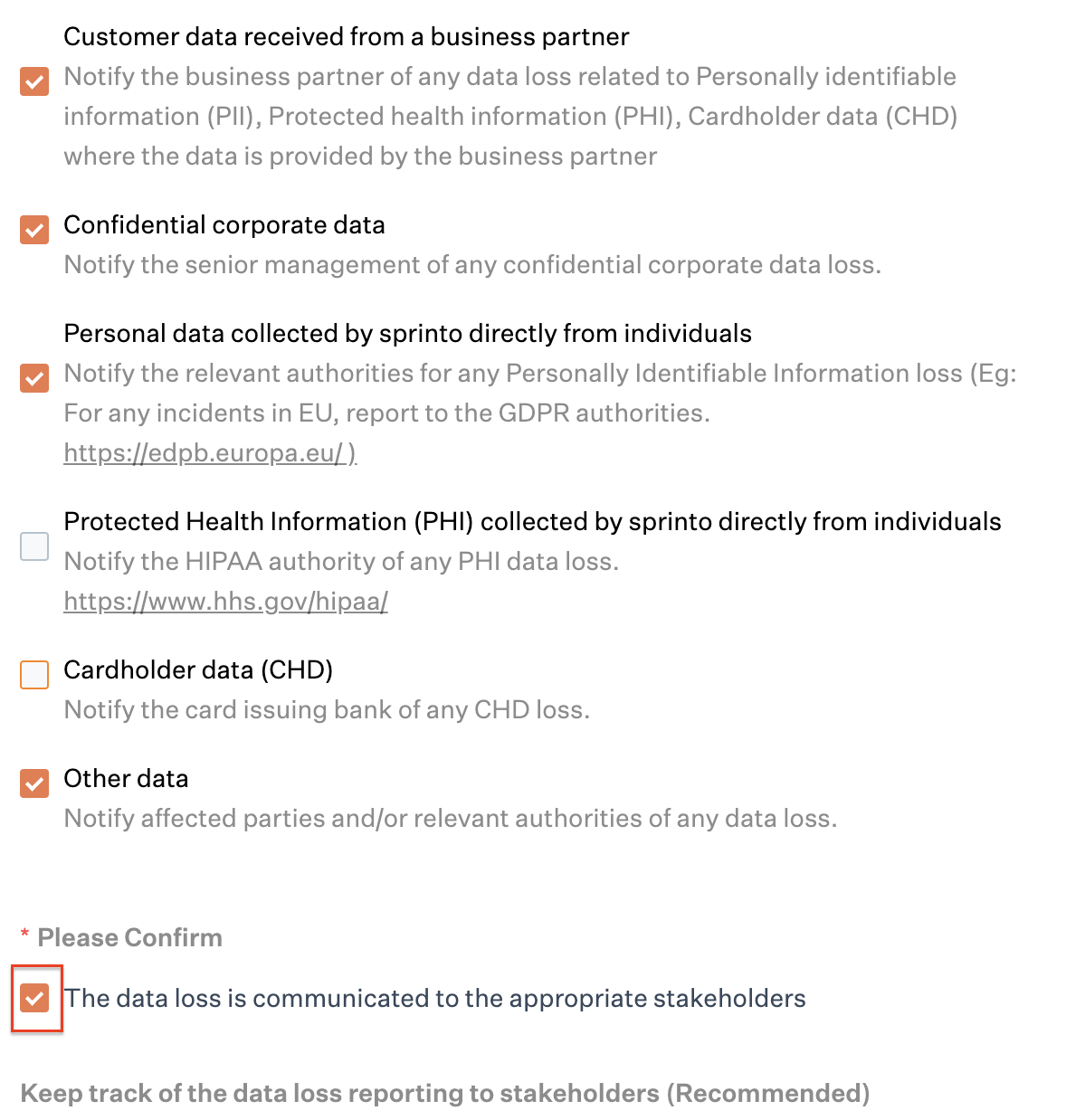
3\. Select the checkbox to acknowledge that the data loss is communicated to the appropriate stakeholders.
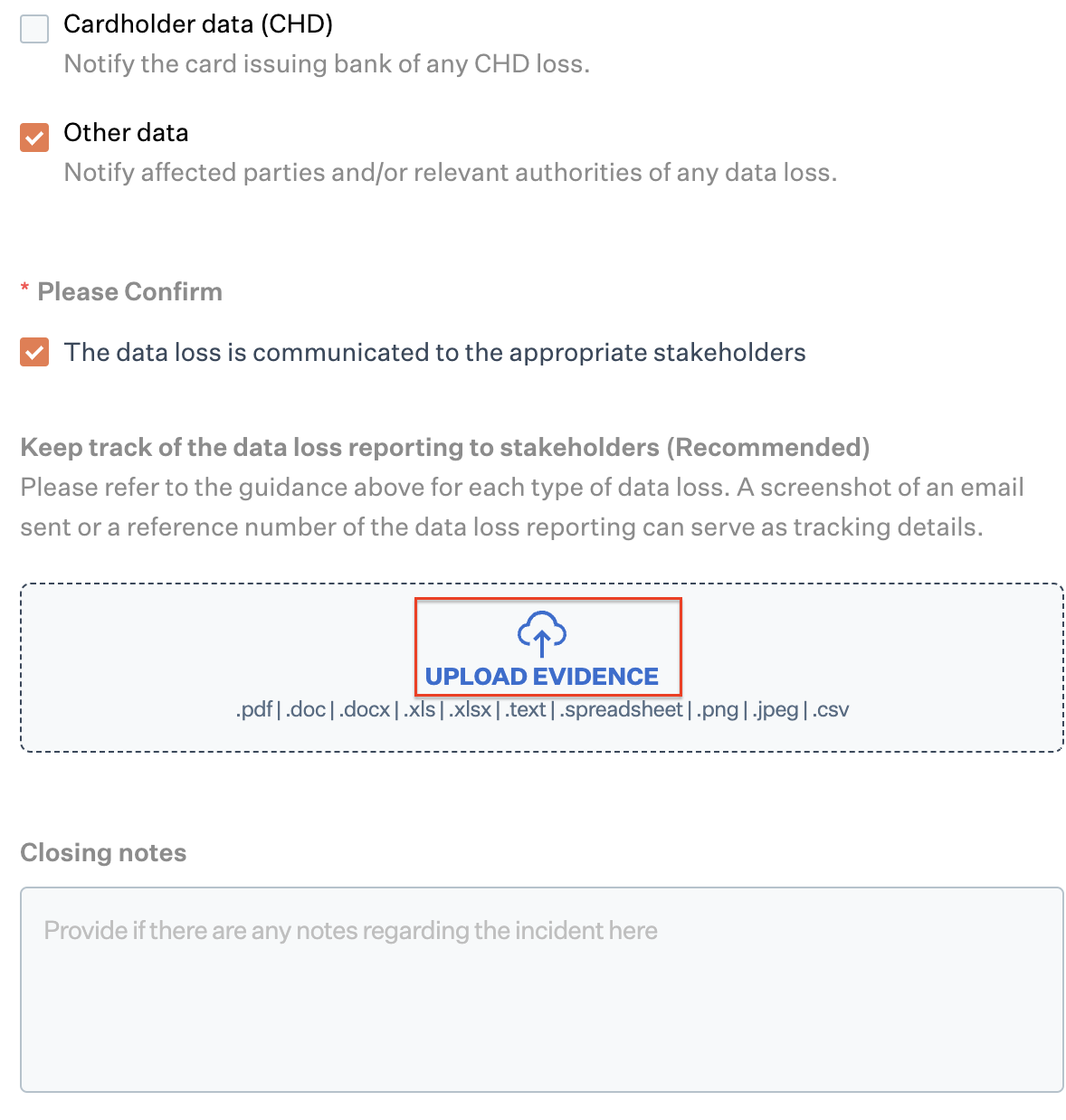
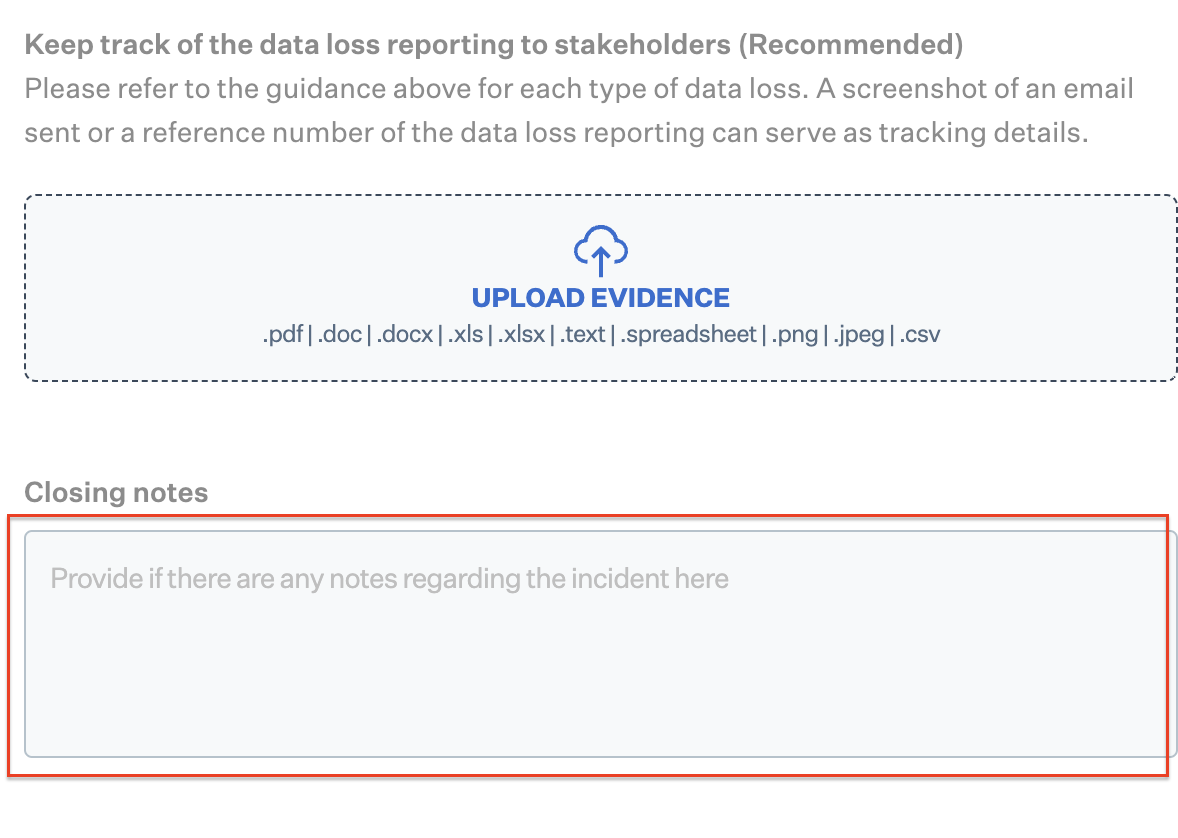
4\. Click on **upload** to upload the evidence of data loss reporting.
**Note**: You can upload the reporting email or reporting reference number that can be used to track the data loss reporting.
**Note**: Make sure you upload the evidence in the supported file format. Supported file formats are: **.pdf, .xls, .xsls, .doc, .docx, .text, .spreadsheet, .png, .jpeg, and .csv**.
5\. If required, add the closing note regarding the incident.
**Note**: Once the ticket is closed, it cannot be opened again.
6\. Click on Close incident.
### **Result**:
On successful resolution of incident ticket, status of the incident ticket changes from open to close.
---
# Agent Instructions
This documentation is published with GitBook. GitBook is the documentation platform designed so that both humans and AI agents can read, navigate, and reason over technical content effectively. Learn more at gitbook.com.
## Querying This Documentation
If you need additional information that is not directly available in this page, you can query the documentation by asking a question.
Perform an HTTP GET request on the following URL with the `ask` and `goal` query parameters:
```
GET https://docs.sprinto.com/data-library/incidents/dashboard-actions/resolving-incident-ticket-sprinto.md?ask=&goal=
```
`ask` is the immediate question: it should be specific, self-contained, and written in natural language.
`goal` is what the user is ultimately trying to achieve, the reason they need the answer. Sharing it helps GitBook give you a better, more relevant answer. A goal is most helpful when it describes the outcome the user wants rather than restating the question. For example, with `ask=how do I create an API token`, a goal like `automate deployments from our CI pipeline` lets GitBook tailor the answer to that use case.
The response will contain a direct answer to the question and relevant excerpts and sources from the documentation.
Use this mechanism when the answer is not explicitly present in the current page, you need clarification or additional context, or you want to retrieve related documentation sections.