> For the complete documentation index, see [llms.txt](https://docs.sprinto.com/llms.txt). Markdown versions of documentation pages are available by appending `.md` to page URLs; this page is available as [Markdown](https://docs.sprinto.com/audits/dashboard-actions/create-an-audit-plans-3-and-4.md).
# Create an Audit (Plans 3 and 4)
Learn how to create Partner or Custom audits in Sprinto, define audit periods, and add requirements with ease.
Sprinto enables you to create and manage both **integrated** and **custom** audits from a unified interface. This guide walks you through the steps required to set up each type of audit.
***
### Prerequisites
Before you begin:
* You must have the **Admin** role in Sprinto.
* Your compliance framework should be connected if you're creating an integrated audit.
* Relevant zones and integrations should already be configured.
***
### Create an Automated Audit
Integrated audits are pre-configured audits tied to a compliance framework (e.g. SOC 2, ISO 27001). These audits automatically map framework requirements to Sprinto’s control set.
#### Steps:
1. **Navigate to** **Audits** from the left navigation menu.
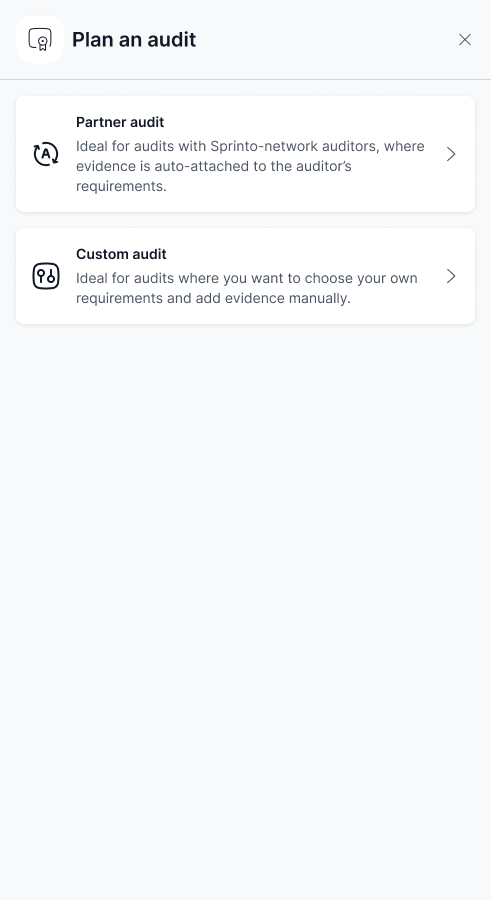
2. **Click** **Plan new audit** and select **Automated Audit**.
3. **Fill in audit details** in the "Plan an audit" screen:
* **Zone**: Select the operational zone the audit applies to (e.g. Pacific).
* **Audit Type**: Choose **External** or **Internal**, depending on whether it’s conducted by an external auditor.
* **Framework**: Select the applicable compliance framework (e.g. SOC 2).
* **Standards for the framework**: Choose one or more control categories (e.g. Security, Confidentiality).
{% hint style="warning" %}
#### Important
Once the audit is created, audit type and framework cannot be changed.
{% endhint %}
4. **Set the evidence collection period**:
* Select an **evidence collection start date** using the calendar picker.
* Choose the **duration** (12, 6, or 3 months), or select **Custom** to define your own period.
* The **end date** will automatically adjust based on your selection, and can be modified if needed.
5. Toggle the **Auto-schedule next audit** switch if you wish to automatically create a new audit with the same duration when this audit is complete.
6. **Click “Start Audit”** to generate the audit and proceed to the requirement mapping stage.
***
### Create a Custom Audit
Use custom audits in Sprinto to conduct internal reviews, respond to customer questionnaires, or manage non-framework-based assessments. This option allows you to define your own set of audit requirements from scratch.
#### Steps
1. **Go to** **Audits** from the left-hand navigation menu.
2. **Select** **Plan new audit** in the top-right corner.
3. In the audit type selection screen, **choose** **Custom audit**.
4. **Choose the audit type**:
* Select **External** if the audit will be performed by an external auditor.
* Select **Internal** if the audit will be conducted within your organisation.\
The explanatory text will adjust automatically based on your selection.
5. **Select an auditor** (optional for internal audits):
* Use the dropdown list to choose an existing auditor (for example, EY, Deloitte, or KPMG).
* If the auditor is not listed, type the name and select **Add** to include them manually.
6. **Configure the evidence collection period**:
* Select a **start date** for the evidence collection using the calendar picker.
* Choose a **collection duration**—12 months, 6 months, 3 months, or select **Custom** to define your own range.
* The **end date** will be calculated automatically and can be edited if needed.
7. Select an engagement to link this audit to an Align engagement to sync requests as audit requirements automatically.
8. Toggle the **Auto-schedule next audit** switch if you wish to automatically create a new audit with the same duration when this audit is complete.
9. **Select** **Start audit** to create the audit and proceed to the next step, where you can add or upload your audit requirements.
***
#### Understand Audit Milestones
The audit overview page displays the audit details, mapped frameworks and controls, assigned auditor, and the current audit stage.
The audit progresses through the following milestones:
**1. Audit Plan**
This stage confirms that the audit has been successfully created and configured.
**2. Evidence Collection**
During this stage, you collect and organise the evidence required for the audit.
You can:
* Add audit-specific documents.
* Assign or update the auditor.
* Review periodic activities that fall within the audit period.
* Reschedule periodic activities when required.
***
#### Manage Audit Documents
You can attach supporting audit documents directly to the audit.
**To add audit documents**
1. In the **Evidence Collection** stage, click **Manage** next to Audit Documents.
2. Choose one of the following options:
* **Add from Document Hub** to use an existing approved document.
* **Upload a document** to upload a new file.
3. Select the required document.
4. Click **Add document**.
The selected documents become available as part of the audit package.
***
#### Manage Periodic Activities
Periodic activities that fall within the audit period are automatically associated with the audit.
**To review or reschedule periodic activities**
1. Open the **Periodic Activities** tab.
2. Review the status of scheduled checks and monitored checks.
3. Click **Reschedule** to update individual activities.
4. To update multiple activities at once, select **Reschedule All**.
5. Choose new due dates and save your changes.
Sprinto updates the audit schedule based on the revised dates.
***
#### Request an AI-powered Pre-audit Evidence Review
After the evidence collection period ends, you can request an AI-assisted review of your audit evidence before sharing it with your auditor.
{% hint style="info" %}
#### Note
AI-powered evidence review is available only for **Automated Audits**. This feature is not supported for Custom Audits.
{% endhint %}
The review helps identify gaps, risks, missing evidence, and potential improvement areas.
**To request a review**
1. Navigate to the **Pre-audit Evidence Review** stage.
2. Click **Request AI-powered review**.
3. Review the confirmation message.
4. Click **Request AI-powered review** again to proceed.
Sprinto AI analyses the collected evidence and generates a review report. The report generation process may take a few minutes.
***
#### View the AI Evidence Review Report
After the review is complete:
1. Navigate to the **Pre-audit Evidence Review** stage.
2. Click **View evidence report**.
The report displays:
* Control details
* Check titles
* Review status
* AI-generated findings
* Valid and invalid evidence observations
If additional changes are made to the audit evidence, click **Regenerate** to create an updated report.
***
#### Choose and Share an Auditor
After the evidence collection phase is complete, you must assign an auditor before the audit can be shared. Once an auditor has been selected, you can invite auditor contacts to access the audit dashboard and review the collected evidence.
**Choose an Auditor**
1. Go to **Audits** and open the audit.
2. In the **Audit milestones** section, click **Choose Auditor**.
3. In the **Select auditor** drawer, search for the audit partner you want to assign.
4. Select the auditor from the search results.
5. Review the confirmation message and click **Confirm**.
The selected auditor is now associated with the audit and appears in the audit summary.
{% hint style="info" %}
#### Note
If you are unsure which audit partner to choose, refer to the [**How to Select an Audit Partner**](/audits/dashboard-actions/selecting-an-audit-partner.md) guide.
{% endhint %}
**Share the Audit with an Auditor**
After assigning an auditor, share the audit dashboard with the auditor's team so they can review evidence.
{% hint style="warning" %}
#### Important
* You can share an audit with the auditor only after the evidence collection period has ended. If you need to share the audit immediately, update the audit end date to a date that has already passed, then proceed with sharing the audit.
* Audit dates can be modified at any time, so you can adjust the audit timeline later if required.
{% endhint %}
1. In the **Share with auditor** milestone, click **Share with auditor**.
2. In the **Share audit** drawer, enter one or more auditor email addresses.
* To invite multiple auditors, separate email addresses with commas.
3. (Optional) Enable **Include Sprinto Audit Support team in auditor communication** if you want Sprinto's Audit Support team included in audit-related discussions.
4. Click **Share**.
The invited auditors receive an email invitation and can access the audit dashboard and associated evidence.
{% hint style="info" %}
#### Note
Invited auditors can only access the audit dashboard and evidence shared with them. They do not have access to the rest of your Sprinto workspace.
{% endhint %}
***
#### Complete the Audit Process
After reviewing and addressing any findings:
1. Allow the auditor to perform the evidence review.
2. Track progress through **Evidence Review by Auditor**.
3. Complete the audit once all review activities are finished.
***
### Add or Remove Audit Requirements
After creating an audit, you can customise the controls and criteria included in the audit based on your organisation's requirements.
#### Manage Controls Included in the Audit
1. Go to **Audits** and open the audit you want to configure.
2. On the **Summary** tab, locate the **Frameworks and controls** section.
3. Click the **Edit** icon.
4. In the **Frameworks & controls** panel, select the **Controls included in audit** tab.
5. Review the controls automatically included based on the selected framework.
6. To exclude a control from the audit:
1. Click **Remove** next to the control.
2. In the confirmation dialog, click **Confirm**.
The selected control is removed from the audit and moved to the **Not added in audit** tab.
#### Re-add Excluded Controls
1. Open the **Not added in audit** tab.
2. Locate the control you want to restore.
3. Click **Add**.
The control is added back to the audit and appears under **Controls included in audit**.
#### Customise Audit Criteria
Use the **Criteria view** tab to include or exclude specific audit criteria.
1. Open the **Criteria view** tab.
2. Select the checkbox next to a criteria group to include or exclude all criteria within that group.
3. Expand a criteria group and select individual criteria to customise the audit scope.
4. Click **Save**.
The selected criteria are added to or removed from the audit.
#### Notes
* Controls are automatically mapped based on the framework selected during audit creation.
* Removing a control also excludes its associated evidence from the audit.
* Excluded controls can be added back at any time before sharing evidence with the auditor.
* Changes made in the **Criteria view** are applied to the audit after you save them.
***
After creating the audit:
* Monitor completion status via the Audit Dashboard.
* Share access securely with auditors when you're ready.
---
# Agent Instructions
This documentation is published with GitBook. GitBook is the documentation platform designed so that both humans and AI agents can read, navigate, and reason over technical content effectively. Learn more at gitbook.com.
## Querying This Documentation
If you need additional information that is not directly available in this page, you can query the documentation dynamically by asking a question.
Perform an HTTP GET request on the current page URL with the `ask` query parameter, and the optional `goal` query parameter:
```
GET https://docs.sprinto.com/audits/dashboard-actions/create-an-audit-plans-3-and-4.md?ask=&goal=
```
`ask` is the immediate question: it should be specific, self-contained, and written in natural language.
`goal` is optional and describes the broader end goal you are ultimately trying to accomplish on behalf of the user. GitBook uses it to tailor the answer towards what is most useful for that goal.
The response will contain a direct answer to the question and relevant excerpts and sources from the documentation.
Use this mechanism when the answer is not explicitly present in the current page, you need clarification or additional context, or you want to retrieve related documentation sections.