> For the complete documentation index, see [llms.txt](https://docs.sprinto.com/llms.txt). Markdown versions of documentation pages are available by appending `.md` to page URLs; this page is available as [Markdown](https://docs.sprinto.com/audits/dashboard-actions/audit-dashboard-states.md).
# Audit Dashboard States
The Revamped Audit Overview in Sprinto gives you a consolidated, real-time snapshot of all your audits. It provides clarity across tasks, findings, messages, and audit stages—helping your team stay compliant and audit-ready.
**Access the Audit Overview**
1\. Sign in to your Sprinto Admin account.\
2\. From the left-hand navigation, select Audits.\
3\. On the Audits screen, click the Overview tab.
**Overview Layout States**
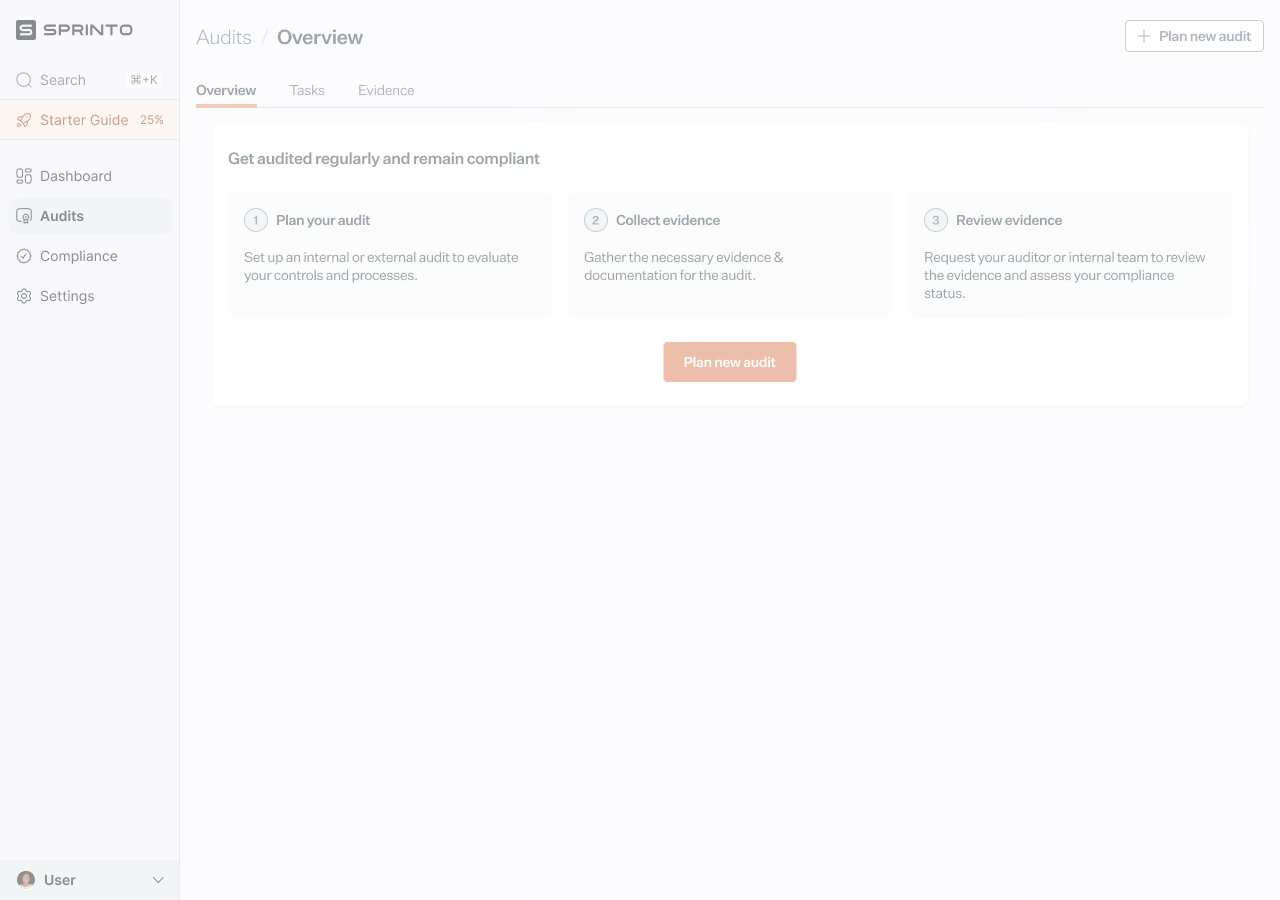
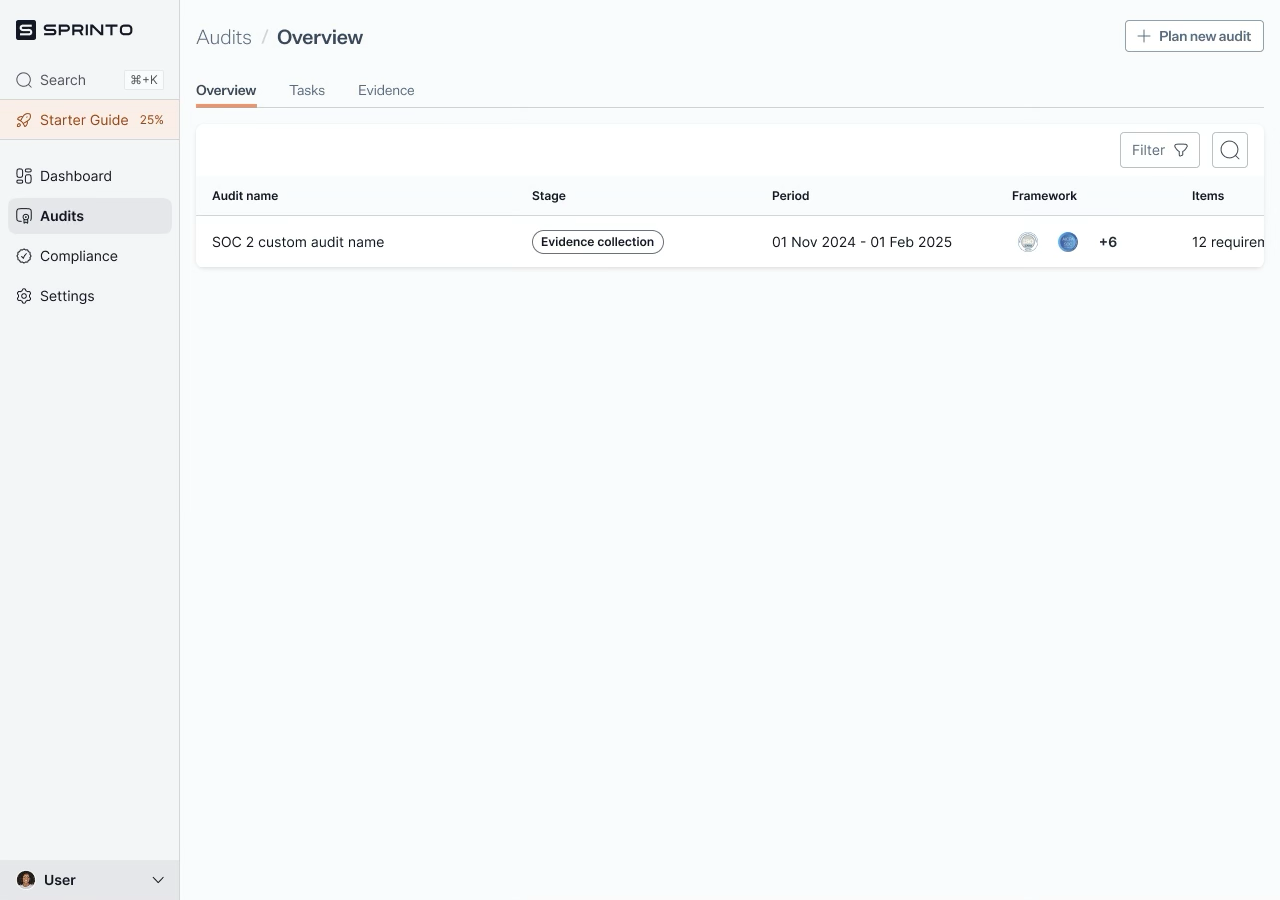
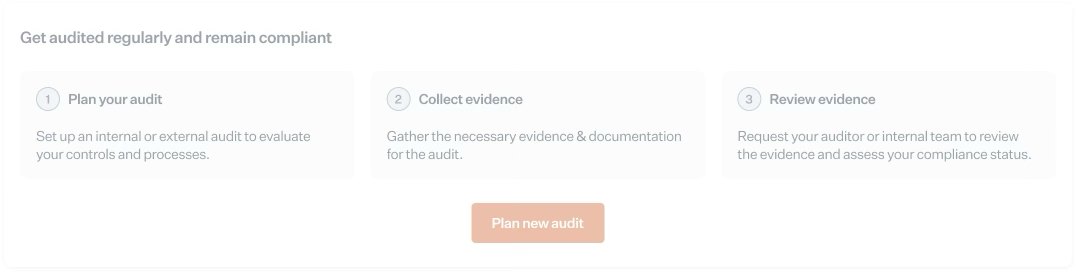
**1. Empty State**
Displayed when no audits have been created.
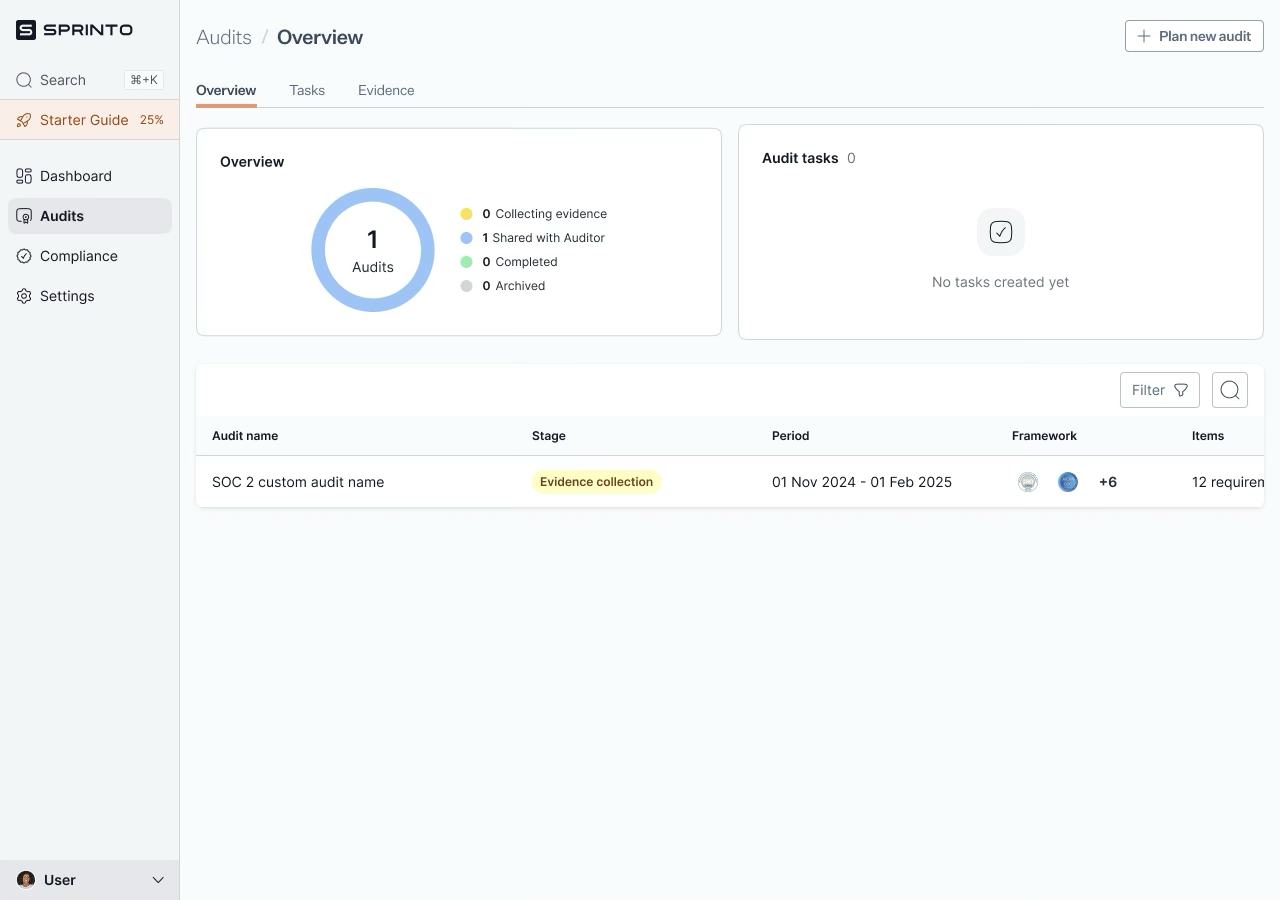
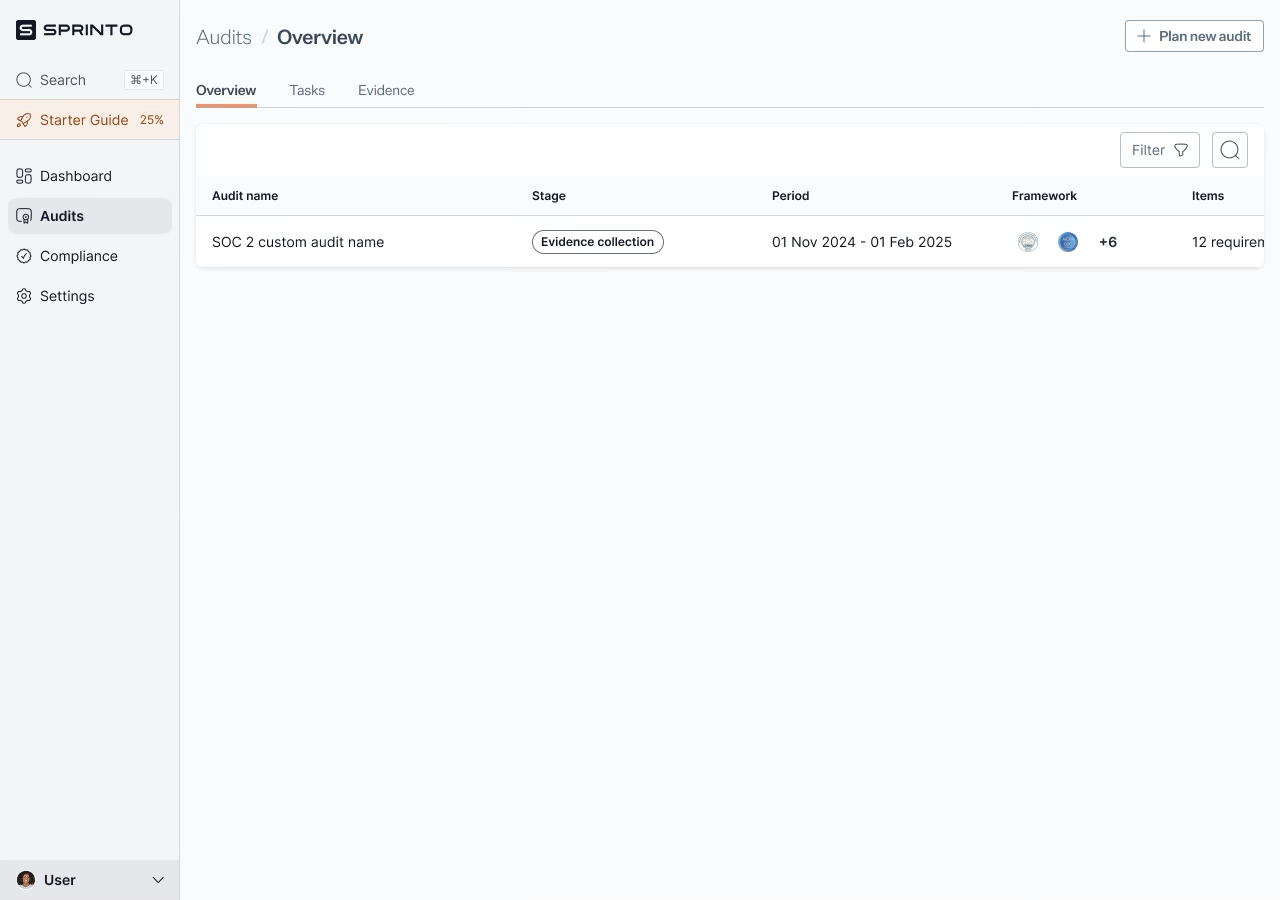
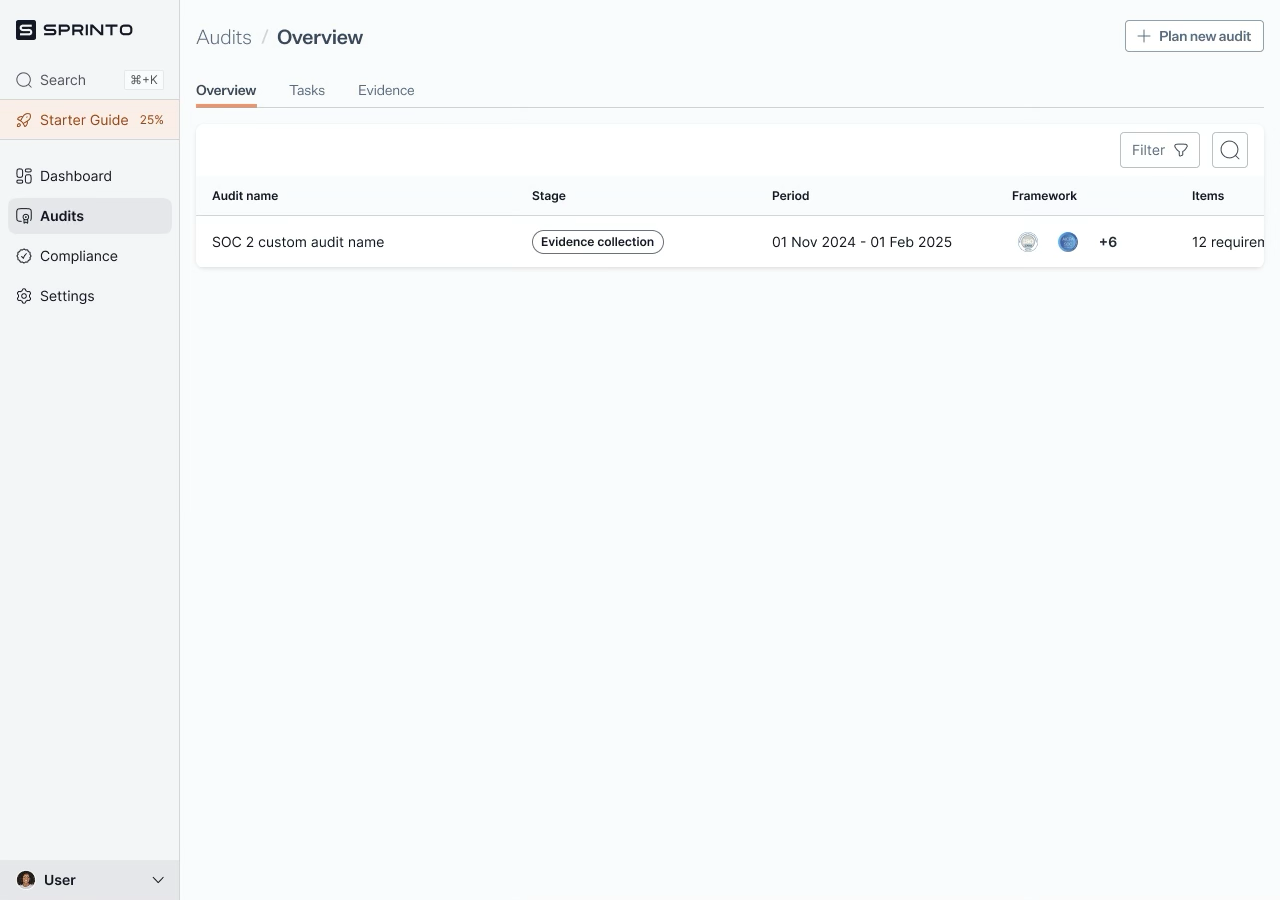
**2. One Audit State**
Displays audit status when one audit is present.
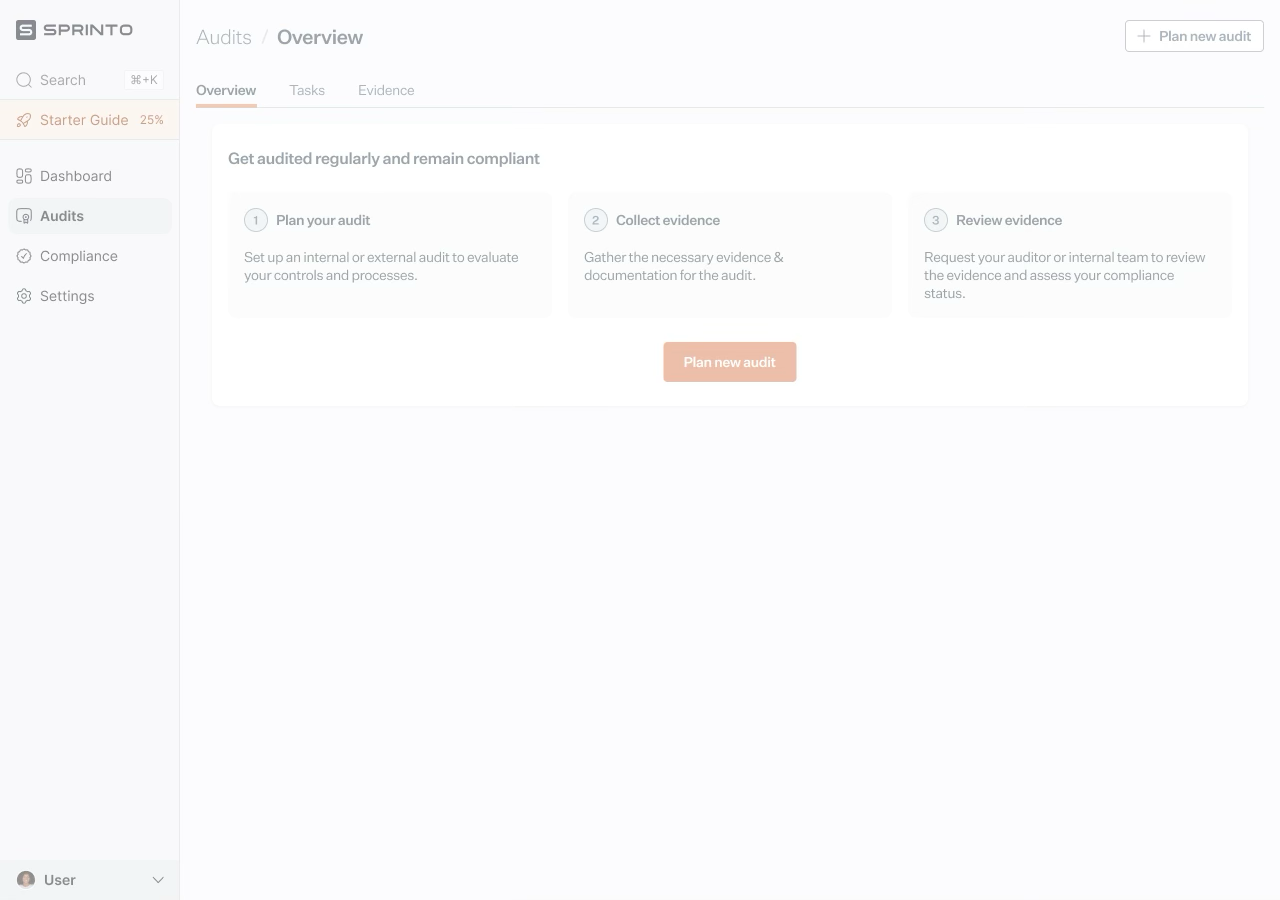
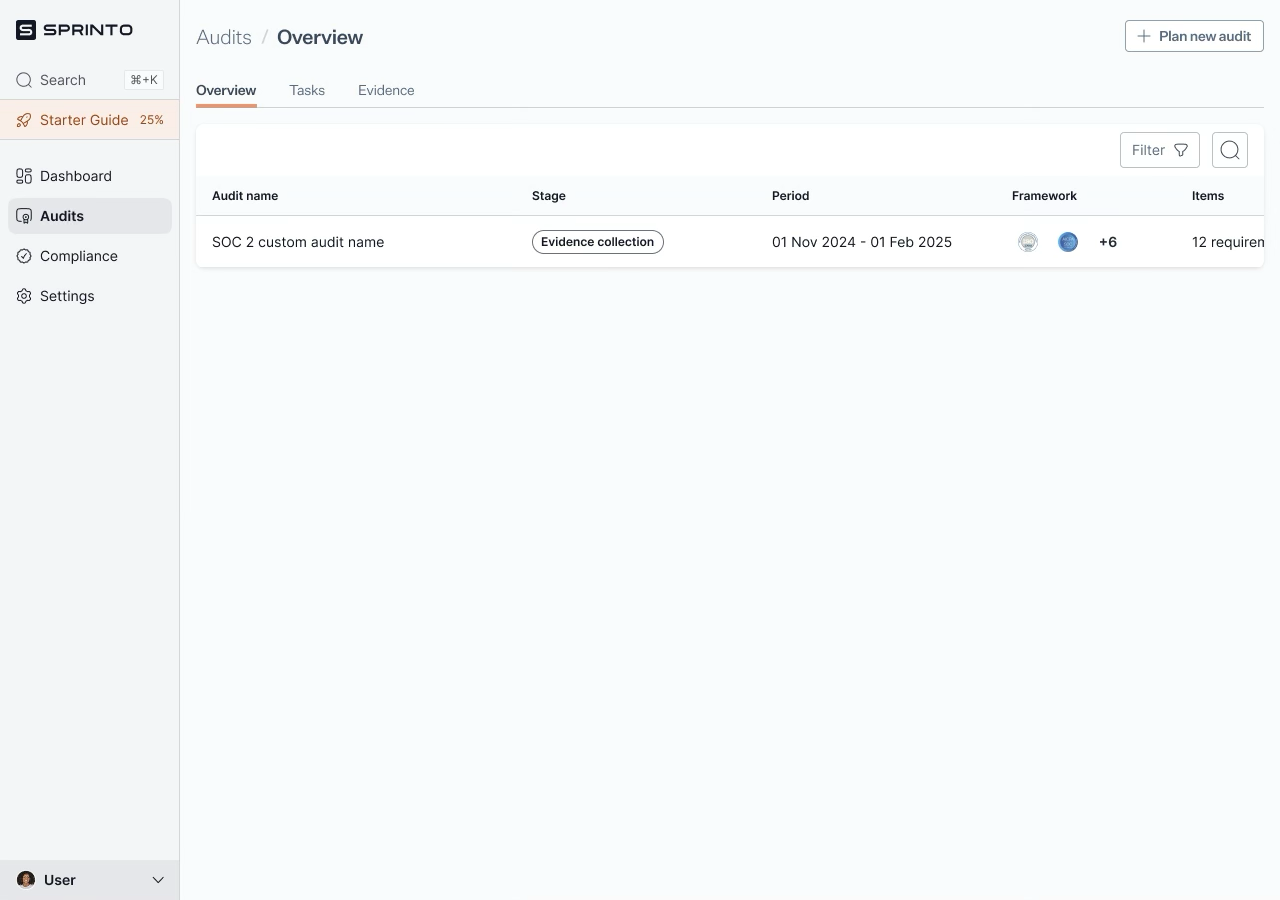
**3. Partial State**
Displayed when audits are present but lack findings/messages.
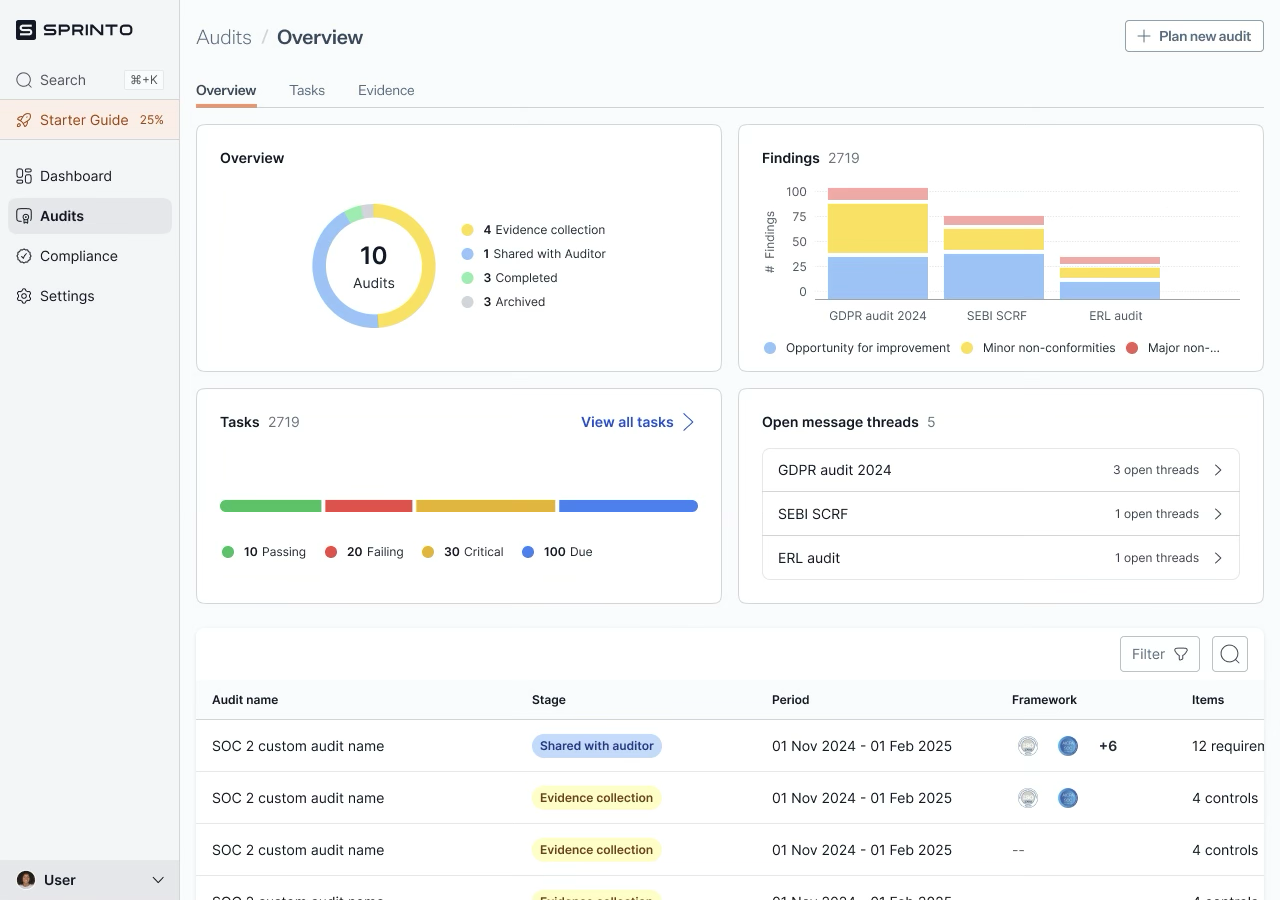
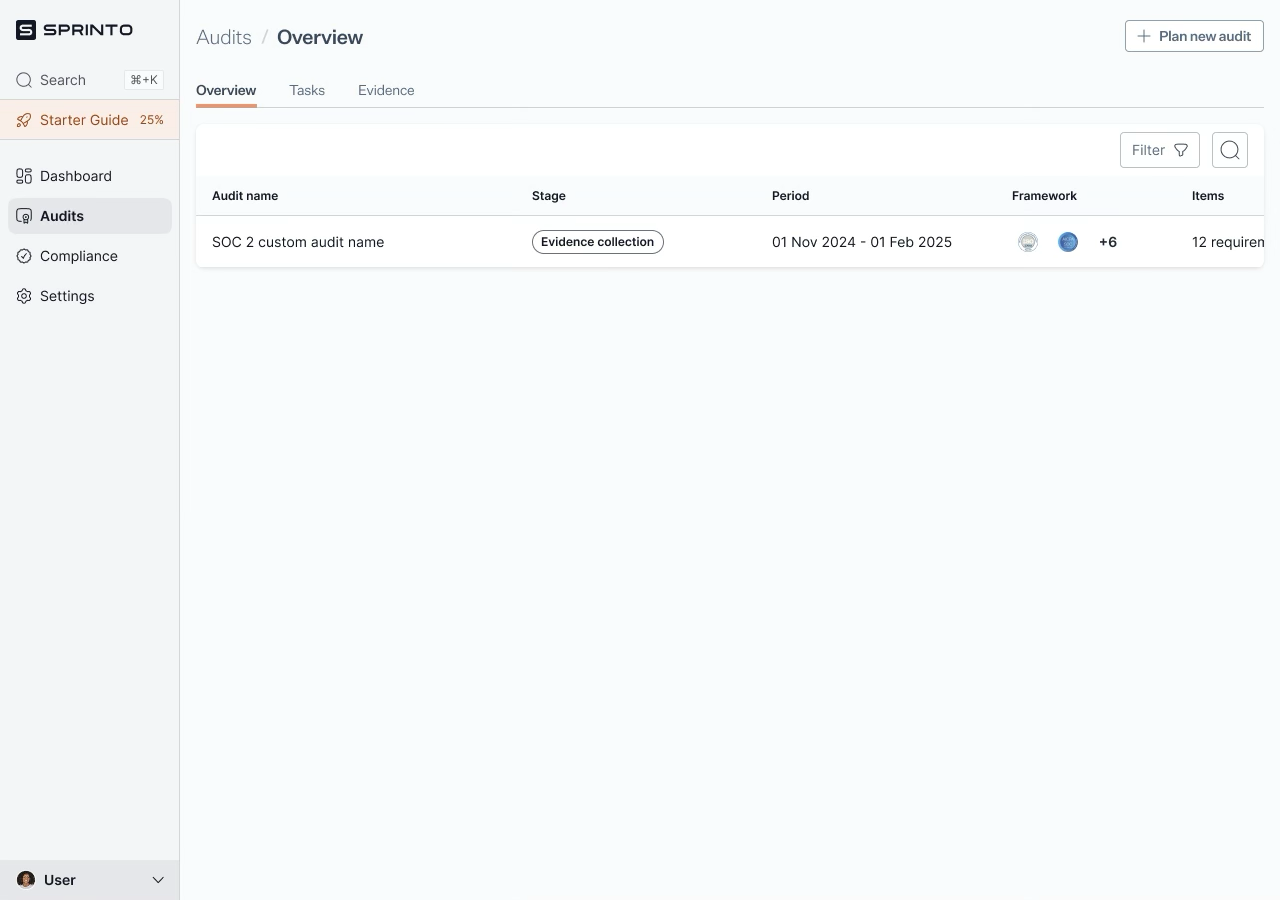
**4. Full Overview**
Displayed when audits have active tasks, messages, and findings.
**Navigate the Audit Overview**
**Audit Status Breakdown**
At the top of the Overview tab, a donut chart visualises audits by their stage: Collecting Evidence, Shared with Auditor, Completed, and Archived.
**Findings Overview**
Findings are shown by severity to identify and resolve compliance risks.
**Task Summary**
View audit tasks classified by status and examine specific tasks.
**Message Threads**
Track all open conversations with auditors from the Message Threads panel.
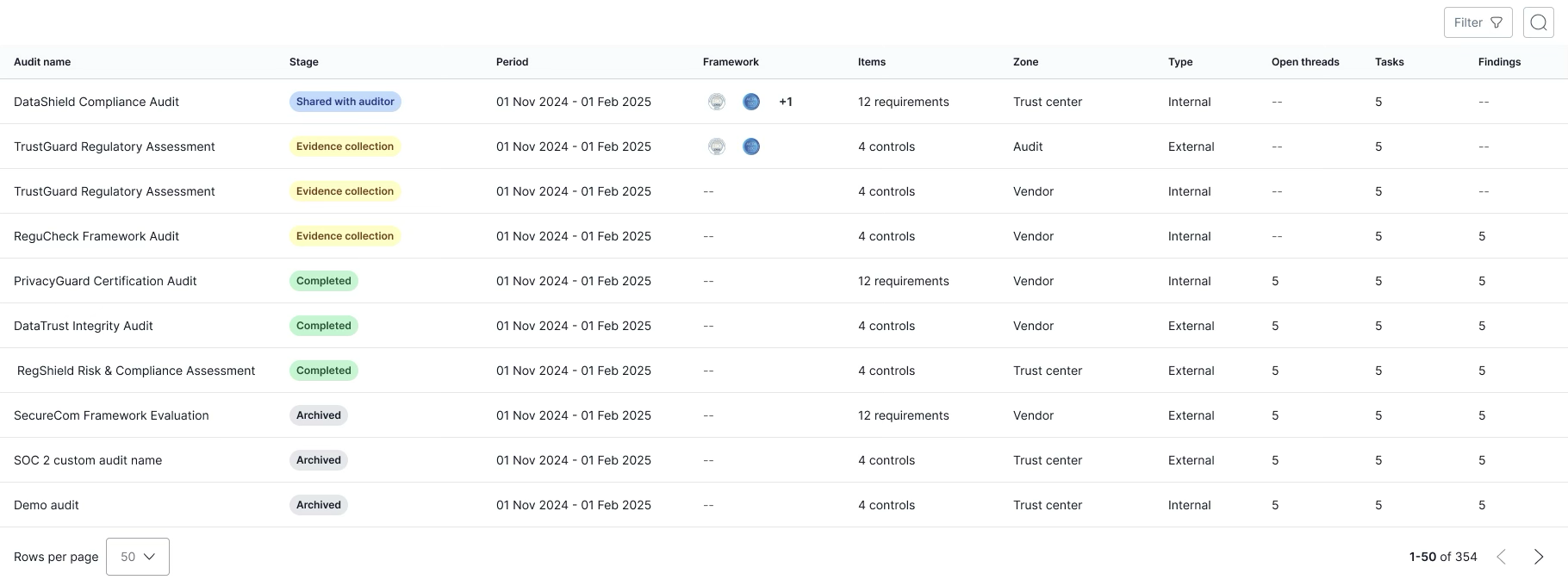
**View the List of Audits**
The bottom section contains a searchable, filterable table with metadata for each audit.
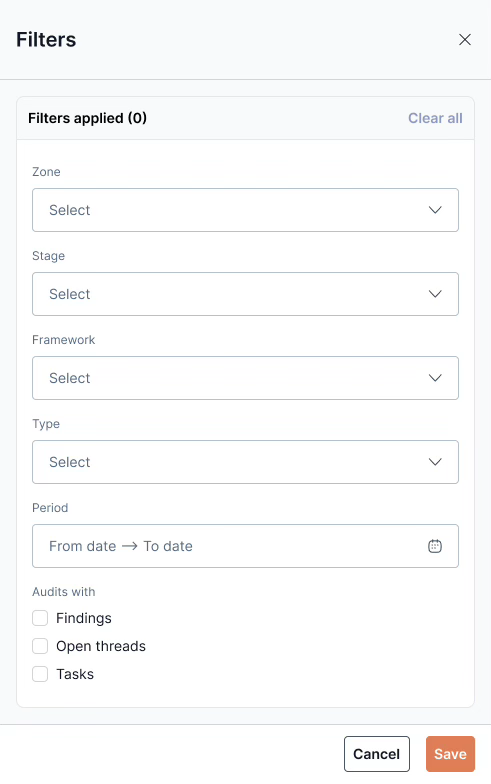
**Filters and Search**
You can refine the audit list using filters and search.
**Open Audit Details**
Click any row in the audit table to open the Audit Details view.
**Chart Visibility by Plan**
Audit overview visibility is based on your subscription plan:
---
# Agent Instructions
This documentation is published with GitBook. GitBook is the documentation platform designed so that both humans and AI agents can read, navigate, and reason over technical content effectively. Learn more at gitbook.com.
## Querying This Documentation
If you need additional information that is not directly available in this page, you can query the documentation by asking a question.
Perform an HTTP GET request on the following URL with the `ask` and `goal` query parameters:
```
GET https://docs.sprinto.com/audits/dashboard-actions/audit-dashboard-states.md?ask=&goal=
```
`ask` is the immediate question: it should be specific, self-contained, and written in natural language.
`goal` is what the user is ultimately trying to achieve, the reason they need the answer. Sharing it helps GitBook give you a better, more relevant answer. A goal is most helpful when it describes the outcome the user wants rather than restating the question. For example, with `ask=how do I create an API token`, a goal like `automate deployments from our CI pipeline` lets GitBook tailor the answer to that use case.
The response will contain a direct answer to the question and relevant excerpts and sources from the documentation.
Use this mechanism when the answer is not explicitly present in the current page, you need clarification or additional context, or you want to retrieve related documentation sections.